Telemetry Pipeline: Windows Security Events and OpenTelemetry Collector Setup
Send your domain controllers' Windows security events (4624, 4768, 4769 and more) to GraphnAI with an OpenTelemetry Collector, to confirm which access is used and to detect attacks as they happen.
On this page
- Overview
- Prerequisites
- Ingestion Methods
- Method 1: Identity Bridge (Planned)
- Method 2: OpenTelemetry Collector (Recommended, BYOT)
- Method 3: REST Endpoint (Custom Integrations)
- Authentication Options
- Method 4: Auto-Generated OTel Collector Config
- Supported Events
- Authentication
- Kerberos
- NTLM
- Privileges
- Account Management
- Group Management
- Directory Services
- Policy
- Service
- How Events Become Graph Changes
- Admin Telemetry Dashboard
- Pipeline Tab
- Events Tab
- Detection Rules Tab
- Collector Setup Tab
- Configuring Windows Audit Policy
- Recommended GPO Settings
- Applying the GPO
- Testing the Pipeline
- Step 1: Generate a Test Event
- Step 2: Verify Events Are Reaching the Platform
- Step 3: Confirm the Session Appears in the Graph
- Monitoring
- Pipeline Queue Health
- OTel Collector Health (If Using Sidecar)
- Verifying Validated Edges
- Troubleshooting
- Events reach the endpoint but nothing appears in the graph
- mTLS connection rejected (403 or TLS handshake error)
- Collected events are discarded with "another provider wrote it under this event ID"
- "telemetry queue full" errors in the server log
- Audit policy is configured but no events appear
- Kerberoasting or DCSync detection alerts not firing
- Related Features
Overview
Syncing Active Directory and Entra ID tells you what access could happen: who belongs to which groups, and which permissions are set on which objects. In Tiered Fidelity™ terms, those edges are Theoretical or Constrained. They're structurally accurate, but no real activity confirms them.
The telemetry pipeline closes that gap. It reads logon and security events from your Windows domain controllers and records the access they show as Validated. A Validated edge was observed: a user logged on to a server, a logon received special privileges, or a group membership was added in front of the collector.
With telemetry flowing, you get two more capabilities:
- Validated access: Sessions and privileges seen in real events become Validated edges. Attack path analysis and risk scoring can then tell access that's used from access that's only configured.
- Threat detection: The ITDR detection engine checks incoming events against its rules (Kerberoasting, DCSync, brute force and more). Its alerts appear on the Detection Alerts page.
Events are kept for 90 days as a searchable record of logon activity, tied to identities in the graph.
Prerequisites
- A bridge synced for the domain: At least one bridge has finished a full sync of the domain. Events attach to the identities and computers that sync created, and Collector setup only creates configs for domains a bridge syncs. See the Identity Bridge guide.
- A way to collect events: An OpenTelemetry Collector on your domain controllers (recommended, see Method 2), or a custom log shipper that posts to the REST endpoint. The bridge doesn't read event logs itself yet.
- Windows audit policy configured: Your domain controllers must write the Security event log entries GraphnAI reads. See Configuring Windows Audit Policy below.
- License: A license that includes telemetry. Without it, Admin > Telemetry shows a lock and the ingest endpoints refuse events.
- Role: Operator to view what telemetry adds to the graph. Admin to open Admin > Telemetry and create collector configs.
Ingestion Methods
GraphnAI accepts events three ways today, and a fourth is planned. You can use several at once. Every event goes through the same normalization and graph steps, however it arrives.
Method 1: Identity Bridge (Planned)
Planned: The Identity Bridge will read Windows Security event logs from your domain controllers over the connection it already uses for LDAP and SMB. It isn't available yet.
This method will need the bridge's sync account in the Event Log Readers group on your domain controllers. It will need no infrastructure beyond the bridge you already run.
Until then, use an OpenTelemetry Collector (Method 2) or the REST endpoint (Method 3) to forward events.
Method 2: OpenTelemetry Collector (Recommended, BYOT)
Deploy an OpenTelemetry Collector on each domain controller, or on a Windows Server that receives their events through Windows Event Forwarding. GraphnAI creates the collector configuration for you. See Auto-Generated Config below.
The collector reads the Security event log locally, batches the events and sends them to GraphnAI's OTLP endpoint. It authenticates with an API key (the default) or with your bridge's mTLS certificates. This is the recommended approach because:
- Bring Your Own Telemetry (BYOT): If you already run an OTel-compatible collector, you don't install anything new. Add the generated GraphnAI settings to your existing deployment.
- It filters events at the source, and sends only the security event IDs GraphnAI reads.
- It uses the standard OpenTelemetry Protocol, so it fits your existing observability tools.
- It retries and queues on its own when the server is busy or out of reach.
Compatible collectors: The generated config is standard OTel Collector YAML. It works with any collector that reads that format and includes the windowseventlog receiver. Merge its receivers, processors, exporter and pipeline into your config. Your collector keeps sending data to its original destination as it forwards security events to GraphnAI. The generated file uses common names (the batch, resource and memory_limiter processors and the logs pipeline), so rename any that your config already uses.
Collector versions: Releases of OpenTelemetry Collector Contrib before v0.148.0 send each event's fields as a list, and v0.148.0 and later send them as a map by default. GraphnAI reads both, so leave the receiver's event_data_format setting unset. From v0.150.0 the receiver is named windows_event_log, with windowseventlog kept as an alias. The v0.150.x releases don't accept that alias, so skip them. Newer collectors log a warning that windowseventlog is deprecated. The warning is expected. Keep the name, because renaming the receiver breaks collectors older than v0.150.0.
| Distribution | Vendor | Code-Signed | Config Compatible | Notes |
|---|---|---|---|---|
| Splunk Distribution of OTel Collector | Splunk | Yes | Yes (standard OTel YAML) | Add the GraphnAI config as another pipeline beside your Splunk pipelines |
| OpenTelemetry Collector Contrib | CNCF | No | Yes (standard OTel YAML) | Upstream community build. Its unsigned binary triggers SmartScreen on Windows. |
Note on other collectors: Some OTel-compatible collectors use their own configuration formats instead of standard OTel YAML. For example, Grafana Alloy has its own syntax, and Elastic Agent is managed through Fleet and Kibana. These collectors can't use the generated config directly. If you run one of them, you have two options:
- Translate the generated config into your collector's format (see your vendor's OTel compatibility documentation).
- Deploy a separate Splunk OTel Collector just for GraphnAI telemetry.
The OpenTelemetry Collector Distributions page lists every distribution.
Tip: If you need to install a collector on a domain controller, use the Splunk Distribution of OTel Collector. It's code-signed, uses standard OTel YAML and runs several pipelines out of the box. The upstream
otelcol-contribbinary works the same way but is unsigned, so Microsoft Defender SmartScreen blocks it on hardened systems.
Method 3: REST Endpoint (Custom Integrations)
The REST endpoint accepts JSON arrays of raw Windows Security event log entries. Use it for custom log shippers, scripts, SIEM forwarding rules, or anything else that can POST JSON over mTLS.
Auth: mTLS (Bridge certificate required) Limit: 10 MB per request
Each entry in the array is one Security event log record:
[
  {
    "timestamp": "2026-03-13T14:32:00Z",
    "event_id": 4624,
    "host": "DC01.corp.local",
    "source": "windows",
    "domain": "corp.local",
    "bridgeId": "prod-corp-dc01",
    "attributes": {
      "provider_name": "Microsoft-Windows-Security-Auditing",
      "TargetUserName": "john.doe",
      "LogonType": "3",
      "IpAddress": "10.0.1.42",
      "AuthenticationPackageName": "Kerberos"
    }
  }
]
The attributes map carries the raw fields from the event's XML. The names match the XML element names in the record, for example TargetUserName, LogonType and SubjectUserSid.
provider_name is required. It's the Name of the event's <Provider> element. An event ID identifies an event only together with the provider that wrote it: Windows writes a Winlogon 7001 at every logon and a Service Control Manager 7001 when a service fails, both to the System log. GraphnAI reads each supported event ID from one provider (see Supported Events):
- An entry with no
provider_nameis dropped and counted ingraphnai_legacy_telemetry_provider_missing_total. - An entry from another provider is discarded and counted in
graphnai_telemetry_events_provider_mismatch_total.
GraphnAI sets each entry's bridgeId from the certificate that authenticated the request. A different bridgeId in the body is replaced, and the request is counted in graphnai_legacy_telemetry_bridge_id_mismatch_total.
The endpoint answers HTTP 200 once it has queued the entries. When the queue is full, it answers HTTP 500 and drops the request.
Authentication Options
The telemetry ingest endpoints accept two kinds of credentials:
- API key: The default for collectors, and it spares you from distributing bridge certificates to collector hosts. The collector sends a
telemetry:writeAPI key in the request header. See the API Key Management guide for creating and managing keys. - mTLS (Bridge certificates): The client certificate from your bridge deployment bundle. Required for the REST endpoint and for the certificate-authenticated OTLP endpoint.
When you create a config on the Collector setup tab of the Admin Telemetry Dashboard, GraphnAI creates an API key and puts it in the YAML. You don't create one by hand.
Method 4: Auto-Generated OTel Collector Config
GraphnAI creates a ready-to-deploy OpenTelemetry Collector config for Windows event log collection. The config sets up the collector on your domain controller (or a Windows Server with forwarded event logs), filters for the events GraphnAI reads, and sends them to the OTLP endpoint.
The collector reads events locally through the windowseventlog receiver. That's how GraphnAI gets the Security event log, which the bridge can't reach.
To create the config, use the Collector setup tab on Admin > Telemetry (see Collector Setup Tab). The domain must be one a bridge syncs.
The generated YAML file includes:
windowseventlog/securityreceiver: Reads the Security log every second, filtered to the event IDs GraphnAI reads and written by Security auditing (Microsoft-Windows-Security-Auditing). It also drops events whose subject is SYSTEM, LOCAL SERVICE, NETWORK SERVICE or ANONYMOUS LOGON before they leave the domain controller. Logon, logoff, audit policy and NTLM validation events are kept, because their subject is always the system process that logged them.windowseventlog/systemreceiver: Reads the System log every 5 seconds for service installs (7045) and service failures (7000, 7001, 7034, 7038) written by the Service Control Manager. Other providers write the same IDs to the System log, so the query names the provider.windowseventlog/ntlmreceiver: Reads NTLM audit events (8004) from theMicrosoft-Windows-NTLM/Operationallog every 5 seconds. That log fills only after you turn on NTLM auditing (see Configuring Windows Audit Policy).- Batch processor: Sends events in batches of 100 (500 at most), with a 5-second flush timeout.
- Resource processor: Adds your bridge ID and domain name as resource attributes.
- Memory limiter: Caps collector memory at 256 MB.
- OTLP/HTTP exporter (
otlphttp/graphnai): Sends events to GraphnAI with the API key. It retries failures (first after 5 seconds, giving up after 5 minutes) and queues up to 1,000 batches. - Health check extension: Answers on port 13133.
Deploy the generated config on a Windows domain controller, or a Windows Server that can read the Security event log you want to collect.
Important: The
windowseventlogreceiver isn't in the OTel Collector core distribution. Use a distribution that includes it. See the compatible collectors table above.
If you already run a compatible collector (Splunk OTel or otelcol-contrib): Merge the generated receivers, processors, exporter and pipeline into your existing config file. Rename batch, resource, memory_limiter or the logs pipeline if your config already has one of those names. Your collector keeps sending data to its original destination as it forwards security events to GraphnAI.
If you need to install a collector: Install the Splunk Distribution of OpenTelemetry Collector (code-signed, standard OTel YAML config). Then load the generated config:
# Merge the generated config into your Splunk OTel Collector config
# Default location: C:\ProgramData\Splunk\OpenTelemetry Collector\agent_config.yaml
# Add the GraphnAI receivers, processors, exporters, and pipeline sections
# Then restart the service:
Restart-Service "splunk-otel-collector"
What the configuration collects: the 36 Windows event types GraphnAI analyzes, listed under Supported Events, and nothing else.
OTLP endpoint details: A config from Collector setup sends events to GraphnAI's OTLP/HTTP endpoint in JSON format, with its API key. A config built for bridge certificates sends to the certificate-authenticated OTLP endpoint instead. If you already run an OpenTelemetry Collector for other purposes, add GraphnAI as another exporter: point an otlphttp exporter at your GraphnAI server, with the API key or the bridge's mTLS certificates.
Resource-level attributes identify the source bridge and domain:
| Resource Attribute | Purpose | Example |
|---|---|---|
graphnai.bridge_id |
Advisory label only (see the note below) | prod-corp-dc01 |
graphnai.domain |
The source domain. Required, and it must match the API key's domain, or a domain that the certificate's bridge syncs. | corp.local |
host.name or host.hostname |
Names the host for events that don't name their own computer | DC01.corp.local |
GraphnAI sets the bridge ID. It stamps each event's bridge ID from the credential that authenticated the request: the API key's own identity on the API key endpoint, or the client certificate on the mTLS endpoint. It ignores graphnai.bridge_id, so a collector can't attribute its events to another collector's bridge. When the attribute names something other than the credential, GraphnAI drops the attribute and counts it in graphnai_telemetry_otlp_bridge_id_rejected_total. The events are still accepted and stored. Configs from Collector setup don't set the attribute. A collector deployed from an older config still sends the placeholder ui-generated, which GraphnAI ignores without counting it. A request with no recognized credential is refused. A request whose graphnai.domain is missing or doesn't match its credential is refused with HTTP 403 "Domain mismatch".
Each event is attributed to the computer that logged it. A Windows event records its own computer (the computer field the collector reads from the event), and that name wins over host.name. host.name describes the collector, which is the same machine only when a collector runs on every host. A central collector (fed by Windows Event Forwarding, or a gateway that stamps its own host.name) still has each logon, special privilege and user right land on the computer where it happened. GraphnAI uses host.name only for an event that carries no computer of its own. Each record whose computer differs from host.name is counted in graphnai_telemetry_otlp_host_origin_differs_total. A steady count is normal for a central collector. On a collector that runs on each host, it means host.name no longer matches the machine.
Supported Events
The generated configuration collects the following 36 Windows event log entries. GraphnAI normalizes every one of them.
Each event ID is read from one provider, the one that writes the event described here: Security auditing (Microsoft-Windows-Security-Auditing) for the Security log events, the Service Control Manager (Service Control Manager) for 7045 and the service failures, and Netlogon (Microsoft-Windows-Security-Netlogon) for 8004. An event another provider writes under the same ID is discarded.
Authentication
| Event ID | Microsoft event name | What It Produces |
|---|---|---|
| 4624 | An account was successfully logged on | A HasSession edge (user → computer) at Validated, and a session history record. It records the logon type and, for Remote Desktop, whether Restricted Admin mode was used. Together they say whether the logon left a reusable credential on the computer. Unlocks (logon type 7) aren't recorded. |
| 4625 | An account failed to log on | Updates the target identity's failed logon counts. Feeds the brute force and password spray rules. |
| 4634 | An account was logged off | Recorded in the session history. It removes no edge: a logoff doesn't end a credential exposure. |
| 4648 | A logon was attempted using explicit credentials (RunAs) | Stored for detection and investigation. The paired 4624 creates the session. |
Kerberos
| Event ID | Description | What It Produces |
|---|---|---|
| 4768 | A Kerberos authentication ticket (TGT) was requested | Updates the identity's last activity. Feeds the AS-REP Roasting and Golden Ticket rules. |
| 4769 | A Kerberos service ticket was requested | Updates the identity's last activity. Feeds the Kerberoasting rule. |
| 4771 | Kerberos pre-authentication failed | Feeds the brute force rule. |
NTLM
| Event ID | Description | What It Produces |
|---|---|---|
| 4776 | The computer attempted to validate the credentials for an account (NTLM) | Stored for detection and investigation. Failures feed the brute force rule. |
| 8004 | NTLM audit | Stored for investigation. Needs NTLM auditing turned on. |
Privileges
| Event ID | Description | What It Produces |
|---|---|---|
| 4672 | Special privileges assigned to new logon | A HasPrivilege edge (account → computer) that records the privileges the logon received, by kind of logon. The edge becomes Validated. |
| 4704 | A user right was assigned | Adds the privilege to the account's HasPrivilege edge on the computer |
| 4705 | A user right was removed | Removes the privilege from the account's HasPrivilege edge on the computer |
Account Management
| Event ID | Microsoft event name | What It Produces |
|---|---|---|
| 4720 | A user account was created | Stored for investigation. The account appears at the next sync. |
| 4722 | A user account was enabled | Releases the account's dormant sessions. Feeds the account manipulation rule. |
| 4724 | An attempt was made to reset an account's password | Stored for investigation. Feeds the account manipulation rule. Counts as a use of ForceChangePassword and the permissions that include it. |
| 4725 | A user account was disabled | Marks the account's sessions dormant |
| 4726 | A user account was deleted | Stored for investigation. The account is removed at the next sync. |
| 4738 | A user account was changed | Stored for investigation. The changes arrive with the next sync. |
| 4740 | A user account was locked out | Sets the account's locked-out flag |
Group Management
| Event ID | Description | What It Produces |
|---|---|---|
| 4728 | A member was added to a security-enabled global group | Makes the existing MemberOf edge Validated. Feeds the Tier 0 group change rule. Counts as a use of AddMember and the permissions that include it. |
| 4729 | A member was removed from a security-enabled global group | Stored for investigation. The next sync removes the membership. Counts as a use of AddMember and the permissions that include it. |
| 4732 | A member was added to a security-enabled local group | Makes the existing MemberOf edge Validated. Feeds the Tier 0 group change rule. Counts as a use of AddMember and the permissions that include it. |
| 4733 | A member was removed from a security-enabled local group | Stored for investigation. The next sync removes the membership. Counts as a use of AddMember and the permissions that include it. |
| 4756 | A member was added to a security-enabled universal group | Makes the existing MemberOf edge Validated. Feeds the Tier 0 group change rule. Counts as a use of AddMember and the permissions that include it. |
| 4757 | A member was removed from a security-enabled universal group | Stored for investigation. The next sync removes the membership. Counts as a use of AddMember and the permissions that include it. |
A group event never creates or removes a membership itself. Memberships come from the directory sync.
Events 4724, 4728, 4729, 4732, 4733, 4756, 4757, 4662 and 5136 also feed permission-use evidence. See Permission-Use Evidence.
Directory Services
| Event ID | Description | What It Produces |
|---|---|---|
| 4662 | An operation was performed on an object | Counts a use of the permission it exercised. An ACL permission edge becomes Validated when every permission on it has been seen in use. The replication rights (Replicating Directory Changes and Replicating Directory Changes All) feed the DCSync rule. |
| 5136 | A directory service object was modified | Stored for investigation timelines. Counts as a use of the permission the changed attribute exercises. The change reaches the graph at the next sync. |
Policy
| Event ID | Description | What It Produces |
|---|---|---|
| 4719 | System audit policy was changed | Feeds the audit tampering rule |
| 4706 | A new trust was created to a domain | Feeds the trust manipulation rule |
| 4707 | A trust to a domain was removed | Feeds the trust manipulation rule |
| 4716 | Trusted domain information was modified | Feeds the trust manipulation rule |
Service
| Event ID | Description | What It Produces |
|---|---|---|
| 7045 | A service was installed in the system | Stored for investigation. A new service is a common way to persist during lateral movement. |
| 7000, 7001, 7034, 7038 | A service failed to start, a service it depends on failed to start, a service terminated unexpectedly, a service couldn't log on as its account | Counted as failed services by a rollback watch after an automatic action |
How Events Become Graph Changes
When GraphnAI receives a telemetry event, the event passes through four stages before anything appears in the graph:
1. Normalization: The raw event, from the REST endpoint or OTLP, is matched to a handler for its event ID and provider. The handler pulls out the fields that matter: who acted (TargetUserName, SubjectUserName), on which host, and with which protocol. It produces a normalized record with the same structure whatever the source format. A field that holds a credential or key is removed before the event is stored.
2. Identity resolution: The event's subject and target (account names, SIDs, computer names) are matched to identities in the graph. Accounts match by SID first, then by domain and account name. Computers match by host name. If a logon names john.doe and a matching identity exists from a directory sync, the event is tied to that identity. An event that matches nothing is still stored in the event log, but it changes nothing in the graph.
3. Graph actions: The event type and outcome decide what changes:
- Create an edge: A successful logon creates a
HasSessionedge from the user to the computer, at Validated. A special-privileges event (4672) or a user right assignment (4704) records the privileges on aHasPrivilegeedge. - Raise fidelity to Validated: An event raises the edge it proves. A special-privileges event raises that account's
HasPrivilegeedge on the computer, and an observed group addition raises the existingMemberOfedge. A logon doesn't raise the identity'sMemberOforHasPermissionedges, because it doesn't show which grant it used. - Update the identity: Kerberos events update the identity's last activity, a lockout sets the locked-out flag, and a failed logon updates the failed logon counts. Disabling an account marks its sessions dormant, and enabling it releases them.
- Remove: A user right removal (4705) removes the privilege from the
HasPrivilegeedge. A logoff removes nothing, because the identity may log on there again. A group removal changes nothing until the next sync removes the membership.
4. ITDR detection: The batch goes to the detection engine, which checks it against every active rule. Matches become alerts on the Detection Alerts page. See ITDR Detection.
The whole pipeline, from receipt to graph update, takes under a second at typical volumes. Batches flush every second, or when 100 events are waiting, whichever comes first.
Admin Telemetry Dashboard
Requires role: Admin
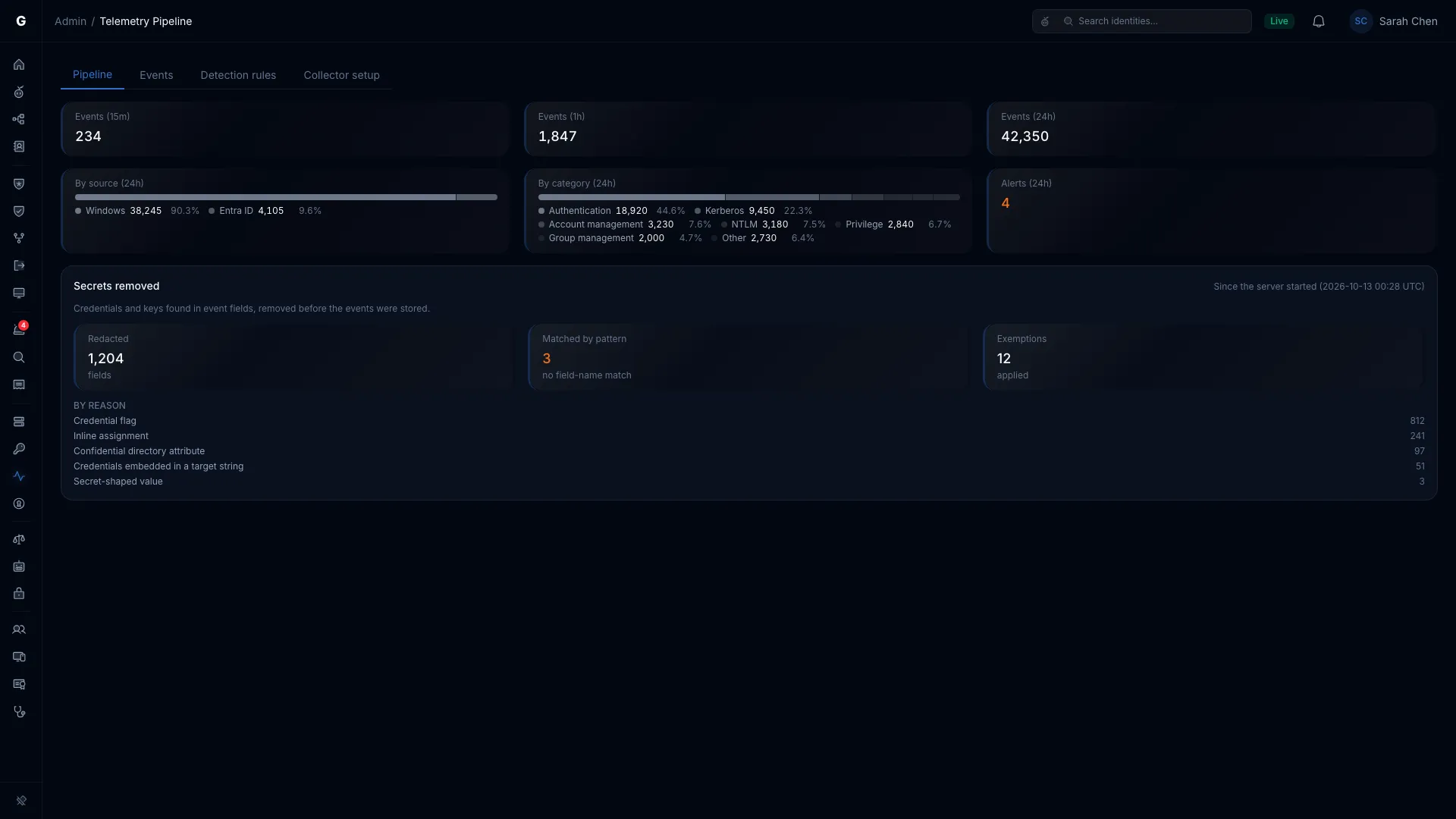
Select Admin > Telemetry in the sidebar. The page has four tabs: Pipeline to monitor the pipeline, Events to browse events, Detection rules to review the rules, and Collector setup to create collector configs.
Pipeline Tab
The Pipeline tab opens first. It summarizes telemetry activity over three time windows, with breakdowns below.
Event count summary cards:
| Card | Description |
|---|---|
| Events (15m) | Normalized events received in the last 15 minutes |
| Events (1h) | Normalized events received in the last hour |
| Events (24h) | Normalized events received in the last 24 hours |
Breakdown cards:
- By source (24h): A bar that splits the day's events by source. Only Windows events arrive today.
- By category (24h): A bar that splits the day's events by category, such as Authentication, Account management or Kerberos, in up to 7 parts. A missing category can point to a gap: no Kerberos events may mean Kerberos auditing is off.
- Alerts (24h): Detection alerts raised in the last 24 hours, highlighted when there are any.
Secrets removed: This card counts, since the server started, the event fields GraphnAI removed before storage because they held a credential or key. It shows Redacted fields, Matched by pattern (removed by the value's shape, with no field-name match) and Exemptions applied, then a breakdown By reason. While the telemetry receiver isn't running, each count shows a dash.
Empty state: With no events in the last hour or 24 hours, the tab reads "No events in the last 24 hours" and points you to the Collector setup tab.
Events Tab
The Events tab is an event browser, filtered and paged on the server. Use it to look up specific logon events, trace an identity's activity, or check that an event type arrives.
Table columns:
| Column | Description |
|---|---|
| Time | When the event happened, in your local time |
| Source | Where the event came from, for example Windows |
| Category | Authentication, Account management, Group management, Privilege and so on |
| Action | What happened, in words, for example "Network logon (type 3)" or "Added to group" |
| Subject | The identity that acted |
| Target | The identity or resource acted on, when there is one |
| Outcome | Success (green) or Failure (red) |
| Severity | A badge, for events of low severity or higher |
Filters: The toolbar above the table has four filters. Changing one reloads the table from the first page.
- Source: All sources, Windows, Entra ID, Okta, AWS, Linux or macOS.
- Category: All categories, Authentication, Account management, Group management, Privilege, Directory, Kerberos, NTLM, Policy or Service.
- Range: Last hour, Last 24 hours (default), Last 7 days or Last 30 days.
- Subject search: Matches any part of the subject, ignoring case.
Pagination: The table shows 50 events per page. When more match, Previous and Next appear below it, with a count such as "51–100 of 1,234".
Event details: Select a row to open Event details, "What GraphnAI stored for this event". It lists:
- The core fields: Time, Source, Category, Action, Severity, Subject, Target, Source host, Target host, Protocol, Outcome, Event ID, Domain and Bridge ID.
- Attributes: The original fields from the source event, for example the Windows event XML fields
TargetUserSid,LogonTypeandAuthenticationPackageName.
A value that held a credential shows a Redacted badge instead of its content.
Detection Rules Tab
The Detection rules tab lists every ITDR detection rule. The detection engine checks incoming events against the active ones (see How Events Become Graph Changes above). Withdrawn rules are greyed out.
Table columns:
| Column | Description |
|---|---|
| Rule | The rule's name, for example "Brute force" |
| Status | Active, or Withdrawn with the reason in a tooltip |
| Description | What the rule detects |
| Severity | A colored badge: CRITICAL, HIGH or MEDIUM |
| MITRE | The MITRE ATT&CK ID, linked to the ATT&CK website |
| Window | How long the rule correlates events, for example "5 minutes". An "Immediate" rule fires on a single event. |
| Threshold | How many matching events, accounts or hosts fire the rule |
Active rules:
| Rule | Severity | MITRE ATT&CK | Window | Threshold |
|---|---|---|---|---|
| Brute force | High | T1110.001 | 5 minutes | 10 failed logons to one account |
| Password spray | High | T1110.003 | 10 minutes | 5 accounts from one source host |
| Kerberoasting | Critical | T1558.003 | 1 minute | 3 RC4 service tickets from one account |
| DCSync | Critical | T1003.006 | 1 minute | 1 directory replication |
| Tier 0 group change | Critical | T1098 | Immediate | 1 member added to a Tier 0 group |
| Audit tampering | Critical, or Low when every change turns auditing on | T1562.002 | Immediate | 1 audit policy change |
| AS-REP Roasting | Critical | T1558.004 | 1 minute | 3 accounts from one source |
| Golden Ticket | Critical | T1558.001 | Immediate | 1 RC4-encrypted TGT |
| Lateral movement | High | T1021 | 4 hours | 3 hosts in a chain of network logons (type 3) |
| Account manipulation | High | T1098 | Immediate | 1 password reset or enable by another account |
| Trust manipulation | Critical | T1484.002 | Immediate | 1 trust change |
| Unusual logon hour | Medium | T1078 | Immediate | 1 logon outside the identity's typical hours |
| Unusual source host | Medium | T1078 | Immediate | 1 logon from an unusual host |
| Unusual authentication protocol | Medium | T1550.002 | Immediate | 1 authentication with a rarely used protocol |
The tab also lists the withdrawn Pass-the-Hash and SID history injection rules. ITDR Detection describes every rule. Their alerts appear on the Detection Alerts page.
Collector Setup Tab
The Collector setup tab creates a ready-to-deploy OpenTelemetry Collector config. This is the recommended way to set up event forwarding: the YAML comes with authentication, filtering and batching already set.
Form fields:
| Field | Description | Default |
|---|---|---|
| Server address | The address collectors send events to. Usually this page's address. | This page's address |
| Domain | The AD domain to collect events for, for example corp.example.com. It must be a domain a bridge syncs. |
Required |
Note: The form notes that the config collects only the 36 Windows event types GraphnAI analyzes. See Supported Events for the list.
API key creation: When you select Create config, GraphnAI:
- Creates a
telemetry:writeAPI key for the domain, labeled "OTel Collector - " and the domain name. - Revokes any earlier key created this way for the same domain, so no old keys are left behind.
- Puts the new key in the generated YAML.
An API key created banner shows the key's prefix. The full key exists only in the YAML and you can't see it again, so save the config right away. When the new key replaces an earlier one, the banner says so: collectors on the old config stop sending until you deploy the new one. Manage keys on the API Key Management page.
The generated config appears below the form, under its file name: otel-collector- and the domain with its dots turned into dashes, for example otel-collector-corp-example-com.yaml. Beside the name:
- Copy config copies the YAML to the clipboard.
- Download config saves it as a file.
The config holds every component described in Method 4: Auto-Generated OTel Collector Config: the windowseventlog receivers, the batch and resource processors, the memory limiter, and the OTLP/HTTP exporter with its retries and send queue.
Compatible collectors are listed under the form: the Splunk OTel Collector (signed, and recommended for domain controllers) and otelcol-contrib (upstream and unsigned, so SmartScreen may block it).
If GraphnAI refuses the request, the reason appears under the form. For example: "corp.example.com isn't a domain GraphnAI syncs. Choose one of: corp.local." Or, before any bridge exists: "No domain is set up yet. Add a bridge for this domain, then create the collector config."
Configuring Windows Audit Policy
For GraphnAI to receive the events listed above, turn on audit policy on your domain controllers. The recommended way is a Group Policy Object (GPO) linked to the Domain Controllers OU.
Recommended GPO Settings
Navigate to: Computer Configuration > Policies > Windows Settings > Security Settings > Advanced Audit Policy Configuration > Audit Policies
| Subcategory | Setting | Events GraphnAI Reads |
|---|---|---|
| Account Logon > Audit Credential Validation | Success, Failure | 4776 |
| Account Logon > Audit Kerberos Authentication Service | Success, Failure | 4768, 4771 |
| Account Logon > Audit Kerberos Service Ticket Operations | Success, Failure | 4769 |
| Logon/Logoff > Audit Logon | Success, Failure | 4624, 4625, 4648 |
| Logon/Logoff > Audit Logoff | Success | 4634 |
| Logon/Logoff > Audit Special Logon | Success | 4672 |
| Account Management > Audit User Account Management | Success, Failure | 4720, 4722, 4724, 4725, 4726, 4738, 4740 |
| Account Management > Audit Security Group Management | Success | 4728, 4729, 4732, 4733, 4756, 4757 |
| DS Access > Audit Directory Service Access | Success, Failure | 4662 |
| DS Access > Audit Directory Service Changes | Success | 5136 |
| Policy Change > Audit Audit Policy Change | Success | 4719 |
| Policy Change > Audit Authorization Policy Change | Success | 4704, 4705 |
| Policy Change > Audit Authentication Policy Change | Success | 4706, 4707, 4716 |
For events 7045, 7000, 7001, 7034 and 7038 (services): The Service Control Manager writes these to the System event log. They need no audit policy.
For event 8004 (NTLM audit): Set Computer Configuration > Policies > Windows Settings > Security Settings > Local Policies > Security Options > Network security: Restrict NTLM: Audit NTLM authentication in this domain to Enable all on your domain controllers. Event 8004 then appears in the Microsoft-Windows-NTLM/Operational log.
Audit Authorization Policy Change also logs event 4703 (a token right was adjusted), which is frequent on busy servers. The collector doesn't forward it: GraphnAI reads only 4704 and 4705 from this subcategory. To see rights granted and removed in a computer's local security policy, turn this subcategory on for every computer you collect from, not only domain controllers.
Applying the GPO
- Open Group Policy Management on a domain controller or management workstation.
- Create a GPO (for example,
GraphnAI Security Audit Policy), or edit your existing security baseline GPO. - Link the GPO to the Domain Controllers OU.
- Configure the subcategories listed above.
- Run
gpupdate /forceon the domain controllers to apply it now, or wait for the background refresh (every 5 minutes on domain controllers).
To check that the policy applied, run this on a domain controller:
auditpol /get /category:*The subcategories should show Success or Success and Failure in the Inclusion Setting column.
[!TIP] Start with the Logon/Logoff and Account Logon subcategories. They produce the sessions that become Validated edges. Add directory service auditing once the basic pipeline works.
[!IMPORTANT] Audit logging increases the event log volume on domain controllers. Watch your Security event log size, and make sure the log overwrites as needed or that your archiving policy can handle the extra volume.
Testing the Pipeline
Before you rely on the pipeline in production, check that events flow from your domain controllers to the graph.
Step 1: Generate a Test Event
Log on to any domain-joined workstation with a domain account. The domain controller that handles the logon logs Kerberos events for it, and usually a network logon (type 3, event 4624) when the workstation reads Group Policy.
Or run runas on a domain controller. It logs an explicit-credential event (4648) and a logon (4624) there:
runas /user:corp\testuser cmd.exeStep 2: Verify Events Are Reaching the Platform
After you generate test events, open Admin > Telemetry. The Pipeline tab's 15-minute and 1-hour counts should rise. On the Events tab, search by subject for your test user to find the event itself.
Step 3: Confirm the Session Appears in the Graph
- Sign in to GraphnAI with an Operator or Admin account.
- Select Graph Explorer in the sidebar.
- Search for the user who logged on (for example,
john.doe). - Focus on the user node.
- Look for a
HasSessionedge from the user to the computer that logged the logon (for example,DC01).
The session appears within a few seconds of the event arriving, as long as the user and the computer both exist in the graph from a directory sync. It's Validated from the start. The user's MemberOf and HasPermission edges keep their fidelity, because a logon doesn't show which grant it used.
Monitoring
Pipeline Queue Health
The pipeline holds incoming batches in a queue. It holds 1,000 batches by default, and your administrator can set its size from 100 to 100,000. When the queue is full, GraphnAI refuses the request with HTTP 500 and drops its events. In normal operation, the queue stays near empty.
You can check pipeline health through the Prometheus metrics endpoint (/metrics). It needs network access to the server, and no GraphnAI sign-in. Key metrics to watch:
| Metric | Description | Normal Range |
|---|---|---|
graphnai_telemetry_events_ingested_total |
Events accepted by the pipeline since startup | Rising steadily |
graphnai_telemetry_flush_duration_seconds |
Time per batch flush | Under 5 seconds |
graphnai_telemetry_edges_promoted_total |
Edges raised to Validated | Rising with logon activity |
graphnai_telemetry_events_dropped_total |
Events dropped because the queue was full | 0 |
graphnai_telemetry_events_provider_mismatch_total |
Events discarded because a provider other than the one a supported event ID is read from wrote them (reason="other_provider"), or because the record didn't name its provider (reason="provider_missing") |
0 once every collector runs a current config |
graphnai_telemetry_otlp_bridge_id_rejected_total |
OTLP batches whose graphnai.bridge_id didn't match their credential |
Should stay at zero. A rise means a collector's config names a different bridge than its credential |
graphnai_telemetry_otlp_host_origin_differs_total |
Records whose own computer differs from their collector's host.name |
Steady for a central collector. 0 for a collector on each host. |
OTel Collector Health (If Using Sidecar)
The generated config includes a health check extension on port 13133. Check it from the domain controller:
Invoke-WebRequest -Uri http://localhost:13133 -UseBasicParsingA 200 OK response means the collector is running. Check the collector's log for export errors. Where the log lives depends on the distribution: the Windows Event Log, journald, or a file in the collector's install folder. Look for lines containing "error" in the exporter output:
"connection refused"or"tls: certificate": The collector can't reach GraphnAI's OTLP endpoint, or doesn't trust its certificate. Check the server address and network path, and for mTLS the bridge certificate paths.- HTTP 401: The API key was revoked, for example because a newer config for the same domain replaced it. Deploy the newest config.
- HTTP 403:
graphnai.domaindoesn't match the API key's domain or the bridge's domains.
Verifying Validated Edges
Graph Explorer marks each edge's fidelity (see the Tiered Fidelity™ legend), so Validated edges look different from Theoretical and Constrained ones. After telemetry starts flowing:
- Focus on an identity that logged on recently.
- Its
HasSessionedges show Validated from the start. - After a privileged logon (4672), its
HasPrivilegeedge to that computer shows Validated. - After a group addition is logged (4728, 4732 or 4756), that
MemberOfedge shows Validated.
If nothing appears after confirmed logons, the event probably doesn't name the identity the way the graph holds it. See Troubleshooting below.
Troubleshooting
Events reach the endpoint but nothing appears in the graph
Cause: The account or computer in the event couldn't be matched to an identity in the graph.
Solution:
- Confirm the domain has finished at least one full sync. The user and computer must exist before telemetry can connect them. Check the sync history on the bridge's page.
- Check how the event names the account. GraphnAI matches by SID first, then by domain and account name (
DOMAIN\name). It doesn't guess: an account that matches nothing, or matches two identities, stays unmatched. - Check the computer name. The event's computer (or
host.name, when the event names none) must match a computer in the graph by its DNS host name or its name.
mTLS connection rejected (403 or TLS handshake error)
Cause: The client certificate isn't a valid bridge certificate from GraphnAI's certificate authority, or the payload's domain isn't one the bridge syncs.
Solution:
- Use the
cert.pemandkey.pemfiles from the bridge bundle you downloaded from GraphnAI. A self-signed or enterprise-issued certificate won't work. - Trust the
ca.crtfrom the bridge bundle, which belongs to GraphnAI's internal certificate authority. Your enterprise certificate authority doesn't vouch for bridge certificates. - If the bundle is old, check whether its certificate has expired. Bridge certificates are valid for several years, but a bundle downloaded years ago may need replacing. Ask an Admin to download a new bundle.
- A 403 "Domain mismatch" means
graphnai.domainnames a domain this bridge doesn't sync.
Collected events are discarded with "another provider wrote it under this event ID"
Cause: The collector forwards an event under a supported event ID that a different provider wrote. A collector config created before the query named each event's provider selects the System log IDs from every provider. It then forwards the Winlogon 7001 that Windows writes at every logon. GraphnAI discards those events instead of storing logons as service failures.
Solution:
- Check
graphnai_telemetry_events_provider_mismatch_total. Ifreason="other_provider"is climbing withevent_id="7001", the collector runs an older config. - Create the collector config again and redeploy it. The new query selects each event from its own provider, and the counter stops climbing.
reason="provider_missing"(the server log says the record doesn't name its provider) means a custom producer isn't sendingprovider_name. Add it to each entry's attributes (see Method 3).
"telemetry queue full" errors in the server log
Cause: GraphnAI receives events faster than it can process them. This usually means a burst of events (for example, a mass logon at a shift change) or slow graph writes. The request is refused with HTTP 500 and its events are dropped. An OpenTelemetry Collector treats HTTP 500 as final, so it doesn't resend the batch.
Solution:
- Check the
graphnai_telemetry_flush_duration_secondsmetric. If flushes take more than 5 seconds, the database may be under load. - If the condition persists, ask your administrator to raise the telemetry queue size, or slow the collector's polling (
poll_intervalfrom 1s to 5s) to smooth the event rate. - The queue recovers on its own once the burst passes. Only the requests refused while it was full are lost, and
graphnai_telemetry_events_dropped_totalcounts their events.
Audit policy is configured but no events appear
Cause: The GPO may not have applied to the domain controllers, or the event log isn't being read.
Solution:
- Run
auditpol /get /category:*on a domain controller and check that the subcategories show the expected inclusion settings. - Log on, then check whether event 4624 appears in the domain controller's Security event log:
Get-WinEvent -LogName Security -MaxEvents 10 | Where-Object Id -eq 4624 - If events appear in the local event log but don't reach GraphnAI, the audit policy works. Look at the forwarding path (the collector).
Kerberoasting or DCSync detection alerts not firing
Cause: The rules need specific events with specific content. Kerberoasting reads 4769 events for RC4 tickets (0x17), so AES tickets don't trip it. DCSync reads 4662 events that carry both replication rights.
Solution:
- Check that events 4769 and 4662 arrive. On the Events tab of Admin > Telemetry, filter by the Kerberos or Directory category, or send a test event as shown in Testing the Pipeline.
- Make sure Directory Service Access auditing (4662) is on for Success. It's a common gap because it logs a lot of events, so watch the Security log size after you turn it on.
- Every active rule always runs. There's no switch per rule, and the Detection rules tab lists them all. While the license is read-only, detection stops.
Related Features
- Detection Alerts: Detection alerts raised from telemetry events appear here, including Kerberoasting attempts, Tier 0 group changes and lateral movement.
- Risk Posture Dashboard: An identity's open alerts count toward its risk score, and the Alert severity card opens Detection Alerts.
- Cross-Tier Credential Exposure: Validated sessions of Tier 0 identities, on computers where lower-tier accounts hold credential theft privileges, become Critical posture findings.
- Identity Bridge: The bridge's sync creates the identities that events attach to. Knowing how sync works helps when events name identities that haven't synced yet.
- Stale Identity Detection: Kerberos events update each identity's
lastActivity, which gives the staleness check a more current signal than directory sync alone. - API Key Management: Create and revoke
telemetry:writeAPI keys for OTel Collector authentication. Collector setup creates keys for you, but you can also create and revoke them by hand.