Delegation Risk: Audit Active Directory Delegation (ACEs, GenericAll, WriteDacl)
Audit custom Active Directory delegation (ACEs on OUs and containers) against Microsoft's best practices. Find GenericAll and WriteDacl grants, cross-plane delegations and stale trustees before an attacker uses them.
On this page
- Overview
- Prerequisites
- Open Delegation Risk
- Summary Cards
- Delegation Sources Table
- Columns
- Sort and Filter
- Delegation Source Details
- Score Breakdown
- Best-Practice Conformance
- Trustees
- Delegated Rights
- Cross-Plane Violation
- Affected Object Types
- Remove a Delegation
- Open the removal
- Step 1: Preview
- Step 2: Simulate
- Step 3: Decision
- After the removal
- Remove an inherited right from one object
- Cross-Plane Delegations
- How Planes Are Assigned
- How Delegation Risk Connects to Other Features
- Troubleshooting
- The table says "No delegation sources"
- The page says "No delegation analysis yet"
- The page says "Couldn't load delegation risk"
- A removal says Stalled or Couldn't check
- The count says "at least"
- Select Fire doesn't show on a trustee row
- An Operator can preview a removal but can't run it
- A conformance result looks wrong
- A legitimate admin delegation shows as cross-plane
Overview
Active Directory administrators delegate rights on OUs and containers so helpdesk staff, service accounts and management tools can change the objects in them. A delegation is an ACE (access control entry) in the container's DACL, and its trustee is the account or group that holds the right. Done well, a delegation follows least privilege and grants the least it can. Over time, delegations drift: broad rights on high-level OUs, dangerous rights such as GenericAll, stale or empty trustee groups, and trustees that cross the Enterprise Access Model's plane boundaries.
Delegation Risk finds every container with custom delegations, checks each against best practices, and scores it. The analysis looks at:
- Breadth: how many objects the delegation reaches.
- Depth: how near the domain root it's set. Nearer means a wider effect.
- Severity: how dangerous the delegated rights are, for example
GenericAllagainstReadProperty. - Scoping: whether the ACEs are limited to specific object types.
- Trustees: whether the accounts and groups holding the rights are stale, empty, or single accounts.
- Cross-plane delegation: whether a trustee on a lower plane holds rights over a container on a higher one.
- Fidelity: whether the delegation has been seen in use (Validated) or only exists in configuration (Theoretical).
The results feed the Delegation risk factor on the Risk Posture Dashboard.
Prerequisites
- Role: Operator or Admin.
- License: A license that includes delegation analysis. Without it, Delegation Risk in the sidebar and the page show the license lock.
- Data: At least one finished sync of an on-premises Active Directory domain.
- Custom delegations: A domain with only the default permissions has nothing to show.
[!NOTE] Delegation Risk reads the permissions the Identity Bridge collects from Active Directory. Entra ID uses a different permission model and isn't covered.
The analysis runs after every full sync, and after a delta sync that collected changes.
Open Delegation Risk
Select Exposure > Delegation Risk in the sidebar. The page opens on the first domain it has results for.
When more than one domain has results, choose another from the domain list in the toolbar. With one domain, the toolbar shows its name. The address bar keeps the domain, so you can share the link.
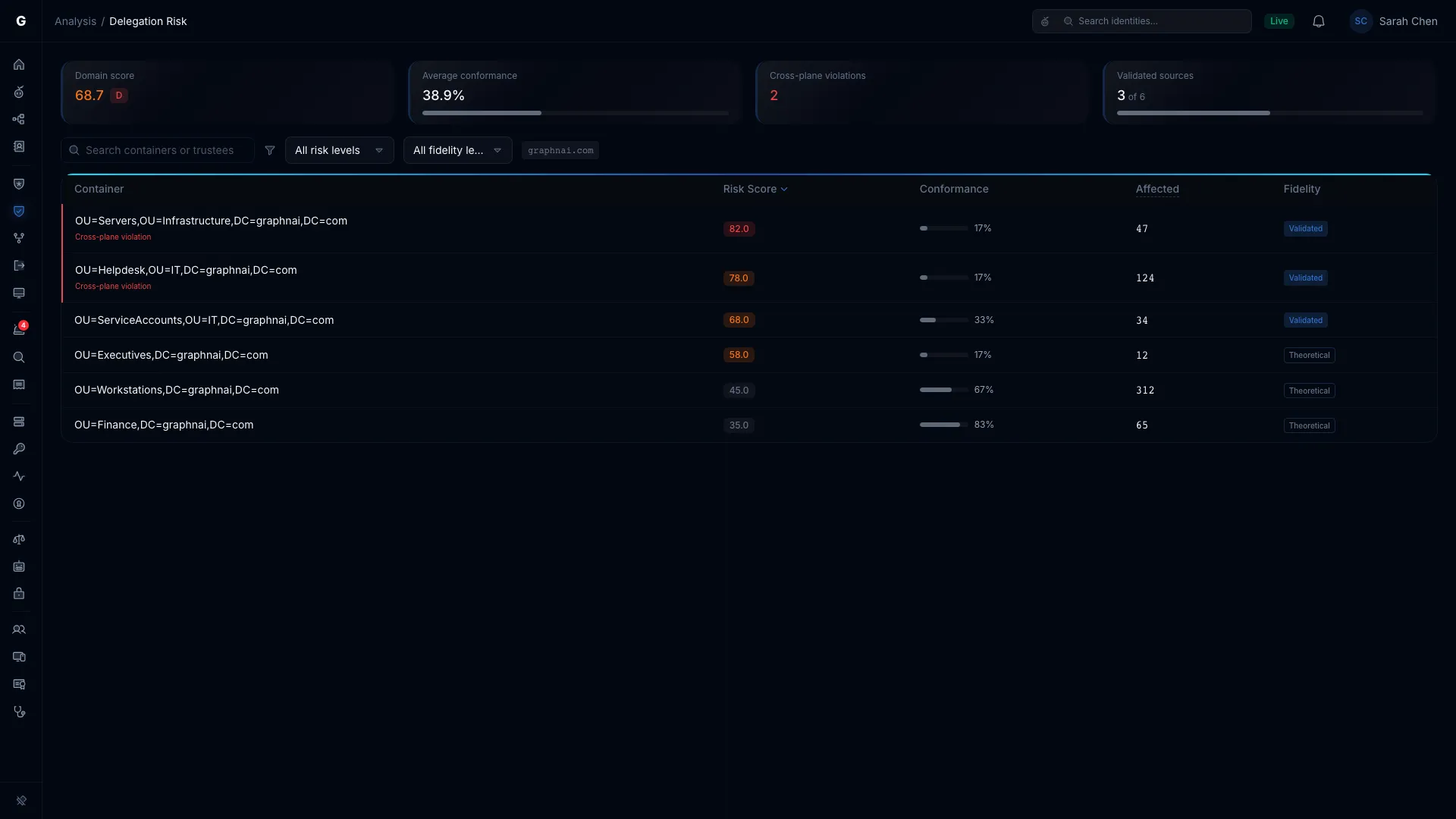
Summary Cards
| Card | Description |
|---|---|
| Domain score | The domain's delegation risk score, from 0 to 100, with a letter grade. Lower is better. It's the average shortfall from best practice, with more dangerous delegations counting for more. |
| Average conformance | The average share of best practices each delegation source meets. Higher is better. |
| Cross-plane violations | How many delegation sources have a trustee on a lower plane than the container. Red when above 0. |
| Validated sources | How many delegation sources have been seen in use, out of all of them |
Delegation Sources Table
The table lists every OU or container with custom delegations. Each row is one delegation source.
Columns
| Column | Description |
|---|---|
| Container | The OU or container. A cross-plane delegation shows "Cross-plane violation" under the name and a red left border on the row. |
| Risk score | The source's score, from 0 to 100. Green below 25, gray 25 to 49, orange 50 to 79, red 80 and above. |
| Conformance | The share of best practices the source meets, with a bar |
| Affected | How many objects the delegation reaches |
| Fidelity | Validated when the delegation has been seen in use, Theoretical when it hasn't |
Sort and Filter
- Sort: select a column header. The default is Risk score, highest first.
- Search: use Search containers or trustees to match a container or a trustee's name.
- Risk level: All risk levels, Critical (80 and above), High (50 to 79), Medium (25 to 49) or Low (below 25).
- Fidelity: All fidelity levels, Validated, Constrained or Theoretical. A delegation source is never Constrained, so that choice shows nothing.
If the last analysis skipped some delegation sources, a note above the table says how many. The results are incomplete until the next sync.
Delegation Source Details
Select a row to open the source. The delegation graph shows in the middle: the container, its trustees, and the permissions between them. The details open on the right. Select the row again to close them.
The details header shows the source's score, its fidelity level, a Cross-plane badge when it applies, and how many objects and delegated permissions it covers.
Score Breakdown
Five bars show each factor from 0 to 100. Higher is riskier.
- Breadth: how many objects it reaches.
- Depth: how near the domain root it's set.
- Severity: how dangerous the rights are.
- Scoping: how many rights aren't limited to an object type.
- Trustees: stale trustees, single accounts and empty groups.
The score weighs them as 25% breadth, 15% depth, 30% severity, 15% scoping and 15% trustees. A cross-plane delegation multiplies the score by 1.5, up to 100, and the details say "Score raised 1.5× for the cross-plane violation."
Best-Practice Conformance
The section title gives the share of checks passed and a rating: Excellent (90% or more), Good (70% or more), Fair (40% or more) or Poor. Each check shows a green tick or a red cross, and a line that explains the result.
| Check | Passes when |
|---|---|
| Delegate at lowest OU level | The delegation is set deep enough in the OU tree. The line says how deep it is. |
| Use object-type scoping | Every delegated right is limited to an object type |
| Use security groups | Every trustee is a group, not a single account |
| Avoid full-control rights | No GenericAll, WriteDacl, WriteOwner, AllExtendedRights or DCSync |
| No AdminSDHolder overlap | No right that AdminSDHolder protects, such as ForceChangePassword or GenericAll |
| No cross-plane delegation | Every trustee is on the same plane as the container, or a higher one |
Trustees
The groups and accounts that hold the delegated rights. Each trustee shows:
- Its type, such as User or Group.
- Stale when the account is inactive.
- Empty when the group has no members, so the delegation reaches no one today.
- Its plane: User access, Management plane or Control plane.
Select a trustee to open it in Graph Explorer. Select Select Fire on a trustee row to remove its delegation. See Remove a Delegation. A trustee with observed usage (Validated) shows Select Fire first. Other trustees lead with their usage evidence. Equal scores sort poorer conformance first. For delegation settings on a single account, see Fix Kerberos Delegation Findings.
Delegated Rights
The Active Directory rights the delegation grants. Dangerous rights (GenericAll, WriteDacl, WriteOwner, AllExtendedRights, DCSync) are red, with a warning icon.
Cross-Plane Violation
When it applies, this section compares the Trustee plane with the Container plane.
Affected Object Types
A bar splits the objects under the delegation by type, such as users, computers and groups.
At the bottom, select Open in Graph Explorer to open the container in the graph.
Remove a Delegation
You can remove a trustee's delegation at the container where it was granted. Select Fire™ removes the trustee's ACEs from the container's DACL. The inherited ACEs disappear from every object below the container in one reviewed step, and you can undo it.
Who can do this:
- Operator and Admin see Select Fire on a trustee row.
- Admin can run any removal.
- Operator can run a removal when the container is Critical or High. For any other container, an Operator can preview and simulate, and an Admin runs it.
- Viewer doesn't see Select Fire.
The unit of removal is one trustee at one container. A row shows no Select Fire button in two cases. A removal is already running or finished for that pair, or the source is Source not identified.
Open the removal
- Open Exposure > Delegation Risk and select the container's row.
- In Trustees, find the trustee.
- Select Select Fire on the trustee's row. A trustee row reads like "Reset passwords · 12,431 objects · not seen in use". It also shows the plane and any other container that grants the same rights.
A Default permission badge means Windows uses this delegation for a directory feature. May be a product permission means the account's name or location looks like one a product uses. Both badges only add a typed confirmation. They don't change the score or the row's position.
Step 1: Preview
Select Fire compiles the removal as soon as it opens. While it reads the delegation, it shows "Reading the delegation…". The Preview shows:
- The change. "Remove trustee's delegation at container path", with the container's path, for example
lab.example.com/Staff. - How many objects it reaches. "Applies to 12,431 users, groups, computers and containers below it, as of the last sync". The count is "at least" a number when it can't be exact. A line adds "Other kinds of objects aren't counted." Contacts and printers below the container also lose the right.
- Entries. Each entry (ACE) names the rights in plain words, what they apply to and where. For example, "Reset passwords · on user accounts below this container". An entry that also applies to the container itself says "Also applies to container itself", with the rights.
- Replication rights. "Also removes the right to replicate directory secrets here" appears when the removal includes the DCSync rights.
- Rights granted elsewhere. "Still granted through container: rights." The trustee keeps these rights through another container, so the removal doesn't take them away.
- Access kept through groups. "Trustee keeps this through its membership in group, delegated at container." The note names up to three groups and then "and N more". The removal takes away only the trustee's own delegation. If the check couldn't cover every group, the note says so. Memberships more than five levels deep aren't checked.
- Scope options. These are unchecked by default. Each names a right that applies on the container itself only, for example "Also remove the right to create and delete user accounts here" or "Also remove the Replicating Directory Changes permission here". Tick one to add it to the removal; untick it to take it out again.
- Technical details. Collapsed by default. Open it for the trustee's SID (security identifier), a fingerprint of the entries and the domain controller that was read. You rarely need it.
If the count says the permissions view hasn't caught up, you see "The permissions view hasn't caught up with this delegation yet, so this count may be low." GraphnAI treats the change as high impact. Run a sync to refresh it.
When you tick or clear a scope option, the Preview recalculates after a short pause and shows "Updating…". If you recalculate too often, it says "Too many recalculations in a row. Wait a moment and try again." The last result stays on screen.
If the removal can't run, the Preview shows Can't be removed here and the reason:
| What you see | What to do |
|---|---|
| "Inherited from container. Remove it there instead." | The delegation was granted higher up. Select Review the delegation at container. Select Fire reopens for that container, the same trustee and the same rights. |
| "This account has no delegation at this container for these permissions. It may be delegated at a higher container." | Check the containers above. |
| "This is AdminSDHolder, the template for protected accounts. Changing it isn't supported here yet." | Nothing to do. This container is never changed from here. |
| "Two changes in this plan would rewrite permissions on this container separately. Review them one at a time." | Remove the changes in separate plans. |
| "The delegation at this container couldn't be read. Recompile the plan to try again." | Try again. |
Select Simulate when the Preview is what you intend to remove.
Step 2: Simulate
Simulate shows who loses access. It counts direct grants to the trustee.
- Objects losing access. The count, with "as of the last sync" and the sync time.
- Used by trustee. How many of those objects the trustee has been seen using the right on. For a group trustee, GraphnAI doesn't collect usage evidence, so the tile reads "No usage evidence collected for group delegations".
- Protected, unaffected. How many protected objects below the container keep the right.
- Breakdowns. Bars show Objects losing access by type, by privilege tier and by criticality.
- Before and after. For example, "Trustee's direct permission to reset passwords on 12,431 users → 0". Another line says how many of these objects keep other access for the trustee, or keep the right through another container.
- Access kept through groups. The same note as in the Preview.
- Sample. Up to 100 objects, most critical first. Each shows its type, its criticality, a Used badge when the trustee has used the right there, and the rights it loses. "keeps other access" marks an object that still has another route. A line says "and N more" when there are others.
Two banners can appear. "Counting took too long, so these are minimums. This change is treated as high impact." means the counts are lower bounds. "Further access through these objects wasn't calculated for a change this large." means the analysis stopped at the objects themselves.
Step 3: Decision
Container removals run in Semi-Auto only. The Full-Auto card is unavailable and reads "Permission changes run with your approval until calibration completes."
Before you approve, read the note on the page. It says the change applies to the container immediately. The directory then updates the objects below it, usually within minutes. A sample of them is checked on the same domain controller, and the result shows in Remediation history. The permissions view changes only after that check passes.
Some removals need you to type the container's name first. The Decision step shows "Action on container needs your confirmation." Select Review and confirm. The dialog is titled "Remove a delegation from a container". It says how many objects lose access. Type the container's name, then select Run this change.
You type the name when any of these is true:
- Tier 0 accounts or systems are below the container, or the objects it affects couldn't be confirmed.
- The delegation is a product default permission. The dialog says which directory feature may stop working.
- The directory write account would lose its ability to change permissions on the objects below. The dialog says how many.
A removal refuses to run when it would take away the write account's right to change this object's permissions, because it could never be undone. It also refuses for AdminSDHolder, the template for protected accounts and for the built-in holders of directory replication rights. Each refusal states its reason.
See Select Fire for how typed confirmation works.
After the removal
The change lands on the container first. The directory then applies it to each object below, which takes minutes for a large container. GraphnAI checks a sample of those objects on the domain controller that made the change. It checks at 1, 2, 5, 10 and 20 minutes, then every 30 minutes, for up to 4 hours. Other domain controllers apply the change after they replicate it.
The trustee row stays listed and shows where the removal stands:
| Badge | What it says | What it means |
|---|---|---|
| Updating | "Removed at the container. The directory is still updating the objects below it." | The checks are running. |
| Stalled | "Removed at the container, but the directory hasn't finished applying it. 3 of 20 checked objects still have this permission." | The checks ran out of time with objects still holding the right. |
| Couldn't check | "Removed at the container. The objects below it couldn't be checked." | The sample couldn't be read, or too few objects could be confirmed. |
| Updating view | "Removed. Updating the permissions view: 12,431 of 911,352 objects." | The directory finished. GraphnAI is updating its permissions view in the background. |
| Removed | "Removed." | The directory and the permissions view both show the change. |
| Still present after removal | "This delegation is back at the container." | A later sync found the delegation at the container again. Select Fire is available again. |
The permissions view updates only after the directory has applied the change. A stalled or unchecked removal never shows as done. In both cases the permissions view updates at the next full sync, because a delta sync doesn't re-read the objects below a container. To run the check again, open the action in Remediation history and select Check again.
The row leaves the page after a sync that no longer finds the delegation. To follow the directory update or undo a removal, see Remediation Reversibility and Undo.
Remove an inherited right from one object
Select Fire can also open from a single object. An explicit ACE on that object is removed there. If a right on that object is an inherited ACE, the entry says "Inherited from container. Remove it there instead." Select Review the delegation at container. The removal then runs from the container, as above. An entry that applies to every object below its container says "This entry also applies to the objects below container. Remove it from the Delegation Risk page instead." and offers the same button.
Cross-Plane Delegations
The Enterprise Access Model, which replaced Microsoft's tiered administration model, splits access into three planes:
| Plane | What it holds | Examples |
|---|---|---|
| Control plane | The domain's infrastructure | Domain controllers, AdminSDHolder, the schema |
| Management plane | Server and application management | Server OUs, application service accounts |
| User access | End-user accounts and workstations | User OUs, workstation OUs |
A cross-plane violation is a trustee on a lower plane that holds rights over a container on a higher plane. For example:
- A helpdesk group (user access) with
ResetPasswordon a server OU (management plane). - An application service account (management plane) with
WriteDaclon the Domain Controllers OU (control plane).
These delegations open lateral movement paths around your plane boundaries.
How Planes Are Assigned
- A trustee's plane comes from its criticality. A Critical or Tier 0 trustee is on the control plane, and a High trustee on the management plane. Every other trustee is on user access. See the Asset Criticality guide.
- A container's plane comes from its depth. The containers nearest the domain root are the control plane, the next level down is the management plane, and anything deeper is user access.
How Delegation Risk Connects to Other Features
- Risk Posture Dashboard: the Delegation risk factor card shows the delegation health across your domains. Select the card to open this page.
- Asset Criticality: a trustee's criticality sets its plane.
- Graph Explorer: select Open in Graph Explorer in the details, or select a trustee, to open it in the graph.
- Select Fire and Remediation history: remove a trustee's delegation from its row, then follow the removal in Remediation history.
Troubleshooting
The table says "No delegation sources"
- Cause: The domain has no custom delegations, or the bridge hasn't collected permissions from it.
- Fix: Confirm the bridge collects permissions, which it does by default. Run a full sync.
The page says "No delegation analysis yet"
- Cause: The analysis hasn't run for the domain.
- Fix: Run a full sync. The page fills in after the analysis finishes.
The page says "Couldn't load delegation risk"
- Cause: The server couldn't be reached, or it failed to read the results.
- Fix: Reload the page. If you chose a domain, select Show default domain. If it keeps failing, open Platform Health on the dashboard.
A removal says Stalled or Couldn't check
- Cause: The directory didn't finish applying the change to the sampled objects in time, or the objects couldn't be read. The removal itself landed on the container.
- Fix: Open the action in Remediation history. Select Check again to run one more check. If it still doesn't clear, the permissions view updates at the next full sync. Check the domain controller named under Checked on.
The count says "at least"
- Cause: The count ran out of time, or the permissions view hasn't caught up with the delegation.
- Fix: Run a full sync, then open the delegation again. A count that can't be exact is treated as high impact, so a typed confirmation may be required.
Select Fire doesn't show on a trustee row
- Cause: Your role is Viewer, the source reads Source not identified, a removal is already running for this trustee at this container, or the license is read-only.
- Fix: Check each in turn. The button comes back once an undo finishes or a sync finds the delegation again.
An Operator can preview a removal but can't run it
- Cause: Operators run removals only on Critical or High containers.
- Fix: Ask an Admin to run it.
A conformance result looks wrong
- Cause: The checks follow Microsoft's published best practices. Some organizations depart from them on purpose.
- Note: A failed check isn't always a risk. Read each check's line in the details before you act.
A legitimate admin delegation shows as cross-plane
- Cause: A container's plane comes from its depth, which may not match your OU design. A trustee's plane comes from its criticality.
- Fix: Compare the trustee plane and the container plane in the details. If a trustee's plane is wrong, correct its criticality with a custom rule. If the container's plane doesn't fit your design, the delegation may still be fine.