Bridge Configuration & Multi-Domain Management (LDAPS, Service Account, Sync Schedule)
Set up an Identity Bridge's Active Directory domains, service accounts, LDAPS trusted certificates and sync schedule from GraphnAI. You never edit files on the bridge host to change them.
On this page
- Overview
- Prerequisites
- Open a Bridge's Page
- Create a Bridge
- Configure Domains
- Add a Domain
- Edit a Domain
- Remove a Domain
- Several Domains on One Bridge
- The Domain Table
- Test a Connection
- Credential Security
- Sync Scheduling
- Change the Schedule
- Start a Sync Now
- Stop a Sync
- Trust the Certificate Authority for LDAPS
- Review and Trust the Chain
- Add the Root Certificate Yourself
- Trusted Certificates
- Common Certificate Setups
- Settings Delivery
- Sync History
- Troubleshooting
- The Bridge Shows Offline
- Test Connection Says "The bridge isn't connected"
- Test Connection Says the Service Account Was Rejected
- Test Connection Says the Bridge Couldn't Reach the Controller
- Test Connection Reports an Untrusted Certificate
- The Connection Column Shows "LDAP bind rejected" After It Worked Before
- The Bridge Still Uses Old Settings After a Save
- Related Documentation
Overview
An Identity Bridge runs in your network and collects identity data from Active Directory. You manage its domains, service account credentials, schedule and trusted certificates on the bridge's page in GraphnAI.
- Several domains per bridge: One bridge can sync several domains or forests. Each domain has its own service account, domain controllers and TLS setting.
- No credentials on the bridge's disk: GraphnAI encrypts each password when you save it. The bridge holds passwords in memory only and gets them again when it reconnects.
- Changes apply without a restart: A saved change reaches a connected bridge at once. An offline bridge gets it when it reconnects.
- Test before you save: Test connection checks the account and the domain controllers through the bridge.
Prerequisites
- Role: Admin to change settings. Operators can view a bridge's page, and start and stop syncs.
- A bridge: Create one with Deploy bridge, then run it in your network. See Identity Bridge.
- Service account: One account for each domain. A standard domain user can read what the bridge needs. See Service Account Requirements.
Open a Bridge's Page
- Select Admin > Bridges in the sidebar.
- The first bridge's page opens. To switch, open the bridge selector at the top left and choose another bridge.
The sidebar shows Bridges to Admins only. Operators reach a bridge's page from links on the dashboard. With no bridge yet, the page shows "No bridges yet" and, for Admins, Deploy bridge.
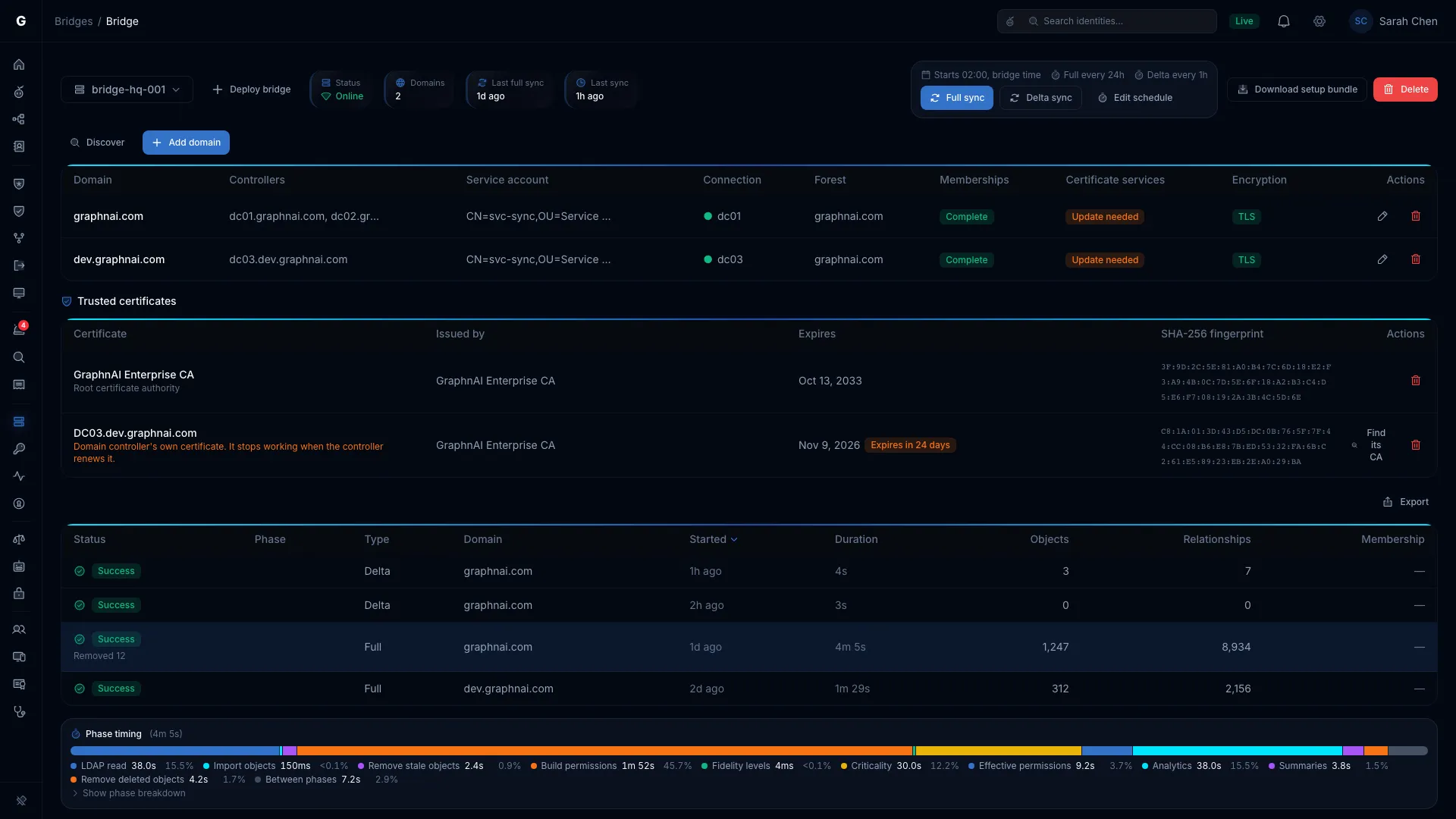
The top of the page holds:
| Item | What it does |
|---|---|
| Bridge selector | Shows the bridge ID. Choose another bridge here. |
| Deploy bridge | Creates a new bridge. Admin only. |
| Status | Online, Offline, Syncing, or Unknown when the status couldn't be read. |
| Domains | How many domains the bridge syncs. |
| Last full sync | When the last full sync ran. |
| Last sync | When the last sync of either type ran. |
| Schedule and sync buttons | The current schedule, Full sync, Delta sync, Stop while a sync runs, and Edit schedule (Admin only). |
| Download setup bundle | Downloads a new setup bundle for this bridge. Admin only. |
| Delete | Deletes the bridge. Its domains, credentials and schedule go with it. Data it already synced stays. Admin only. |
The gear icon at the top right opens Sync attributes. See Attribute Sync Configuration.
Below the header are any group membership warnings, the domain table, Trusted certificates, Sync history, and the details of the selected sync.
Create a Bridge
This takes the Admin role.
- Select Deploy bridge.
- Enter a Bridge ID, such as
bridge-nyc-01. Use letters, numbers, hyphens and underscores. - Select Create and download.
The setup bundle downloads as bridge-<id>-setup.zip, and the new bridge's page opens. Its status reads Offline until the bridge connects. To install and start it, see Identity Bridge.
Download setup bundle gives you a new bundle for the same bridge ID, with a new private key and mTLS client certificate. Use it to redeploy the bridge or to replace a lost key.
Configure Domains
Add a Domain
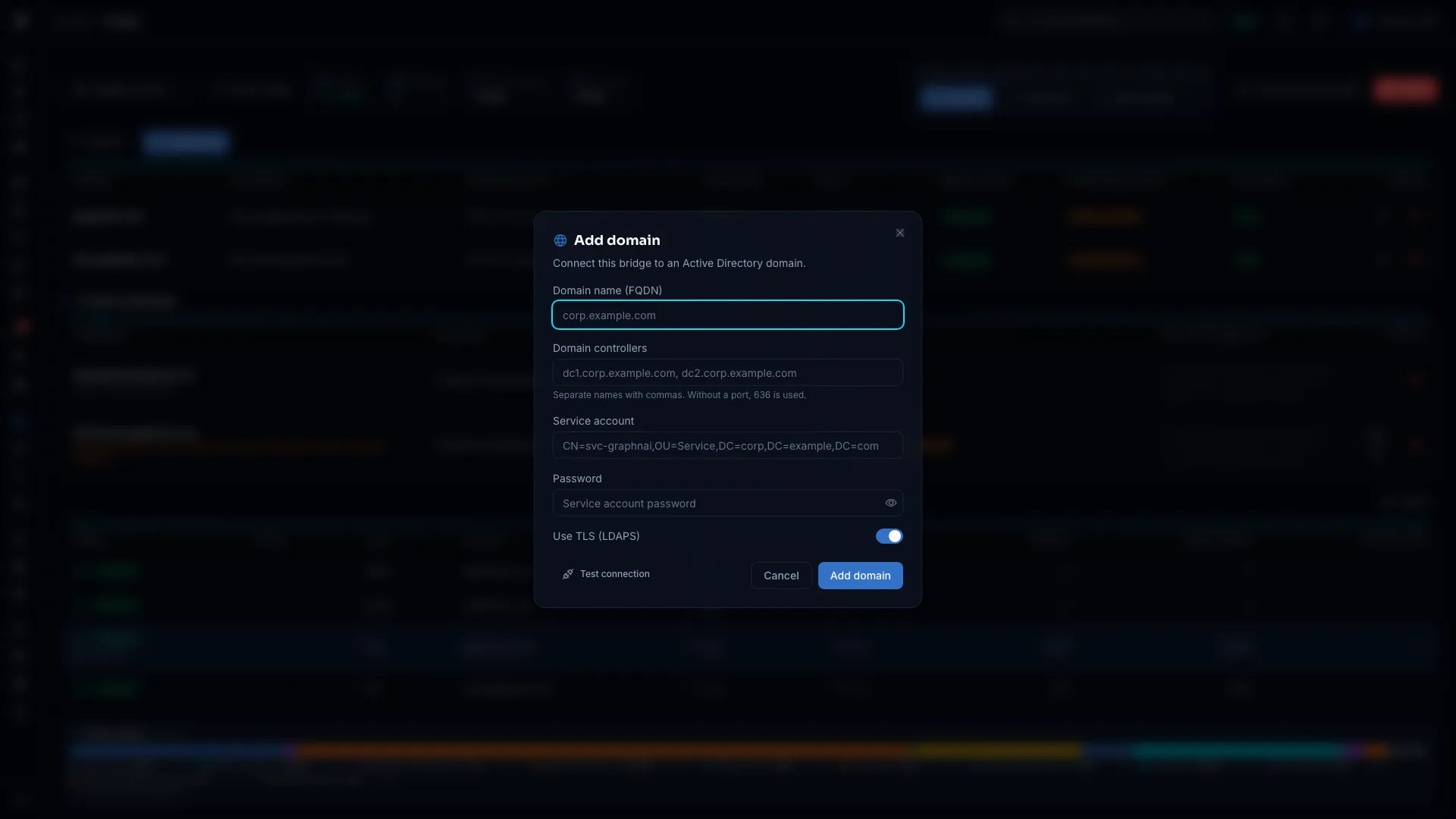
- On the bridge's page, select Add domain above the domain table.
- Fill in the form:
| Field | What to enter | Example |
|---|---|---|
| Domain name (FQDN) | The domain's DNS name. You can't change it later. | corp.example.com |
| Domain controllers | One or more controllers, separated by commas. Without a port, 636 is used with TLS and 389 without. | dc01.corp.example.com, dc02.corp.example.com:636 |
| Service account | The account the bridge binds with (an LDAP bind). Use the user principal name (UPN) form, which Group Policy collection also accepts. | [email protected] |
| Password | The service account's password. | |
| Use TLS (LDAPS) | On by default. Keep it on in production. With it off, the service account's password and directory data cross the network unencrypted; the form and the bridge log warn that plain LDAP is for testing only. | On |
- Check the controller order under the field. Syncs try the controllers in order and use the first one that responds. The first is marked Preferred. Use the arrows to move a controller up or down.
- Select Test connection. See Test a Connection.
- Select Add domain.
GraphnAI saves the domain and sends it to the bridge. If the save fails, the form stays open with what you typed.
Your plan sets how many directory sources you can add. Past that number, the save is refused with "The current plan covers N directory sources. Remove one or upgrade to add another." See License Enforcement.
Ports: LDAPS uses port 636 and plain LDAP uses port 389. Use LDAPS in production. If a controller listens on another port, add it after a colon, such as
dc01.corp.example.com:3269for the Global Catalog over LDAPS.
Change-history checks: For the proofs on the edge panel (see Change-History Checks), the bridge must reach every writable domain controller of the domain, over verified TLS when Use TLS is on: LDAPS, or StartTLS with a certificate the bridge trusts. A domain controller it can't reach must replicate into a reachable one within 30 minutes. Otherwise proofs in that domain wait.
Edit a Domain
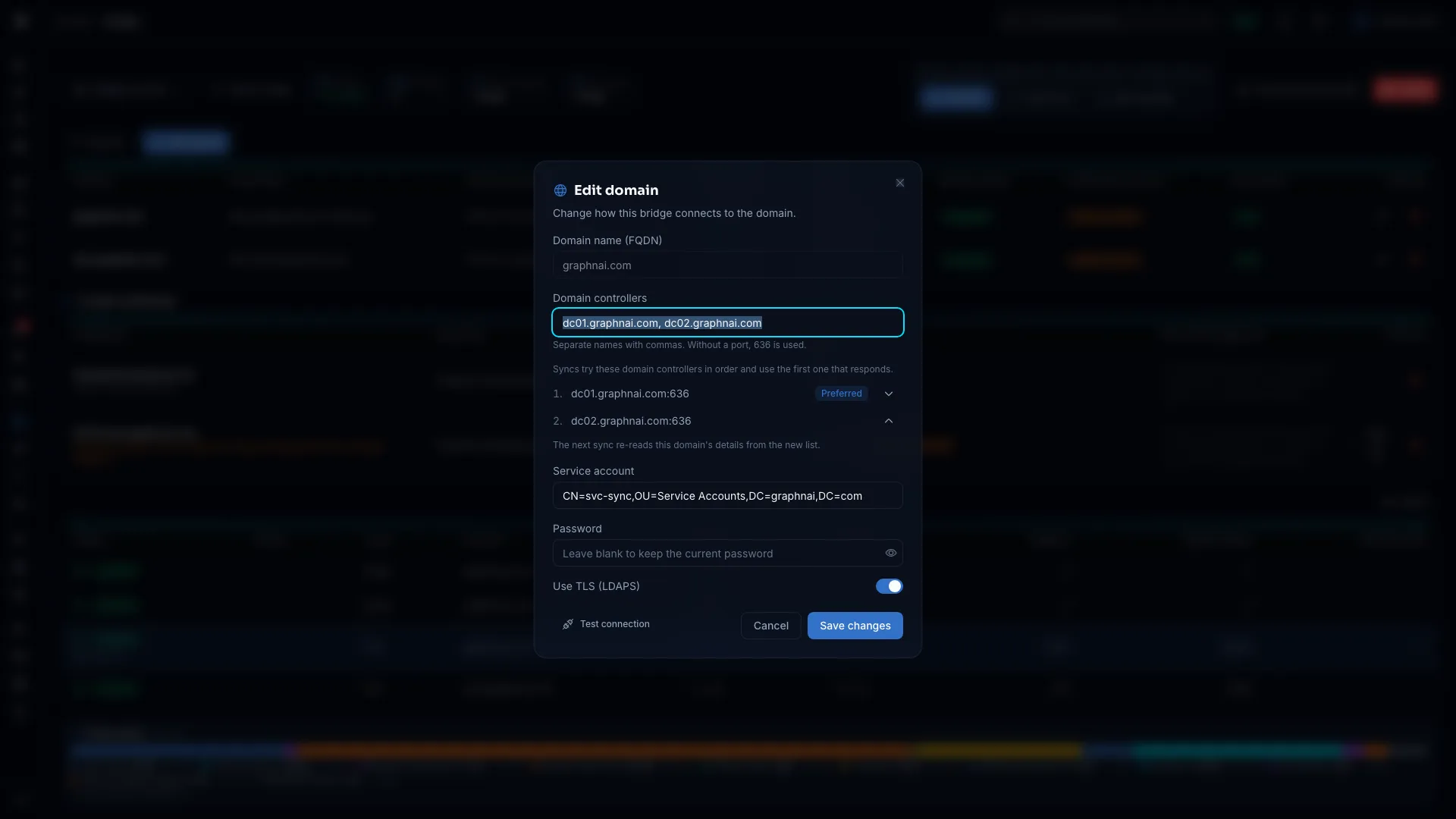
- Select the pencil icon (Edit domain) on the domain's row.
- Change the fields you need.
- Leave Password blank to keep the saved password.
- You can't change the domain name. To rename a domain, remove it and add it again.
- After you change the controller list, the next sync re-reads the domain's details from the new list.
- Select Test connection.
- Select Save changes.
Remove a Domain
- Select the trash icon (Remove domain) on the domain's row.
- Select Remove to confirm.
The bridge stops syncing that domain. Data already synced from it stays in the graph.
Several Domains on One Bridge
Add each domain with Add domain. Each domain has its own service account, controllers and TLS setting. The bridge syncs its domains one after another, and each domain gets its own rows in Sync history.
When the bridge receives new settings, it registers every domain that has a name and at least one controller. A domain whose preferred controller doesn't answer stays configured, and the next sync tries each listed controller in order.
The Domain Table
| Column | What it shows |
|---|---|
| Domain | The domain name. |
| Controllers | The controller list, in order. |
| Service account | The account the bridge binds with. |
| Connection | The controller the last sync used, or why it couldn't connect. Hover to see each controller the sync tried and how long it took. |
| Forest | The forest the domain reported. Hover for its naming context, short name, global catalog and when it was read. |
| Memberships | Whether group memberships are fully collected: Complete, Membership incomplete or Repair scheduled. Hover a badge for what it means. See Delta Membership Collection. |
| Encryption | TLS or No TLS. |
| Audit coverage | This bridge's part in checking that GraphnAI receives each domain controller's authentication events. See the table below. |
The Audit coverage column shows:
| Value | Meaning |
|---|---|
| Checking | This bridge checks audit coverage on this domain's domain controllers. |
| Update needed | Update this bridge so it can check audit coverage. |
| Standby | Another bridge checks this domain. |
| — | The bridge is offline, so its role is unknown. |
Each domain has one checking bridge. The results appear in Audit coverage under Platform Health. See Risk Posture Dashboard.
The Connection column shows:
| Value | Meaning |
|---|---|
| — | No sync has reached this domain yet. It also shows after the server restarts, until the domain's next sync. |
| A controller name with a green dot | The last sync connected through this controller. |
| Not reachable with a red mark | The bridge couldn't reach any listed controller. |
| LDAP bind rejected with a red mark | A controller rejected the service account's LDAP bind. |
A controller name with an amber dot carries one or more of these badges:
| Badge | Meaning |
|---|---|
| Backup DC | The sync used a backup controller because the preferred one couldn't be used. |
| No global catalog | None of the listed controllers is a global catalog, so members from other domains aren't resolved. Add one to the list. |
| Deletions skipped | Deleted objects and removed permissions weren't applied this sync. The sync's warning says why. |
| Forest changed | The domain now reports a different forest. The new one is recorded. |
Test a Connection
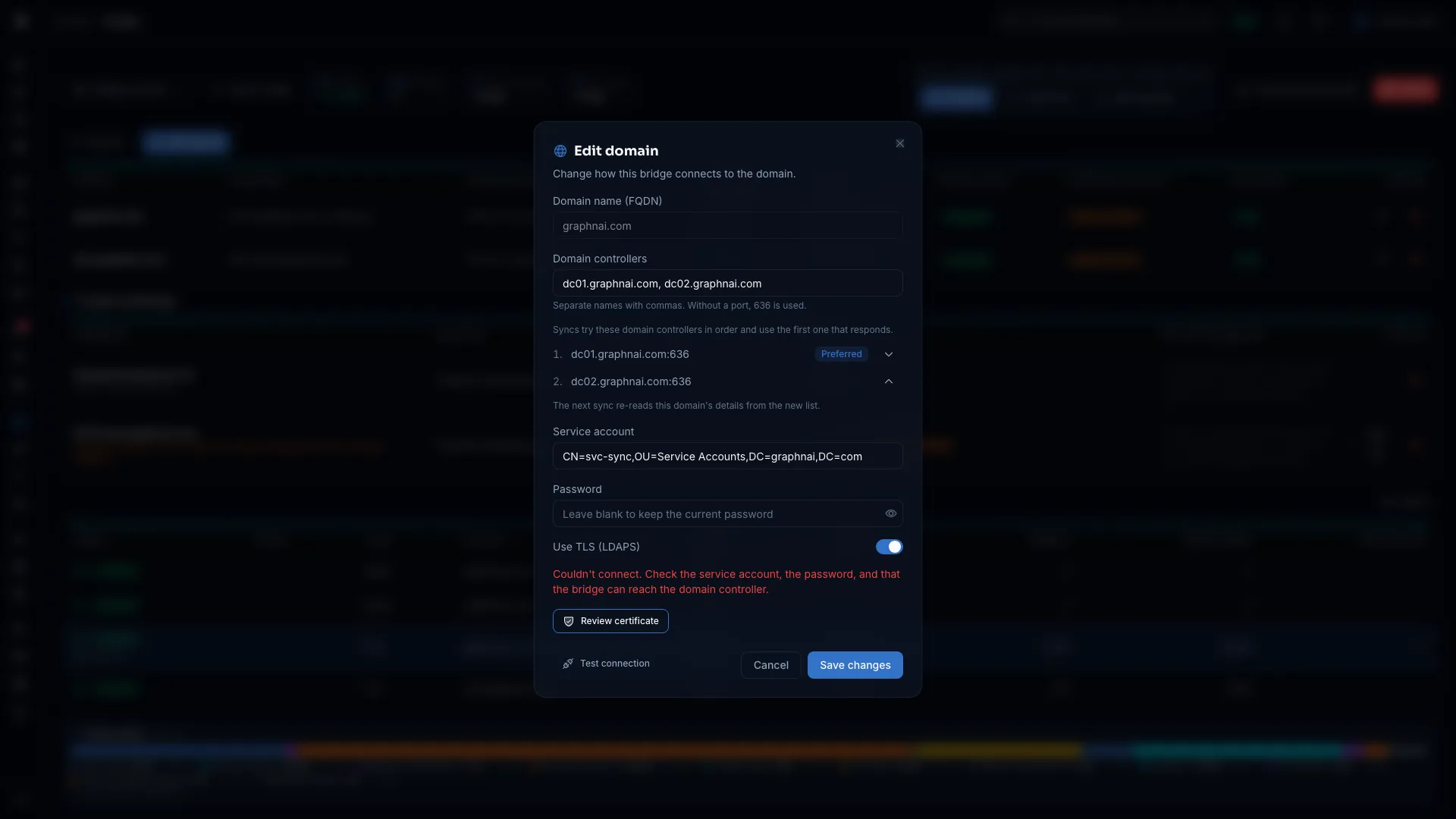
Test connection sends the form's values to the bridge. The bridge connects to the controllers and makes an LDAP bind with the service account. Nothing is saved.
- Fill in the domain name, controllers, service account and password. When you edit a domain, a blank password tests the saved one.
- Select Test connection.
- Wait for the result. The test stops waiting after 60 seconds.
- If it shows "Connection successful", select Add domain or Save changes.
- If it fails, fix what the message names and test again.
| Message | What to do |
|---|---|
| The bridge isn't connected. Start it, then test again. | Start the bridge and wait for Status to read Online. |
| The bridge doesn't trust this domain controller's certificate. Select Review certificate to check it. | See Trust the Certificate Authority for LDAPS. |
| The TLS connection to the domain controller failed. Check that it accepts LDAPS on this port. | Check that the controller has an LDAPS certificate and listens on the port you entered. |
| The domain controller rejected the service account. Check the account and password. | Check the account name and password, and that the account isn't locked, expired or disabled. |
| The bridge couldn't reach the domain controller. Check the name, the port and the firewall. | Check DNS, the port, and the firewall between the bridge host and the controller. |
| The domain controller refused the request. Check that it's serving LDAP on this port. | Check that the port is an LDAP port on that controller. |
| The connection test didn't finish. Check that the bridge is running, then try again. | The bridge didn't answer within 60 seconds. |
| Couldn't connect. Check the service account, the password, and that the bridge can reach the domain controller. | The bridge gave no reason. Check all three. |
Credential Security
The bridge host never stores service account passwords on disk. GraphnAI keeps them encrypted.
| Stage | What happens |
|---|---|
| Entry | You type the password in the browser. It travels to GraphnAI over HTTPS. |
| Storage | GraphnAI encrypts it with AES-256-GCM before storing it. The plain text is never written anywhere. |
| Display | The page never shows a saved password. |
| Delivery to the bridge | When you save, or when the bridge reconnects, GraphnAI decrypts the password and sends it over the bridge's TLS 1.3 connection. |
| On the bridge | The bridge holds the password in memory only. After a restart, it gets the password again when it reconnects. |
In practice:
- A compromised bridge host holds no credential files to steal.
- A database backup alone can't decrypt the passwords. The key stays outside the database.
- To rotate a service account password, edit the domain, enter the new password and save. Nothing changes on the bridge host.
Sync Scheduling
The bridge runs two kinds of sync:
| Sync type | What it does | Default interval |
|---|---|---|
| Delta sync | Collects the objects that changed since the last sync, using Active Directory's change tracking (update sequence numbers, or USNs). | 1 hour |
| Full sync | Reads every directory object, and removes objects that were deleted from the directory. | 24 hours |
The first scheduled sync runs at the First sync at time, in the bridge host's time zone. After that, a sync runs at each delta interval. When the full sync interval has passed since the last full sync, that sync runs as a full sync. A domain's first sync is always a full sync.
Each time the bridge receives its settings, it waits for the next First sync at time before its next scheduled sync. That happens when you save the bridge's domains or schedule, and when the bridge reconnects. To sync sooner, select Delta sync or Full sync.
Change the Schedule
This takes the Admin role.
- Select Edit schedule.
- Set the fields:
| Field | What it sets | Example |
|---|---|---|
| First sync at | The time of the first scheduled sync, in the bridge host's time zone. | 02:00 |
| Full sync every | How long after a full sync the next scheduled sync runs as a full sync. | 24h |
| Delta sync every | The time between scheduled syncs. The bridge never syncs more often than once a minute. | 1h |
- Select Save schedule.
Enter an interval as a number and a unit (s, m, h or d), such as 30m or 24h. Enter the full sync interval in hours. The bridge reads a full sync interval in days, such as 7d, as 24 hours, so enter 168h instead.
The line above the sync buttons shows the schedule in use, such as "Starts 02:00, bridge time", "Full every 24h" and "Delta every 1h".
Recommendation: Full syncs put the most load on your domain controllers. Set First sync at to a quiet hour, so full syncs land near that time. Delta syncs are light and can run often.
Start a Sync Now
Operators and Admins can start a sync.
- Select Full sync or Delta sync.
A full sync reads every object in every domain on the bridge, so it takes longer. A new row appears in Sync history and updates as the sync runs.
The bridge must be online, and only one sync runs on a bridge at a time. The buttons are disabled while a sync runs. They're also locked while the license is read-only.
Stop a Sync
- Select Stop. It shows while a sync runs.
The row changes to Stopped. It can show Running for up to a minute while the bridge stops. The next scheduled sync runs as usual.
Trust the Certificate Authority for LDAPS
With LDAPS, the bridge must trust the certificate authority that issued your domain controllers' certificates. Controllers usually get them from an internal Active Directory Certificate Services (AD CS) authority, which the bridge doesn't trust until you add it here.
Trust the certificate authority itself. Windows renews a controller's certificate every year, a few weeks before it expires. A trusted certificate authority keeps working through every renewal. A trusted controller certificate stops working at the next one.
Review and Trust the Chain
- In the Add domain or Edit domain form, select Test connection.
- If the test reports an untrusted certificate, select Review certificate.
- In Certificate chain, check each certificate's subject, issuer, validity dates and DNS names. The controller's certificate comes first and the root last. An expired certificate is marked Expired.
- Compare the root's SHA-256 fingerprint with your certificate authority's. On the certificate authority,
certutil -ca.cert ca.cerexports its certificate andcertutil -hashfile ca.cer SHA256prints the fingerprint. - Select Trust root certificate.
- Select Test connection again.

The bridge reads the chain from the controller that failed the certificate check. When no sync has reported one yet, it reads the first controller in the list.
Domain controllers usually send only their own certificate, so the bridge looks up each issuer:
- If a certificate names a web address for its issuer, the bridge downloads the issuer's certificate from there.
- AD CS publishes its certificates in Active Directory. The bridge reads them through a domain already saved on this bridge whose connection it trusts. A controller whose renewed certificate broke its trust completes through another controller in the same forest.
A certificate the bridge looked up reads "Found through the issuer link of the certificate above". The bridge adds a certificate to the chain only if it signed the certificate below it. Only a certificate that signs itself is marked Root.
If the chain passes through an issuing certificate authority the controller didn't send, Trust root certificate trusts that one too. Without it, the bridge can't verify the controller. Each trusted certificate appears in Trusted Certificates.
GraphnAI keeps the trusted certificates with the bridge's settings and sends them every time it sends the settings. A restarted or redeployed bridge trusts them again without another step.
Add the Root Certificate Yourself
On a new forest, no saved domain has a trusted connection yet, so the bridge can't read the issuer from Active Directory. The chain then stops at the controller's certificate. The dialog asks for the root certificate of the issuer it names, and says why the chain stopped.
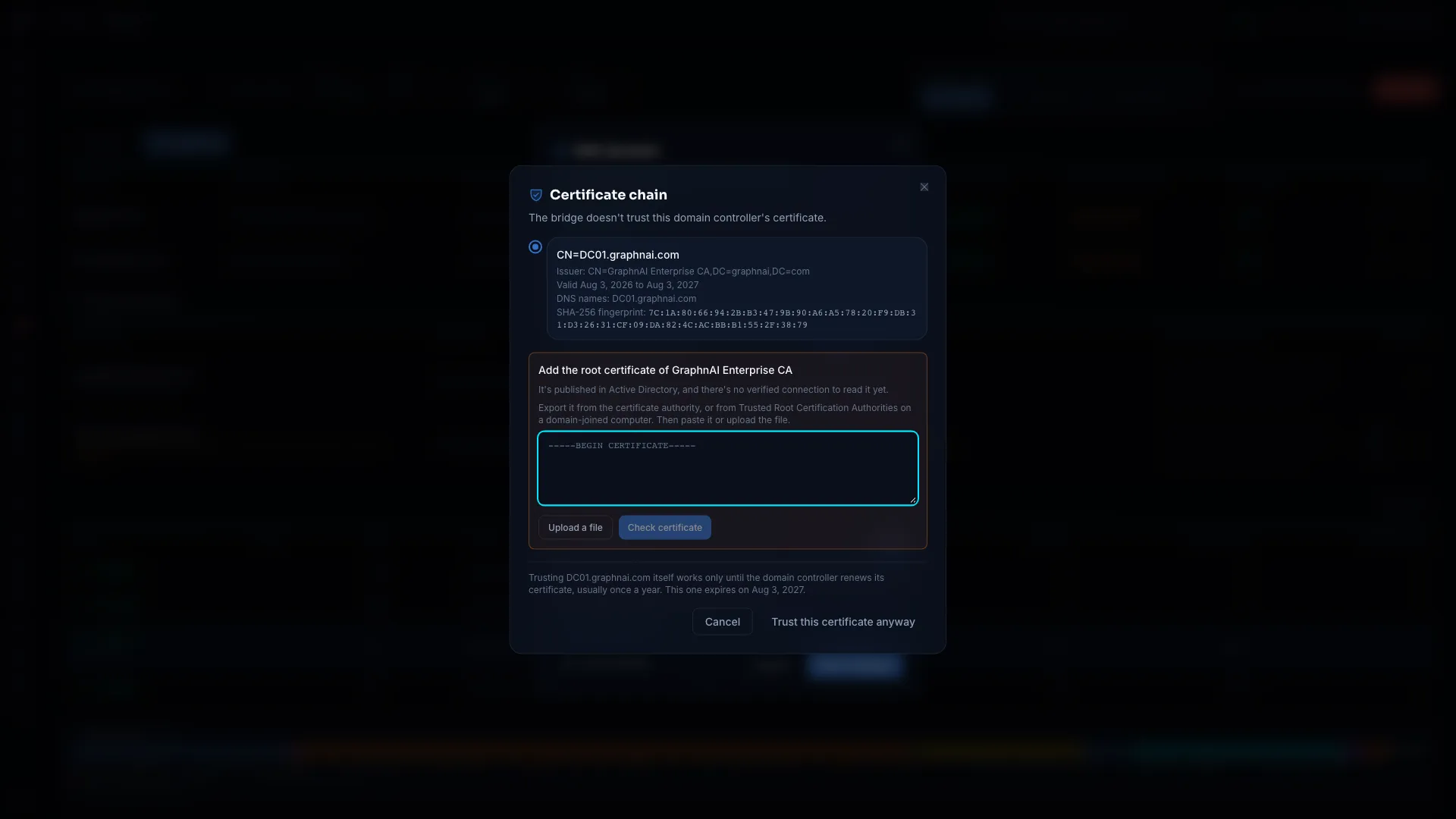
- Export the root certificate from the certificate authority, or from Trusted Root Certification Authorities on any domain-joined computer (
certlm.msc, then All Tasks > Export). DER and Base-64 files both work. - Paste the certificate and select Check certificate, or select Upload a file, which checks the file at once. GraphnAI checks that the certificate issued the controller's certificate and that it's a root. A file that also holds an issuing certificate authority works too.
- When the chain completes, compare the fingerprint, then select Trust root certificate.
Trust this certificate anyway trusts the controller's own certificate instead. It works only until the controller renews its certificate, so use it for testing, or until you have the root.
Trusted Certificates
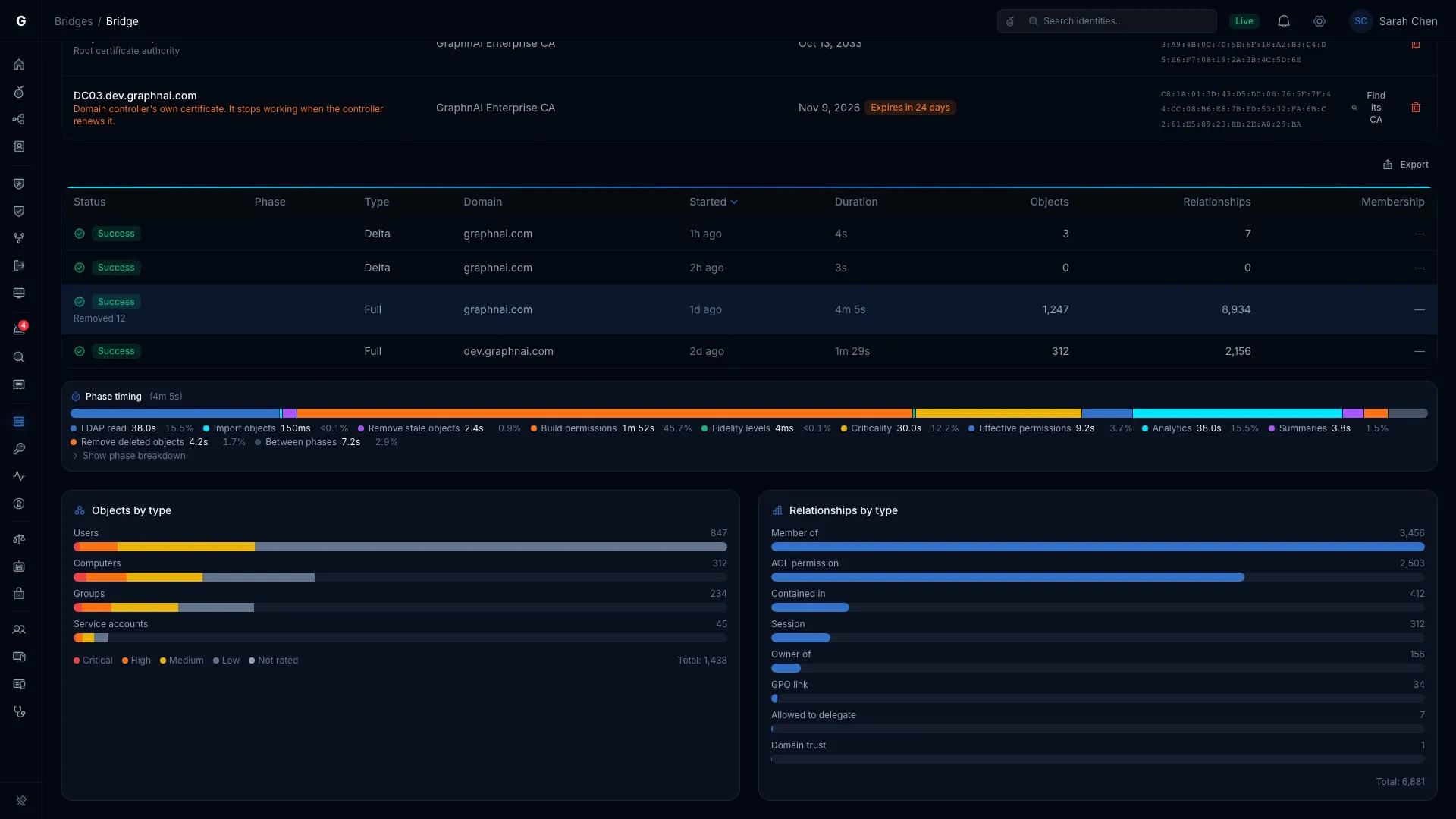
The Trusted certificates list on the bridge's page shows every certificate GraphnAI tells the bridge to trust for LDAPS.
| Column | What it shows |
|---|---|
| Certificate | Its name and kind: a root certificate authority, an issuing certificate authority, or a domain controller's own certificate. A controller's own certificate shows in orange, because it stops working when the controller renews it. |
| Issued by | The certificate authority that issued it. |
| Expires | The expiry date. Within 30 days it adds Expires in N days, and after the date Expired. |
| SHA-256 fingerprint | The fingerprint to compare with your certificate authority's record. |
Admins can act on each row:
- Find its CA (on a domain controller's own certificate): Reads that controller's chain, which still verifies through the certificate you trusted. Trust the certificate authority it finds, then remove the controller's certificate.
- The trash icon (Remove from the trusted list): After you confirm, the bridge stops trusting the certificate at once. An offline bridge stops when it reconnects.
The message after a change says what the bridge did:
- A bridge from an earlier version applies the change only after you update the bridge.
- If a file on the bridge host also trusts a removed certificate, remove it from that file too.
- When the bridge doesn't answer or doesn't apply a change, the change is still saved, and GraphnAI sends the bridge its settings again at once.
- If the bridge applies a change but can't save it to its trust file, check that the bridge can write that file.
An expired certificate stays in the list, marked Expired, until you remove it. The bridge no longer uses it.
The list is GraphnAI's record, and the bridge's trust follows it. Each time the bridge receives its settings, it trusts exactly the certificates in the list. Certificates placed in a file on the bridge host aren't in the list and can't be removed here. When the bridge has any, the list says how many. See Trusting Custom Enterprise CAs.
Common Certificate Setups
- Internal AD CS (most common): Review the certificate from any controller, then trust the root certificate authority. One trusted root covers every controller it issued a certificate to.
- Public certificate authority: The bridge already trusts well-known public roots, so LDAPS works without another step.
- Self-signed certificate: The chain holds one certificate, marked Self-signed. Trust this certificate trusts it until the controller replaces it.
Settings Delivery
When you save, GraphnAI sends the new settings to a connected bridge at once. If the bridge is offline, GraphnAI keeps the settings and sends them when the bridge reconnects. The bridge gets its latest settings on every reconnect, so a missed delivery needs nothing from you.
Sync History
Sync history lists the bridge's recent syncs, newest first. You can sort by Status, Started, Duration, Objects and Relationships.
| Column | What it shows |
|---|---|
| Status | Success, Partial, Failed, Running, Stopped or Interrupted, with a message when there is one. |
| Phase | The step a running sync is on. Hover for the steps done so far. |
| Type | Full or delta. |
| Domain | The domain the sync covered. |
| Started | When the sync started. |
| Duration | How long it took. A running sync counts up. |
| Objects | Objects collected. |
| Relationships | Relationships (edges) built. |
| Membership | How many changed groups a delta sync collected, or how many it couldn't fully collect. See Delta Membership Collection. |
What the statuses mean:
- Partial: The sync finished, but part of it didn't. For example, permissions weren't built, a processing step failed, or some group memberships weren't collected. The message under the badge says which.
- Stopped: Someone selected Stop.
- Interrupted: The server stopped while the sync ran.
A row can also carry these:
- Removed N: Objects deleted in the directory and removed from the graph. Hover for the count by type.
- Deleted objects kept: Objects deleted in the directory weren't removed this sync. The next full sync tries again.
- N warnings: Hover to read them.
Select a row to show that sync's details below the table. The latest sync is selected when the page opens.
- Phase timing: The time each step took. Select Show phase breakdown for the full timeline. See Sync Phase Timeline.
- Group membership details: Shown when the sync has something to report about group memberships.
- Objects by type: Counts by object type, split by criticality.
- Relationships by type: Counts by edge type.
A sync that didn't record its own counts shows today's counts, marked "Current counts. This sync didn't record its own." Before the first full sync finishes, the panel shows "No object counts yet."
Troubleshooting
The Bridge Shows Offline
Possible causes:
- The bridge isn't running on its host.
- A firewall blocks the bridge's outbound connection to GraphnAI on port 8443.
- The setup bundle names the wrong server address.
Steps:
- On the bridge host, check that the bridge is running (
ps aux | grep graphnai-bridge, or the service status). - Read the bridge's log for connection errors. See Identity Bridge troubleshooting.
- Check that the bridge host reaches GraphnAI on port 8443:
nc -zv your-server 8443. - Check that the host's firewall and any network devices on the path allow outbound traffic to port 8443.
Test Connection Says "The bridge isn't connected"
The test runs through the live bridge, so the bridge must be connected.
- Check that Status reads Online.
- If it reads Offline, start the bridge and wait a few seconds for it to reconnect.
- Select Test connection again.
Test Connection Says the Service Account Was Rejected
Possible causes:
- The account name or password is wrong.
- The account is locked, expired or disabled.
- The account name isn't in a form the domain accepts.
Steps:
- Make an LDAP bind with the account in a tool such as
ldp.exeorldapsearchto confirm it works. - Check the account's status in Active Directory.
- Use the user principal name (UPN) form, such as
[email protected].CORP\svc-graphnaiand a distinguished name also work for the directory.
Test Connection Says the Bridge Couldn't Reach the Controller
Possible causes:
- The controller name or port is wrong.
- A firewall between the bridge host and the controller blocks the LDAP or LDAPS port.
- The controller is offline.
Steps:
- From the bridge host, check the controller:
Test-NetConnection dc01.corp.example.com -Port 636(PowerShell) ornc -zv dc01.corp.example.com 636(Linux). - Check that the port matches the TLS setting: 636 with Use TLS (LDAPS) on, 389 with it off.
- If the controller uses another port, include it in the entry, such as
dc01.corp.example.com:10636. - Review the firewall rules between the bridge host and the controller's subnet.
Test Connection Reports an Untrusted Certificate
Possible causes:
- The domain uses an internal certificate authority the bridge doesn't trust yet.
- The bridge trusted the controller's own certificate, and the controller renewed it.
Steps:
- Select Review certificate in the domain form.
- Compare the root's fingerprint, then select Trust root certificate. If the chain stops at the controller's certificate, add the root yourself.
- Select Test connection again.
- If Trusted certificates still lists the controller's old certificate, remove it.
See Trust the Certificate Authority for LDAPS.
The Connection Column Shows "LDAP bind rejected" After It Worked Before
Possible causes:
- The service account's password changed, or the account was locked.
- The account was disabled or deleted.
Steps:
- Hover over the cell to read what each controller reported.
- Check the account in Active Directory Users and Computers, or with PowerShell:
Get-ADUser svc_graphnai -Properties LockedOut, Enabled. - If the password changed, edit the domain, enter the new password, test the connection and save.
If a controller renewed a certificate the bridge trusted directly, the test reports a certificate problem instead. See Test Connection Reports an Untrusted Certificate.
The Bridge Still Uses Old Settings After a Save
Cause: The bridge was probably offline when you saved.
Steps:
- Check that Status reads Online. A reconnecting bridge gets its latest settings on its own.
- To send the settings again now, save them again while the bridge is online.
- If it persists, search the server log for
"Marked bridge for config re-push on reconnect"to confirm the delivery was queued.
Related Documentation
- Attribute Sync Configuration: Choose which Active Directory attributes the bridge collects.
- Stale Identity Detection: Use synced data to find dormant accounts.