Multi-Agent Intelligence: Graphne Queries, Finding Explanations and Operational Safety Metric™
Ask Graphne about your identity graph in plain language, get an explanation of any finding, and read the Risk Score and Operational Safety Metric™ (blast radius and risk of a change) behind each answer.
On this page
- Overview
- Prerequisites
- AI Provider Configuration
- Supported Providers
- Configuring via Admin UI
- Configuring via Environment Variables
- API Key Security
- Natural Language Queries
- Using the Graphne Page
- Example Questions
- How Results Are Displayed
- Follow-Up Questions and Session Continuity
- Finding Explanations
- Where to Access
- What the Response Includes
- How It Works
- Operational Safety Metric
- Understanding the Score
- OSM Factors
- Customizing OSM Weights
- Asking Graphne About Identity Risk
- "Who are my riskiest identities?"
- "Why is this identity risky?"
- "Where's risk concentrated?"
- "What's the current risk grade?"
- An identity with no score yet
- How this relates to what you see elsewhere
- Provisioning Recommendations
- How It Works
- Toxic Combination Detection
- Graphne
- Embedded Security Knowledge Base
- Select Fire Integration
- Shortest Path Highlighting
- Available Tools
- Session Continuity
- How Sessions Work
- Session History
- Compound Queries and Agent Chaining
- Troubleshooting
- Graphne says it isn't configured
- An answer shows a Degraded badge
- OSM scores are missing or all zero
- Session context is lost between queries
- "Query failed. Please try again."
- Query results are truncated
- A risk score is reported as "at least" a number
- "No Risk Score has been computed yet" for an identity or a whole connector
- Role Requirements Summary
Overview
Graphne is the AI assistant in GraphnAI. Ask it a question in plain language. It picks the tools it needs, reads your identity graph, and answers with text, tables, graphs and numbers.
Graphne's tools cover:
- Graph questions: a graph query written for your question, and attack paths between two identities.
- Analysis: risk posture and its trend, stale and over-permissioned identities, Critical Junctions, Tier 0 assets, peer groups (with outliers) and delegation.
- Identities: an identity's details, permissions, Risk Score factors, timeline and baseline behavior.
- Knowledge: a built-in identity security knowledge base, and a search of Microsoft Learn.
- Actions: a button that opens Select Fire™ on a fix, and a full investigation of one identity.
Every answer has a reasoning trace of the steps Graphne took. See Session History.
Graphne only reads. It never changes the graph or your directory. A fix it suggests opens in Select Fire, where you review it and choose how to run it.
Finding explanations are a separate, faster path. Select the Graphne icon on a finding row to see why the identity was flagged and what to do next. See Finding Explanations.
When Graphne's main loop fails, a simpler pipeline answers instead. It sends your question to one of four specialized agents: Query, Analysis, Provisioning or Remediation. That answer carries a Degraded badge and has no written analysis or recommendations. See An answer shows a Degraded badge.
Prerequisites
- Role: Operator or Admin. Viewers don't see Graphne in the sidebar or the explain buttons on finding rows.
- License: A license that includes the AI features. Without it, Graphne in the sidebar shows a lock.
- AI provider: An Admin adds at least one on Admin > AI Provider. Until then, the Graphne page says Graphne isn't configured and asks you to contact your administrator. See Multi-Provider AI Configuration.
- Synced data: At least one sync from a bridge or from Entra ID must finish, so Graphne has a graph to read.
- Analytics: Risk Scores, peer comparisons and Operational Safety Metric™ baselines come from the analytics that run after a full sync.
AI Provider Configuration
Graphne calls the AI provider you choose, with your own API key. GraphnAI ships no keys of its own. What the provider keeps, and whether it trains on your prompts, follows your agreement with that provider.
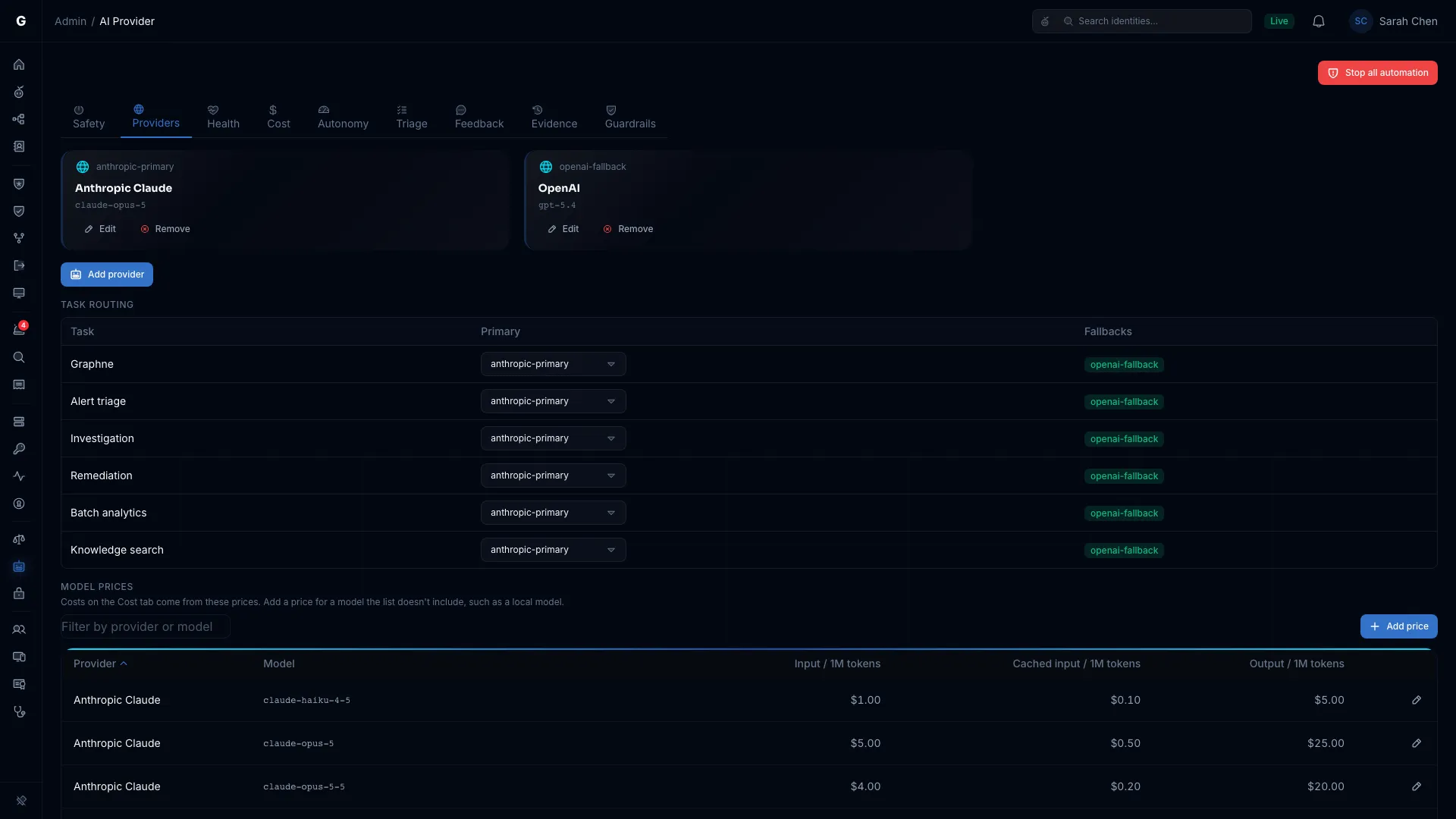
You set up providers on Admin > AI Provider. Multi-Provider AI Configuration covers adding providers, task routing, fallbacks and costs. Changes on that page apply without a restart.
Supported Providers
| Provider | API key | Example model |
|---|---|---|
| OpenAI | Required | gpt-6-sol |
| Google Gemini | Required | gemini-3.8-flash |
| Anthropic Claude | Required | claude-sonnet-5 |
| Local (LM Studio / Ollama) | Not used | Your choice |
The example model is the one the Model box suggests. Enter the model ID your provider account can call.
Local (LM Studio / Ollama) connects to any OpenAI-compatible endpoint, such as LM Studio, Ollama or vLLM. Use it on an air-gapped network. It needs no API key.
Configuring via Admin UI
- Sign in with an Admin account.
- Select Admin > AI Provider in the sidebar.
- On the Providers tab, select Add provider.
- Enter a Name, choose the Provider, and enter the Model.
- Enter the API key. For a local provider, enter the Endpoint URL instead, for example
http://host.docker.internal:1234/v1. - Select Add provider to save.
The next question to Graphne uses the new provider. The page has no connection test. Ask Graphne a question, then check the provider on the Health tab.
Configuring via Environment Variables
The server can also take one provider from its environment variables when it starts, for a first install or a CI/CD pipeline. It uses them only when no provider is saved on the AI Provider page. A saved provider always wins. Restart the server after you change them.
An endpoint on the server itself (a loopback address) works only with the Local provider type. That's how you tell GraphnAI the model runs on the same machine. Other providers are refused such an address. Link-local addresses (169.254.x.x) and cloud instance metadata endpoints are refused for every provider, including Local. A refused endpoint is reported when you save the provider, and again in the server log at startup.
API Key Security
API keys are encrypted at rest with AES-256-GCM, under a key the server generates for itself. A key is never:
- Sent to the model or put in Graphne's context
- Written to the audit log
- Written to the server log
- Shown in full again after it's saved. At most its first three and last four characters are shown.
Natural Language Queries
Using the Graphne Page
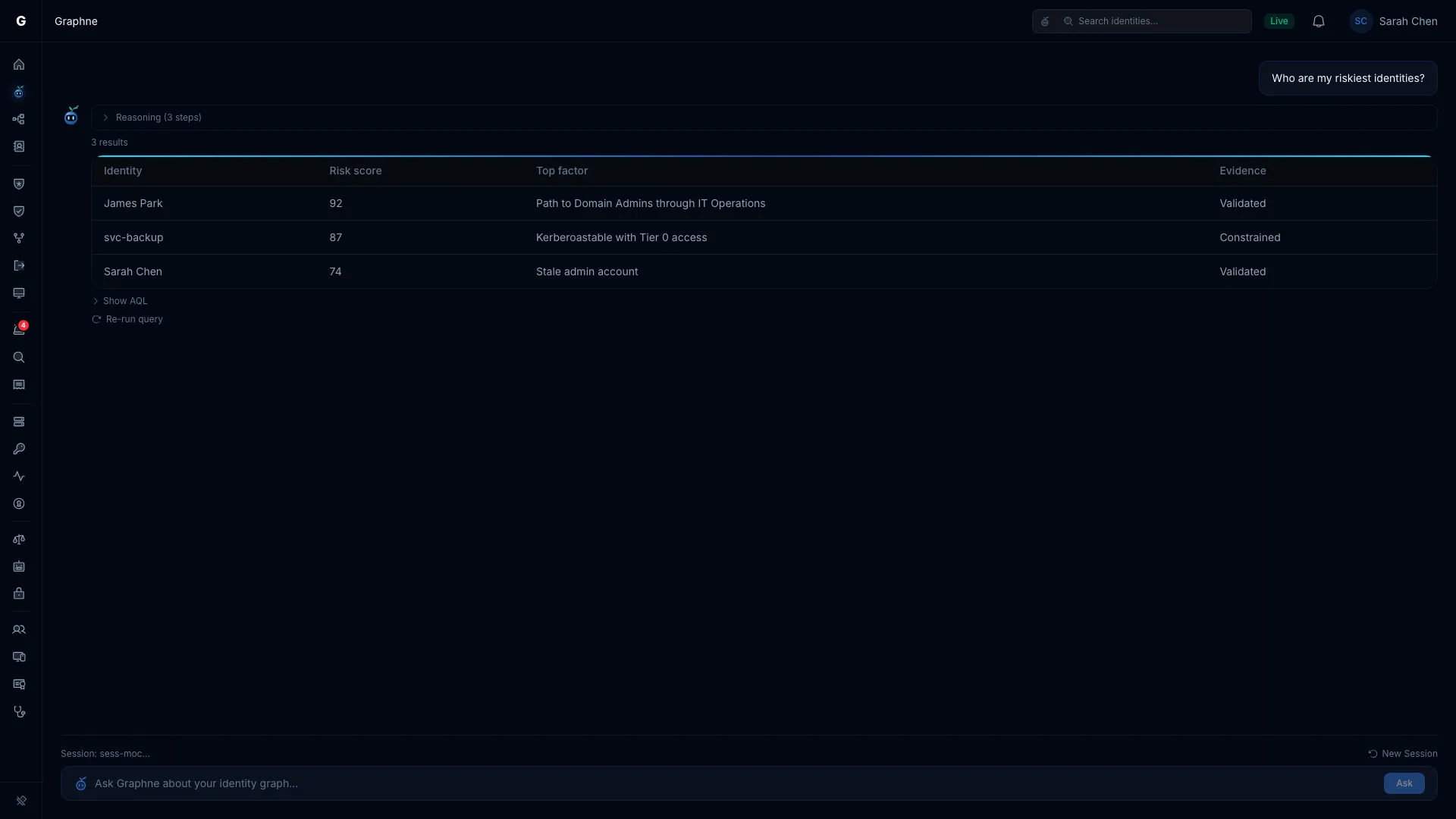
- Select Graphne in the sidebar.
- Type your question in the box, or select one of the suggested questions above it.
- Select Ask, or press Enter. While Graphne writes the answer, Stop replaces Ask. Select it to end the answer. See AI Safety Controls.
A spinner shows while Graphne works, and the answer appears when it's done. A collapsed Reasoning line sits above it, and suggested follow-up questions sit below it. Select a suggestion to ask it. See AI Evidence Trail for what the Reasoning line shows.
The conversation stays in this browser tab until you close the tab. Select New Session to clear it and start over. The first eight characters of the session ID show above the box.
Another page can open Graphne with a question filled in, for example the Ask Graphne action in a finding explanation. The question runs as soon as the page opens.
A question can be up to 4,096 characters. Graphne and finding explanations together accept 10 requests per minute from one person. Past that, the answer reads "Too many queries. Please wait."
Graphne treats text it reads from your directory, logs and graph as data, which defends against prompt injection. An instruction hidden in a name or description isn't followed. An Admin can turn a tool off or limit it to Admins on the Safety tab, and can turn AI off. Graphne then shows "AI is turned off".
Example Questions
Finding over-permissioned identities:
- "Which accounts have GenericAll on a domain controller?"
- "List service accounts with more than 50 permissions"
- "Which users have WriteDacl on the Domain object?"
Exploring access paths:
- "Show all paths from Bob to Domain Admins"
- "How does svc-backup connect to the Domain Controllers group?"
Counting and metrics:
- "How many stale service accounts are in the Finance OU?"
- "How many identities are over-permissioned compared to their peers?"
Fixes and investigations:
- "Find the most over-permissioned user in IT and suggest a fix"
- "Investigate svc-backup"
For risk questions, see Asking Graphne About Identity Risk.
How Results Are Displayed
Graphne chooses the display from the shape of the data:
| Format | When used | What you see |
|---|---|---|
| Text | A written answer | Formatted text |
| Table | Rows with named fields | A sortable table. Identity names link to the Graph Explorer. A Results truncated badge shows when the query reached its row limit. |
| Graph | Attack paths | The nodes and edges of the paths, with the shortest path drawn on its own |
| Metric | A single count or score | A large number with its label |
| List | A set of names | A bullet list |
| Script | PowerShell or shell code | A code block with a Copy button |
| Action | A suggested fix | The reason, and a Launch Select Fire button |
A table from a query Graphne wrote has a link beside it that shows the query.
Graphne keeps an answer for 24 hours, or until the next sync of the domain it read. A kept answer shows a Cached badge. Select Re-run without cache to ask again. Other answers show Re-run query.
Follow-Up Questions and Session Continuity
Graphne reads the last five turns of the conversation with each new question, so a follow-up can build on an earlier answer:
- "Show all users with GenericAll to Domain Admins" returns a table of users.
- "Now filter that to just the Finance department" narrows the earlier result.
- "Suggest a fix for the first one" offers Select Fire for that user.
See How Sessions Work for how long a session lasts.
Finding Explanations
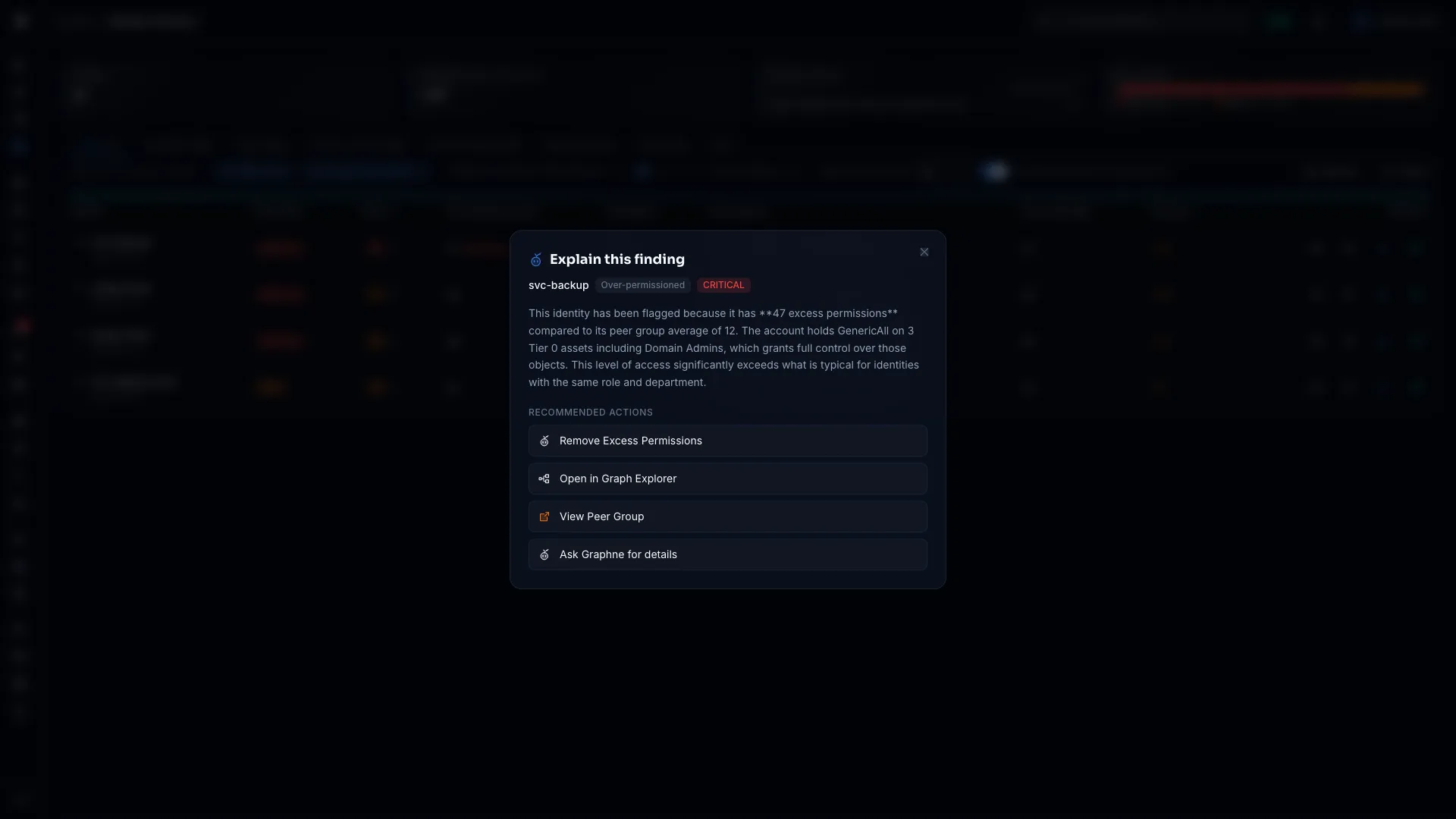
Select the Graphne icon on a finding to get a short explanation of why the identity was flagged, with next steps.
Where to Access
- Identity Inventory: Explain with Graphne on each row, including the Stale and Over-Permissioned presets.
- Critical Junctions: Explain with Graphne on each junction row.
- Detection Alerts: Explain with Graphne on each alert row that names an identity.
- Dashboard: Select the finding's text in Top findings.
- Identity timeline: Analyze, next to the identity's name, explains its recent events. See Identity Investigation Timeline.
- Graph Explorer: Right-click an identity and select Explain.
These buttons show only for Operators and Admins, and only once an AI provider is set up.
What the Response Includes
The Explain this finding dialog shows two things:
- Two or three sentences on why the finding is a risk: what an attacker could do with it, and how far a compromise would reach.
- Recommended actions: two to four buttons, in priority order. Graphne writes each label. Each button does one of these things:
| Action | What it does |
|---|---|
| Select Fire | Opens Select Fire™ to remove the access. It's always listed first. |
| Graph Explorer | Opens the identity in the Graph Explorer |
| Analysis page | Opens the Identity Inventory's Stale or Over-Permissioned preset, Critical Junctions, or Peer Groups |
| Ask Graphne | Opens Graphne with a follow-up question and asks it |
How It Works
An explanation skips Graphne's tool loop. GraphnAI sends the finding's identity, category, severity and detail to the AI provider in one call, on the Investigation route (see task types). The answer is cached, so the same finding explains at once the next time.
If the explanation fails, the dialog says why:
| Message | What to do |
|---|---|
| Couldn't explain this finding. Too many requests. Try again in a minute. | Wait a minute, then try again. |
| Couldn't explain this finding. GraphnAI hit an error. Try again later. | Try again. If it keeps failing, an Admin checks the Health tab on Admin > AI Provider. |
| Couldn't reach GraphnAI. Check your connection and try again. | Check your connection. |
| Couldn't explain this finding. Check the AI Provider page in Admin. | Ask an Admin to check the provider. |
Operational Safety Metric
The Operational Safety Metric™ scores the risk of one proposed change, including its blast radius, from 0 to 100 before it runs. A higher score means a riskier change. The score comes from fixed weights over graph data, so the same inputs always give the same score.
You see it in three places:
- Select Fire's Simulate and Decision steps. See Select Fire™.
- Each recommendation in an investigation report. Ask Graphne to investigate an identity to get one.
- The simplified pipeline's Analysis agent, when Graphne falls back to it.
Graphne's normal answers don't score a change. To score one, simulate it in Select Fire.
Understanding the Score
The score maps to a letter grade:
| Score | Grade |
|---|---|
| 20 or less | A |
| Over 20, up to 40 | B |
| Over 40, up to 60 | C |
| Over 60, up to 80 | D |
| Over 80 | F |
It also recommends a Select Fire™ mode:
| Score | Recommended mode |
|---|---|
| 30 or less | Full-Auto |
| Over 30, up to 70 | Semi-Auto |
| Over 70 | Safe Mode |
Three rules adjust the score:
- Tier 0 target. A change to a Tier 0 target never scores below 70, or below 30 when the subject account is stale.
- Stale subject. A stale subject lowers the score by 20% to 50%. The longer it has been unused, the bigger the cut.
- Estimated factor. When a factor falls back to an estimate, the recommendation drops from Full-Auto to Semi-Auto.
OSM Factors
The score weighs eight factors. Each is scaled from 0 to 1 before it's weighted.
| Factor | What it measures | Default weight |
|---|---|---|
| Target tier | The target's criticality tier. Tier 0 scores highest. | 20% |
| Tier gap | How far below the target's tier the subject sits | 5% |
| Blast radius | How many identities the target reaches, compared with the rest of its domain | 20% |
| Permission severity | How dangerous the permission being changed is | 20% |
| Peer comparison | How many standard deviations (σ) the subject's permission count sits above its peer group's mean. 5σ or more scores the maximum. | 15% |
| Fidelity | The access's Tiered Fidelity™ level: Theoretical, Constrained or Validated | 5% |
| Dependencies | Sessions and services that rely on the target | 5% |
| Usage intensity | How often and how recently the access was used. Heavy recent use makes removal riskier. | 10% |
Select Fire's Operational Safety Metric card shows each factor as a bar. Use it to see which factor drives a high score.
Customizing OSM Weights
The person who deploys the server can change the factor weights through server settings, then restart it. The eight weights must add up to 1.0. If they don't, the server logs a warning and uses the defaults.
On a small, flat network, blast radius tells you less. Lower its weight and raise Target tier or Peer comparison. For a compliance focus, raise Fidelity to weigh how well each permission is evidenced.
Asking Graphne About Identity Risk
Requires role: Operator or Admin, as for every Graphne question.
Every identity carries a standing Risk Score: the same 0 to 100 score and Critical, High, Medium or Low band that the Identity Inventory shows. Graphne answers risk questions from that stored score. Its answers and the Identity Inventory read the same data, so they agree on who your riskiest identities are.
The Risk Score describes where an identity stands now. The Operational Safety Metric™ scores one proposed change. They're separate numbers.
Graphne can also read session history and detection alerts when you ask about them.
"Who are my riskiest identities?"
Ask Graphne:
- "Who are my riskiest identities?"
- "Show the top 10 highest-risk accounts in corp.local"
- "List the riskiest service accounts"
- "Which identities score above 80?"
- "Show the Critical-risk identities, including disabled accounts"
Graphne returns a ranked list in the order the Identity Inventory's Risk column uses, including its tie-break. It lists 10 by default and up to 100 when you ask. Each row shows:
- The Risk Score and its band
- A confidence grade
- The factors that added most to the score, named as in the Identity Inventory's risk popover
Narrow the list by connector ("in corp.local"), identity type ("service accounts"), minimum score ("above 70") or band ("that are Critical"). Disabled accounts are left out by default, as in the Identity Inventory. Ask for them and Graphne lists them after every active account.
Each answer also says how many identities in that scope have a Risk Score. "The top 10 of 912,000 scored identities" reads differently from "the top 10 of 3", for example on a connector that has only just started syncing.
"Why is this identity risky?"
Ask: "Why is svc-backup risky?" or "Break down the risk score for Alice Chen."
Graphne returns every factor behind the score in one reply: its value, its weight and what it added, plus the confidence grade.
| What you see | What it means |
|---|---|
| A number | The factor was measured for this identity. |
| — | Not yet observed. The factor applies to this identity, but no data for it has arrived yet, such as alert data. It doesn't read as zero or as clean. |
| Not applicable | The factor doesn't apply to this kind of identity, for example most factors on an application that hasn't been through junction analysis. It's left out of the score. |
When a factor that applies wasn't measured, the score is a lower bound. Graphne says so, and never calls that identity low risk.
"Where's risk concentrated?"
Ask: "Where's risk concentrated?", "Break risk down by identity type," or "Show risk by connector and risk band."
Graphne groups scored identities by connector, identity type or band, or by two of these. For each group it returns the count, the average score and the highest score. Use it to see whether risk sits in one domain, one type or one band before you look at individuals.
"What's the current risk grade?"
Ask: "What's the current risk grade?" or "How has the risk score trended over the last 30 days?"
Graphne answers from the daily snapshots behind the Risk Posture Dashboard: the composite score, the grade and all eight posture components. A component that wasn't measured is reported as not measured, never as zero.
An identity with no score yet
An identity, or a whole connector, gets a Risk Score from the inventory analysis after a full sync. Until then, Graphne says "No Risk Score has been computed for this identity yet" and doesn't report a zero. Run a full sync, or wait for the next analytics pass, and ask again.
How this relates to what you see elsewhere
- Identity Inventory: The score, band and confidence Graphne reports come from the same stored data as the Risk column, with the same tie-break.
- Risk Posture Dashboard: The grade and trend Graphne reports are the numbers on the dashboard's gauge and component cards.
- Operational Safety Metric™: A separate score for one proposed change. See Operational Safety Metric.
Provisioning Recommendations
Not yet available in Graphne. Graphne's tools don't include provisioning, and there's no screen to compare candidates or send one to Select Fire. The provisioning engine below runs only in the simplified pipeline, for an Admin, when Graphne falls back to it.
The provisioning engine looks for the safest way to grant a specific access. It compares several ways to grant it and recommends the one that adds the least privilege.
How It Works
- You describe the access: who needs it, to what, and which permission.
- The engine builds candidates three ways: add the subject to a group that already holds the permission, grant the permission directly, or assign an Entra ID role.
- It simulates each candidate with the Differential State Engine™. The graph isn't changed.
- The simulation finds side effects: other permissions the subject would gain beyond the one you asked for.
- Each candidate gets an Operational Safety Metric™ score.
- Candidates are ranked: non-toxic first, then the lowest score, then the fewest added permissions.
When no group in the graph holds the permission on the target, only the direct grant is offered. To get a group option, create a purpose-built group in your directory and sync it.
Toxic Combination Detection
A candidate that would give the subject a path through a critical junction is marked toxic and ranked last. When the check can't finish, for example because the subject reaches too many identities to scan, the candidate is flagged for manual review.
Graphne
Graphne holds a conversation and calls GraphnAI's tools as it needs them, up to eight tool calls for one question. It reads the graph through a read-only store, and every query it writes is checked before it runs. See Graphne Agent Query Hardening for the checks each query passes.
Embedded Security Knowledge Base
Graphne carries a built-in identity security knowledge base. It covers:
- AD Tier 0 groups: Domain Admins, Enterprise Admins, DnsAdmins, the krbtgt account and other critical groups, keyed by RID
- The tier model: how Tier 0, Tier 1 and Tier 2 separate control
- Exchange security groups: Exchange Trusted Subsystem, Exchange Windows Permissions and Organization Management escalation chains
- Dangerous permissions: from GenericAll to AllowedToAct, with MITRE ATT&CK technique IDs and attack chains
- Attack patterns: Kerberoasting, DCSync, RBCD, Shadow Credentials, Golden Ticket, NTLM relay and more
- AD CS attacks and AdminSDHolder
- Delegation posture
- Entra ID roles and OAuth2 risks: critical and high-privilege roles keyed by template ID, and dangerous app permissions
- Stale identity risks: thresholds, orphaned admin patterns and remediation by type
- Junction analysis: junction patterns, blast radius and phased remediation
- Detection: authentication telemetry, lateral movement and Windows security events
- Remediation decision trees: which action fits which finding
These answers need no network access. For a topic the knowledge base doesn't cover, Graphne can search Microsoft Learn. The search returns up to three results, each a title, a description and a link.
Select Fire Integration
When Graphne finds a misconfiguration, it can offer a fix. Examples are a user in Exchange Trusted Subsystem, or a stale account in Domain Admins. The answer shows the reason and a Launch Select Fire button, with the subject, target and finding filled in. Select it to open Select Fire™ at the Preview step, then go on to Simulate and Decision.
Shortest Path Highlighting
When Graphne finds more than one attack path between two identities, it draws the shortest one on its own, above all the paths. The answer says "Shortest path: N hops".
A path search follows up to 8 hops (6 unless you ask for more) and returns up to 50 paths. It never traverses a logon session edge (HasSession) or the link from an app to its owner (OwnedBy), and it follows simulated changes only when you ask.
Available Tools
The reasoning trace names each tool Graphne called and tags it with the job it did: Query, Analysis, Investigation or Remediation. While a specialist's tool runs, Graphne's mark beside the answer wears that specialist's kit, such as the headlamp for a query or the hard hat for a fix.
| Tool | What it does |
|---|---|
| Ask the graph | Writes and runs one read-only graph query, for a question no other tool covers |
| Access paths | Finds access paths between two identities |
| Find an identity | Finds identities by name |
| Identity details | An identity's properties, tier, criticality, memberships and permission count |
| Identity risk analysis | An identity's permissions, memberships, staleness, tier and junction status |
| Used and unused access | Which of an identity's permissions are used and which aren't |
| Top risk identities | Identities ranked by Risk Score |
| Risk factors | One identity's Risk Score factors and confidence |
| Risk breakdown | Risk Scores grouped by type, connector or band |
| Risk posture | The risk grade, score and eight components, with live counts |
| Risk history | Daily risk snapshots, up to 90 days |
| Stale identities | Stale identities |
| Over-permissioned accounts | Over-permissioned identities |
| Critical Junctions | Critical Junctions |
get_tier0_assets |
Tier 0 assets |
| Peer groups | Peer groups and their statistics, such as the mean and the outliers |
| Identity timeline | An identity's events, alerts and sessions, up to 90 days |
| Behavior profile | An identity's baseline hours, hosts and protocols, and its anomaly score |
| Timeline analysis | Writes an analysis of an identity's timeline |
| Logon session events | One logon session, by its Windows logon ID |
| Entity trace | Follows an IP address, logon session, service or directory object across events |
| Event connections | Lists every entity one event involves |
| Delegation posture | A domain's delegation posture |
| Delegation sources | The OUs and containers with custom delegations |
| Cross-plane delegations | Delegations that cross control plane boundaries |
| Security knowledge base | Searches the built-in knowledge base by permission, group, technique or MITRE ID |
| Microsoft documentation | Searches Microsoft Learn |
| Suggest a fix | Offers a Launch Select Fire button for a misconfiguration |
| Full investigation | Runs a full investigation of one identity |
Session Continuity
A session holds your conversation with Graphne, so a follow-up can build on earlier answers. See Follow-Up Questions and Session Continuity.
How Sessions Work
- Your first question creates a session. Later questions in the same browser tab continue it.
- A session keeps its last 50 questions and answers.
- A session ends after 30 minutes without a question.
- New Session deletes the current session and starts a new one.
Session History
The Graphne page shows the conversation in the current tab. Each answer's Reasoning line opens its trace: each step, the agent that took it and how long it took, what it was Asked with and what it returned, plus the provider, model, prompt version and cost. Data from lists the sources the answer used. Show model reasoning loads the model's own notes. You see it on your own questions, and Admins see it on any question. Graphne never sends these notes back to any model. See AI Evidence Trail.
Compound Queries and Agent Chaining
In the simplified pipeline, a request with several steps runs as a chain of up to three agents. For example, "Analyze the risk and then generate a remediation script" runs the Analysis agent, then passes its score to the Remediation agent. A chain needs the Admin role. The reasoning trace shows every step.
Troubleshooting
Graphne says it isn't configured
Cause: No AI provider is set up, or none has a readable API key.
Resolution:
- Ask an Admin to open Admin > AI Provider and add a provider.
- If your server takes its provider from environment variables, set the AI provider, model and key there, then restart the server. A provider saved on the page replaces them.
An answer shows a Degraded badge
Cause: Graphne's main loop failed, for example when the provider timed out, and the simplified pipeline answered. Its first reasoning step says the conversational agent was unavailable. A model call can also fail after some tools ran. Graphne then shows what it gathered, with the same badge.
Resolution:
- Ask an Admin to check the provider on the Health tab of Admin > AI Provider.
- Check the server log for the error that caused the fallback.
- For a local model, check that LM Studio or Ollama is running with the model loaded.
- Ask again. A degraded answer is never cached, so asking again retries.
OSM scores are missing or all zero
Cause: The analytics haven't run yet for the domain, so there's no peer baseline to score against.
Resolution:
- Open the domain's bridge on Admin > Bridges.
- Select Full sync.
- Wait for the sync to finish. The sync's phase timeline shows when the Analytics phase is done.
- Simulate the change again.
Session context is lost between queries
Cause: The session ended. That happens after New Session, after 30 minutes without a question, or in a new browser tab.
Resolution: Ask your question again in full.
"Query failed. Please try again."
Cause: The request failed. The page doesn't show the provider's error. The server log has it.
Resolution:
- Select Retry.
- If it fails again, check the server log for the full error.
- Check that the API key is valid, hasn't been revoked and hasn't hit its rate limit.
- Check the model name. A provider rejects a model it doesn't know.
- For a cloud provider, check the provider's status page.
- Ask an Admin to check the provider on the Health tab of Admin > AI Provider (see Multi-Provider AI Configuration).
Query results are truncated
Cause: A graph query returns at most 10,000 rows. A table that reached the limit shows a Results truncated badge. Graphne also passes only part of a large result to the model. Its reply then gives the number of rows it saw and the total.
Resolution: Narrow the question. For example, ask "Show all users with GenericAll to Domain Admins in the Finance department" instead of the unscoped version.
A risk score is reported as "at least" a number
Cause: A factor that applies to this identity has no data yet, such as alert data. Its value reads as not yet observed, and the Risk Score is a lower bound.
Resolution: Treat the identity as at least as risky as the number shown. Ask why it's risky to see which factors are missing. Adding the missing telemetry or alert source fills the factor in on the next analytics pass (see Telemetry Enrichment).
"No Risk Score has been computed yet" for an identity or a whole connector
Cause: The identity, or its connector, hasn't been through the inventory analysis that runs after a full sync. Collection alone doesn't produce a Risk Score.
Resolution: Run a Full sync for the connector and wait for it to finish. Graphne reports a missing score in words, so it never reads as "nothing risky here".
Role Requirements Summary
| Action | Required role |
|---|---|
| Ask Graphne a question, including risk questions | Operator or Admin |
| Get a finding explanation | Operator or Admin |
| Read an answer's reasoning trace | Operator or Admin |
| Start an investigation from Graphne | Operator or Admin |
| See an Operational Safety Metric™ score in Select Fire | Operator or Admin |
| Provisioning, remediation and compound requests in the simplified pipeline | Admin |
| Generate a remediation script in Select Fire's Decision step | Admin |
| Read or save the AI provider configuration | Admin |