Stale Identity Detection: Dormant Accounts and lastLogonTimestamp
Find stale (dormant) users, computers and service accounts that have gone unused past their inactivity threshold, measured from lastLogonTimestamp and lastLogon, with dormant Tier 0 and Critical accounts marked urgent.
On this page
- Overview
- Prerequisites
- Accessing the Stale Preset
- Toolbar Controls
- Understanding the Results
- Summary Cards
- Table Columns
- Urgent Priority
- Filtering and Sorting
- Detail Flyout
- Staleness Thresholds
- Use Cases
- Quarterly Stale Account Audit
- Tier 0 Hygiene Check
- Pre-Audit Preparation
- Service Account Cleanup
- Troubleshooting
- No stale identities found, but you know stale accounts exist
- The Urgent count is very high, for example 50 or more
- An identity is listed as stale but was used recently
- Access denied when you open the Stale preset
- Best Practices
- Security Considerations
- Related Documentation
Overview
Stale accounts build up over time. People leave, service accounts outlive their applications, and test machines stay joined to the domain after the hardware is gone. An attacker who takes over a stale account gets all of its standing permissions, and nobody is watching it for unusual activity.
Stale Identity Detection is the Stale preset on the Identity Inventory table. It lists the identities past their inactivity threshold and marks the ones that are Tier 0 or Critical as urgent. Because it's part of the inventory, each row keeps the rest of the identity's risk picture beside it: criticality, risk score, permissions and memberships.
Prerequisites
- Role: Operator or Admin
- Data sync: At least one full sync, so identities exist in the graph
- Criticality: Asset criticality is evaluated automatically after each sync. The Urgent marking needs it.
Accessing the Stale Preset
- Select Identity Inventory in the sidebar.
- Select the tab you want to review, such as Users, Computers or Service accounts.
- Select Filters, then Stale under Posture.
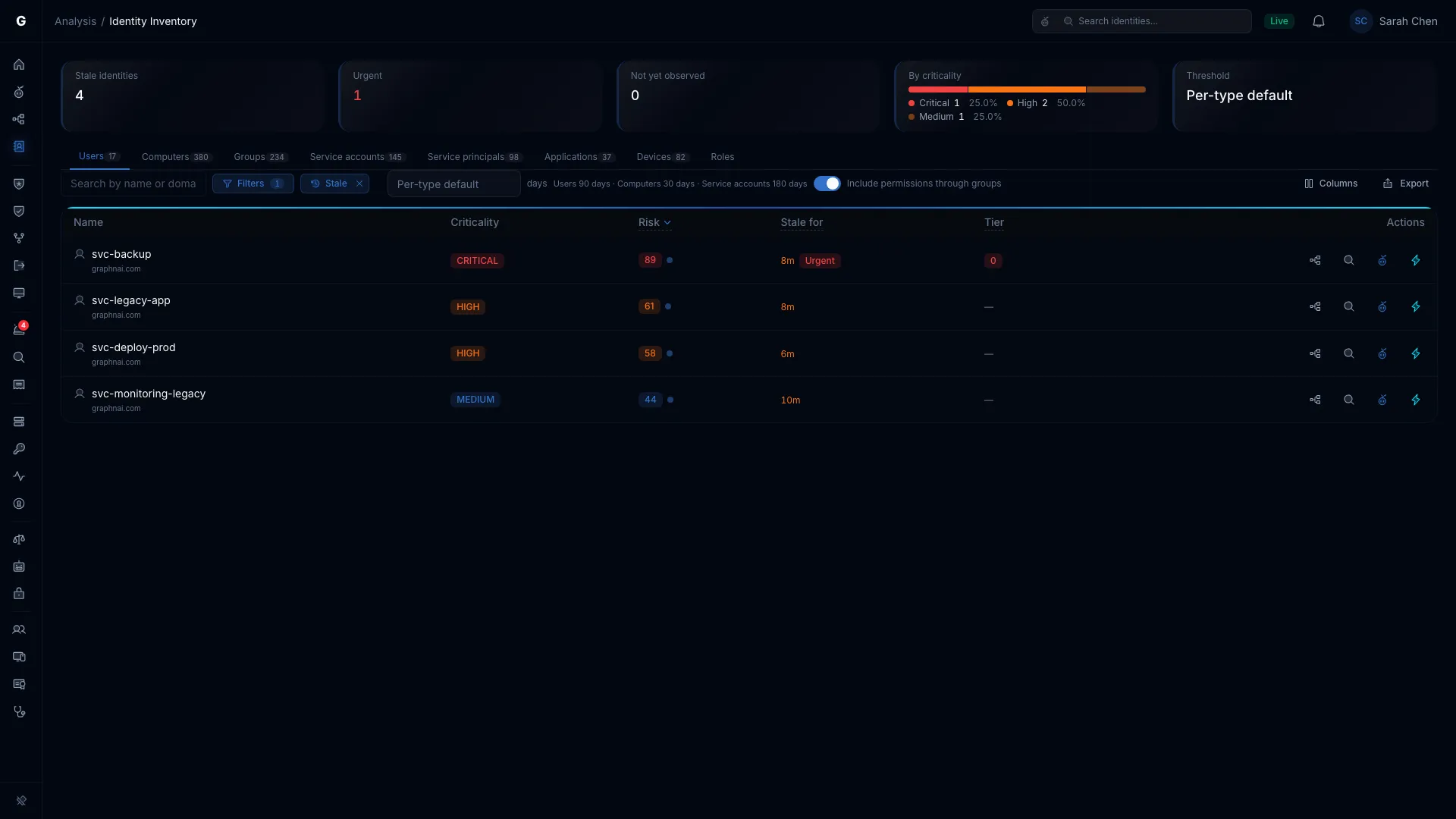
The table narrows to the identities on that tab that are past their threshold, and the stale summary cards replace the usual ones.
You can also link straight to the preset. For stale Users:
/analysis/inventory?tab=User&filter=staleAdd &staleDays=120 to start with a custom threshold instead of the per-type defaults.
The Staleness card on the Risk Posture Dashboard opens the same preset on the Users tab.
Toolbar Controls
The Stale preset adds a days field next to its chip.
- Leave it empty to use the per-type defaults. It reads "Per-type default", and the hint beside it lists them: Users 90 days, Computers 30 days, Service accounts 180 days.
- Enter a whole number from 1 to 3650 to use one threshold for every type on the tab. The hint changes to "N days for every type". An identity counts as stale when it has been inactive for more than that many days.
- Clear the field to go back to the per-type defaults.
Changes apply as you type.
Understanding the Results
Summary Cards
While the Stale preset is on, five cards describe the current tab and threshold:
| Card | Description |
|---|---|
| Stale identities | Identities on this tab past the threshold |
| Urgent | Stale identities that are Tier 0 or Critical. Shown in red when above zero. |
| Not yet observed | Identities with no recorded activity yet. They aren't counted as stale, whatever the threshold. |
| By criticality | A bar of the stale identities by criticality, with the count for each level |
| Threshold | The threshold in force: "Per-type default", or the number of days you entered |
Table Columns
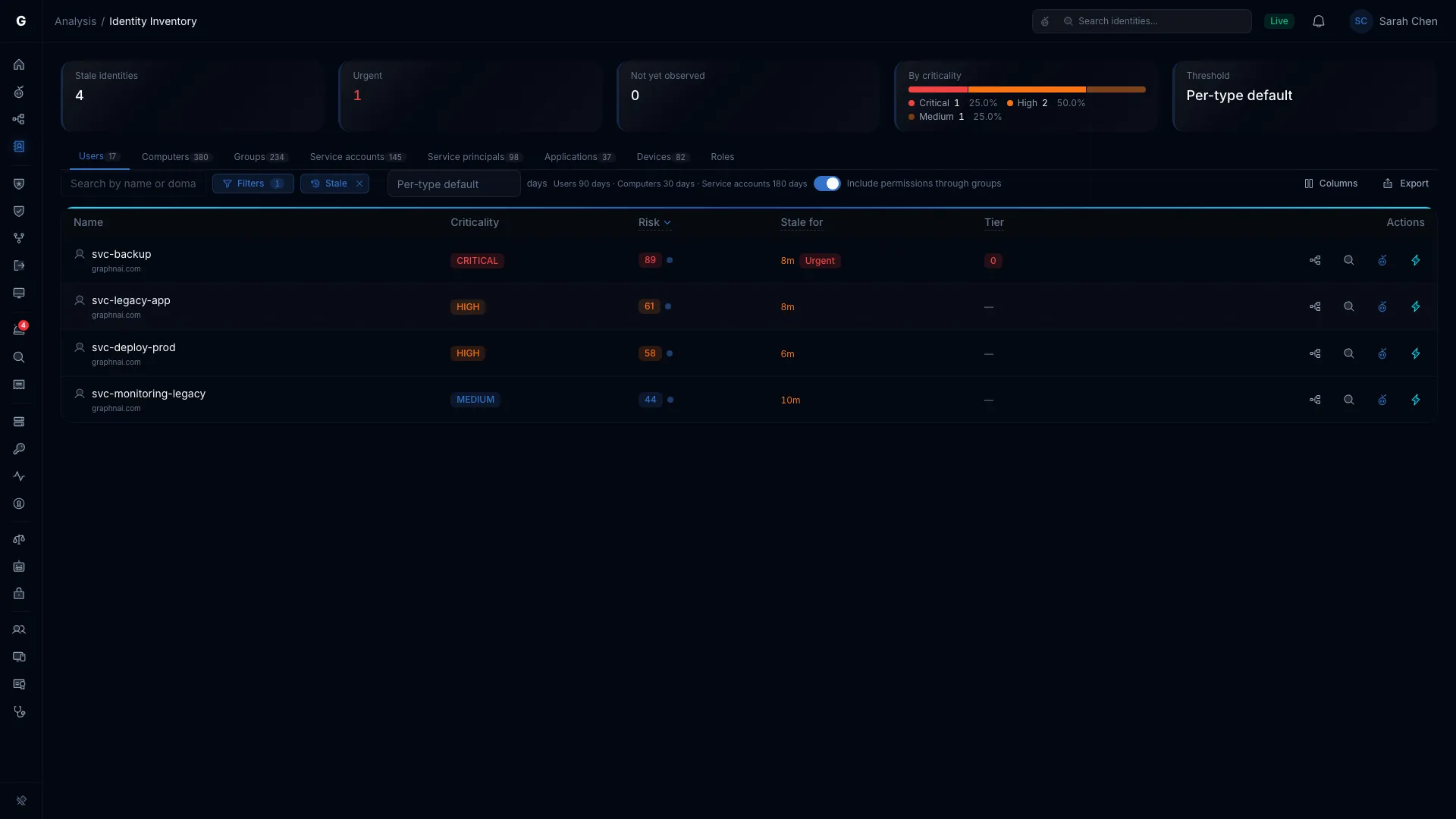
The Stale preset opens with Name, Criticality, Risk and two columns of its own. The inventory's other columns (reach, permissions, memberships, activity) are in the Columns chooser. See Table Columns.
| Column | Description |
|---|---|
| Stale for | How long the identity has been inactive: days under 90 ("45d"), months under a year ("8m"), then years and months ("2y 3m"). Orange above 90 days. An Urgent badge appears for Tier 0 or Critical identities. |
| Tier | 0, in red, for a Tier 0 identity. A dash means no tier is assigned. |
The preset keeps its own column layout, so changes here don't affect the unfiltered table. See Choosing columns.
Urgent Priority
An identity is urgent when it's Tier 0 (Domain Admins, Enterprise Admins and similar) or rated Critical by asset criticality. Urgent identities get a badge in Stale for and count toward the Urgent card. A dormant Tier 0 account is standing administrative access that nobody uses or watches.
Filtering and Sorting
Switch type tabs to move between Users, Computers, Service accounts, Service principals and Devices. Only those five types have an inactivity threshold. On the Groups and Roles tabs the preset returns nothing, and on Applications it reads Not applicable.
To bring the highest criticality to the top, sort the Criticality column, or read the By criticality card.
The domain list and the search box are the inventory's own. See Search & Filtering.
Stale for and Criticality sort from highest to lowest on the first select.
Detail Flyout
Select a row to open the identity's flyout. Its header shows a Stale N days badge once the identity is past the limit for its type, in red past twice the limit. The count is measured from the Last activity date in the header, and the Tier 0 and criticality badges beside the Stale badge show whether the identity is urgent.
An identity with no recorded activity shows a gray Activity not yet observed badge instead, whatever the threshold. These are the identities on the Not yet observed card, such as service principals and Entra users on a tenant that doesn't collect sign-in activity. When the reason is known, Last activity names it, for example Not on this license. If the identity's activity didn't load, the badge reads Couldn't load activity. Close the flyout and open the identity again to retry.
If the identity also has a scored peer group, the flyout shows the Over-permission analysis, Permission breakdown and Peer group sections too. See the Over-Permission Analytics detail flyout.
Staleness Thresholds
Each identity type has its own default threshold:
| Identity type | Default threshold | Why |
|---|---|---|
| User | 90 days | People authenticate at least every quarter. A longer gap suggests they've left. |
| Computer | 30 days | Workstations and servers authenticate daily. A month without activity suggests the machine is gone. |
| Service account | 180 days | Service accounts can be idle for long stretches, for example a quarterly batch job. |
| Service principal | 180 days | Cloud service principals authenticate rarely. |
| Device | 30 days | Devices check in often while they're in use. |
Groups, Roles and Applications have no activity to measure, so they're never stale.
Activity comes from the directory:
- Active Directory: the newer of
lastLogonTimestampandlastLogonfrom the domain controller the bridge reads.lastLogonTimestampcan trail the real logon by up to about 14 days. An account with neither counts fromwhenChanged, the last time the directory changed it. - Entra ID: the user's
signInActivityfrom Microsoft Graph. Microsoft Graph doesn't report sign-in activity for service principals, so they show as Not yet observed.
Use the days field to replace the defaults for the current tab. One threshold for every type suits an audit with a single cutoff.
[!TIP] Tighten the threshold before a compliance review. At 60 days, for example, you also see Users approaching the 90-day default.
Use Cases
Quarterly Stale Account Audit
- Work through the Users, Computers, Service accounts, Service principals and Devices tabs in turn.
- Select Filters, then Stale.
- Sort Stale for to put the longest-inactive identities first.
- Read the By criticality card, or sort Criticality, to take Critical and High identities first.
- Select each row to review its access in the flyout before you act.
- Decide for each account: disable it with Select Fire, delete it once nothing depends on it, or record it as an accepted exception.
- Select Export, then Export CSV, for your audit trail.
Tier 0 Hygiene Check
- Check the Urgent card. In a healthy environment it reads 0.
- If it doesn't, select each urgent row and inspect its access in the flyout.
- Use the flyout's investigation tabs to check its permissions, memberships and posture findings.
- Treat a stale Tier 0 account as a critical finding, and escalate it.
Pre-Audit Preparation
- Enter 60 in the days field, tighter than the 90-day default for Users.
- Select Export, then Export CSV.
- Share the file with department heads to confirm which accounts can go.
Service Account Cleanup
- Select the Service accounts tab.
- Enter 365 in the days field.
- Select each finding and check whether it still holds permissions on production resources.
- Use Select Fire to disable the accounts that should go.
Troubleshooting
No stale identities found, but you know stale accounts exist
Possible causes:
- Threshold too high: The per-type defaults may be too generous for your environment. Enter a lower number, such as 30, in the days field.
- Wrong tab: The preset shows only the active tab. Groups, Roles and Applications are never stale.
- No recorded activity: Identities with no recorded activity are left out and counted on the Not yet observed card. Service principals are always in this group.
Solution: Clear the days field to go back to the defaults, check each relevant tab, and confirm the Stale chip is still on.
The Urgent count is very high, for example 50 or more
Possible causes:
- Criticality not evaluated yet: The analysis after each sync may not have finished its first criticality pass.
- A criticality rule is too broad: A custom rule may be marking too many accounts Tier 0 or Critical.
Solution:
- Check the Identity Inventory for the "Analysis didn't finish" banner. If it's there, run the sync again from Bridges.
- Review your criticality rules in Admin > Classification Rules, on the Criticality tab.
- If the accounts are Tier 0 and stale, treat it as a critical finding and escalate it at once.
An identity is listed as stale but was used recently
Possible causes:
- Replication delay: Active Directory updates
lastLogonTimestamponly every 9 to 14 days (the interval is themsDS-LogonTimeSyncIntervalattribute, 14 days by default, less a random offset), and the bridge readslastLogonfrom one domain controller. A logon on another controller can take up to about two weeks to show. - No sync since the logon: The bridge hasn't synced since the account was used.
Solution:
- Select the row and check Last activity in the flyout header.
- Open the bridge's page from Bridges and check when the last sync ran.
- Select Delta sync on the bridge's page to collect fresh activity.
Access denied when you open the Stale preset
Cause: Your account doesn't have the Operator role or higher.
Solution: Ask an Admin to give you the Operator or Admin role in Admin > Users.
Best Practices
- Review stale identities every quarter as part of your access reviews.
- Take Tier 0 stale accounts first. A healthy environment has none.
- Use a custom threshold for a focused review, for example 14 days for Computers during a hardware refresh.
- Check an identity's access before you act. Open the flyout to review its permissions and memberships before you disable or delete it.
- Use Select Fire to make the change. It simulates the change and shows its blast radius before anything happens.
- Export each review. A CSV export documents the review for compliance.
- Record exceptions. If a service account is idle by design, for example for an annual job, note it in your identity management system so the next review doesn't raise it again.
Security Considerations
- A stale account is an attack path. Whoever takes it over gets its permissions, with little chance of being noticed.
- A stale Tier 0 account is a critical finding. A dormant Domain Admin account is as dangerous as an active one once it's compromised.
- Activity is only as fresh as the directory. Active Directory's replicated logon time can trail by up to about 14 days, and nothing updates until the next sync.
- Deletion is permanent. Disable an account first, and watch for breakage before you delete it.
Related Documentation
- User Management & RBAC: what the Operator role can do
- Entra ID Setup: set up cloud identity sync