Automated Entra ID Setup: App Registration, Certificate and Admin Consent
On this page
- Prerequisites (self-hosted only)
- Deployment Bundle
- How it Works
- Which account counts as the setup administrator
- Troubleshooting
- "That isn't the setup administrator email for this server"
- "Microsoft Entra ID setup is off because this server has no setup administrator email"
- "That Microsoft account isn't the setup administrator"
- "You signed in, but the app registration couldn't be created"
- "Your browser blocked the sign-in window"
- The sign-in expired
- The wizard returns to the license step
- GraphnAI can't reach the sign-in service
- "Microsoft is taking longer than usual"
- "Your account doesn't have access to GraphnAI" after sign-in
- The setup wizard doesn't appear
- Technical Details
The setup wizard creates GraphnAI's app registration in your Microsoft Entra ID tenant, generates its certificate, and turns on OIDC sign-in. You don't edit any files or restart the server.
Prerequisites (self-hosted only)
Deployment Bundle
If you deployed from a GraphnAI deployment bundle, its docker-compose.yml already sets every variable the wizard needs. Start the stack and open GraphnAI in your browser. See the Quick Start Guide for the full walkthrough.
Write GRAPHNAI_SEED_ADMIN_EMAIL in lowercase. The wizard lowercases the email you type before it compares the two, so a value with capital letters never matches.
[!IMPORTANT] Starting the wizard: The wizard runs only while no sign-in method is set up. OIDC sign-in settings in the server's configuration count as one. Remove them before you start the server.
You also need:
-
A valid license. If the license has expired, the wizard sends you back to the license step.
-
A browser that can reach
https://api.graphnai.comover HTTPS. The sign-in goes through GraphnAI's sign-in service. If your network blocks it, use Use an existing app registration and add the permissions in the Microsoft Entra admin center. See Usage Reporting. -
A Microsoft account that can create app registrations in your tenant, such as an Application Administrator.
-
A Global Administrator or Privileged Role Administrator to grant admin consent at the end.
How it Works
The wizard's steps are shown across the top: License, Method, Email, Sign in, Finish and Approve.
-
Open GraphnAI: Open the setup link the server printed at first start (see Quick Start). The link starts the setup wizard at
/setup. Without the link, the wizard asks you to open or paste it. -
License: If the server has no license yet, choose the license file from your deployment bundle. See License Management & Feature Gating.
-
Method: Select Microsoft Entra ID.
-
Email: Enter the setup administrator email, the value of
GRAPHNAI_SEED_ADMIN_EMAIL, and select Continue. If it doesn't match, setup stops there, so nobody else can start it.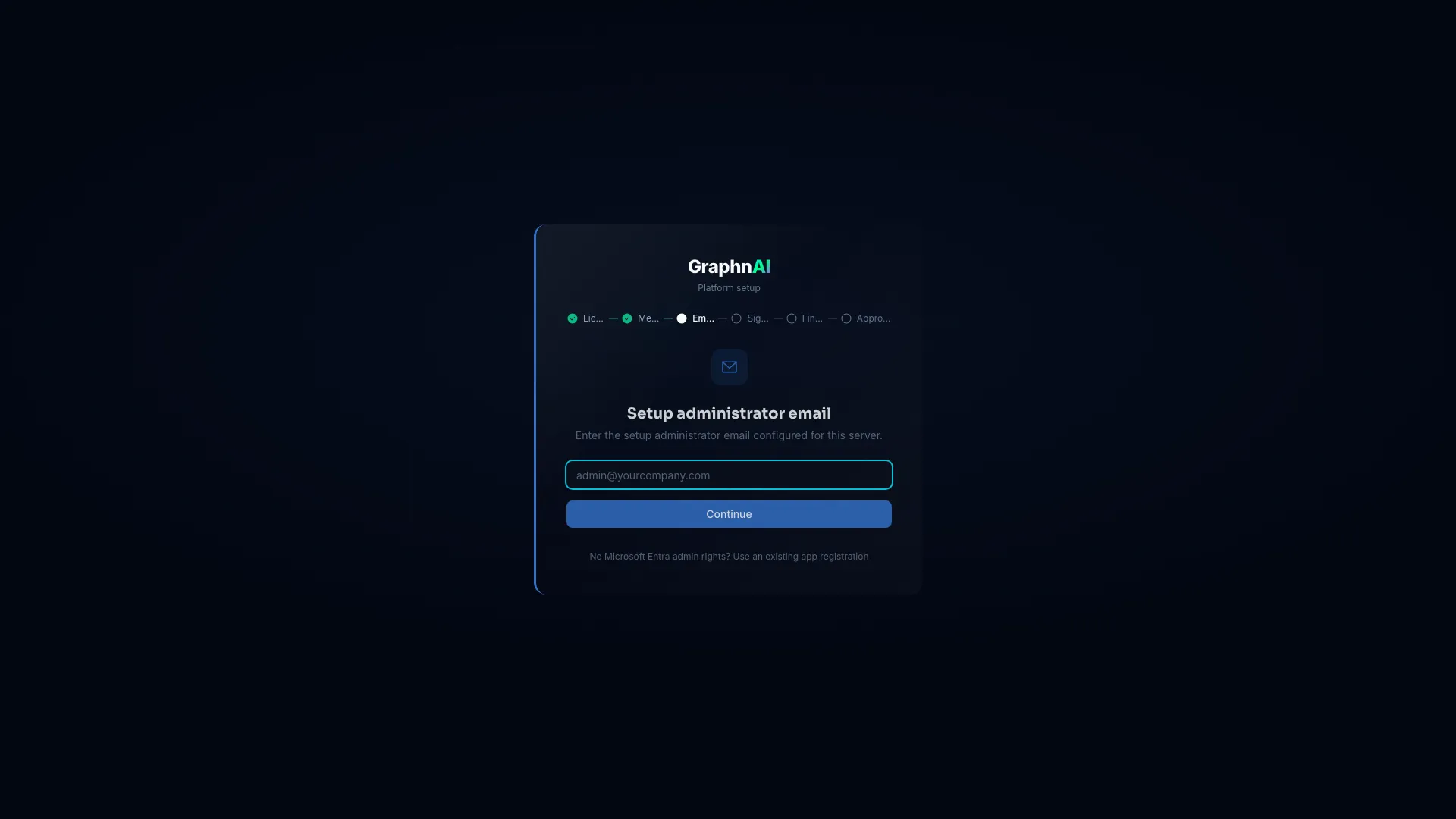
-
Sign in: Select Sign in with Microsoft. A pop-up window opens.
- Sign in with the setup administrator's Microsoft account.
- If Microsoft asks you to let the GraphnAI setup app create app registrations for you, accept.
- Wait on the wizard page. It continues on its own when the pop-up closes.
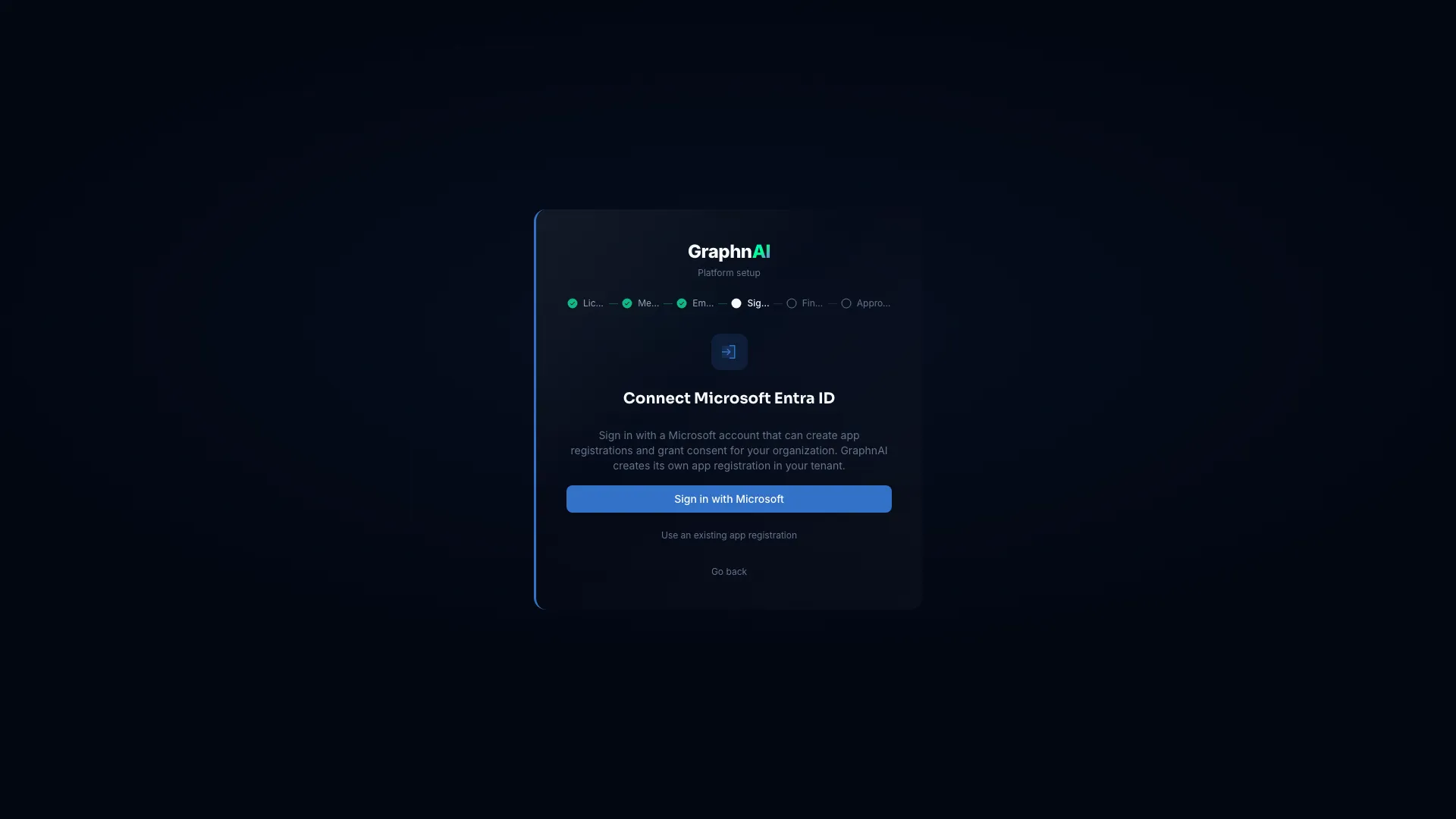
If your browser blocks the pop-up, allow pop-ups for the GraphnAI address and select Try again.
-
Finish: GraphnAI checks the account against the setup administrator email again (see Which account counts as the setup administrator). It then uses Microsoft Graph to:
- Create an app registration named "GraphnAI Platform".
- Create its service principal.
- Generate a self-signed certificate and upload it to the app registration.
- Set the redirect URI to your server's address.
- Request the Microsoft Graph permissions GraphnAI uses. See Entra ID Setup.
Microsoft takes a moment to make the new app registration available. The wizard waits, usually 10 to 30 seconds.
-
Approve: The wizard shows Setup complete. Sign-in already works.
- Select Grant admin consent. Microsoft's consent page opens in a new tab.
- Sign in there as a Global Administrator or Privileged Role Administrator, and accept. GraphnAI starts the first sync of your tenant a few seconds later.
- Back in the wizard, select Continue to sign in.
GraphnAI saves the tenant as your sign-in provider and as a directory it collects. Sign-in reloads with the new settings, with no restart. Sign in with the setup administrator account. GraphnAI makes it an Admin at its first sign-in.
Which account counts as the setup administrator
The Microsoft account qualifies when either of these is true:
- Its user name is the setup administrator email.
- Its email is the setup administrator email, on a domain that Microsoft has verified for your tenant.
Guest accounts don't qualify. The first account that signs in this way is remembered. Another account with the same address later isn't the setup administrator.
To hand the role to someone else, change GRAPHNAI_SEED_ADMIN_EMAIL and restart the server. Then sign in with the new account right away, because the first qualifying sign-in after the restart claims the role.
Troubleshooting
"That isn't the setup administrator email for this server"
The email you entered doesn't match GRAPHNAI_SEED_ADMIN_EMAIL. For bundle deployments, that's the contact email on file with GraphnAI. The wizard compares a lowercased copy of what you type, so the variable must be lowercase too.
"Microsoft Entra ID setup is off because this server has no setup administrator email"
Set GRAPHNAI_SEED_ADMIN_EMAIL and restart the server.
"That Microsoft account isn't the setup administrator"
You signed in to Microsoft with a different account. Select Go back and sign in with the setup administrator's account.
"You signed in, but the app registration couldn't be created"
The account can't create app registrations in your tenant. Sign in with an account that can. If nobody with that right is available, go back to the Email step and select No Microsoft Entra admin rights? Use an existing app registration.
"Your browser blocked the sign-in window"
Allow pop-ups for the GraphnAI address, then select Try again.
The sign-in expired
The sign-in has a time limit, shown as minutes left on the wizard. If it runs out, or you closed the window early, select Cancel, then try again.
The wizard returns to the license step
The license has expired. Import a current license, then continue. See License Management & Feature Gating.
GraphnAI can't reach the sign-in service
Your network blocks outbound HTTPS from the browser or the server to api.graphnai.com. Allow it, or select Use an existing app registration.
"Microsoft is taking longer than usual"
The new app registration isn't available yet. Select Retry to keep checking.
"Your account doesn't have access to GraphnAI" after sign-in
Only the setup administrator becomes an Admin automatically. Sign in with the account that qualifies as the setup administrator (see above). If that account still can't sign in, check the server log for the reason.
The setup wizard doesn't appear
The wizard appears only while no sign-in method is set up. A finished setup and any OIDC sign-in settings in the server's configuration both count as one.
- You set OIDC sign-in settings in the server's configuration and want the wizard instead: Remove the settings and restart the server. If no setup has finished, the server prints a new setup link at start. Use it to open the wizard.
- Setup already finished: The wizard doesn't run again. Change sign-in on Admin > Identity Providers. To add permissions to the app registration, select Update the app registration. See Entra ID Directory Accuracy.
- No Admin can sign in: Contact GraphnAI support. Don't edit the database to clear the sign-in configuration.
Technical Details
- Storage: Sign-in providers are stored in the ArangoDB collection
oidc_providers. - Security: The certificate's private key and any client secret are encrypted at rest with a key the server derives from its own root key. If encryption fails, the save is refused.
- Certificates: Sign-in authenticates to Microsoft with the certificate, as a signed client assertion. The wizard stores no client secret.
- Reload: Sign-in reloads from the database when setup finishes. The server doesn't restart.
- Bootstrap client ID: A GraphnAI-owned multi-tenant Entra ID app. GraphnAI uses it only for the Sign in with Microsoft pop-up: this wizard, adding another Entra ID tenant with Add provider, and Update the app registration.