Critical Junctions
Find the chokepoints in your identity graph: accounts with high closeness and betweenness centrality that give an attacker the shortest routes to Critical assets.
On this page
- Overview
- Prerequisites
- How Junction Scoring Works
- The Junction Score
- Attack Cost
- Score Colors
- Use the Critical Junctions Page
- Summary Cards
- The Junctions Table
- Row Actions
- The Junction Details
- Junction Flow Graph
- Inbound Sources (Left)
- Shortest Attack Path (Center)
- Outbound Blast Radius (Right)
- Work with the Graph
- Recalculate Junctions
- How Junctions Connect to Other Features
- Risk Posture Dashboard
- Select Fire
- Graphne
- Graph Explorer
- Troubleshooting
- The page shows "No Critical Junctions"
- The scores show dashes and "These scores use an older scoring method"
- The scores are all close together
- A recalculation fails or times out
- The flow graph is missing a part
- An account you expect isn't in the list
Overview
Most accounts are dead ends for an attacker. Compromising one reaches a few resources and nothing further. A few accounts sit where many attack paths meet, between low-privilege and high-privilege parts of your directory. These are critical junctions.
The analysis follows the paths into your Critical assets, such as Domain Admins and the domain controllers. It ranks each account by two measures of centrality. Closeness centrality is how near the account is to those assets. Betweenness centrality is how many attack paths pass through it, which marks a chokepoint. The top of the list is the account an attacker would most want to compromise.
Prerequisites
- Role: Operator or Admin to view the page. Only Admins see Recalculate.
- License: A license that includes junction analysis. Without it, Critical Junctions in the sidebar and the page show the license lock, with the number of junctions your directory has.
- Critical assets: Junctions are scored against Critical assets. With no Critical assets, the analysis finds no junctions. See the Asset Criticality guide.
- Data: At least one finished sync. A directory with few connections between accounts can produce few or no junctions.
The analysis runs after every full sync, and after a delta sync that collected changes. The page shows the saved result, so it opens at once.
How Junction Scoring Works
The Junction Score
Each junction gets a junction score from 0 to 10. Higher is riskier. The score combines two measurements:
- Closeness centrality: how near the account is to your Critical assets, along the cheapest attack paths. Higher means more central. An account one easy step from Domain Admins scores high. An account many costly steps away scores low. More critical targets count for more.
- Betweenness centrality: how often the account sits on the shortest attack paths into Critical assets. Higher means more of a chokepoint. Removing an account that sits on many paths forces an attacker onto longer, costlier routes.
The analysis weights the two centralities for your directory's shape. The weight shows as Alpha in the account's details and needs no setting.
Attack Cost
Every edge on a path has a cost. A lower total cost means an easier route, which raises the score of every account on it.
| Edge | Cost |
|---|---|
| A Critical permission, such as DCSync, GenericAll or WriteDacl | Lowest, about 3 |
| A High, Medium or Low permission | Higher as the severity drops, up to about 7.6 for Low |
| Several permissions on the same edge | Lower than one permission alone |
| A structural edge: Member of, Contained in, Owner of, Has role, GPO link, Domain trust | Fixed at 10 |
| An edge from a disabled account, or a blocked (dormant) edge | Its cost plus 4 |
A blocked edge costs more but is never left out of the analysis. The fidelity level doesn't change the cost. A Validated permission costs the same as a Theoretical one.
Score Colors
| Score | Color | What to do |
|---|---|---|
| Above 8 | Red | Fix first |
| Above 5, up to 8 | Orange | Schedule a fix |
| 5 or less | Muted | Monitor |
Use the Critical Junctions Page
Select Exposure > Critical Junctions in the sidebar.
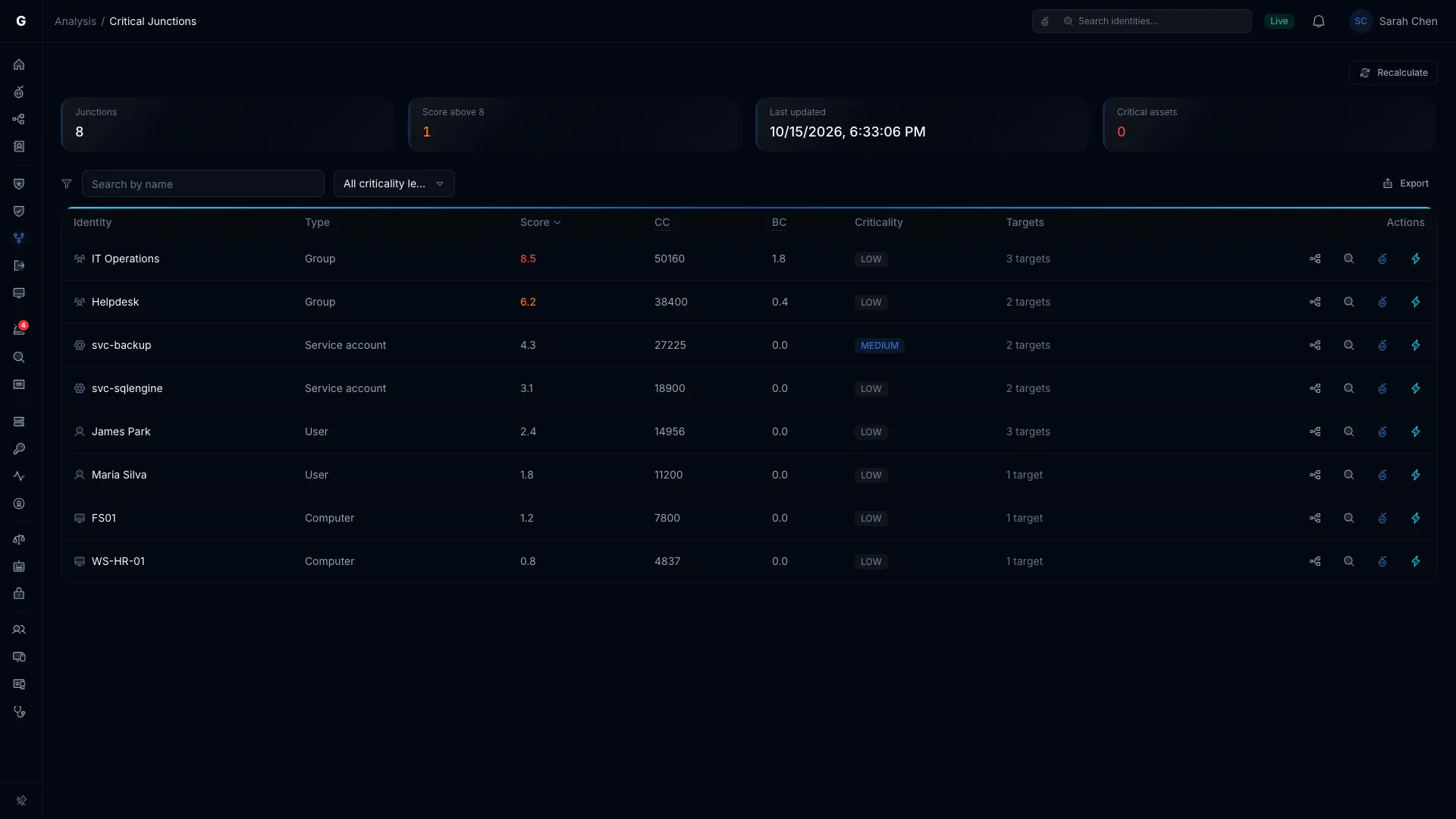
Summary Cards
| Card | What it shows |
|---|---|
| Junctions | How many junctions the analysis found. When the list holds only the top ones, it reads "Top 100 of 1,234". |
| Score above 8 | How many junctions score above 8 |
| Last updated | When the analysis last ran, or "Not yet calculated" |
| Critical assets | How many junctions are Critical assets themselves |
The Junctions Table
| Column | Description |
|---|---|
| Identity | The account's name and type icon |
| Type | User, Group, Computer, Service account, and so on |
| Score | The junction score, from 0 to 10, in its score color |
| CC | Closeness centrality. Higher means the account is nearer your Critical assets, so more central. |
| BC | Betweenness centrality. Higher means the account sits on more shortest attack paths, so more of a chokepoint. |
| Criticality | The account's own criticality level |
| Targets | How many Critical targets the account can reach |
The table lists active accounts before disabled ones, then sorts by score, highest first. Select a column header to sort by it. Select it again to reverse the order.
Use Search by name to find an account. The criticality list narrows the table to Critical, High or above or Medium or above. Select Export to download the table.
Row Actions
Each row has up to four buttons:
- Open in Graph Explorer (tree-structure icon): opens the account in Graph Explorer.
- Start investigation (magnifying glass): starts an investigation and opens its report. Needs the Operator role.
- Explain with Graphne (Graphne icon): asks Graphne why the account was flagged. Needs the Operator role and a configured AI provider.
- Select Fire (lightning bolt): opens Select Fire with the account as the subject. Needs the Operator role.
The Junction Details
Select a row to open the flow graph and the account's details. Select the row again to close them. The details show:
- Junction score: the score, with a bar that marks the high line at 8.
- Closeness centrality, Betweenness centrality and Alpha. Alpha is how much of the score comes from closeness. The rest comes from betweenness. Together they show the kind of risk:
- High closeness, low betweenness: the account is dangerously close to a few Critical targets.
- Low closeness, high betweenness: many different attack routes pass through the account, so it's a chokepoint.
- Both high: both problems at once. Fix these first.
- Attack paths: the cheapest paths from the account to its Critical targets, each with its target and total Cost. Select a path to draw it in the flow graph.
- Targets by type: the Critical targets the account reaches, split by type.
- Identity details: the account's attributes from the last sync.
At the bottom, select Investigate to start an investigation, or Select Fire to plan a fix.
Junction Flow Graph
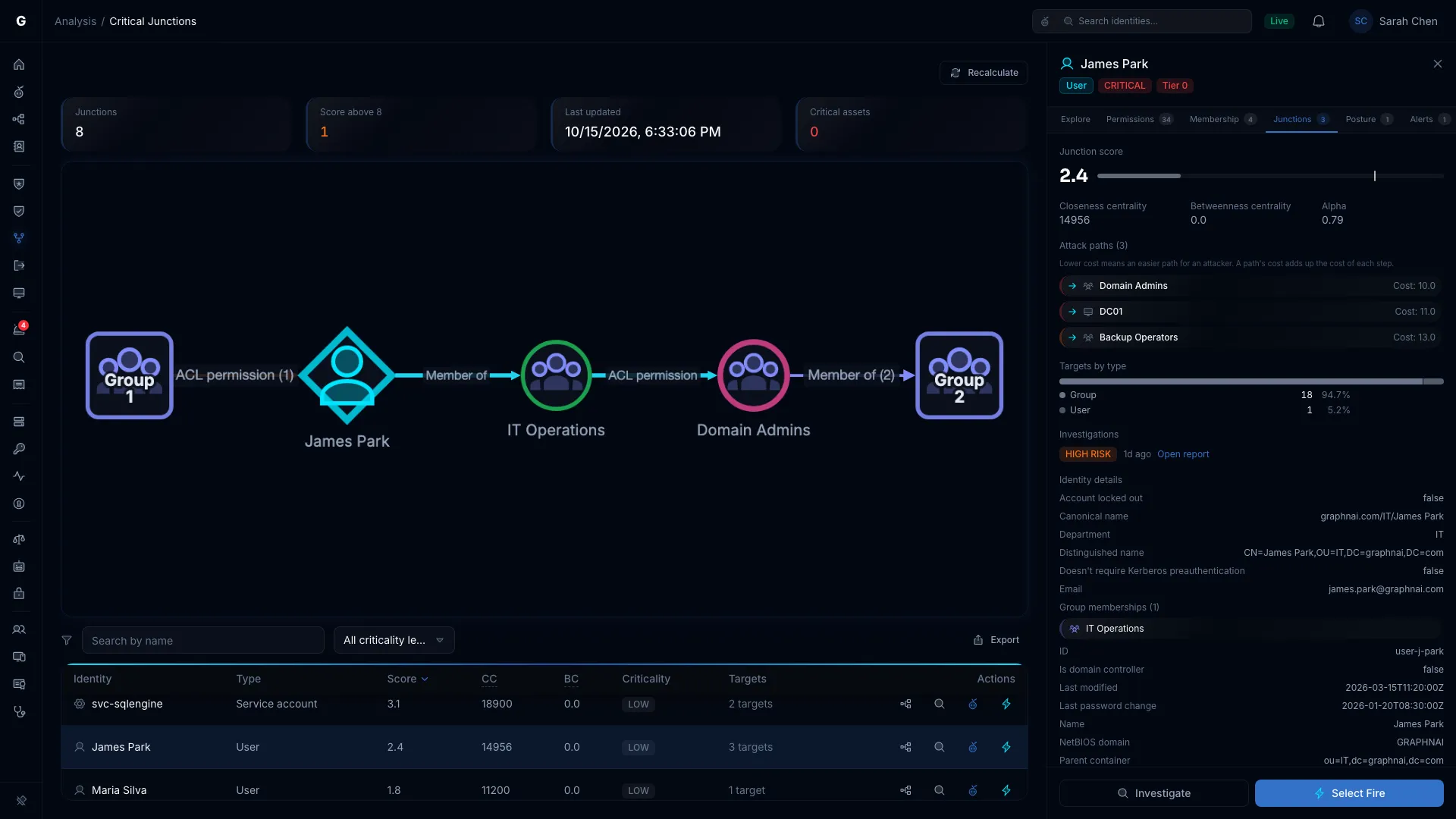
The flow graph shows how an attacker reaches the junction, the path from the junction to its target, and what the target controls. It reads from left to right.
Inbound Sources (Left)
The groups of boxes on the left are the accounts that can reach the junction, up to 3 steps out. Each box is one identity type with a count, for example "Group 6" for six groups at that distance. Each edge names its edge type and count, for example "Member of (4)".
Boxes further left need more steps to reach the junction. A large count, such as "User 923", means a wide exposure.
Shortest Attack Path (Center)
The middle shows the cheapest path from the junction to its top target. It names each identity and each permission on the way. The junction is drawn larger, with a thick ring in its type's color. The target has a pink border.
This is the chain an attacker would follow. Removing any edge on it cuts the route.
Outbound Blast Radius (Right)
The boxes on the right show what the target can reach, up to 3 steps out: computers, groups, OUs, containers and domains. They show why the target matters. If Domain Admins reaches 41 computers, 122 containers and 78 groups, that's control of the domain.
Work with the Graph
- Zoom and pan: scroll to zoom, and drag to pan.
- Open a box: select a box to list the identities in it.
- Change the target: select another path under Attack paths to redraw the graph for that target.
Recalculate Junctions
Requires role: Admin
The analysis runs after each sync that changed the directory. Run it yourself when you need fresh results sooner, for example after new criticality rules changed which assets are Critical.
- Open Exposure > Critical Junctions.
- Select Recalculate.
- In Recalculate junctions, set Maximum junctions: how many junctions to keep, from 1 to 500. The default is 50.
- Set Search depth: how many edges deep to search, from 1 to 20. The default is 5.
- Select Recalculate.
The button shows that it's working until the analysis finishes. On a large directory this can take several minutes. The page updates when it's done, and a "Junctions recalculated" message appears.
A value outside the allowed range is changed to the nearest allowed value, and a message says so.
A search depth above 5 can make the analysis much slower. Most Active Directory environments need 3 to 5. Raise it only for long service account chains or paths across several domain trusts.
How Junctions Connect to Other Features
Risk Posture Dashboard
Each account's junction score feeds the Junction score factor on the Risk Posture Dashboard. After a recalculation, the dashboard shows the new results the next time it loads.
Select Fire
Select Select Fire on a row to open it with the junction as the subject, set to remove access. Select Fire simulates a change before you make it. For a high-scoring junction:
- Select the row, and find the permission on the shortest path that carries the most risk.
- Select Select Fire on the row.
- Use the Simulate step to see what removing the access changes.
- If the result is acceptable, continue to the Decision step.
See the Select Fire guide.
Graphne
With an AI provider set up, each row has Explain with Graphne. Graphne explains why the account is a junction, its attack paths, and the fixes to consider, ranked. See the Multi-Agent Intelligence guide.
Graph Explorer
Every row and every target in the details can open in Graph Explorer, focused on that account. Use it to look at the permissions in the flow graph one by one, or to browse everything around a junction.
Troubleshooting
The page shows "No Critical Junctions"
Most likely cause: The analysis hasn't run, or no asset is Critical.
Fix:
- Open Admin > Classification Rules, on the Criticality tab, and confirm that some identities are rated Critical. If every identity shows Low, the criticality evaluation may not have run. See the Asset Criticality troubleshooting section.
- If Last updated reads "Not yet calculated", no analysis has run. An Admin can select Recalculate.
- If a recalculation still finds no junctions, confirm your directory has Critical assets and accounts with access paths to them.
The scores show dashes and "These scores use an older scoring method"
Cause: The saved results came from an older version of the scoring. The accounts stay listed, but their numbers are hidden.
Fix: An Admin selects Recalculate. The next sync also replaces them.
The scores are all close together
Most likely cause: A small directory, or junctions that all reach the same few targets the same way.
In a small test environment with a handful of Critical targets, scores cluster. They spread out as the directory grows.
In a large production directory:
- Check Last updated. Old results may come from an older, less complete sync.
- Select Recalculate to run the analysis on the current data.
- If the scores still cluster, contact support with your junction and target counts.
A recalculation fails or times out
The message "Couldn't recalculate junctions" appears. When it says "It timed out", the analysis was too large to finish.
- Lower Maximum junctions (for example, 25 instead of 50) and Search depth (for example, 3 instead of 5), then try again.
- Check the free memory on the database server. The analysis runs heavy graph queries.
- Check the server logs for "junction calculation failed", which gives the error.
The flow graph is missing a part
The graph loads its three parts separately. If one fails, the rest still draws, and a line such as "Couldn't load the shortest path. Refresh to retry." names the missing part.
- No inbound sources: nothing reaches the junction. It may be isolated, or newly synced.
- No shortest path: no path to the top target was found within the search depth. Open the account in Graph Explorer to look.
- No outbound blast radius: the target reaches nothing further.
If the whole graph fails, it shows "Couldn't load this graph." Select Retry.
An account you expect isn't in the list
The list holds only the top junctions by score: the Maximum junctions of the last recalculation, or the top 100 after a sync. An account below the cutoff doesn't appear. When you open such an account, its details say it isn't among the top junctions the last analysis found.
To look into one account:
- Open it in Graph Explorer and check its edges.
- Check what reaches Critical assets through it. Group memberships and other structural edges cost more than permissions, so paths built only from them score lower.
- Recalculate with a higher Maximum junctions, up to 500.