API Key Management: Scopes and OTel Collector Authentication
Create domain-scoped API keys that authenticate OpenTelemetry (OTel) Collectors, scripts and other integrations, and pick the scopes that set each key's role.
On this page
- Overview
- Prerequisites
- The API Keys Page
- Creating an API Key
- Deploying with an OTel Collector
- Use a Generated Config
- Add to an Existing Collector Config
- Domain Validation
- Using API Keys on Other Endpoints
- How Scopes Map to Roles
- Revoking an API Key
- Monitoring Key Usage
- Scopes Reference
- Scopes
- Scope Sets
- Choosing Scopes for Common Integrations
- Security
- Key Format and Storage
- Domain Scoping
- Key Rotation
- Troubleshooting
- The Collector Gets 401 Unauthorized
- The Collector Gets 403 Forbidden
- Last Used Shows Never for an Active Key
- You Didn't Save a Key's Full Value
- A Key Created with a Scope Set Shows More Scopes Than Expected
- A Key Gets 403 on an Endpoint Outside Telemetry
- Related Documentation
Overview
API keys let machine processes authenticate to GraphnAI over HTTPS on port 443, with no mTLS client certificates. OTel Collectors, SIEM platforms and automation scripts all use them.
The main use is telemetry at scale. Collectors run on domain controllers, member servers and workstations. They capture the Windows logon events, with their real logon types, that raise a permission to Validated under Tiered Fidelity™. Giving each of hundreds of endpoints its own mTLS client certificate means a lot of certificate and firewall work. One API key per domain covers every endpoint in it.
Each key belongs to one Active Directory domain and carries one or more scopes. There are 20 scopes, covering telemetry, graph data, analysis, detection alerts, bridges and administration. Three quick-select sets, Read, Operator and Admin, pick a common group of scopes at once.
[!IMPORTANT] Only Admins can create, list or revoke API keys.
Prerequisites
- An Admin account.
- For a telemetry key: a bridge set up for the key's domain, so the collector config can be created for it. Set up the Telemetry Pipeline first so you know which domain each collector reports.
The API Keys Page
Select Admin > API Keys in the sidebar. The page lists your active keys across every domain.
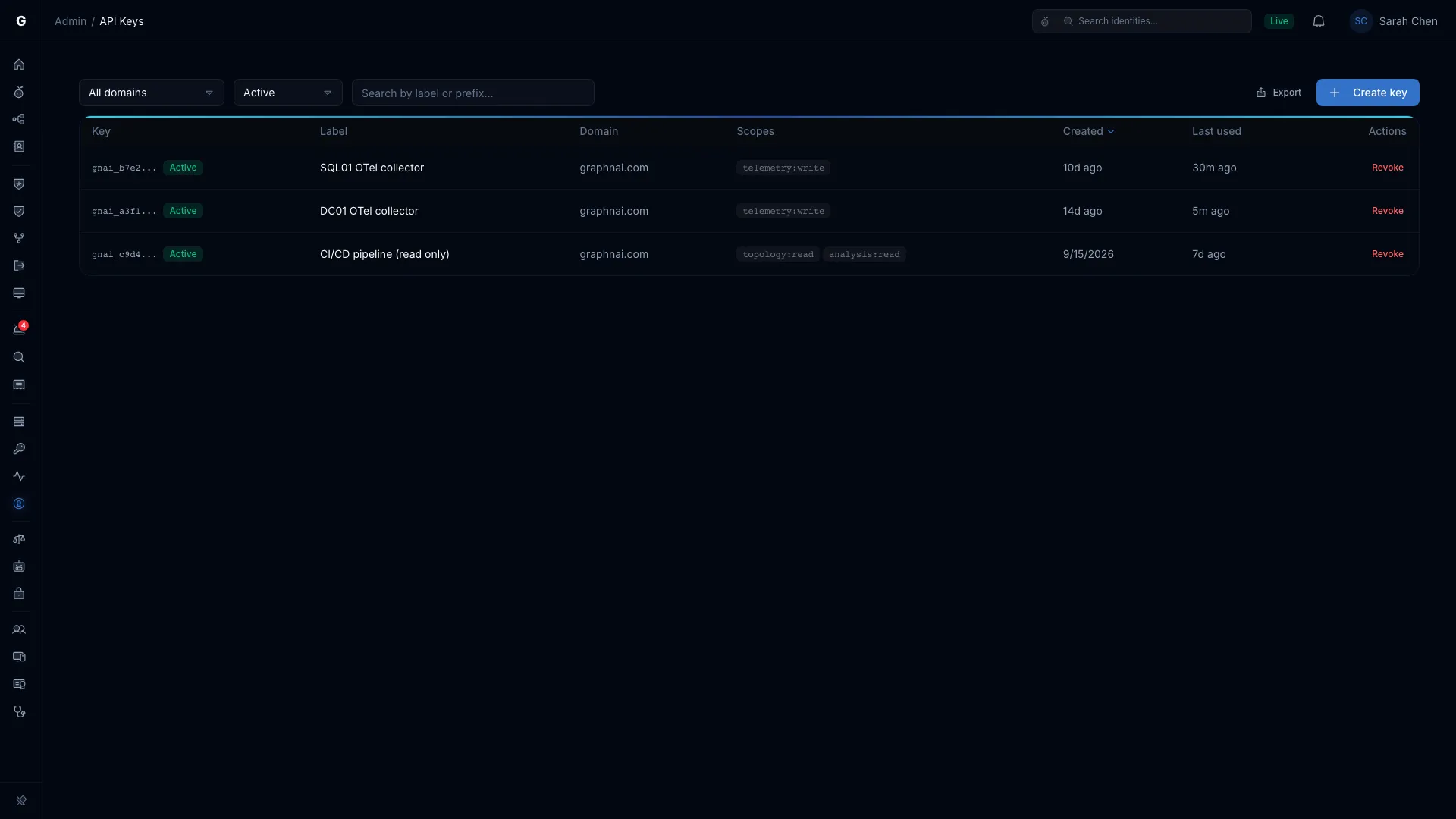
| Column | What it shows |
|---|---|
| Key | The key's first nine characters (gnai_ and four hex characters), then ..., with an Active or Revoked badge. This prefix is the only way to tell keys apart after you create them. |
| Label | The name you gave the key. |
| Domain | The Active Directory domain the key belongs to. The key can send telemetry for this domain only. |
| Scopes | The scopes the key carries, for example telemetry:write. When there are more than three, hover +N more for the rest. |
| Created | How long ago the key was created. |
| Last used | The last time the key authenticated a request, or Never. It updates at most once every five minutes. |
Filter by domain with All domains, and by status with Active, Revoked or All. The search box matches the label, the key prefix and the domain.
Creating an API Key
Requires role: Admin
- On the API Keys page, select Create key.
- Enter a Label that says what the key is for, for example
DC Collectors - Corp Domain. It can be up to 200 characters. - Choose the Domain. The list shows the domains your bridges collect. With no bridge set up, type the fully qualified domain name, for example
corp.local. - Under Scopes, select the scopes the key needs.
telemetry:writeis selected to start with. Quick select buttons pick the Read, Operator or Admin set, and Clear clears them all. Hover a scope for what it's for. - Select Create key.
The dialog shows API key created and the full key.
[!WARNING] Copy the key now. You can't see it again after you close the dialog. GraphnAI stores only a hash of it. If you lose the key, revoke it and create a new one.
- Select Copy to clipboard, then save the key in your password manager, secrets vault or collector config.
- For a key with
telemetry:write, you can select Download collector config to get a ready-to-deploy collector config that carries the key. - Select I've saved this key to close the dialog.
The new key appears in the table with an Active badge. Its prefix, such as gnai_a3f1..., identifies it from then on.
Deploying with an OTel Collector
A collector needs a key with the telemetry:write scope.
Use a Generated Config
There are two ways to get a collector config that carries a key:
- On the API Keys page: after you create a
telemetry:writekey, select Download collector config in the same dialog. - On the Telemetry page: select Admin > Telemetry, open the Collector setup tab, enter the Server address and Domain, then select Create config. GraphnAI creates a new
telemetry:writekey named "OTel Collector - domain" and puts it in the config. It revokes the previous key it made for that domain, so collectors on the old config stop sending until you deploy the new one.
The config is ready to deploy. Its exporter sends events over port 443 with the key in an HTTP authorization header, with no mTLS client certificates to distribute.
Add to an Existing Collector Config
If your endpoints already run a collector, add the GraphnAI exporter and pipeline to its config. They use their own component names, so they run beside your existing pipelines without affecting them.
See the Telemetry Pipeline guide for collector rollout and Windows audit policy.
Domain Validation
A key sends telemetry only for its own domain. GraphnAI checks the graphnai.domain resource attribute on every batch against the key's domain. The two must match exactly, letter case included. A batch with another domain, or none, is refused with HTTP 403.
The generated config sets graphnai.domain in its resource processor, spelled the way your bridge spells the domain.
Using API Keys on Other Endpoints
A key isn't limited to telemetry. Every endpoint that accepts an OIDC browser sign-in also accepts an API key, on the same address. A request that carries a key in its authorization header is authenticated with the key. Anything else goes through the normal role-based check.
The telemetry ingest endpoint is the one exception: it accepts API keys only, and only with telemetry:write.
How Scopes Map to Roles
On every endpoint except telemetry ingest, GraphnAI gives the key a role, then checks that role the way it checks a person's. The key's highest scope decides the role:
| Role the key gets | Scopes that give it |
|---|---|
| Admin | admin:users, admin:idp, admin:config, admin:keys, detection:write, bridges:manage, agent:remediate, attributes:write |
| Operator | analysis:read, analysis:write, detection:read, bridges:read, sync:trigger, criticality:read, criticality:write, attributes:read, agent:query |
| Viewer | topology:read |
| No role | telemetry:write, telemetry:read |
[!WARNING] A key can do everything its role can. A key with only
analysis:readreaches every Operator endpoint, including simulations and syncs. A key with onlydetection:writehas full Admin access, user management included. Choose scopes by the role you're willing to give the key.
A key's domain limits only the telemetry it sends. On other endpoints, a key reads data for every domain, like a person with the same role.
telemetry:write and telemetry:read give no role. So a telemetry key can't read the graph, even if someone steals it from a collector. telemetry:read doesn't open any endpoint on its own today.
When the key's role is below what an endpoint needs, GraphnAI answers HTTP 403. A key also passes the same license checks as a person.
Revoking an API Key
Requires role: Admin
Revoke a key when you retire a domain, suspect a key is compromised, or rotate credentials.
- On the API Keys page, find the key by its label or prefix (
gnai_xxxx...). - Select Revoke on its row.
- In Revoke API key, check the prefix and label, then select Revoke key.
The key stops working at once. A collector or integration still using it gets HTTP 401 on its next request. Choose Revoked or All in the status filter to see revoked keys.
[!NOTE] You can't undo a revoke or turn a revoked key back on. If you revoked a key by mistake, create a new one and update your collectors with it.
Monitoring Key Usage
Last used shows when each key last authenticated a request. It updates at most once every five minutes.
Use it to find unused keys. A key created weeks ago that still shows Never often means a collector that can't reach GraphnAI, or an integration that was never finished.
To check a collector that isn't sending events:
- Check that the collector service is running on the endpoint.
- Check that the endpoint can reach GraphnAI. In the collector's log, an HTTP response from GraphnAI, even a
401or403, means the network path is open. A connection error means it isn't. - Read the collector's own logs for export errors. A
401means the key is wrong or revoked. A403usually means the batch's domain doesn't match the key's.
Scopes Reference
Scopes
Scopes follow a resource:action pattern and are case-sensitive. The last column is the role the scope gives a key on endpoints other than telemetry ingest. See How Scopes Map to Roles.
| Scope | What it's for | Role it gives |
|---|---|---|
telemetry:write |
Send Windows Security events to the OTLP telemetry ingest endpoint. Used by OTel Collectors on domain controllers and endpoints. | None |
telemetry:read |
Reserved for reading telemetry. It opens no endpoint on its own today. | None |
topology:read |
Read the identity graph, its nodes and edges, and search it. | Viewer |
analysis:read |
Read risk posture, over-permission findings, stale identities, Critical Junctions and attack paths. | Operator |
analysis:write |
Run what-if simulations and recalculate Critical Junctions. | Operator |
detection:read |
Read ITDR detection alerts and their details. | Operator |
detection:write |
Change alert status: acknowledge, resolve, or mark as a false positive. | Admin |
bridges:read |
List bridges and read their configuration, sync history, metrics and domain discovery results. | Operator |
bridges:manage |
Create or delete bridges, change their configuration, and manage certificates. | Admin |
sync:trigger |
Start or stop directory syncs and discover domains. | Operator |
criticality:read |
Read criticality rules and overrides. | Operator |
criticality:write |
Create or delete criticality rules and set overrides. | Operator |
agent:query |
Ask Graphne questions. | Operator |
agent:remediate |
Run the remediation actions Graphne proposes. | Admin |
attributes:read |
Read the attribute registry and attribute sync settings. | Operator |
attributes:write |
Change attribute sync settings for bridges and identity providers. | Admin |
admin:users |
Manage platform users. | Admin |
admin:idp |
Manage OIDC and Entra ID identity providers and start provider syncs. | Admin |
admin:config |
Manage AI settings and create OTel Collector configs. | Admin |
admin:keys |
Create, list and revoke API keys. | Admin |
Scope Sets
Read, Operator and Admin in the create dialog select a set of scopes. A key always stores the scopes themselves, never the set name. So:
- The Scopes column shows exactly what a key carries.
- When a later release adds scopes, existing keys don't gain them.
| Set | Scopes | Role it gives |
|---|---|---|
read |
topology:read, analysis:read, detection:read, bridges:read, criticality:read, attributes:read |
Operator |
operator |
Every read scope, plus analysis:write, sync:trigger, criticality:write, agent:query |
Operator |
admin |
All 20 scopes | Admin |
The read set gives the Operator role, so a key with it can also run simulations and syncs.
Choosing Scopes for Common Integrations
Give each integration the lowest role that covers its needs.
| Integration | Scopes | Role the key gets |
|---|---|---|
| OTel Collector (domain controller or endpoint) | telemetry:write |
None. One key per domain, shared by all its collectors. |
| Graph export for identity governance | topology:read |
Viewer |
| SIEM export of detection alerts | detection:read |
Operator |
| Compliance reporting dashboards | analysis:read, topology:read |
Operator |
| CI/CD security gate | analysis:read, detection:read |
Operator |
| SOAR platform that acknowledges and resolves alerts | detection:read, detection:write |
Admin |
| Automated remediation pipeline | analysis:read, agent:remediate |
Admin |
| Automated testing against GraphnAI | admin set |
Admin. Restrict it to a test deployment. |
Security
Key Format and Storage
Every key is gnai_ followed by 32 random hexadecimal characters, 37 characters in all. The random part comes from a cryptographically secure source.
GraphnAI stores only a SHA-256 hash of the key. The full key is returned once, when you create it, and never kept. So:
- A stolen database backup doesn't reveal any key.
- There's no way to retrieve a key. The copy you make at creation is the only one.
- GraphnAI finds a key by the hash of the value a request presents.
Domain Scoping
A key sends telemetry only for the domain it was created for. See Domain Validation. This matches Active Directory trust boundaries: one key per domain, however many endpoints use it. A leaked key can't send events for another domain.
Key Rotation
To rotate a key without a gap:
- Create a new key for the same domain and scopes.
- Put the new key in your collector configs or secrets vault, and deploy the updated config.
- Wait until Last used on the new key shows a recent time.
- Revoke the old key.
Troubleshooting
The Collector Gets 401 Unauthorized
Possible causes:
- The key in the collector config is wrong: cut short, with extra spaces, or with characters missing.
- The key was revoked.
- The authorization header in the collector config is malformed.
Fix: On the API Keys page, find the key by its prefix. If it shows Revoked, create a new key and update the collector config. If it shows Active, create the collector config again so the header is right.
The Collector Gets 403 Forbidden
Cause: Usually, the graphnai.domain attribute in the batch doesn't match the key's domain. A 403 can also mean the key lacks telemetry:write, or your license doesn't include telemetry.
Fix: In the collector config's resource processor, check that graphnai.domain matches the domain the API Keys page shows for the key, letter case included. Use the fully qualified domain name, for example corp.local. A short name such as CORP doesn't match. Creating the config again from GraphnAI sets it for you.
Last Used Shows Never for an Active Key
Possible causes:
- The collector isn't running, or can't reach GraphnAI. Test the path as in Monitoring Key Usage.
- The collector config points at the wrong URL, or at the bridge's certificate endpoint on port 8443.
- Windows audit policy isn't producing events on those endpoints. With nothing to collect, the collector sends nothing.
Fix: Check the collector service and its log. Look for lines with "error" in the exporter output. The Telemetry Pipeline guide shows how to check each step from Windows audit policy to the graph.
You Didn't Save a Key's Full Value
GraphnAI never stores the full key, so it can't be recovered. Revoke the key and create a new one. Next time, have a password manager or secrets vault open before you select Create key.
A Key Created with a Scope Set Shows More Scopes Than Expected
This is expected. GraphnAI expands a set into its scopes before it stores the key. The Scopes column always lists the scopes themselves, so you can see a key's access, and a later change to a set never changes existing keys.
A Key Gets 403 on an Endpoint Outside Telemetry
Cause: The role the key's scopes give is below what the endpoint needs.
Fix: Check the key's Scopes column, and find the role they give in How Scopes Map to Roles. You can't add scopes to a key. Revoke it and create a new one with the scopes you need.
Related Documentation
- Telemetry Pipeline: set up Windows audit policy, deploy collectors, and check that events reach the graph.
- Identity Bridge: the bridge authenticates with mTLS client certificates for directory sync.
- ITDR Detection: alerts raised from the telemetry that API keys send.
- User Management & RBAC: the roles API keys map to, and who can manage keys.