Select Fire™: Blast Radius Simulation and Remediation
Simulate the blast radius of removing a group membership, ACE or other permission edge, then run the change or get a script for it, in one guided flow.
On this page
- Overview
- Prerequisites
- Opening Select Fire
- From the Graph Explorer
- From a finding
- From Graphne
- Step 1: Preview
- Finding Plan mode
- Manual Preview
- Root-Cause Recommendations
- Two ways in
- The fix may not be the account you opened
- Actions that wouldn't help aren't recommended
- Coverage counts only what changes
- Fidelity, shown apart from risk
- Step 2: Simulate
- Simulation graph (left panel)
- Detail flyout (right panel)
- Simulation expiry
- Step 3: Decision
- Risk analysis
- Execution mode cards
- Safe Mode: Remediation Script
- Returning to the simulation
- Confirming a Change to a Protected Object
- Undoing a confirmed action
- Investigating a Suspected Compromise
- Recording that an investigation is complete
- Working from Findings
- Decisions on Graphne Recommendations
- Role Requirements Summary
- Operational Safety Metric™ (OSM)
- Troubleshooting
- The Finding Plan shows "Couldn't load this identity's access"
- Simulate is disabled in Manual Preview
- Simulate is disabled in the Finding Plan
- "Nothing in the selected access can be removed here"
- The simulation returns no results
- "Simulation expired" appears on the Simulate step
- The risk analysis doesn't appear
- "Couldn't generate the script"
- The simulation graph is empty
- The Operational Safety Metric shows "Unavailable"
- The Select Fire buttons aren't visible
Overview
Select Fire™ takes you from a finding to a fix in three steps:
- Preview: Choose what to remove. From a finding, Select Fire loads a plan for you. From the graph, you pick the subject and the target.
- Simulate: See the blast radius: what the change removes, who loses access, and its Operational Safety Metric™ score.
- Decision: Choose how to act, then review the risk analysis and run the change or copy its script.
Select Fire removes access. It doesn't grant access. Predictive Provisioning, which models a new grant, isn't available yet.
When you open Select Fire from a finding, the plan looks for the cause of the problem. That cause is often a different object, such as a group the account belongs to. Select Fire recommends fixing the cause, and you can switch to fixing only the account you opened. See Root-Cause Recommendations.
The Decision step offers three modes, from most to least hands-on:
| Mode | What happens |
|---|---|
| Safe Mode | You get a script to review and run yourself. |
| Semi-Auto | You authorize each action, and it runs through the Identity Bridge. See Semi-Auto Execution. |
| Full-Auto | You approve the plan once, and its actions run in order. See Full-Auto Execution. |
The Operational Safety Metric™ scores each simulation and recommends one of the three modes.
Prerequisites
- Role: Operator or Admin. Viewers don't see any Select Fire button or menu entry.
- License: A license that includes remediation. Without it, the Select Fire buttons show a lock, and selecting one shows what the feature adds. On a read-only license, the buttons are disabled, and the tooltip explains why.
- Data: At least one identity sync has finished, so there are identities to search.
- To run changes: Remediation credentials for the domain and a connected bridge. See Semi-Auto Execution.
- For scripts and the risk analysis: The Admin role, a license that includes the AI features, and an AI provider on Admin > AI Provider. See Multi-Provider AI Configuration.
Opening Select Fire
From the Graph Explorer
| Where | What opens |
|---|---|
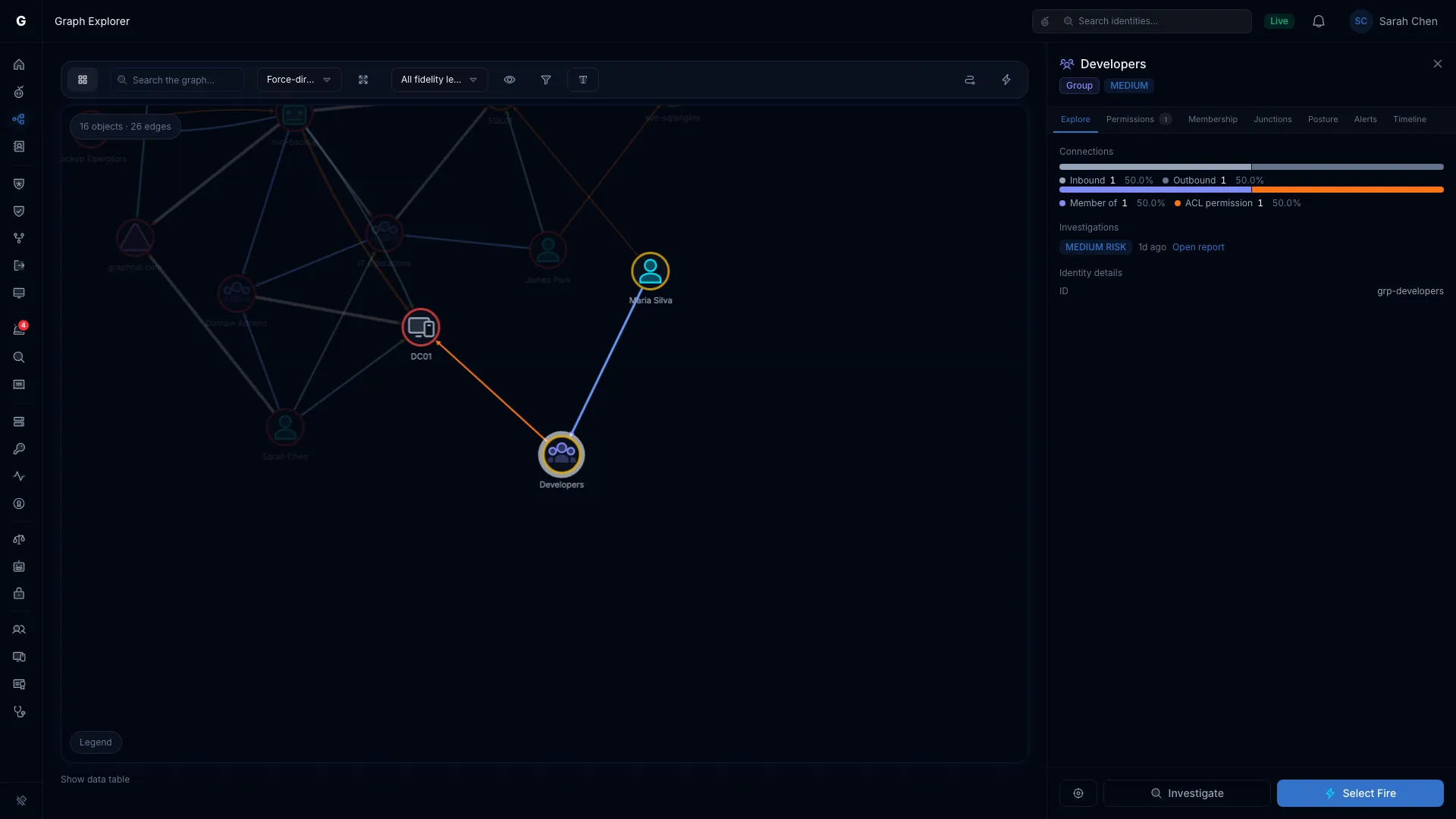
| The Select Fire (lightning) button in the Graph Explorer toolbar | Manual Preview, with nothing filled in |
| Right-click an identity, then select Select Fire | Manual Preview, with the identity as the subject |
| Right-click an edge, then select Select Fire | Manual Preview, with both ends filled in |
| Select Fire at the bottom of an identity's flyout | Manual Preview, with the identity as the subject |
| Revoke this relationship on an edge in a flyout | Manual Preview, with both ends filled in |
Use these when the change you want isn't tied to a finding.
From a finding
Finding rows show a Select Fire (lightning) button. Some pages put a Select Fire button in the finding's flyout instead. Opening Select Fire from a finding starts the Finding Plan (see Step 1: Preview). A hint card at the top says why the identity was flagged.
| Page | Where the button is | Hint card |
|---|---|---|
| Dashboard, top findings | Each row and the finding's flyout | Over-permissioned identity, Stale account, Critical Junction, or Top risk finding, by the finding's category |
| Identity Inventory | Each row and the identity's flyout | Over-permissioned identity with the Over-permissioned filter, Stale account with the Stale filter, Flagged service account for service accounts and applications, otherwise Top risk finding |
| Security Posture | The flyout of a failing check, when the check has a fix Select Fire can run. Three Kerberos delegation checks qualify. See Fix Kerberos Delegation Findings. | The check's name and the step of its fix |
| Critical Junctions | Each row and the junction's flyout | Critical Junction, with its junction score |
| Detection Alerts | The alert's flyout | Detection alert, with the rule name and severity |
| Identity Timeline | The event flyout | Detection alert. A logon session event opens Manual Preview instead, with the computer as the target. |
The hint cards show these facts:
| Hint card | What it shows |
|---|---|
| Over-permissioned identity | How many more permissions it holds than its peers' average, and the edge types most above peers |
| Stale account | How many days it has had no activity |
| Critical Junction | Its junction score |
| Detection alert | The rule that fired and its severity |
| Flagged service account | Other actions to consider, such as disabling the identity or revoking active sessions |
| Top risk finding | That the identity is listed as a top risk |
On Local Administrators, the Select Fire button in a row's flyout opens Manual Preview with the account as the subject.
From Graphne
When Graphne finds a misconfiguration in a conversation, its answer can include a Launch Select Fire button with the subject, the target, and the finding filled in. You still go through Preview, Simulate, and Decision.
Step 1: Preview
Preview is where you choose what to remove. It opens as the Finding Plan when you start from a finding, and as Manual Preview otherwise.
Finding Plan mode
The Finding Plan loads the identity's access, grouped by where it comes from. Each row is an access source, such as a group membership, an app role, or a permission entry (ACE). Memberships the identity inherits through a group sit indented under that group, with the line "Removed with group". You can't select them on their own.
Some memberships can't be removed at all. Every user is a member of Domain Users and every computer a member of Domain Computers by default, and an account's primary group (primaryGroupID) is stored on the account itself. These rows still show the access they grant, but they have no checkbox, and a line under the name says why.
When one of those groups is nested in another group, the identity inherits that group's access through the nesting, so the plan offers removing the nesting instead. It appears indented under the default group, with the line "Removes group from this group". The change applies to every member of the nested group, which is why the plan recommends it when the nesting grants privileged access, such as Domain Computers inside Domain Admins. Nestings Active Directory creates itself, such as Domain Users inside Users, show the line "Comes with group" and are never offered.
The table has these columns:
| Column | What it shows |
|---|---|
| Access source | The source, with a Recommended badge on the sources the plan suggests. A Fix upstream badge marks access that came back after a verified removal. |
| Permissions | How many permissions the source grants |
| Risk reduction | How much removing this source lowers the identity's risk score |
| Score after | The risk score after the removal |
| Also reduces | Other risk factors the removal lowers |
| Estimate | Exact, or Estimated when it uses the last saved peer average until the next sync |
| Autonomy | The highest mode this action can run at: Full-Auto, Semi-Auto, or Safe Mode. Hover over it for the reason. Simulate only means the source can't be removed from here. |
When no ranking is available, an Action column naming the change replaces the columns after Permissions.
Work with the plan:
- Recommended sources start selected. Select a row's checkbox to add or remove it.
- A Security Posture check's own fix shows first, as a card with its steps. The access table then collapses under Also review access (N), or hides when the fix is a list of group members. Nothing in the collapsed table starts selected.
- Expand a row to see what it grants. For an app role or a permission entry, clear an entry to keep it while you remove the rest.
- Account-wide actions, such as disabling the account, appear in their own list above the table. Each shows whether it would help: for example Fixes this finding, Contains only, No change, or Effect unknown. See Actions that wouldn't help aren't recommended.
- Access to remove shows how much of the identity's removable access your selection covers, as a meter.
- The summary above the table shows the risk score now and after the recommended plan. Admins also see Why this is recommended, a short written explanation.
Select Simulate (N) to simulate the selected sources together. N is the number of targets they remove. When the selection has only an account-wide action or a check's own fix step, the button reads Continue and goes straight to Decision, because there's nothing to simulate.
Select Choose by hand at any time to switch to Manual Preview. If the plan can't load, you see "Couldn't load this identity's access. Try again, or choose the access by hand." Select Try again or Choose by hand.
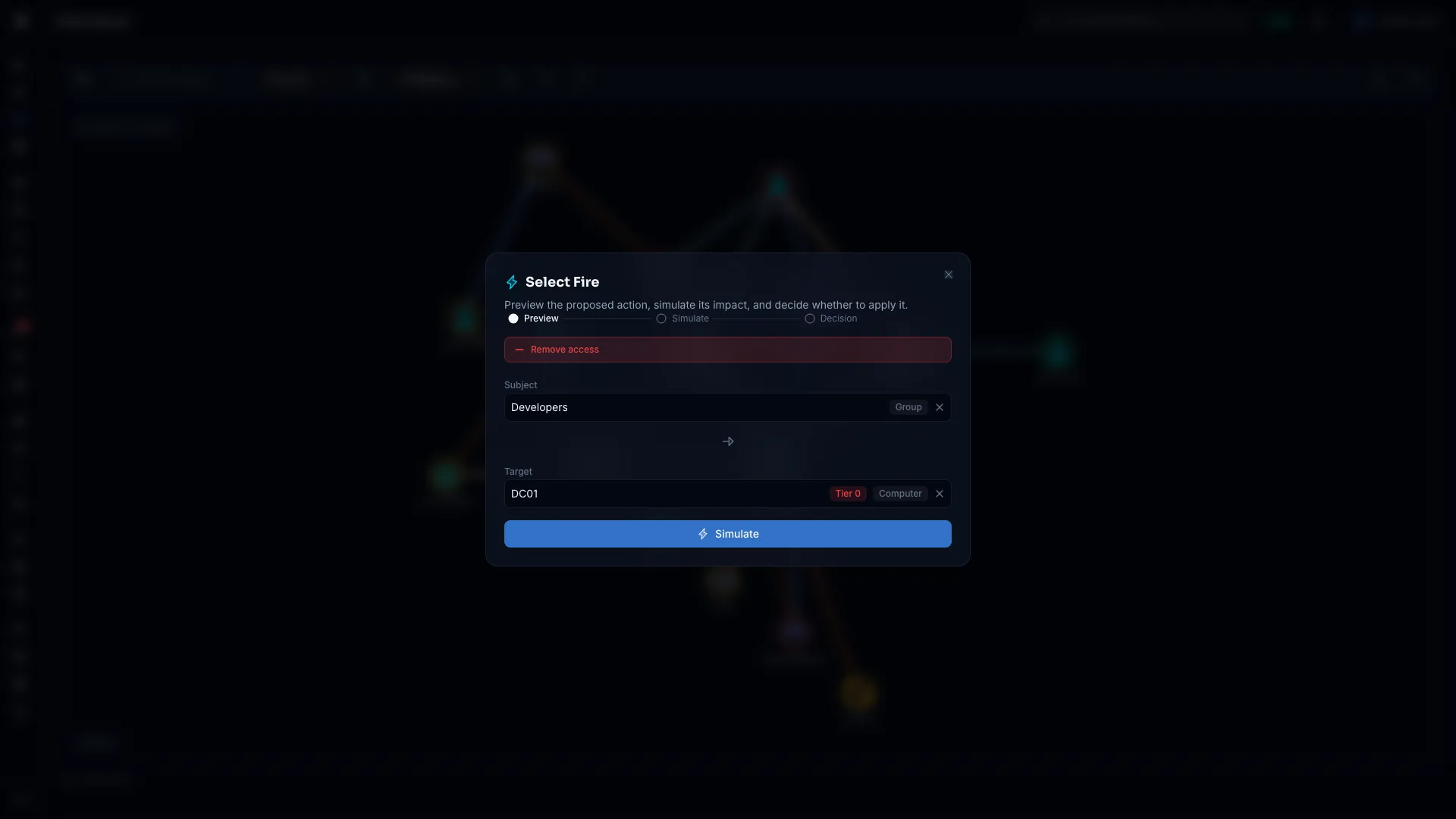
Manual Preview
Manual Preview is a subject and target search. A red Remove access label at the top says what the simulation models.
- In Subject, search for the identity whose access you want to remove.
- In Target, search for the object it should lose access to.
- Select Simulate.
The button stays disabled until both fields are filled in. A node right-click fills the subject. An edge right-click fills both.
When the subject is a Group Policy object, Target lists the containers the policy is linked to, and the first one starts selected. Each selected link becomes a Remove GPO link action. Select Choose a different target to search instead.
If you switched from a Finding Plan, its hint card stays below the fields.
Root-Cause Recommendations
The Finding Plan looks at why the identity is exposed, and recommends fixing that cause when it's a different object.
Two ways in
- From a finding on any page except Security Posture, the plan covers every open finding on the identity in one pass.
- From a failing check on Security Posture, the plan targets that check's finding only. It still looks for the cause behind it.
The fix may not be the account you opened
Take a domain controller computer account flagged for two findings. It has a service principal name (SPN) an attacker could Kerberoast, and it belongs to too many privileged groups. Neither finding is about the computer account itself. It's privileged because its group, Domain Controllers, is nested inside Enterprise Admins.
Select Fire recommends removing Domain Controllers from Enterprise Admins. The recommendation card names the cause, explains it in plain language, and lists the membership chain behind it. What this removes shows how many permissions go with the change and the access reached through it.
You can always fix only the account you opened. A button such as Only fix DC01 sits on the card, with a line naming what it leaves behind, for example "This leaves the group nesting in place, so the same problem can come back." Switching is instant. Select Back to the root cause to return.
Actions that wouldn't help aren't recommended
Before it recommends an action, Select Fire checks whether the action would do anything for this finding:
- Does it apply to this object? Disabling an account doesn't apply to a cloud-only identity, for example. Such an action shows Doesn't apply here.
- Does it repair the problem, or only contain it? A fix that satisfies the check (Fixes this finding) is preferred over one that only reduces risk (Contains only).
- Would it change anything? An action that changes nothing, such as disabling an account that's already disabled, is never recommended. It still appears, greyed out, with No change and the reason beside it.
- Does the fix stick? If the account could reverse the change itself, because it still holds rights over the object, Select Fire prefers another fix. When there's no other, the action shows This account can undo it and says what the account keeps.
When the account's data is too old to judge, the action shows Effect unknown. It never shows No change in that case, because "not known" and "does nothing" call for different decisions.
If every candidate would do nothing, Select Fire shows No change recommended, and each action says why. When the finding has no automated fix, it shows No automated fix and points you to the manual steps on the finding.
Coverage counts only what changes
The card counts only accounts that would lose privileged access, and counts a finding as cleared only when the change satisfies it.
This matters when the group you remove is privileged in its own right. In the example above, the domain controllers stay Tier 0 after the fix, because their privilege comes from being domain controllers. The card says so. It explains what the change does accomplish, such as removing forest-wide reach through Enterprise Admins, and it never claims the accounts are no longer privileged.
Under the headline, each affected check shows Clears N or Improves N. Findings the plan doesn't address are listed under Not addressed by this plan, each with its reason.
Fidelity, shown apart from risk
The card shows a fidelity badge beside the recommendation, such as Fidelity: Theoretical. It names the weakest Tiered Fidelity™ level on the path behind the cause: Validated, Constrained, or Theoretical. Hover over it for detail. The badge sits apart from the risk figures, so a cause nobody has seen in use never looks like a confirmed one. See Tiered Fidelity™.
Step 2: Simulate
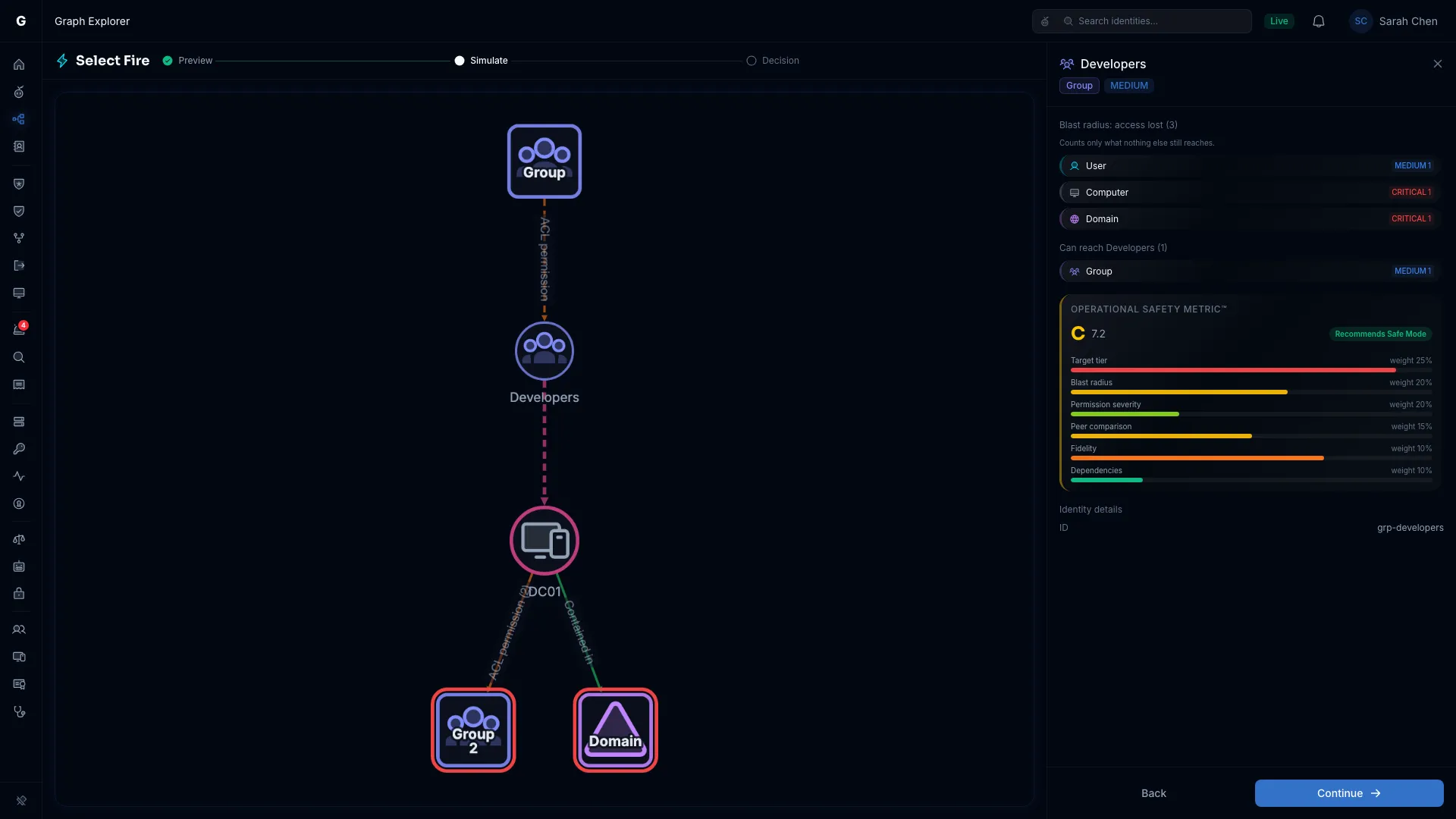
The Simulate step fills the page below the top bar. A header shows Select Fire and the three steps. It runs a what-if simulation on a delta overlay of the live graph (the Differential State Engine™), so nothing changes in the directory. The simulation graph is on the left, and the detail flyout is on the right. Press Escape to close it and return to the page you were on.
Simulation graph (left panel)
The graph shows the subject, the targets, and the access around them with the change applied.
- Subject: The identity losing access, in its type color. Dashed pink edges run to each target, marking the access being removed.
- Targets: Each selected target, with its type icon.
- Dimmed nodes: Context outside the blast radius.
- White glow: The group whose table is open below the graph.
Select a grouped node or edge to open a table of what it holds below the graph. Select a row to open that identity in the Graph Explorer, which closes Select Fire.
Detail flyout (right panel)
The flyout shows these sections, top to bottom:
- Results expire in about N minutes: The time left before the simulation expires.
- Blast radius: access lost (N): What the subject stops reaching, as a bar split by criticality, then a list by object type. It counts only what nothing else still reaches. An object the subject can still reach another way isn't counted. If the analysis hit its limit, an orange line says "The blast radius hit the analysis limit, so the loss may be larger." Full-Auto never runs an action whose blast radius was cut off.
- Can reach subject (N): Who can reach the subject, by type and criticality. Their paths through the subject are disrupted by the change.
- Access removed (N): Each edge being removed, with its edge type and target. When an edge carries permissions, a bar shows how many the change removes. If you kept some entries, the section reads Access changed instead.
- Operational Safety Metric™: The grade, the score, the recommended mode, and each factor. See Operational Safety Metric™ (OSM).
The footer has two buttons. Back returns to Preview. Continue goes to Decision.
Simulation expiry
A simulation lasts for a time your administrator sets, 60 minutes by default. When it expires, the flyout shows Simulation expired. Select Back to Preview and simulate again. Your selections are kept.
Step 3: Decision
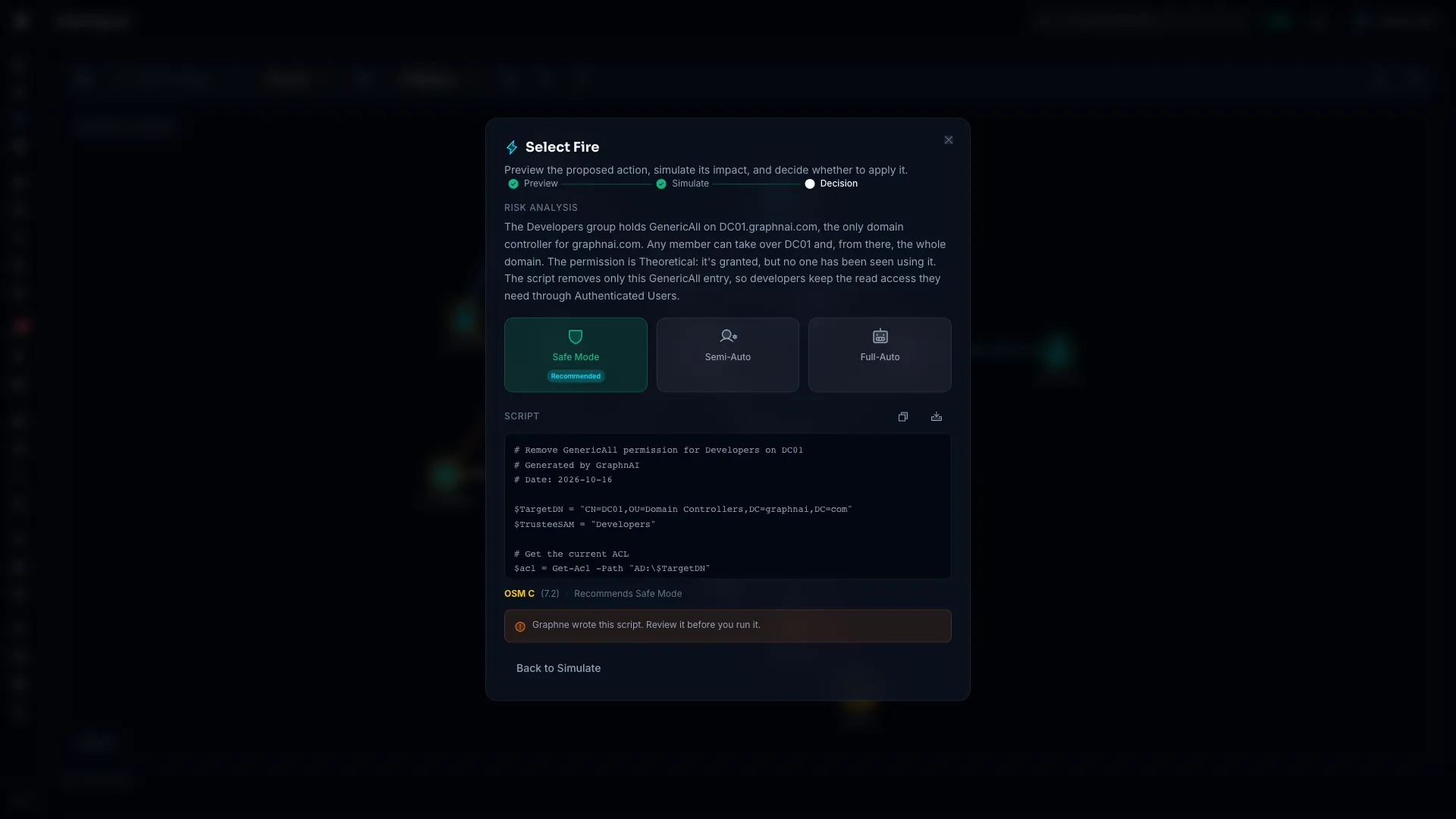
Decision returns to the centered dialog. It opens on Safe Mode.
Risk analysis
For an Admin, the risk analysis starts on its own when Decision opens. "Analyzing the risk…" shows while it's written. The Risk analysis then types out at the top: what the access lets its holder do, and what the change removes. It runs again when you change the selection in Preview.
Operators don't see the risk analysis.
If the plan includes an account-wide action, such as disabling the account, a line names it: "Account-wide action in this plan: …".
Execution mode cards
Three cards sit below the analysis: Safe Mode, Semi-Auto, and Full-Auto. All three are selectable. The card that matches the Operational Safety Metric's recommendation shows a Recommended badge. No card shows it when the score is unavailable. On Full-Auto, the badge appears only after the plan is built, and only if an action can run as Full-Auto. When none can, a note under the disabled card gives the reasons. See Full-Auto Execution.
- Safe Mode: Shows the script. See Safe Mode: remediation script.
- Semi-Auto: Builds the action plan, then lists each action with Authorize and Skip. See Semi-Auto Execution.
- Full-Auto: Builds the same plan, then asks you to approve it once with Approve and run N actions. Each action runs at the highest mode its own checks allow. See Full-Auto Execution.
When Semi-Auto or Full-Auto builds the plan, "Compiling the action plan…" shows. If an action targets a protected object, a line says it "needs your confirmation", with a Review and confirm button. See Confirming a Change to a Protected Object.
If the change affects your own account, tick the checkbox that says you understand. The plan runs only after you do.
Safe Mode: Remediation Script
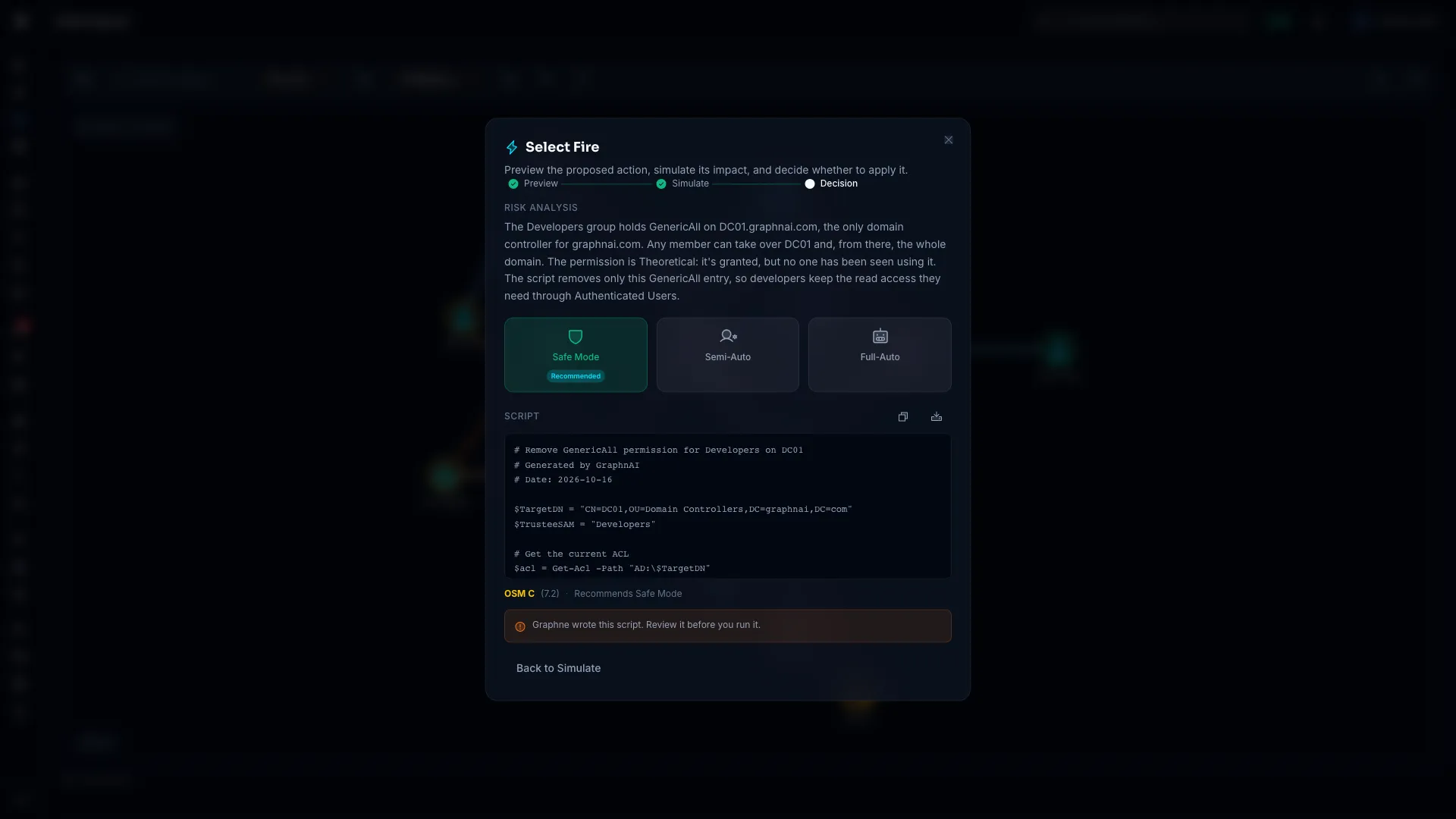
In Safe Mode, the PowerShell script appears under Script once it's generated. Two buttons sit beside the heading:
- Copy: Copies the script to your clipboard. A check mark confirms it.
- Download: Saves the script as
remediation-<timestamp>.ps1.
A note below the script reads "This script was generated. Review it before you run it."
Each script is generated to these rules:
-WhatIf: The commands carry-WhatIf, so they report what they would do without changing anything. Remove it when you're ready to run the change.- Checks first: The script checks the current state before it acts, such as confirming a membership before removing it. Running it twice gives the same result.
- Tier 0 caution: When the subject or the target is Tier 0, the risk analysis names what could break across the domain.
- Default permissions kept: Permissions that are part of a default Active Directory configuration, such as Domain Admins holding GenericAll through AdminSDHolder, aren't removed unless you ask for it.
- The exact edge: Opened from an edge, the script addresses that edge's type, permissions, and fidelity level.
- Every edge: When the subject holds several edges to the target, all of them are considered.
Below the script, one line gives the Operational Safety Metric, for example "OSM B (72.5) · Recommends Semi-Auto".
If the script can't be generated, you see "Couldn't generate the script. Try again." Select Generate script to retry. Operators see Generate script disabled, with the tooltip "Only an Admin can generate a script."
Returning to the simulation
Select Back to Simulate to review the blast radius again. When the plan skipped simulation, the button reads Back to Preview.
Confirming a Change to a Protected Object
Some directory objects are on the deny list: built-in administrator accounts, the Domain Controllers group, objects the directory marks critical (isCriticalSystemObject), and the accounts GraphnAI itself syncs and writes with. A person can still change them after confirming the object by name. Automation can't.
A signed-in person can proceed after confirming. When an action targets one of these objects, it's still offered, with a Needs confirmation badge. In Semi-Auto or Full-Auto, select Review and confirm. The Act on a protected object dialog:
- Names the change and the object, for example "Remove group membership on Domain Controllers"
- Lists what the change affects, and how many accounts
- Asks you to type the object's name before Run this change becomes available
Nothing runs until the typed name matches. A partial or mistyped name leaves Run this change disabled.
Confirming one action clears only that action. When a plan has several actions on protected objects, each needs its own confirmation.
Unattended automation can never confirm, and that includes your own scripts. Only a signed-in session can confirm. A request made with an API key counts as unattended, whatever role the key holds. It's never offered the confirmation and can't satisfy one, even with the right name. Automatic actions started by a triage policy are refused for these objects. So is any queued or scheduled run, including a queued action that runs later when a bridge reconnects.
The name you type comes from the plan itself, so a script that echoes it back proves nobody was present. When an API key sends a confirmation, the response says the session was unattended. It doesn't report a mismatched name, because the name may have been right and was never read.
A few changes have no safe manual form at all, such as any change to the krbtgt account. They stay blocked even for a person. The action shows a Blocked badge with the reason. See Safety Rails for the full list.
Undoing a confirmed action
Undoing an action that needed this confirmation asks for it again. This time the dialog describes what restoring the access puts back. See Confirming an Undo on a Protected Object. Undoing any other action works as usual.
Investigating a Suspected Compromise
Some findings describe an exposure to tighten. Others describe evidence that something already happened, such as an invisible character in a sAMAccountName or userPrincipalName crafted to impersonate another account. For those, Select Fire puts a What happened panel above the plan.
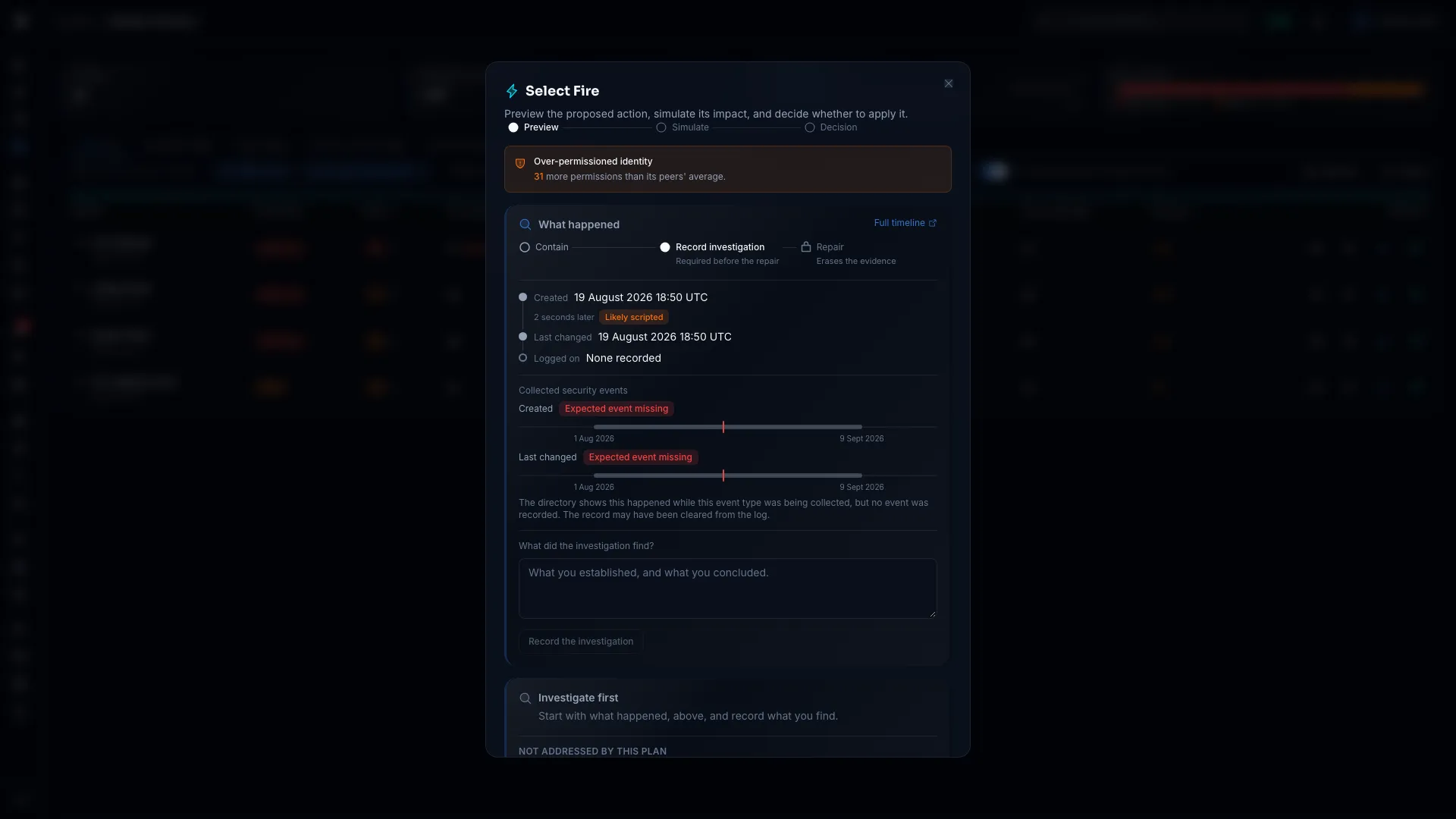
What the panel shows:
- Response steps: Contain, Record investigation, and Repair, as a stepper. Repair stays locked until you record the investigation, with the caption "Erases the evidence".
- Directory history: When the account was created and last changed, the time between the two (with a Likely scripted flag when it's very short), and its last logon (Active Directory) or last sign-in (Entra ID), or "None recorded".
- Collected security events: Each event with its answer, or a badge saying why there's none.
- Full timeline: A link to the Identity Timeline.
The empty-state badges mean different things:
| Badge | Meaning |
|---|---|
| Not collected | Nothing collects this kind of event from this source. |
| Didn't happen | The event was collected, and it didn't occur. |
| Outside collected range | The event predates what's kept. The domain controller's own security log may still have it. |
| Expected event missing | The event should exist in a period that was being collected, and it doesn't. Treat this as its own signal. |
| Couldn't check | The collected events couldn't be read. |
Containment stays available. Destroying evidence doesn't. Containing the account, by disabling it for example, is offered as usual. An action that would overwrite the evidence, such as correcting the attribute behind the finding, is locked until you record the investigation.
Recording that an investigation is complete
- Review the panel, and confirm what happened through your own process.
- Under What did the investigation find?, write what you established and concluded.
- Select Record the investigation.
The panel then shows "Investigated by" with your name and note, and the repair unlocks. If a later sync changes the evidence, the stepper asks you to record it again.
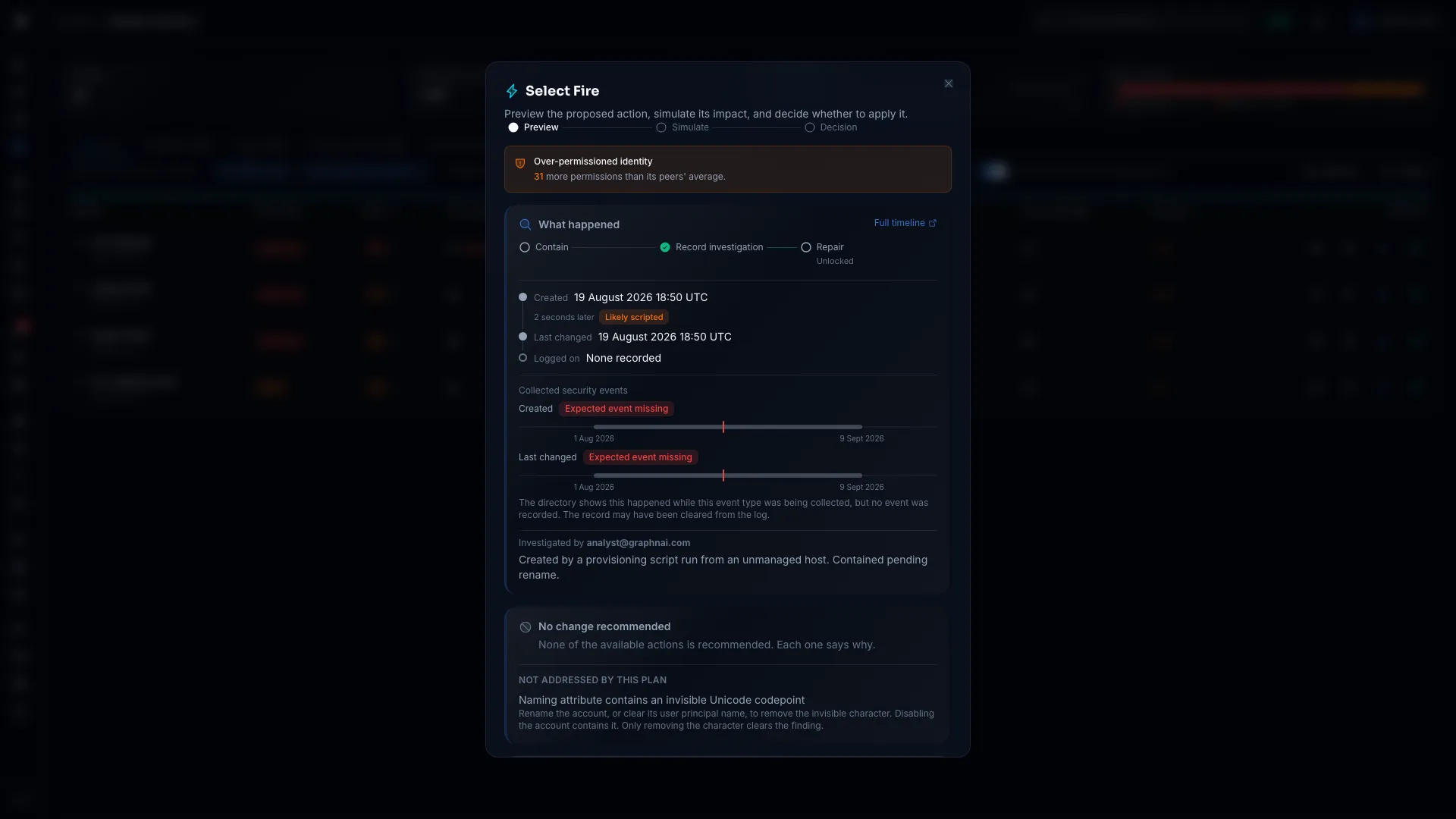
Required role: Operator or Admin to record an investigation.
Working from Findings
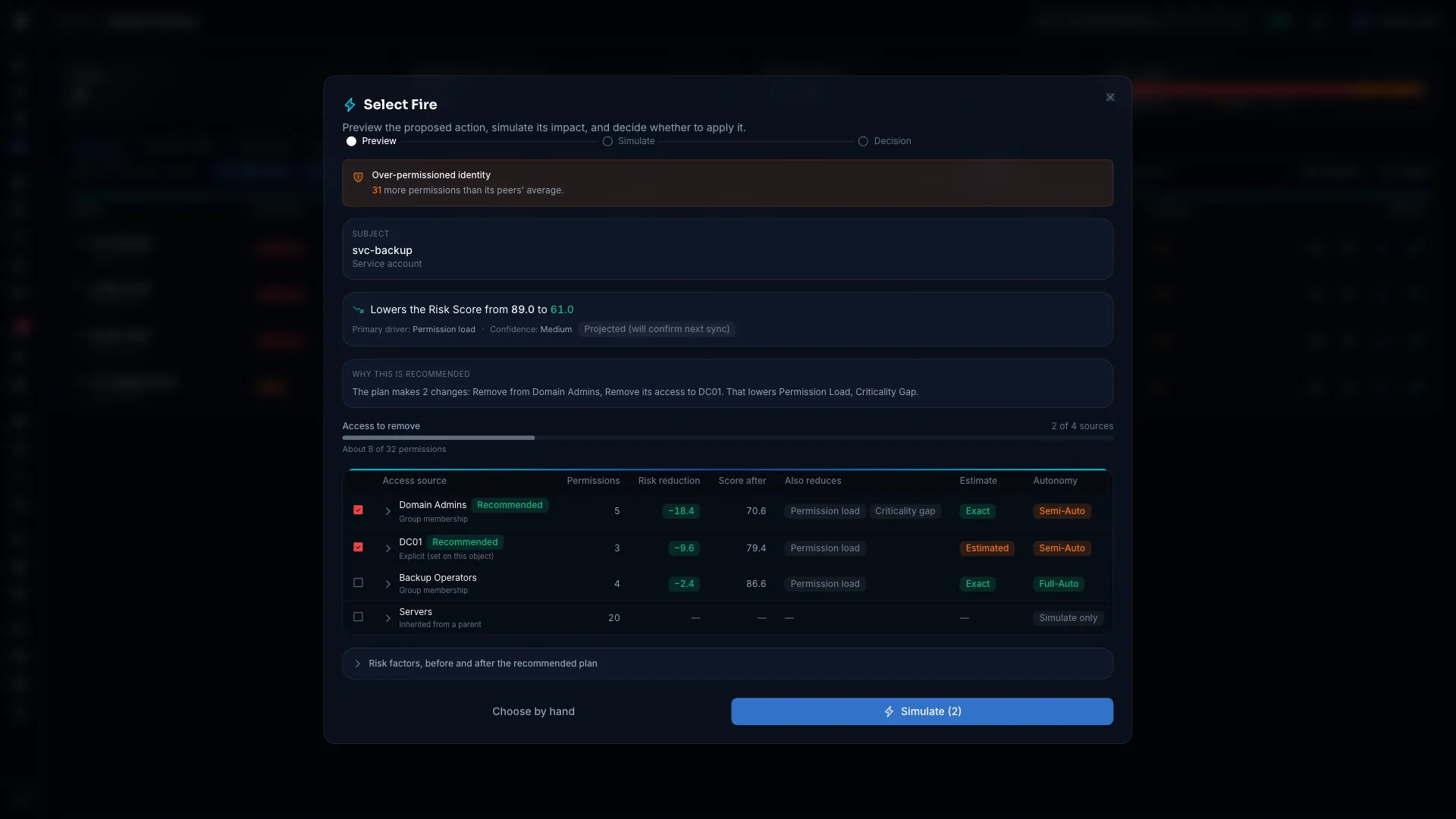
Every finding page opens the same Finding Plan, with the recommended sources selected. The table under From a finding lists the pages and their hint cards. A few notes per finding type:
- Security Posture: The Select Fire button appears in a failing check's flyout only when the check has a fix Select Fire can run. Otherwise the flyout explains the manual fix. The plan targets that check's finding and says which findings the recommendation clears and which it only improves. See Root-Cause Recommendations.
- Stale accounts: Review the sources, select the privileged groups the account still reaches, and simulate the removal. Disabling the account is offered as an account-wide action.
- Critical Junctions: A junction links low-privilege and high-privilege areas. The Can reach section of the Simulate step shows whose paths the change disrupts.
- Detection alerts: Model removing access from an identity involved in a detected attack, such as Kerberoasting or DCSync.
Decisions on Graphne Recommendations
When you act on a recommendation from Graphne or a fix analysis, GraphnAI records what you did. Accepted means you ran it as recommended. Modified means you changed it first. Rejected means you closed Select Fire without running it. The AI governance audit keeps each record for 7 years. See AI Evidence Trail.
Role Requirements Summary
| Action | Required role |
|---|---|
| Open Select Fire and run a simulation | Operator or Admin |
| See the blast radius and the Operational Safety Metric | Operator or Admin |
| Authorize an action on a Critical or High target | Operator or Admin |
| Authorize any other action | Admin |
| Record an investigation | Operator or Admin |
| See the risk analysis, and generate, copy, or download a script | Admin |
Viewers don't see the toolbar button, the right-click entries, or the Select Fire buttons on findings.
Operational Safety Metric™ (OSM)
The Operational Safety Metric™ scores every simulation. It shows:
- Grade: A (safest) to F (highest risk)
- Score: 0 to 100, lower is safer
- Recommends: The mode it considers appropriate: Safe Mode, Semi-Auto, or Full-Auto
- Factors: Each factor as a bar, with its weight
The factors are Target tier, Tier gap, Blast radius, Permission severity, Peer comparison, Fidelity, Dependencies, and Usage intensity.
It appears in two places:
- Simulate step: The Operational Safety Metric™ card in the flyout, with the grade, score, recommendation, and factors.
- Decision step: The Recommended badge on a mode card, and the one-line summary below a Safe Mode script.
One score for display and for the gates. The automatic-action checks use the same score the card shows. It's compared with what's typical across your organization, using the access footprint each sync records.
Before the first full sync, some factors can't be compared with your organization yet. Those factors show an Estimated badge, and the score reads with a tilde, such as "~73". A score with estimated factors never allows Full-Auto.
If the score can't be computed, the card shows a dash for the grade and Unavailable, and no mode is recommended. The automatic-action checks then allow a script only. See Remediation Reversibility and Undo for how the score relates to undo, and how to read it on a receipt.
Troubleshooting
The Finding Plan shows "Couldn't load this identity's access"
The plan couldn't be loaded, for example because the server timed out on a very large identity. Select Try again, or Choose by hand to use Manual Preview. Check that the identity has finished syncing.
Simulate is disabled in Manual Preview
Both Subject and Target must be filled in. A node right-click fills only the subject, so pick a target.
Simulate is disabled in the Finding Plan
Select at least one source in the table, or an account-wide action. A source marked Simulate only can't be removed from here. Expand it to see why.
"Nothing in the selected access can be removed here"
Every selected source is one Select Fire can't remove, or you cleared all of its entries. Expand the rows to see why, or choose another source.
The simulation returns no results
Check that the subject and the target are different objects. If the problem continues, close Select Fire and simulate again.
"Simulation expired" appears on the Simulate step
The simulation passed its time limit (60 minutes by default). Select Back to Preview, then simulate again. Your selections are kept.
The risk analysis doesn't appear
The risk analysis and scripts need the Admin role. An Operator sees Generate script disabled, with the tooltip "Only an Admin can generate a script." Ask an Admin to generate it, or to change your role.
"Couldn't generate the script"
Check that:
- An AI provider is set up on Admin > AI Provider.
- Your license includes the AI features.
- The simulation hasn't expired. If it has, return to Preview and simulate again.
Then select Generate script. The server log has the full error.
The simulation graph is empty
- Wait a moment. A large simulation can take a few seconds to draw.
- Open the subject in the Graph Explorer to confirm it has edges.
- If the graph stays empty, close Select Fire and simulate again.
The Operational Safety Metric shows "Unavailable"
The score wasn't computed. That happens before the first full sync, when the blast radius hit the analysis limit, or after a scoring error. The rest of the simulation is still valid, so use your own judgment. An unavailable score allows a script only, never an automatic action.
The Select Fire buttons aren't visible
Only Operators and Admins see them. Ask an Admin to change your role. If the buttons show a lock, your license doesn't include remediation.