Identity Inventory: Risk, Reach, Permissions, Group Membership and Outliers
See every identity in one table, sorted by risk, with its reach, permissions and group memberships. Open any count as a graph, and spot outliers against peer groups.
On this page
- Overview
- Prerequisites
- Accessing the Identity Inventory
- The Identity Table
- Type Tabs
- Summary Cards
- Table Columns
- Search & Filtering
- Filter Presets
- Choosing columns
- Risk Prioritization
- Composite Risk Score
- Risk Factor Breakdown
- Fidelity Confidence (Tiered Fidelity™)
- Permission Intelligence
- Effective vs. Delegated Permissions
- Permission Origin Breakdown
- Objects Reached Through Large Groups
- Inheritance Tracing
- AdminSDHolder Protection
- Membership Analysis
- Outbound: Member Of
- Inbound: Members
- Empty & Stale Empty Groups
- Table-Graph Interaction
- Clickable Counts
- Graph Panel
- Breadcrumb Navigation
- URL Sharing
- Delegation Risk (Separate Page)
- Identity Detail Flyout
- Inventory Metrics
- Flyout Actions
- Troubleshooting
- Risk scores are all zero, or reach shows dashes
- The page says "Couldn't load the identity inventory"
- The flyout says the identity has no row here
- Permission counts seem too high
- "Stale adminCount" appears on active, legitimate accounts
- The graph doesn't open when you select a count
- The Over-permissioned preset shows more or fewer outliers than expected
- Export fails or is slow
- Best Practices
- Related Features
Overview
The Identity Inventory lists every identity your bridges and identity providers have synced, one identity type per tab. Each row carries a risk score, how much of its security boundary it can reach, its permissions and its group memberships. You can sort, filter and export the table, and open any count as a graph above it.
Use it to:
- Find the riskiest identities first. The table opens sorted by risk score, from 0 to 100.
- Ask one question at a time. Filter presets such as Stale, Over-permissioned and Tier 0 narrow the table, and each shows how many identities match.
- See where permissions come from. The detail flyout splits an identity's permissions into those set on the object, delegated from a parent container, and held through standard or large groups.
- Move between the table and the graph. Select a reach, permission or membership count to open its graph, and select part of the graph to narrow the table.
- Catch AdminSDHolder problems. Protected accounts and stale adminCount flags are marked.
- Export what you see to CSV or JSON.
Risk, reach and permission figures are computed after each sync. Rows stream in as a tab loads, and sorting and filters apply once it finishes. If you come back before the next sync, the tab loads from your browser's cache.
Prerequisites
- Role: Operator or Admin.
- Data: At least one successful sync from an LDAP bridge or Entra ID.
- Analysis: Risk scores, reach and permission statistics come from the analysis that runs after each sync. Until it has run, the reach columns show a dash.
Accessing the Identity Inventory
Select Identity Inventory in the sidebar. The page opens on the Users tab, sorted by risk from highest to lowest.
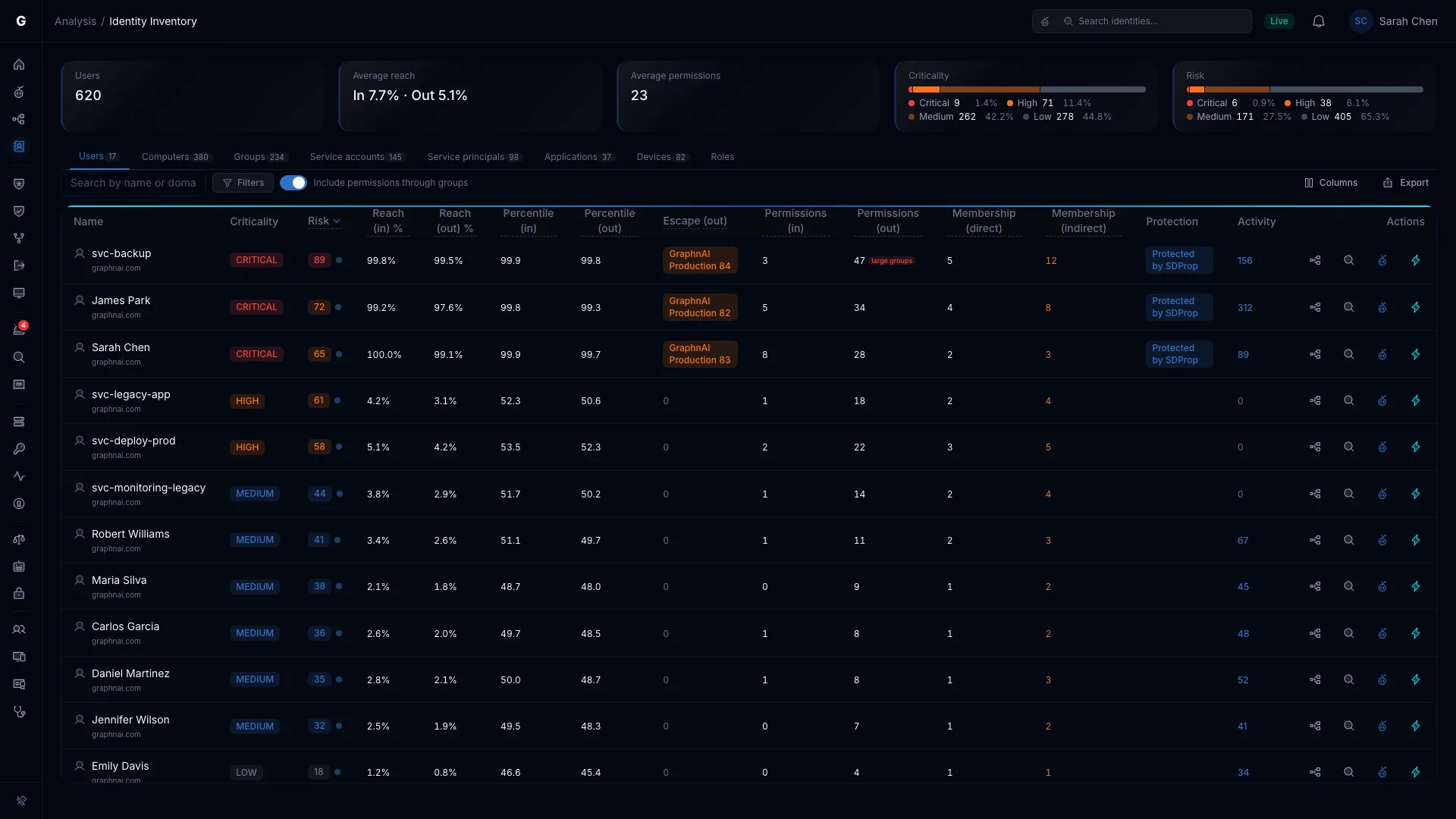
The Identity Table
Type Tabs
The tabs across the top pick the identity type. Each tab shows how many identities it holds. While a graph narrows the table (see Table-Graph Interaction), the count follows the narrowed set.
| Tab | Identities shown |
|---|---|
| Users | People's accounts |
| Computers | Domain-joined computers |
| Groups | Security and distribution groups |
| Service accounts | On-premises service accounts |
| Service principals | Entra ID application identities, including managed identities |
| Applications | Entra ID app registrations |
| Devices | Entra ID devices |
| Roles | Entra ID directory roles |
Switching tabs clears the search, the domain and any preset tuning. A preset that doesn't apply to the new tab's identity type is cleared too.
Summary Cards
Five cards above the table describe the rows on the current tab:
| Card | What it shows |
|---|---|
| Tab name (for example, Users) | How many identities the tab holds. With a filter on, the label adds the filter ("Users · Tier 0") and the value reads "X of Y". |
| Average reach | The average share of its security boundary each identity can reach, and that can reach it, as "In X% · Out Y%". It shows dashes in place of the percentages until reach is calculated. |
| Average permissions | The average permission count. With a filter on, it shows the In and Out averages of the rows in view. |
| Criticality | A bar of the identities by criticality (Critical, High, Medium, Low), with the count for each. |
| Risk | A bar of the identities by risk level, with the count for each. |
The Stale, Over-permissioned and Group membership presets replace these cards with their own. See Filter Presets.
Table Columns
The columns, in their default order:
| Column | Description |
|---|---|
| Name | Display name, with the domain under it. The icon shows the identity type, crossed out for a disabled account. You can't hide this column. |
| Criticality | Asset criticality: CRITICAL, HIGH, MEDIUM or LOW. A dash means none is assigned. |
| Risk | Risk score from 0 to 100, colored by level. Select it for the breakdown (see Risk Factor Breakdown). The dot beside it shows fidelity confidence. |
| Reach (in) % | The share of the identity's security boundary that can reach it. Hover for the exact count. Select it to open the reach graph. A dash means reach isn't calculated yet. |
| Reach (out) % | The share of its security boundary the identity can reach. Hover, select and dash work as for Reach (in) %. |
| Percentile (in) | Where the identity ranks inside its boundary by how much of the boundary can reach it. 100 means more can reach it than any other identity there. |
| Percentile (out) | Where the identity ranks inside its boundary by how much it can reach. |
| Escape (in) | Identities in other security boundaries that can reach this one, with a badge for each boundary. Hidden by default: turn it on from Columns (see Choosing columns). |
| Escape (out) | Identities in other security boundaries this one can reach, with a badge for each boundary. |
| Permissions (in) | Permission grants other identities hold over this one. Select the count to open the permission graph. |
| Permissions (out) | Every permission this identity holds: set on objects, delegated from parent containers, and held through groups. Select the count to open the permission graph. A red large groups mark means some come through large groups. Hover it for how many. The Include permissions through groups switch changes what this column counts (see Search & Filtering). |
| Membership (direct) | Groups the identity belongs to directly. Select it to open the membership graph. Users, Computers, Groups and Service accounts only. |
| Membership (indirect) | Groups the identity belongs to through nesting, in orange when above zero. Users, Computers, Groups and Service accounts only. |
| Nesting depth | Levels of nested group membership, in orange at 5, where the membership scan stops (so 5 means 5 or more). Hidden by default: the Group membership and Excessive nesting presets show it, and Columns turns it on anywhere. Users, Computers, Groups and Service accounts only. |
| Members (direct) | Direct members of the group. Select it to open the members graph. An orange warning mark means the group is empty. A red clock means it's empty and unchanged for more than 180 days. Groups only. |
| Members (indirect) | Members through nested groups. Groups only. |
| Credential expires, Owner, NHI evidence | Service accounts, Service principals and Applications tabs. See NHI Discovery. |
| Protection | AdminSDHolder for an identity AdminSDHolder protects, or Stale adminCount for one that left every protected group but still has adminCount set. Users, Computers, Groups and Service accounts only. |
| Activity | Alerts, sessions and events, added together, in blue when above zero. It loads for the first 300 rows in the current order. Other rows show a dash: sort or filter to bring a row up. Users, Computers, Service accounts, Service principals and Devices only. |
A count of zero isn't a link.
Conditional Columns
Some presets add columns of their own:
| Column | Preset | Description |
|---|---|---|
| Stale for | Stale | Time since last activity: days under 90 ("45d"), months under a year ("8m"), then years and months ("2y 3m"). Orange above 90 days. An Urgent badge marks Tier 0 or Critical identities. |
| Tier | Stale | The administrative tier, with Tier 0 in red. A dash means no tier is assigned. |
| Deviation | Over-permissioned | How far above its peer group's average the identity sits, in standard deviations (σ), weighted by permission severity (for example, "4.2σ"). The tooltip says "standard deviations". Orange above 3σ. |
| Peer group | Over-permissioned | The peers the identity was compared with, as a short name. Hover for the full name and member count. |
| Peer average | Over-permissioned | The average permission count in the identity's peer group on this tab. |
| Excess | Over-permissioned | Permissions above the peer average, as "+N". A dash means there's no peer group to compare with. |
| Differs from template | Stale adminCount | ACEs that differ from the AdminSDHolder template, in amber when above zero. |
Actions
Each row has these buttons:
| Button | Icon | What it does |
|---|---|---|
| Open in Graph Explorer | Tree-structure icon | Opens Graph Explorer focused on the identity. |
| Start investigation | Magnifying glass | Starts an investigation of the identity and opens its report. Operators and Admins, for users, computers, service accounts, groups and service principals. |
| Explain with Graphne | Graphne icon (blue) | Opens an AI explanation of the identity's risk. Operators and Admins, when an AI provider is set up. |
| Select Fire | Lightning (cyan) | Opens Select Fire for the identity. Operators and Admins. Disabled on a read-only license. |
Search & Filtering
- Search: Type in Search by name or domain to match display names and domains. The address bar records the search, so a link opens with it.
- Domain: With more than one domain or tenant, a list beside the search picks one. All domains shows them all.
- Include permissions through groups: On by default. Turn it off to count only the permissions set on objects for this identity or delegated to it from parent containers. It changes the Permissions (out) column only. The risk score always counts every permission.
- Export: Select Export, then Export CSV or Export JSON, to download the rows in view. The file follows the visible columns in their order, then adds the type, the connector and whether the account is enabled. A preset's own columns are included.
Filter Presets
Select Filters to open the preset list. The presets are grouped under Posture, Hygiene and lifecycle and Non-human identities. Each shows how many identities match, counted across the whole tab. Select a preset to apply it. Select it again, select Clear filter, or select the X on its chip to remove it.
| Preset | In the address bar | What it shows |
|---|---|---|
| Stale | filter=stale |
Identities past their type's inactivity threshold, or past the days you enter. See Stale preset. |
| Over-permissioned | filter=over-permissioned |
Outliers: identities more than a set number of standard deviations above their peer group's average permission count. See Over-Permissioned preset. |
| Group membership | filter=membership |
Identities in at least one group, or nested at least as deep as you choose. See Group membership preset. Only on tabs with memberships. |
| Tier 0 | filter=tier0-exposed |
Identities classified Tier 0. |
| High risk | filter=high-risk |
Identities at Critical or High risk. |
| Stale adminCount | filter=stale-admincount |
Identities with adminCount set that no longer belong to any protected group. Adds the Differs from template column. |
| Excessive nesting | filter=excessive-nesting |
Identities whose group nesting reaches 5 levels, where the membership scan stops. Adds the Nesting depth column. Only on tabs with memberships. |
| Empty groups | filter=empty-groups |
Groups with no members. Groups tab only. |
| Group hygiene | filter=group-hygiene |
Identities that match Excessive nesting or Empty groups. |
| Disabled | filter=disabled |
Disabled accounts. |
| NHI: Orphaned, NHI: Stale credential, NHI: Kerberoastable, NHI: Multi-tenant, NHI: Consent for all users | filter=nhi-… |
Non-human identity triage. See NHI Discovery. |
A preset that doesn't apply to the tab's identity type shows Not applicable in place of a count, and you can't select it. A preset whose check hasn't run for that type yet shows Not yet evaluated. While a graph narrows the table, the counts cover only the graph's identities.
Stale preset
The Stale preset adds a days field next to its chip. Leave it empty (it reads "Per-type default") to use each type's own threshold: Users 90 days, Computers 30 days, Service accounts 180 days. Enter 1 to 3650 days to use one threshold for every type.
The cards change to Stale identities, Urgent, Not yet observed, By criticality and Threshold. The table opens with Name, Criticality, Risk, Stale for and Tier. The flyout header's Stale N days badge carries the staleness. See Stale Identity Detection for the thresholds and the counts.
Over-Permissioned preset
The Over-permissioned preset adds a Detection Sensitivity slider (0.5σ to 5.0σ, default 2.0σ) and a Minimum group size field (3 to 100, default 3). The slider is the z-score cutoff: at 2.0σ, an outlier sits more than two standard deviations above its peer group's mean. Higher sensitivity values show only the most extreme outliers.
The cards change to Outliers, Average excess permissions, Top peer groups and By criticality. The table opens with Name, Criticality, Risk, Permissions (out), Deviation, Peer group, Peer average and Excess. Select a row to see its permission graph above the table, and the Over-permission analysis, Permission breakdown and Peer group sections in the flyout. See Over-Permission Analytics for how peer groups and Detection Sensitivity work.
Group membership preset
The Group membership preset lists every identity on the tab that belongs to at least one group. It adds a Nesting depth list next to its chip: Any depth, or 2 or more levels up to 5 or more levels. Nesting depth is how many levels of nested groups the identity's membership runs through. The count follows 5 levels, so 5 means 5 or more.
The cards change to Identities in groups, Average direct groups, Deepest nesting and By criticality. Deepest nesting reads "5+", in orange, when a chain reaches the limit. The table opens with Name, Criticality, Risk, Membership (direct), Membership (indirect) and Nesting depth.
Select a row to open its membership graph above the table: the groups it belongs to for a user, computer or service account, and its members for a group. The Member of and Members toggle switches direction. The flyout shows the Membership tab's own view: a Group membership section with a bar of direct against nested groups, and a nesting depth meter. The inventory metrics and permission sections stay on the other views. The Membership tab in any identity's flyout opens this preset on that identity.
Links carry the tuning in staleDays, sensitivity, minGroup and minDepth, so a shared link opens with the same settings. Changing tabs or presets clears them.
Choosing columns
Select Columns, next to Export, to list every column in its current order.
- Clear a column's check box to hide it, and select it again to show it. You can't hide Name.
- Use the up and down arrows, or drag a row, to reorder columns.
- Drag the handle at the right edge of a column header to resize it.
- Select Reset to default to restore the table's own layout.
Your layout is saved to your user profile, so it follows you to any browser. Each preset keeps its own layout: the Stale preset can show different columns from the unfiltered table.
Risk Prioritization
Composite Risk Score
Every identity gets a risk score from 0 to 100, built from nine factors:
| Factor | What it measures |
|---|---|
| Permission load | Effective permissions, weighted by how dangerous each one is |
| Criticality gap | How far the criticality of what the identity can reach exceeds its own |
| Junction score | Its Critical Junctions score, from betweenness centrality |
| Alert severity | The highest severity of its detection alerts |
| Staleness | Days past its type's inactivity threshold |
| Exposure | Its worst open posture finding of the exposure class. See Exposure Risk Factor. |
| Administrative tier | Whether it has direct or indirect access to Tier 0 |
| Group nesting | How deep its group nesting goes |
| Empty group | For a group, whether it has no members |
The table sorts by risk, highest first. Disabled accounts always sort below enabled ones.
- Select a column header to sort by it. Select it again to reverse the order.
- Hold Shift and select another header to add it as a second sort. Each sorted header then shows its place (1, 2, 3).
- Select a header without Shift to go back to one sort.
The sort order travels in the link, so a bookmark or shared link opens in the same order.
Risk Factor Breakdown
Select a risk score to open its Risk breakdown. Each factor has a bar and shows what it adds to the score out of the most it could add, for example "12.4 of 18". The total reads "N of 100".
- A factor that doesn't apply to the identity reads Not applicable and is left out of the score. The other factors' weights grow to fill its share.
- A factor that applies but isn't observed yet shows a dash. It's left out of the score until it is.
Fidelity Confidence (Tiered Fidelity™)
The dot beside a risk score shows how well the identity's permissions are evidenced across the Tiered Fidelity™ levels: Theoretical, Constrained and Validated. Hover it for the reason.
| Dot | Level | Tooltip |
|---|---|---|
| Solid blue | High | High confidence: most permissions are Validated by telemetry. |
| Pale blue | Medium | Medium confidence: a mix of Validated and Theoretical permissions. |
| Hollow | Low | Low confidence: most permissions are Theoretical. Investigate before you act. |
A Low score can overstate real exposure. Telemetry raises the fidelity level of permissions it observes: see Telemetry Enrichment.
Permission Intelligence
Effective vs. Delegated Permissions
Every Active Directory ACE gets an origin. The UI shows three:
| Origin | What the ACE is | Counted |
|---|---|---|
| Set on this object | An ACE set directly on the object's security descriptor | Yes |
| Delegated from a parent | An ACE inherited from a parent container and granted to a custom trustee, such as an OU delegation | Yes |
| Default | An ACE inherited from a parent and granted to a well-known system trustee (SELF, Enterprise Domain Controllers), or one that matches the schema's default security descriptor | No |
Default ACEs are left out of every permission count, so the numbers show access someone configured.
Permission Origin Breakdown
The flyout draws the Permissions total as a Permissions by source bar. The legend under it lists each source's count and its share of the total:
- Set on this object: grants from ACEs set directly on the objects this identity has rights over.
- Delegated from a parent: grants from a delegation on a parent container, which every object under it inherits.
- Standard groups: permissions held through membership in ordinary groups.
- Large groups: permissions held through groups with very large numbers of grants, drawn in red.
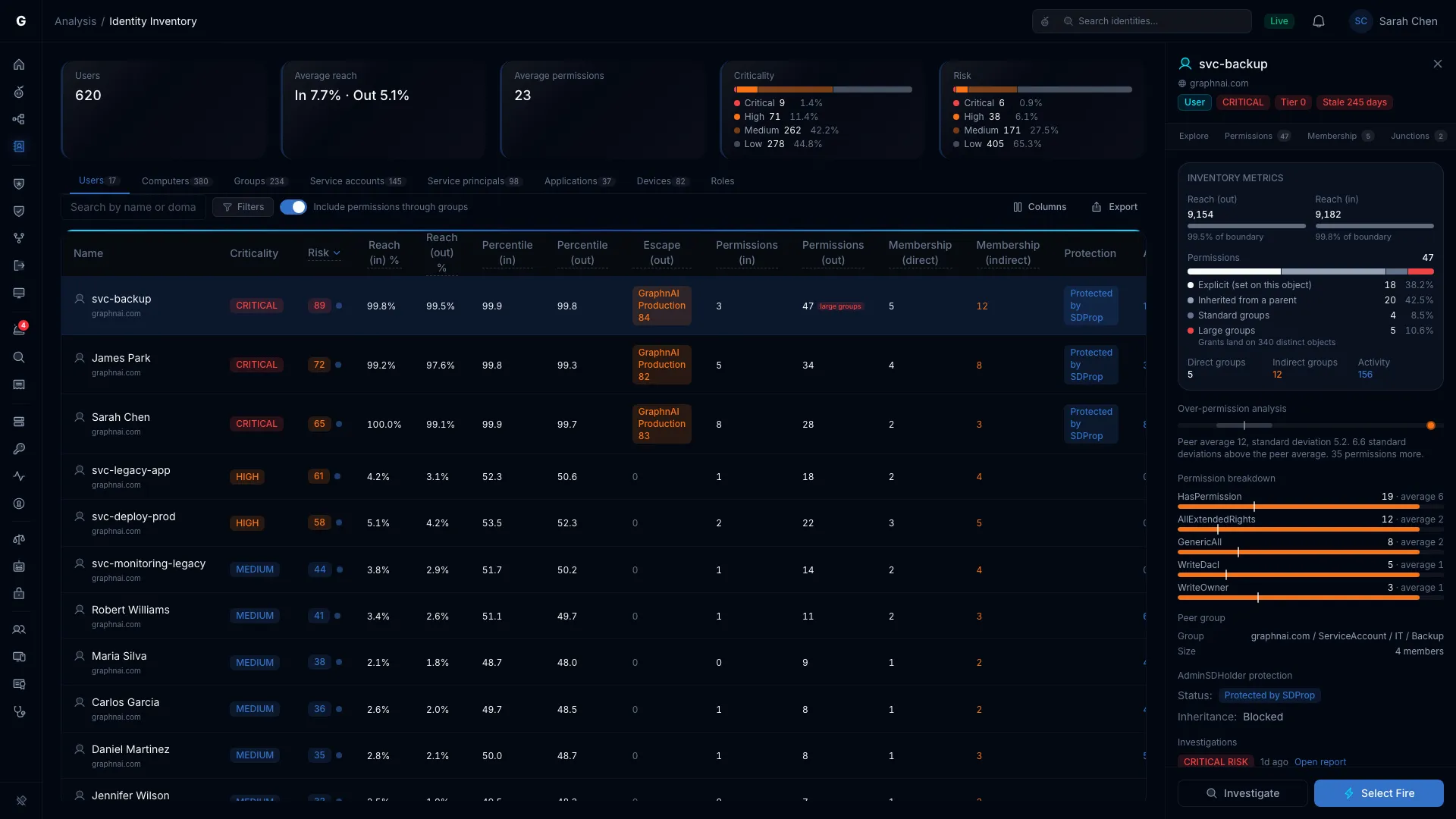
A source with no permissions is left out. The sources add up to the total, and a source too small to see still gets a thin sliver. Hover a part of the bar for its count and share. The bar doesn't appear when the total is zero.
The bar doesn't change the total or the risk score. A directory sync service account can show hundreds of thousands of permissions from one delegation at the top of a domain. The bar shows that at a glance.
Objects Reached Through Large Groups
Members of large groups get most of their access through those groups. The Large groups row in the legend adds how many distinct objects those grants land on, for example "Grants land on 911,841 distinct objects".
The count follows nested membership and counts each object once. It's a count of objects, so it's never added to the Permissions total, which counts grants. Two large groups with rights on the same object add two grants and one object.
Inheritance Tracing
When you open a delegated permission in the relationship view or in Graph Explorer, an Inherited from section names the container the ACE comes from, for example:
Inherited from: OU=Service Accounts,DC=corp,DC=example,DC=com
Select the name to open that container. An inherited ACE is changed on the container's DACL. The object below it only inherits it.
AdminSDHolder Protection
Active Directory's AdminSDHolder protects members of privileged groups such as Domain Admins, Enterprise Admins and Account Operators. The Protection column marks them AdminSDHolder.
About once an hour, SDProp resets each protected object's ACL to match the AdminSDHolder template. As a result:
- A change you make directly to a protected object's ACL is overwritten within the hour.
- An ACE on a protected object that isn't in the template can point to tampering or a misconfiguration.
The inventory shows:
- AdminSDHolder or Stale adminCount in the Protection column. Stale adminCount means adminCount=1 is still set, but the identity has left every protected group.
- The Stale adminCount preset, which adds the Differs from template column.
- An AdminSDHolder protection section in the flyout, for any identity with adminCount set. It shows the status, whether inheritance is Blocked or Allowed, how many ACEs differ from the template, and what to do.
An identity with a stale adminCount keeps the restrictive AdminSDHolder security descriptor, with inheritance blocked. That can cause access problems or hide a permission someone planted. Clear adminCount and turn inheritance back on.
Membership Analysis
Outbound: Member Of
Select a Membership (direct) or Membership (indirect) count to open the membership graph. The identity sits at the root, with its groups above it. The Member of and Members toggle at the top left switches direction.
Use it to see:
- How deep the group nesting goes
- Whether a parent group grants access nobody intended
- The full chain from a user to a sensitive group, for example User → IT Staff → Server Admins → Domain Admins
Inbound: Members
Select a group's Members (direct) or Members (indirect) count to open the members graph.
- Groups are drawn one by one, because they carry the structure.
- Other members are gathered by type, for example "Users (47)", so large groups stay readable.
Select a gathered node to list its members. Use this to see who a change to the group's permissions would affect.
Empty & Stale Empty Groups
An empty group shows an orange warning mark in Members (direct). A group that's empty and unchanged for more than 180 days also shows a red clock. Both are cleanup candidates: an empty group can still hold permissions on OUs and containers.
Table-Graph Interaction
The table and the graph work together.
Clickable Counts
The reach, permission and membership counts open six graph views:
| Count you select | Graph | Direction |
|---|---|---|
| Reach (in) % | Reach graph | Inbound |
| Reach (out) % | Reach graph | Outbound |
| Permissions (in) | Permission graph | Inbound |
| Permissions (out) | Permission graph | Outbound |
| Membership (direct) or (indirect) | Membership graph | Member of |
| Members (direct) or (indirect) | Membership graph | Members |
Select the same count again to close the graph.
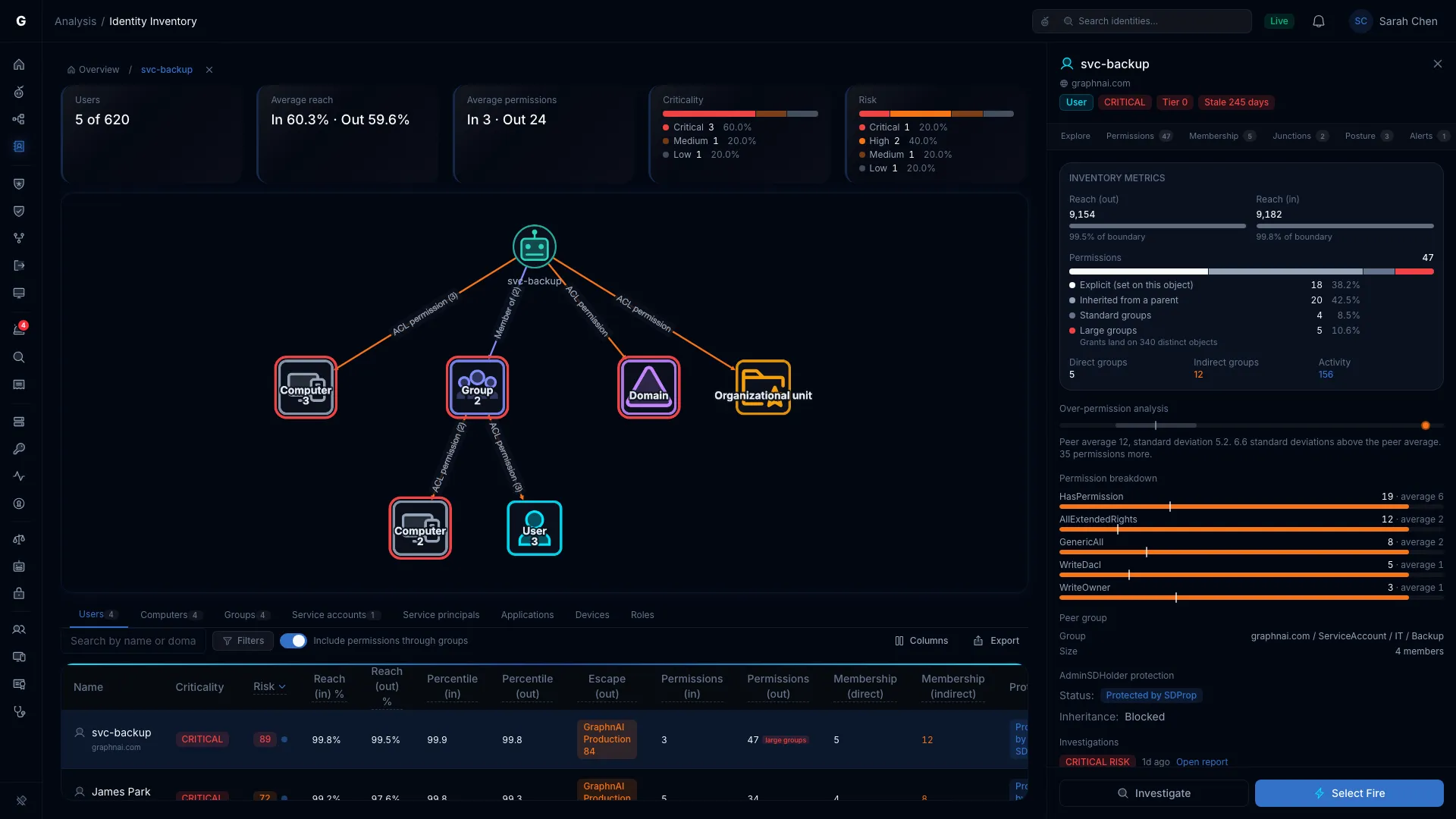
Graph Panel
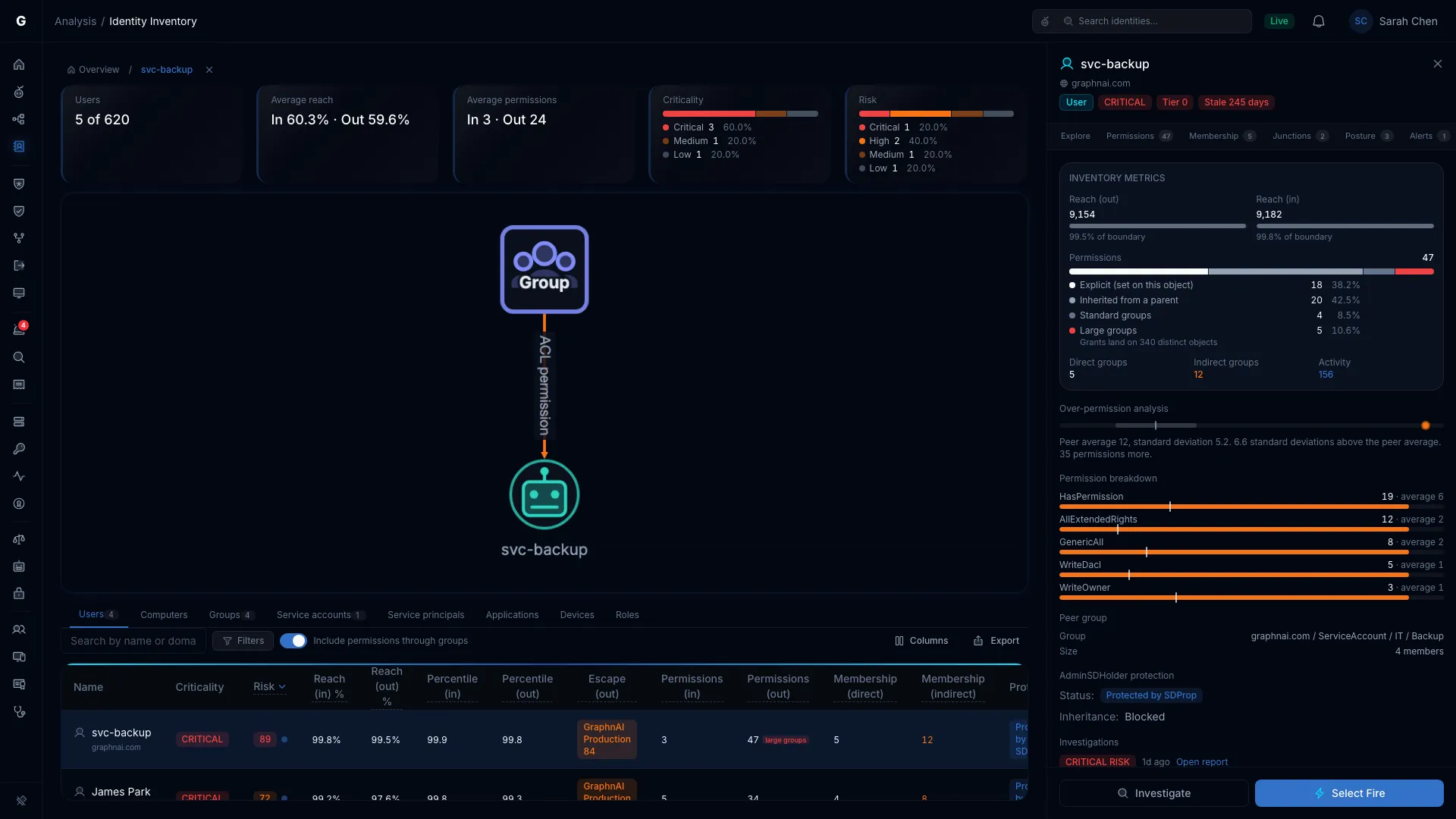
The graph opens above the table, and the table shrinks to about 180 pixels tall. In the graph you can:
- Pan and zoom with the mouse.
- Select a grouped node (one type at one step of a reach or permission graph) to narrow the table to exactly those identities. The type tab switches if it needs to.
- Select an edge (a connecting line) to list the relationships it stands for. The list takes the table's place. Select a row to read that edge in the flyout: the permissions it grants, its fidelity level and where it comes from. Select Back to return.
- Select a table row to focus the graph on that identity.
Breadcrumb Navigation
As you move the graph from identity to identity, a breadcrumb trail records the path:
Overview / john.doe / Domain Admins / Server OperatorsSelect a crumb to go back to that point. Select Overview, or the X at the end of the trail, to close the graph and return to the full table.
URL Sharing
The address bar holds the whole view: the tab, search, domain, preset and its tuning, the sort, and the open graph and its focus. Bookmark it, or send it to a colleague so they see the same view.
Delegation Risk (Separate Page)
Delegation Risk has its own page: select Exposure > Delegation Risk in the sidebar. It scores custom OU and container delegations against Microsoft's recommended practices. See Delegation Risk.
Identity Detail Flyout
Select a row to open the identity's flyout on the right. From top to bottom:
- Header: the type icon, name and domain, the type, the criticality, a Tier 0 badge when it applies, and a Stale N days badge past the type's threshold. First seen, Last seen and Last activity dates sit under it.
- Investigation tabs: Explore, Permissions, Membership, Junctions, Posture, Alerts and Timeline. Each opens that view focused on this identity, with a count badge. Permissions and Membership open this table under the Over-permissioned and Group membership presets. Membership appears for Users, Computers and Groups. Timeline opens inside the flyout.
- The view's own sections: what sits between the tabs and Identity details depends on the view. Under the Group membership preset (where the Membership tab lands) the Group membership section stands alone there. See Group membership preset. Everywhere else the sections below fill it, starting with Inventory metrics. The flyout reads the identity's row on its own, so these sections appear without waiting for the table to finish loading.
- Inventory metrics: described below.
- Over-permission analysis, Permission breakdown and Peer group: for an identity with a peer group. See Over-Permission Analytics.
- AdminSDHolder protection: for an identity with adminCount set. See AdminSDHolder Protection.
- Investigations: the latest investigation of this identity. Investigate at the bottom of the flyout starts a new one. See Investigations.
- Identity details: the synced directory attributes, group memberships, the access control list and, for a protected object, the AdminSDHolder template.
Inventory Metrics
The Inventory metrics card shows:
- Reach (out) and Reach (in): how many objects this identity can reach, and how many can reach it. A meter under each count shows it as a share of the identity's own security boundary, with the percentage under it (for example, "12.4% of boundary"). The meter appears once reach is calculated.
- Permissions: the total, with the Permissions by source bar under it. See Permission Origin Breakdown.
- Direct groups and Indirect groups (orange above zero), for Users, Computers, Groups and Service accounts.
- Members, as "N direct · M indirect", for groups.
- Activity, in blue above zero, once activity has loaded for the row.
Flyout Actions
The footer has Investigate and Select Fire for Operators and Admins. The Explore tab opens Graph Explorer. Explain with Graphne is on the row's buttons in the table.
Troubleshooting
Risk scores are all zero, or reach shows dashes
Cause: The analysis that runs after a sync hasn't run yet, or didn't finish.
Solution:
- Run a sync. Analysis runs after each full sync, and after each delta sync that finds changes.
- If a banner reads "Analysis didn't finish. Some numbers below may be missing or out of date.", it names the domain and the step that stopped. Run the sync again from Bridges.
- An Admin with server log access can look for "Post-sync analytics completed".
The page says "Couldn't load the identity inventory"
Cause: The server couldn't be reached, or your account is a Viewer. The page's data needs the Operator role.
Solution: Refresh to try again. If it keeps failing, open Platform Health, or ask an Admin for the Operator role.
The flyout says the identity has no row here
Cause: The flyout's Inventory metrics come from the current tab's rows.
Solution: Read the message in the flyout:
- "This identity is on the Computers tab. Open that tab to see its inventory metrics." Switch to the tab it names.
- "The inventory has no row for this identity yet. It gets one when the next analysis runs." The identity was synced after the last analysis. Its row appears once the next one finishes.
- "This identity has no row in the Users list." The finished list doesn't hold it. The search box and the domain picker never cause this: the flyout finds rows they hide.
Permission counts seem too high
Cause: A broad delegation on a parent container, or membership in a large group, adds large numbers of permissions.
Solution:
- Open the identity and read the Permissions by source bar to see which source dominates.
- Turn off Include permissions through groups to count only what's set on objects for the identity or delegated to it.
- Use Inheritance Tracing to find the containers the delegated permissions come from.
- Review those delegations on the Delegation Risk page.
"Stale adminCount" appears on active, legitimate accounts
Cause: The identity was once a member of a protected group, such as Domain Admins, and was removed. SDProp sets adminCount=1 but never clears it.
Solution:
- Check the identity's membership chain to confirm it's no longer in any protected group.
- Clear
adminCountin Active Directory (set it to 0 or remove the attribute). - Turn security descriptor inheritance back on for the object. SDProp turned it off.
The graph doesn't open when you select a count
Cause: The count is zero, so there's nothing to draw. A zero count isn't a link.
The Over-permissioned preset shows more or fewer outliers than expected
Cause: Detection Sensitivity or Minimum group size isn't at its default. It may be left from earlier, or carried in a shared link (sensitivity and minGroup).
Solution: Set Detection Sensitivity to 2.0σ and Minimum group size to 3. See Over-Permission Analytics for choosing a sensitivity.
Export fails or is slow
Cause: The export covers a very large set of rows, for example 100,000 or more. A failed export shows "Export failed. Filter to fewer rows and try again."
Solution: Narrow the rows with the type tab, the domain or a preset, then export again.
Best Practices
- Start with risk. The default sort puts the highest-risk identities first. Work through the first page before you add filters.
- Use a preset for each audit. Pick the preset that matches the question: Stale for a quarterly review, Over-permissioned (outliers) for an access review, Tier 0 for a privilege check.
- Investigate in the graph, decide in the table. Select a count to see the structure, then come back to the table to compare identities and set priorities.
- Check delegation after you change it. After you change OU permissions, run a sync and review the score on the Delegation Risk page.
- Clean up stale adminCount. Use the Stale adminCount preset to find and fix orphaned flags.
- Check fidelity confidence before you act. A Low confidence score can overstate exposure. Add telemetry (see Telemetry Enrichment) before you decide.
- Share links. The address bar holds the tab, filters, sort and graph. Send the link instead of describing the view.
- Pivot with the investigation tabs. From the flyout, move between Permissions, Membership, Junctions and the other views without losing the identity.
Related Features
- Risk Posture Dashboard: the estate risk score and its trend, including Delegation Risk
- Graph Explorer: full-screen graph for open exploration
- Over-Permission Analytics: peer-group analysis with adjustable Detection Sensitivity
- Stale Identity Detection: inactive accounts, with custom thresholds
- Select Fire: simulate and make permission changes from inventory findings
- Critical Junctions: accounts that bridge privilege tiers
- Telemetry Enrichment: raise fidelity confidence with session and privilege telemetry
- Delegation Risk: OU and container delegations scored against Microsoft's recommended practices