Detection Alerts: Triage Brute Force, Password Spray, Kerberoasting and DCSync Alerts
Triage Kerberoasting, password spray, DCSync and other identity threat alerts, with each identity's tier and paths to Tier 0 beside the alert.
On this page
- Overview
- Prerequisites
- Accessing Detection Alerts
- Summary Cards
- Alert Table
- Columns
- Row Actions
- Sorting and Filtering
- Detail Flyout
- Blast Radius Graph
- Flyout Sections
- Evidence by Rule
- Source Section
- Password Spray Success
- AS-REP Roasting
- Triage Section
- Paths to Tier 0
- Flyout Actions
- Alerts Grow in Place
- Alert Status Workflow
- Detection Rules
- Integration with Other Features
- Troubleshooting
- No alerts showing
- An alert has no timeline or Select Fire button
- Paths to Tier 0 reads "not yet checked"
- Status buttons don't appear
- The page says "Couldn't load detection alerts"
Overview
The Detection Alerts page lists the alerts the ITDR (Identity Threat Detection and Response) engine raises from your domain controllers' events. They cover brute force, password spray, Kerberoasting, DCSync, Tier 0 group changes, audit policy changes and more. ITDR Detection describes every rule.
Each alert carries context from the identity graph:
- Who did what to whom: the accounts, computers and addresses the alert names, each by the part it played, with when the alert was first and last seen.
- Subject type and tier: whether the account is a User, ServiceAccount or Computer, and whether it's Tier 0.
- What the account can reach: drawn as a blast radius graph when you open the alert, with the number of paths to Tier 0 in the Triage section.
- MITRE ATT&CK technique: the technique ID, linked to its page on the MITRE ATT&CK site.
- Activity: the identity's related events, and how its permitted access compares with the logons recorded.
- Evidence: what the rule saw, in words, with the failure reasons, services or baseline behind it.
- Triage: once AI triage has run, its verdict, the alert's risk score, the account it assessed and its reasoning. The line Paths to Tier 0 appears with or without it.
An ongoing attack is one alert that grows as new activity arrives. See Alerts Grow in Place.
Prerequisites
- Role: Operator or Admin to view alerts. Admin to change an alert's status.
- License: A license that includes ITDR. Without it, Detection Alerts in the sidebar shows a lock, and the page shows how many open alerts are waiting.
- Events flowing: An OpenTelemetry collector sends your domain controllers' Windows security events. See Telemetry Pipeline.
- Identity graph populated: At least one full sync, so alerts can name identities and show their paths to Tier 0.
[!TIP] To check that events arrive, open Admin > Telemetry. The Pipeline tab counts events for the last 15 minutes, hour and 24 hours.
Accessing Detection Alerts
Select Detection & Response > Detection Alerts in the sidebar.
The sidebar item carries a badge with the number of open alerts. Its color follows the most severe alert on record, whatever its status. The badge updates as new alerts arrive, and shows "!" when the count couldn't load.
You can also open the page from:
- Dashboard: the Alert severity card.
- An identity's detail flyout: the Alerts tab opens the page on that identity.
- Notifications: a new-alert notification opens the page.
Summary Cards
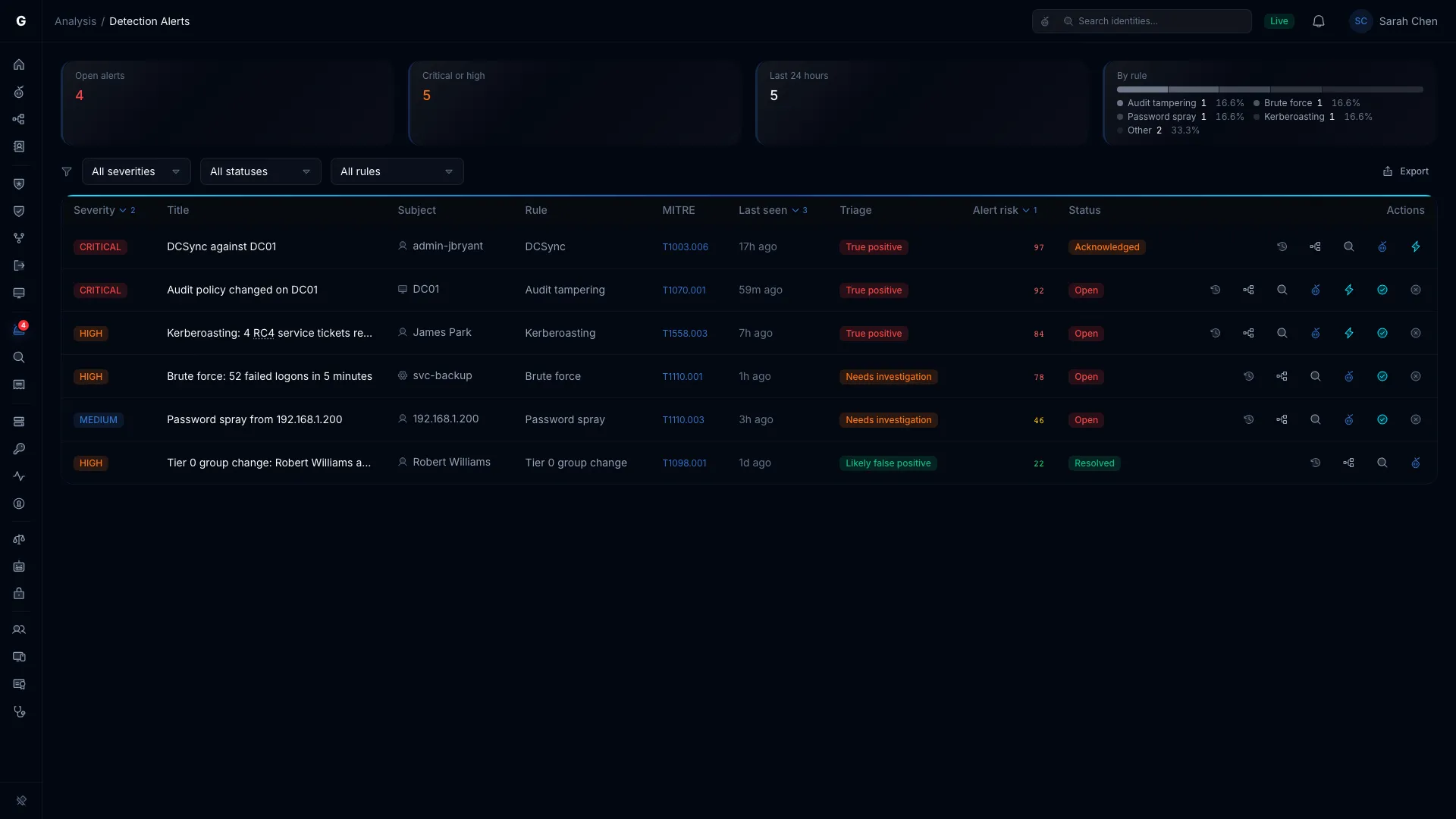
Four cards sit above the table. They update as new alerts arrive.
| Card | Description |
|---|---|
| Open alerts | Alerts in the Open status. Red when any are open. |
| Critical or high | Critical and high alerts in every status, resolved and false positive included. |
| Last 24 hours | Alerts raised in the last 24 hours. |
| By rule | A bar that splits every alert, in every status, by the rule that raised it. |
Alert Table
The table loads every alert, then adds new ones as they fire. If the list stops loading early or reaches its limit, a banner above the table says so.
Columns
| Column | Description |
|---|---|
| Severity | CRITICAL, HIGH, MEDIUM, LOW or INFO, as a colored badge |
| Title | What the rule detected |
| Subject | The primary account, as the graph names it. For an alert keyed by its source, such as password spray or AS-REP Roasting, the source and the number of accounts, for example "10.99.0.60 → 6 accounts". |
| Rule | The rule that fired, for example "Brute force" or "Kerberoasting" |
| MITRE | The MITRE ATT&CK technique ID, linked to its MITRE page |
| Last seen | How long ago the alert's latest event happened, for example "2 hours ago". Hover for the exact time. |
| Triage | AI triage's verdict: True positive, Needs investigation or Likely false positive. Empty until triage runs, then always filled. It refreshes on its own when triage writes, so you don't need to reload the page. |
| Alert risk | Triage's risk score for the alert. Empty until triage runs. Shows a dash when triage couldn't assess the alert. |
| Status | Open, Acknowledged, Resolved or False positive |
An account the graph can't name carries a chip beside it:
- Not in the graph: no synced account matches the name. It may be misspelled, deleted, or in a domain that isn't synced.
- Matches several accounts: more than one synced account fits, so the name links to none of them.
Row Actions
Each row ends with these buttons:
- View timeline (clock icon): opens the Identity Investigation Timeline for the subject.
- Open in Graph Explorer (tree-structure icon): opens the subject in Graph Explorer.
- Start investigation (magnifying glass icon): starts an investigation of the subject and opens its report. Operators and Admins, for users, computers, service accounts, groups and service principals.
- Explain with Graphne (Graphne icon): an AI explanation of the alert. Operators and Admins see it when an AI provider is set up.
- Select Fire (lightning icon): opens Select Fire for the subject. Operators and Admins.
- Acknowledge (check icon): Admins, on open alerts.
- Mark as false positive (X icon): Admins, on open alerts.
The timeline, Graphne and Select Fire buttons appear only for an alert whose relevant account resolved to an identity in the graph. Select Fire opens on the account the rule acts on. For a Tier 0 group change that's the member who was added. For account manipulation it's the account that made the change. An alert keyed by its source offers none of these three buttons. Select Fire opened from an alert carries that alert, which Full-Auto needs before it can contain an account. See Full-Auto Execution.
Sorting and Filtering
- Sort: Select a column header. The newest alerts come first by default. While the list is still loading, rows stay in arrival order and sort when loading finishes.
- Severity: All severities, Critical, High, Medium or Low.
- Status: All statuses, Open, Acknowledged, Resolved or False positive.
- Rule: All rules, or one rule.
- Export: Select Export, then Export CSV or Export JSON, to save the filtered alerts. The CSV columns are Severity, Title, Rule, Subject, Source, Targets, Primary account, First seen, Last seen, Evidence, Triage, Alert risk and Status. Targets reads "at least" when the count reached its tracking limit.
Detail Flyout
Select an alert row to open it. The page switches to the split layout: the table shrinks, and a flyout opens beside it. Select the row again to close it.
Which flyout opens depends on the alert:
- An alert with a resolved account opens the identity flyout, with a graph of what the account can reach beside it.
- An alert with no resolved account opens a source flyout. Its header is the source address or computer, with the rule beside it. It has no identity type badge and no tab bar, because there's no identity to describe.
Blast Radius Graph
For an alert with a resolved account, the blast radius graph shows that identity and what it can reach. Select a grouped node to list what it holds.
Flyout Sections
Both flyouts show these sections:
- What happened: severity, status, MITRE link, the title and description, and an alert timeline with First seen, Last seen and the gap between them. Events counts the events behind the alert.
- Evidence: what the rule saw, in words. See Evidence by Rule.
- Source: where the alert came from, for an alert that has a source. See Source Section.
- Triage: the verdict and score once AI triage has run, and the Paths to Tier 0 line. See Triage Section.
The identity flyout also shows the subject's properties and investigation tabs, then:
- Timeline: the alert's own entries and the events with its event IDs, headed "Timeline (N related)". Select an entry to open the full timeline.
- Access intelligence: how the identity's permitted access compares with the logons recorded. See Access Intelligence.
Every account, computer and address in an alert is named by the part it played: acted, attacked, added, changed, group, service, source or recorded on. Select a linked account to open its identity.
When you arrive from an identity's Alerts tab, the flyout opens on that identity and selects its first alert. If it has none, the flyout says "No detection alerts for this identity." If your filters hide them, it says how many are hidden.
Evidence by Rule
| Rule | What the Evidence section shows |
|---|---|
| Password spray | Accounts targeted, Failed logons, failure reasons, and a Targeted accounts table with each account's tier, failed logons, most recent reason and last attempt. When accounts then authenticated, a red notice reads "Authentication succeeded for N accounts" and links each one. |
| Password spray succeeded | The account that authenticated, the address, the time and how long after the spray's last attempt, How it authenticated, and a link to the spray alert. See Password Spray Success. |
| Authenticated from a spraying address | An Accounts that authenticated table with each account's tier, time and How it authenticated, and a link to the spray alert |
| Brute force | Failed logons, the account, failure reasons, sources and domain controllers |
| AS-REP Roasting | Requests without Kerberos pre-authentication, the source, and an Accounts requested table with the Roastable now column. See AS-REP Roasting. |
| Kerberoasting | Who requested, from where, and a Service accounts requested table with the ticket encryption (RC4 or AES) and whether AES is enabled |
| Lateral movement | The account and the Hops chain of hosts. Each hop names the domain controller that recorded the network logon (type 3). |
| Tier 0 group change | Added (the member), Group, Changed by and the domain controller |
| Account manipulation | The account, the change (password reset or account enabled), and Changed by |
| Trust manipulation | The trusted domain, the change, direction, type, trust attributes, SID filtering and Changed by |
| Unusual hour, host or protocol | What was seen, next to the baseline: usual hours, usual sources or usual protocol, and how many days and logons the baseline covers |
Other rules list their accounts and computers by role. A rule that no longer runs says so above its list.
Four terms carry a tooltip wherever they appear: RC4, AES, NTLM and SID filtering. Hover a term to read what it means.
Source Section
An alert that has a source shows a Source section. It has:
- Address (or Computer): where the activity came from.
- Probable computer: shown as "probably WS-12". It's the computer whose computer account most recently logged on from that address in the last 24 hours. It's a best guess, so check it before you act on it. When nothing matches, you see the address only.
- Alerts from this source: how many alerts share the source, with their rules.
- A list of the other alerts from the source. Select one to open it.
- Show all from this source: filters the table to that source. A removable Source chip shows the filter. The filter is part of the page link, so you can share the filtered view.
Password Spray Success
A spray that guesses one password can succeed on the first try, so GraphnAI watches for successful authentications after a spray. It raises two alerts, each linked to the spray alert:
- Password spray succeeded (Critical): one alert per account the spray targeted that then authenticated from the spraying address. The authentication counts if it happened within 60 minutes of the spray's last attempt, or up to 10 minutes before the spray began.
- Authenticated from a spraying address (High): one alert per spray. It lists the accounts the spray never tried that authenticated from the same address.
Only logons that prove the password count: event 4624 with logon type 2 (interactive), 3 (network), 8 (network cleartext), 10 (Remote Desktop) or 11 (cached), and event 4768 Kerberos authentications that used pre-authentication. Computer accounts never count.
The spray's flyout shows the notice "Authentication succeeded for N accounts" with a link to each. The success flyouts show the account, the time, how it authenticated, and a link back to the spray alert.
To respond to Password spray succeeded:
- Open the alert and confirm how and when the account authenticated.
- Reset the account's password in Active Directory, then log the account off everywhere. GraphnAI has no password reset button. Copy account name copies the account name for you.
- Check the spray alert for other accounts it targeted.
To respond to Authenticated from a spraying address:
- Confirm each listed authentication with the account owner.
- Rule out the benign cases. A shared gateway, or the owner's own computer, can explain the authentication. That computer may also be the one running the spray.
AS-REP Roasting
The Accounts requested table has a Roastable now column, taken from the posture check for accounts that don't require Kerberos pre-authentication:
- Yes, since a date: the account is open to roasting today. The date links to the posture finding.
- No: the posture finding was fixed.
- Not yet observed: the posture check hasn't covered the account.
To fix a roastable account, select Require pre-authentication in the flyout footer. Select Fire opens on the posture fix. Operators and Admins can use it.
Triage Section
Once triage has run, the Triage section shows:
- The verdict, Alert risk and Confidence.
- Assessed account: the account triage judged the alert on, with its tier and the part it played, for example "Administrator (Tier 0, a targeted account)". For an alert keyed by its source, such as password spray or AS-REP Roasting, triage assesses the most privileged targeted account.
- Paths to Tier 0 for that account.
- Triaged when it had N accounts. It now has M. appears when the alert grew after triage ran.
- Actions: what triage did.
- What the policy asked for that triage didn't do, and why. Examples are an automatic action triage refused, an automatic close it held, and an action the remediation gateway held.
When no account in the alert matches an identity in the graph, triage can't assess it. The verdict reads Needs investigation, the section says why in words, and Alert risk and Confidence show a dash. Investigate the alert yourself.
Escalation notifications name the assessed account for an alert keyed by its source. Their severity follows the alert's.
Triage acts automatically only on some accounts, depending on the part each played. Victims, added members, changed accounts, services and groups are never acted on automatically, and Tier 0 and Tier 1 accounts always escalate to a person. Full-Auto Execution lists which rules can act automatically, and on which account.
Paths to Tier 0
The Triage section has a Paths to Tier 0 line for the account the alert was assessed on. Triage fills it in. When triage hasn't, GraphnAI fills it in about a minute after it stores the alert. It reads one of these:
- not yet checked: neither has finished yet, or the check timed out.
- N paths, M Validated: how many paths reach Tier 0, and how many are Validated.
- N paths, strongest evidence Constrained (or Theoretical): shown when none is Validated.
- 5 or more paths: the search stops at 5.
- No paths found.
- Tier 0: controls the domain: the account is already Tier 0, so no count is shown.
Hover Validated, Constrained or Theoretical to read what each level means.
Flyout Actions
The flyout footer offers these actions. The source flyout has no tab bar, so it offers Open in Investigate when triage named an account, and the status actions.
| Button | Role | Description |
|---|---|---|
| Investigate | Operator+ | Starts an investigation of the subject and opens its report. Only for users, computers, service accounts, groups and service principals. |
| Require pre-authentication | Operator+ | On an AS-REP Roasting alert with a roastable account. Opens Select Fire on the posture fix that turns Kerberos pre-authentication back on. |
| Select Fire | Operator+ | Opens Select Fire on the account the rule acts on, with the alert's rule and severity as context. Absent when that account didn't resolve. |
| Acknowledge | Admin | On open alerts. Sets the status to Acknowledged. |
| Mark false positive | Admin | On open alerts. Sets the status to False positive. |
| Resolve | Admin | On acknowledged alerts. Sets the status to Resolved. |
After a status change, the flyout closes and the table reloads with the new status.
Alerts Grow in Place
An ongoing attack is one alert. As new activity arrives, the alert's Last seen, counts and accounts update. You aren't paged again for the same activity.
Some changes are big enough to send the alert to triage again: a higher severity, the main account identified, or the number of targets doubling.
When you resolve an alert or mark it as a false positive and the activity continues, GraphnAI doesn't reopen it. New activity opens a new alert that holds only the new evidence. The closed alert stays as you left it.
Alert Status Workflow
Alerts follow a lifecycle:
open → acknowledged → resolved
  \
→ false_positive- Open: The detection engine raised the alert. It needs investigation.
- Acknowledged: Someone is investigating it.
- Resolved: It was investigated, then remediated or accepted as a risk.
- False positive: It wasn't a threat.
[!NOTE] Only Admins change an alert's status. Operators view and investigate.
Detection Rules
The engine runs 11 rules on the events themselves and 3 behavior rules that compare each logon with the identity's usual pattern. Two more rules are withdrawn: they no longer run, but their old alerts still show here. ITDR Detection lists each rule with its threshold, window and MITRE technique. Admins also see them on the Detection rules tab of Admin > Telemetry.
Integration with Other Features
- Risk Posture Dashboard: The Alert severity card opens this page. An identity's open and acknowledged alerts count toward its risk score. Resolving an alert, or marking it a false positive, takes it out.
- Identity Investigation Timeline: Each alert that names an identity appears on its timeline, tagged with the part the identity played, such as Acted, Attacked, Added or Changed. The account that made a Tier 0 group change sees that alert in its timeline and alert counts.
- Select Fire: Remove the subject's access straight from an alert.
- Investigations: A triage policy can start an investigation when an alert fires.
- Graphne Agent: Ask Graphne "What alerts fired in the last 24 hours?" or "Explain the DCSync alert for svc-backup."
Troubleshooting
No alerts showing
- Cause: No events are arriving, or none matched a rule. The table then reads "No alerts yet".
- Fix: Open Admin > Telemetry. The Pipeline tab shows whether events arrive.
- Note: Some rules count events inside a time window. Brute force needs 10 failed logons to one account within 5 minutes, so a single failure raises nothing.
An alert has no timeline or Select Fire button
- Cause: Password spray and AS-REP Roasting alerts name the attacking source instead of an account. For other rules, the account isn't in the graph: it hasn't synced yet, or it was deleted. The row then shows Not in the graph.
- Note: The alert is still valid. The Subject column shows the name as the event gave it.
Paths to Tier 0 reads "not yet checked"
- Cause: Neither triage nor the follow-up check has finished, or the check timed out.
- Fix: Reopen the alert a minute or two after it appears.
Status buttons don't appear
- Cause: Only Admins change status. Acknowledge and Mark false positive appear on open alerts, and Resolve on acknowledged ones.
- Fix: Ask an Admin to change the status, or to give you the Admin role.
The page says "Couldn't load detection alerts"
- Cause: The server couldn't be reached, or your account is a Viewer. Viewers see the page in the sidebar, but alerts need the Operator role.
- Fix: Refresh to try again, or ask an Admin for the Operator role.