Asset Criticality Engine: Tier 0 Assets and Shadow Admins
Rate every identity by how much its compromise would cost you, from standard users to Tier 0 assets, and find shadow admins: the accounts that hold administrative access through nested groups.
On this page
- Overview
- Prerequisites
- How Criticality Levels Work
- Tier 0 Assets
- Shadow Tier 0 Accounts
- Built-In Rules
- Active Directory: Tier 0 Groups and Accounts (22 rules)
- Entra ID: Tier 0 Roles (9 rules)
- Entra ID: Privileged Roles (20 rules)
- Other Built-In Rules (8 rules)
- Shadow Tier 0 Propagation
- See Criticality on an Identity
- Manage Criticality Rules
- View the Rules
- Create a Custom Rule
- Name Patterns
- Delete a Custom Rule
- Manual Overrides
- Override Expiry
- How Evaluation Works
- The Evaluation Steps
- Domain Scoping
- Run an Evaluation
- How Criticality Feeds Other Features
- Risk Posture Dashboard
- Stale Identity Detection
- Critical Junction Analysis
- Troubleshooting
- Criticality levels are missing, or every identity is LOW
- A Domain Admins member isn't CRITICAL
- A built-in rule can't be deleted
- A Shadow Tier 0 account's membership path looks wrong
- An override doesn't show
- The criticality step fails after a sync
- Best Practices
Overview
The Asset Criticality Engine rates every identity in your graph as Low, Medium, High or Critical. It runs after each sync, so the ratings follow your directory as it changes.
Tagging thousands of identities by hand drifts out of date as soon as group memberships change. Attackers also go after accounts that look ordinary but hold administrative access through a chain of nested groups, sometimes called shadow admins. The engine finds both: the obvious Tier 0 assets (Domain Admins, Enterprise Admins, domain controllers) and the accounts that reach them through up to ten hops of nested group membership.
Criticality feeds the rest of the product:
- The Risk Posture Dashboard scores the Criticality gap factor from it, and uses it to order Top findings.
- Stale Identity Detection marks a stale Critical or Tier 0 account as Urgent.
- Critical Junctions scores junctions against your Critical assets.
- Delegation Risk places each trustee on an access plane from its criticality.
Prerequisites
- Role: Operator or higher to see criticality on the analysis pages. Admin to create or delete rules on the Classification Rules page.
- Data: At least one finished sync from an Active Directory bridge or from Entra ID.
- Evaluation: The server rates identities as part of the analysis that runs after a sync. There's nothing separate to run.
Evaluation runs after every full sync, and after a delta sync that collected changes. If ratings look missing or out of date, confirm a sync has finished for the domain. See Troubleshooting.
How Criticality Levels Work
Every identity gets one of four levels:
| Level | Badge color | Meaning |
|---|---|---|
| CRITICAL | Red | Tier 0 assets: the most privileged groups and accounts, domain controllers, certificate services, and the Entra ID roles that can take over a tenant |
| HIGH | Orange | Privileged operators, sensitive assets, and accounts that inherit administrative access through group membership (Shadow Tier 0) |
| MEDIUM | Blue | Accounts that used to be in a protected group, and assets a custom rule rates Medium |
| LOW | Gray | Standard users and ordinary assets with no elevated privilege |
When several rules match an identity, it gets the highest level among them. An identity that no rule matches is LOW.
Tier 0 Assets
Tier 0 assets control your identity infrastructure. An attacker who takes one usually controls the whole domain or cloud tenant. The engine rates Tier 0 assets CRITICAL without any tagging from you, and shows a Tier 0 badge beside them.
Shadow Tier 0 Accounts
A Shadow Tier 0 account holds administrative access without looking privileged. For example:
- A contractor account someone added to Backup Operators, which is a Tier 0 group.
- A service account in a custom group that's a member of Domain Admins.
- An account that inherits administrative access through five levels of nested groups.
The engine follows MemberOf edges and role assignments up to ten hops deep. It rates these accounts HIGH and marks them Tier 0. To spot one, look for a HIGH badge beside a Tier 0 badge.
Built-In Rules
The engine ships with 59 built-in rules for Active Directory and Entra ID. The server loads them when it starts. You can't delete them or turn them off.
Active Directory: Tier 0 Groups and Accounts (22 rules)
These are rated CRITICAL. Each rule matches by the group's or account's well-known identifier (RID), so it works whatever the object is named and in every domain.
| Group or account | Identifier |
|---|---|
| Enterprise Read-only Domain Controllers | RID 498 |
| Administrator (the built-in account) | RID 500 |
| krbtgt | RID 502 |
| Domain Admins | RID 512 |
| Domain Controllers | RID 516 |
| Cert Publishers | RID 517 |
| Schema Admins | RID 518 |
| Enterprise Admins | RID 519 |
| Group Policy Creator Owners | RID 520 |
| Read-only Domain Controllers | RID 521 |
| Cloneable Controllers | RID 522 |
| Key Admins | RID 526 |
| Enterprise Key Admins | RID 527 |
| Administrators (the built-in group) | RID 544 |
| Power Users | RID 547 |
| Account Operators | RID 548 |
| Server Operators | RID 549 |
| Print Operators | RID 550 |
| Backup Operators | RID 551 |
| Replicators | RID 552 |
| Distributed COM Users | RID 562 |
| Cryptographic Operators | RID 569 |
Entra ID: Tier 0 Roles (9 rules)
These Entra ID roles are rated CRITICAL:
- Global Administrator
- Application Administrator
- Cloud Application Administrator
- Conditional Access Administrator
- Hybrid Identity Administrator
- Partner Tier2 Support
- Privileged Authentication Administrator
- Privileged Role Administrator
- Security Administrator
Entra ID: Privileged Roles (20 rules)
Twenty more roles that Microsoft marks as privileged are rated HIGH: Agent ID Administrator, Application Developer, Attribute Provisioning Administrator, Attribute Provisioning Reader, Authentication Administrator, Authentication Extensibility Administrator, B2C IEF Keyset Administrator, Cloud Device Administrator, Directory Writers, Domain Name Administrator, External Identity Provider Administrator, Global Reader, Helpdesk Administrator, Intune Administrator, Lifecycle Workflows Administrator, Partner Tier1 Support, Password Administrator, Security Operator, Security Reader and User Administrator.
Other Built-In Rules (8 rules)
| Rule | Level | What it matches |
|---|---|---|
| Orphaned admin account | MEDIUM | Accounts with adminCount set to 1. They were once in a protected group and keep its AdminSDHolder permissions. |
| Group Policy Object | HIGH | Every GPO. Whoever controls a GPO controls the objects it applies to. |
| Unconstrained delegation (NHI) | HIGH | Accounts trusted for unconstrained delegation (TRUSTED_FOR_DELEGATION) |
| Constrained delegation with protocol transition (NHI) | HIGH | Accounts that can get tickets as any user to the services they delegate to (TRUSTED_TO_AUTH_FOR_DELEGATION, S4U2Self and S4U2Proxy) |
| AS-REP roastable (NHI) | HIGH | Accounts that don't require Kerberos pre-authentication (DONT_REQ_PREAUTH) |
| Kerberoastable service account (NHI) | HIGH | Accounts with an SPN (servicePrincipalName) and a password that never expires, other than gMSAs and sMSAs |
| Multi-tenant app published by your tenant (NHI) | HIGH | Apps your tenant publishes for any organization to sign in to. Microsoft's own apps are left out. |
| Shadow Tier 0 propagation | HIGH | Members of Critical groups and holders of Critical roles. See below. |
Shadow Tier 0 Propagation
This rule starts from every CRITICAL group and role and follows MemberOf edges and role assignments down, up to 10 hops. Every account it reaches is rated HIGH and marked Tier 0. Members through the primaryGroupID attribute count too.
It doesn't pass through Domain Users or Domain Computers. Every account in the domain belongs to one of those, so following them would rate the whole directory.
See Criticality on an Identity
After the first sync finishes its evaluation, criticality shows across the product:
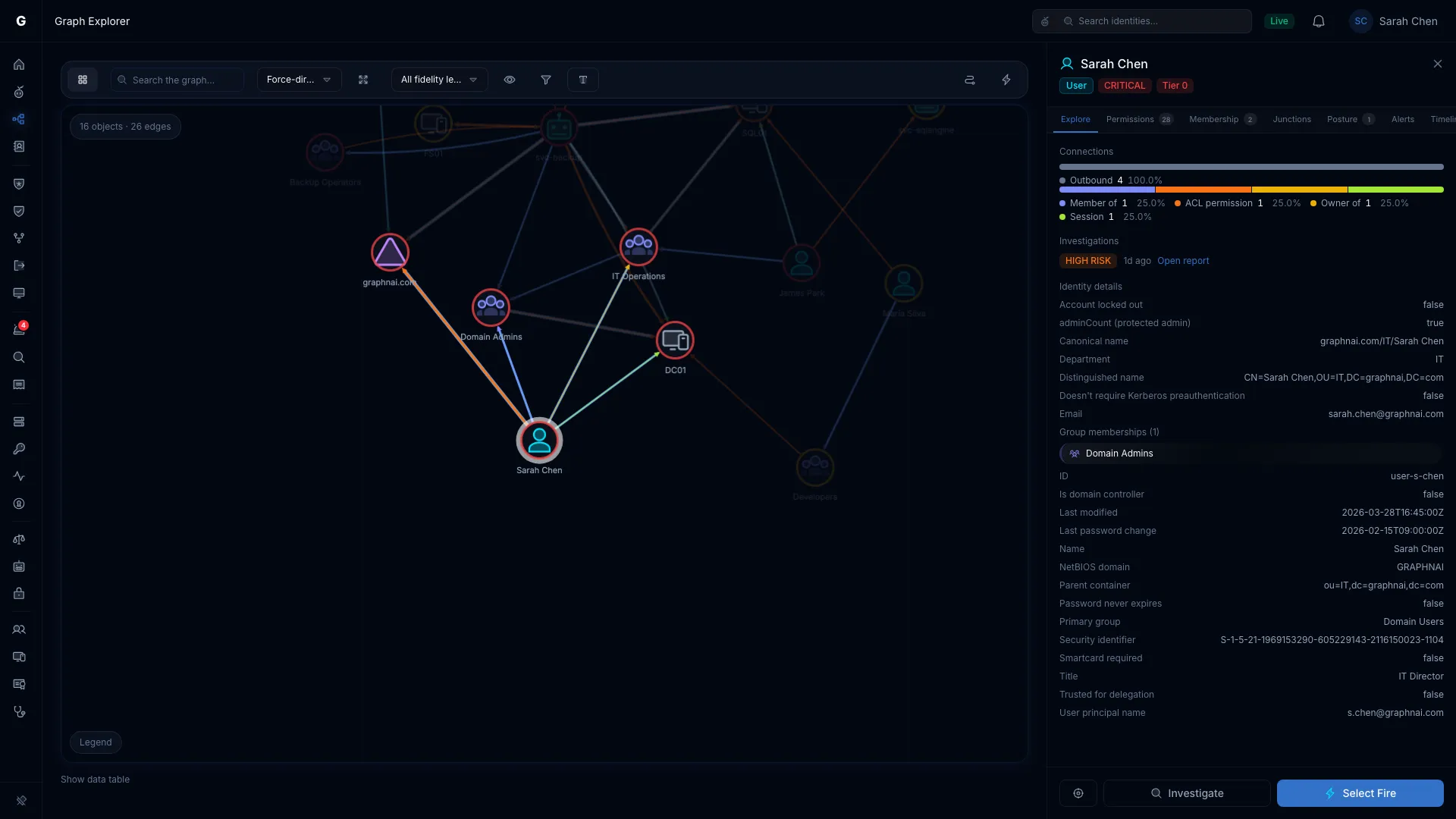
- Identity details: select an identity in Graph Explorer, or anywhere its details open. The header shows its level as a badge, and a Tier 0 badge when it's Tier 0.
- Tables: Identity Inventory, the dashboard's Top findings, and the Critical Junctions table have a Criticality column. Identity Inventory also has a Tier column.
Manage Criticality Rules
View the Rules
- Select Admin > Classification Rules in the sidebar.
- Open the Criticality tab.
The Admin section of the sidebar shows only to Admins. An Operator who opens the page's link can read the rules but can't change them.
The tab has two lists, each with its count:
- System rules: the built-in rules. A lock icon marks each one.
- Custom rules: the rules you've created. Admins see Create rule and a delete button on each row.
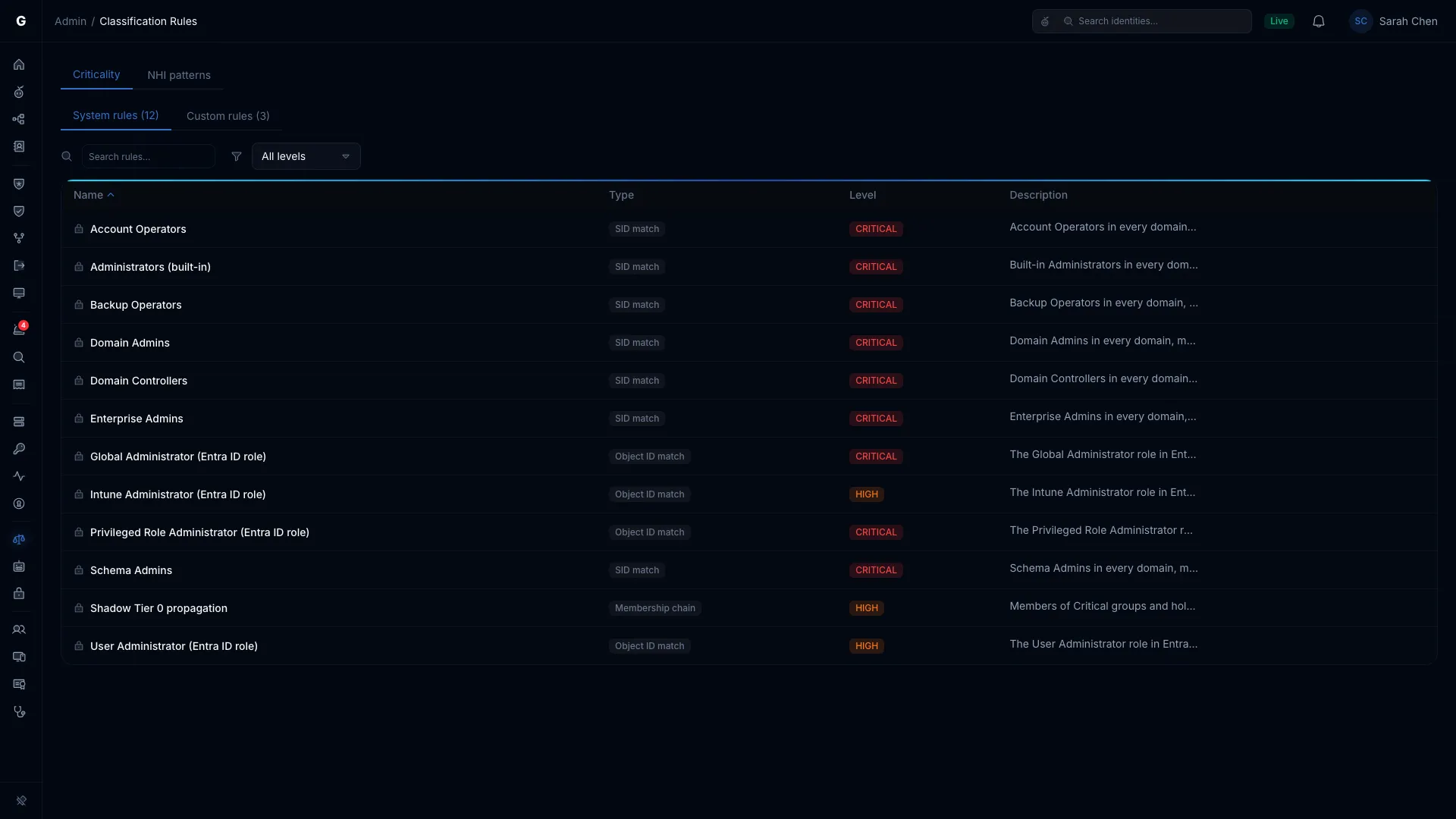
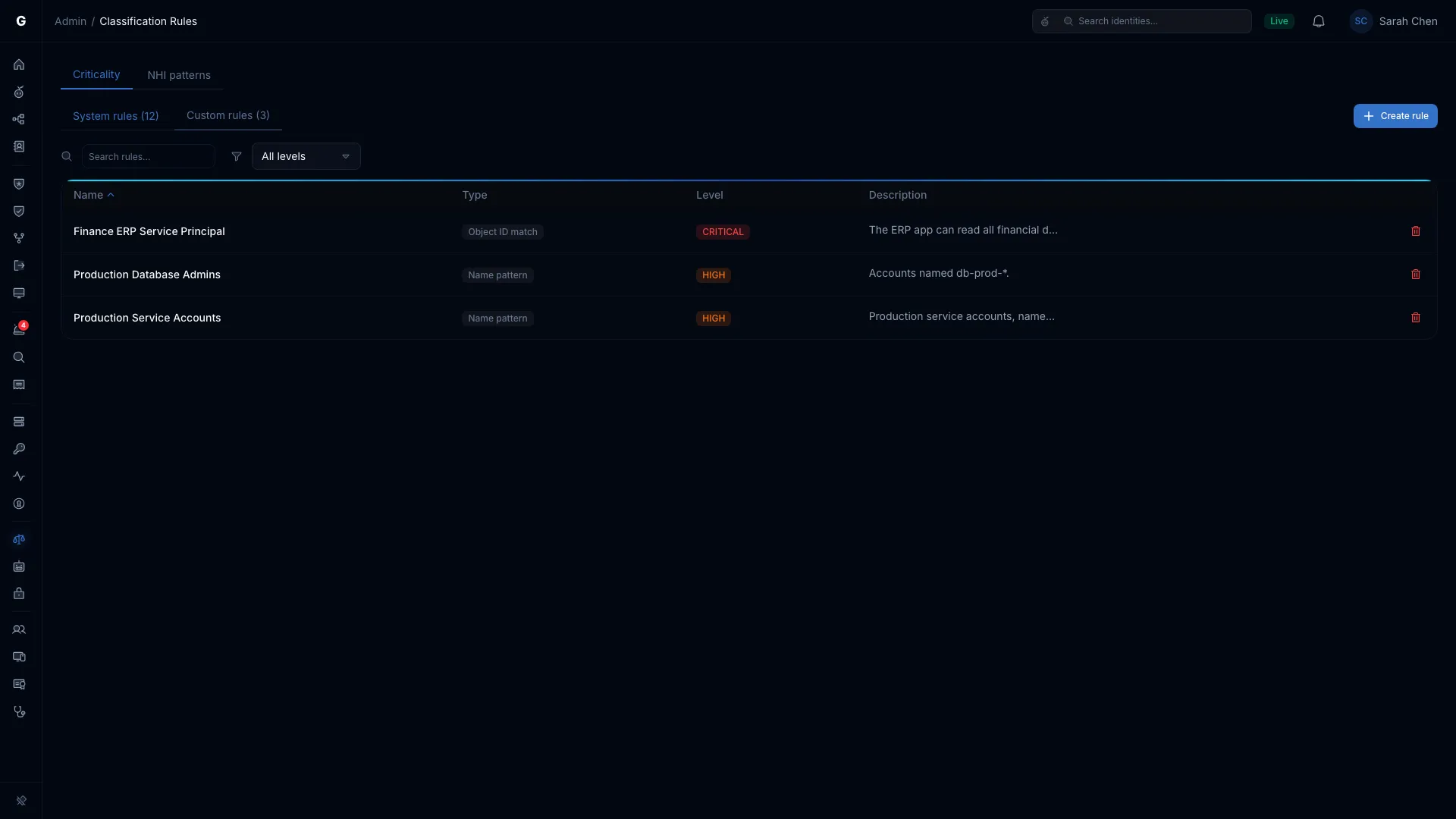
Each rule shows its Name, Type, Level and Description. The types are SID match, Object ID match, Name pattern, Membership chain and Attribute match. Select a column header to sort. Use Search rules… and the level list to narrow the table.
If the page shows "These rules aren't saved on the server yet, so no identity is rated", restart the server to load the built-in rules.
Create a Custom Rule
Requires role: Admin
Create a custom rule to rate assets specific to your environment.
- Open Admin > Classification Rules, then the Criticality tab.
- Open Custom rules.
- Select Create rule.
- Enter a Name, and a Description if you want one.
- Choose a Match type and a Level.
- Enter the value to match.
- Select Create rule.
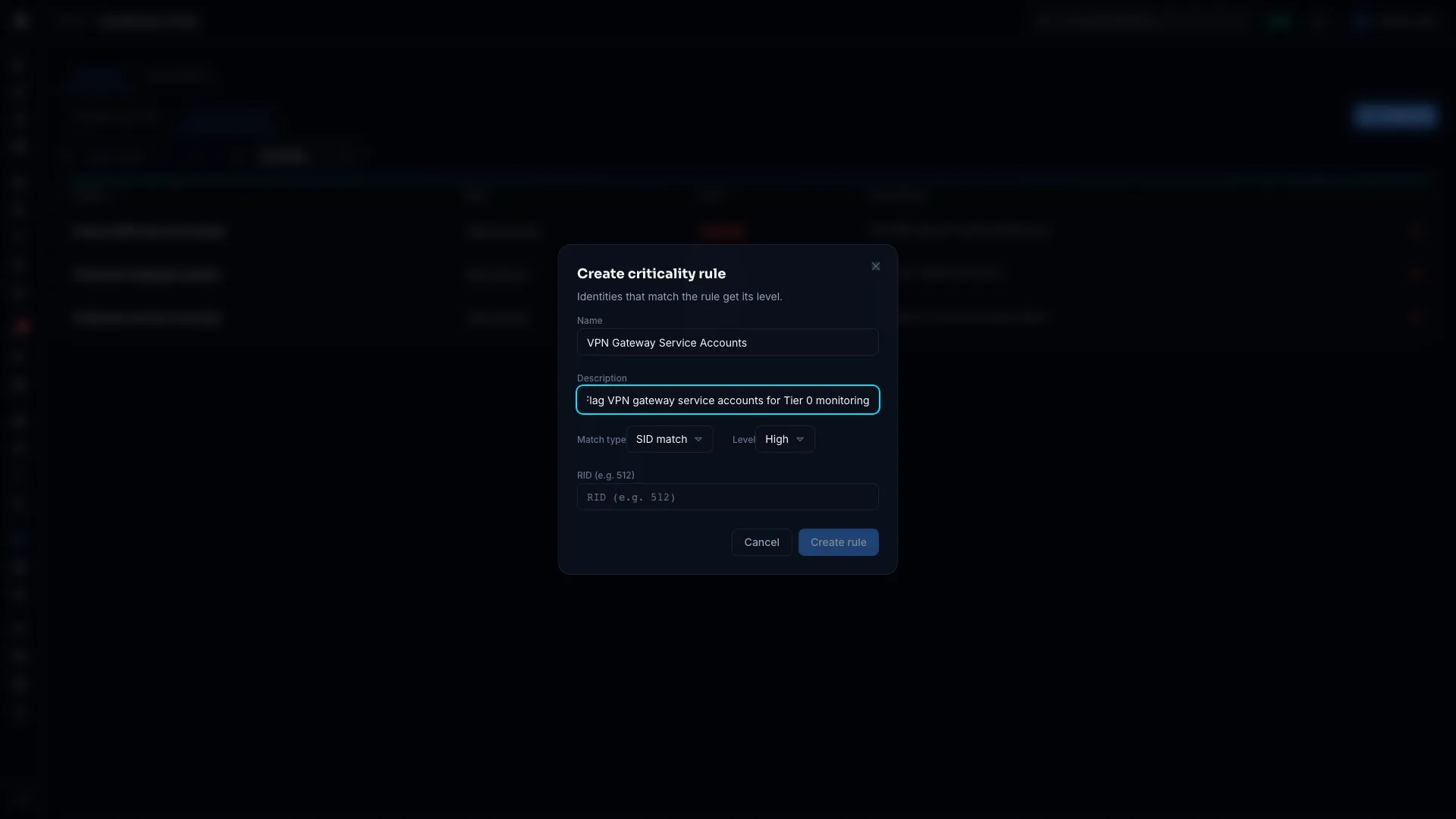
| Match type | You enter | Example use |
|---|---|---|
| SID match | A RID, for example 512. It matches identities whose SID ends in that RID. | Rate a well-known group the built-in rules don't cover |
| Object ID match | An object ID (GUID). It also matches an Entra ID role's template ID. | Rate one application's service principal |
| Name pattern | A regular expression, matched against the display name | Rate every account starting with svc-prod- as High |
A custom rule applies to every domain. It takes effect at the next sync that runs the evaluation. To apply it sooner, start a sync from Bridges, or from Admin > Identity Providers for Entra ID.
Name Patterns
A name pattern is a regular expression matched against the display name. Matching is case-sensitive.
| Pattern | Matches |
|---|---|
^db-prod-.* |
Any name starting with db-prod- |
.*-svc$ |
Any name ending with -svc |
(admin|root|superuser) |
Names containing "admin", "root" or "superuser", in lowercase |
^CEO.* |
Names starting with "CEO" |
The pattern isn't checked when you save the rule. A pattern that isn't a valid regular expression matches nothing, so test it before you rely on it.
Delete a Custom Rule
Requires role: Admin
- Open Custom rules.
- Select the delete button on the rule's row.
- Select Delete to confirm. You can't undo this.
Identities the rule rated drop back to their other rules' level at the next evaluation.
Manual Overrides
Requires role: Operator or higher, through the GraphnAI API. No page sets overrides.
A manual override records a criticality level for one asset, with a reason and an optional expiry date. For example:
- Raising a service account during a migration that gives it broad permissions for a while.
- Lowering a test account that matched a name pattern by mistake.
- Marking an executive's device CRITICAL for closer watching.
[!NOTE] Today an override changes only the level shown in Graph Explorer's detail view. The rules still set each identity's stored level, which the other pages, the risk scores and the junction analysis use.
Override Expiry
After its expiry date passes, an override stops showing as active right away. The server removes it at the next sync. You don't need to delete it yourself.
How Evaluation Works
The Evaluation Steps
The server evaluates a domain after every full sync, and after a delta sync that collected changes. Each evaluation:
- Removes expired overrides.
- Applies the rules: each identity gets the highest level among the rules that match it, or LOW when none does.
- Propagates: members of Critical groups and holders of Critical roles become HIGH and Tier 0 (Shadow Tier 0).
Only identities whose level changed are written. A level drops as well as rises: when the rule that raised an identity no longer matches, the identity goes back down.
Domain Scoping
An evaluation covers the domain that just synced. The built-in Active Directory rules apply only to Active Directory domains, and the built-in Entra ID rules only to Entra ID tenants. Custom rules apply to both.
Run an Evaluation
Evaluation runs only as part of a sync. To run one, for example after you create a custom rule, start a sync for the domain from Bridges, or from Admin > Identity Providers for Entra ID. A full sync always runs it. A delta sync runs it only when it collected changes. The bridge's Sync history shows when the sync finished.
How Criticality Feeds Other Features
Risk Posture Dashboard
The dashboard uses criticality in two places:
- Criticality gap: identities that can reach assets at least one level above their own. A Low account with a path to a Critical asset counts.
- Top findings: after risk, findings sort by criticality, highest first.
Stale Identity Detection
A stale account that's Critical or Tier 0 gets the Urgent priority, so you deal with the most dangerous dormant accounts first.
Critical Junction Analysis
The junction analysis scores paths into your CRITICAL assets. An asset rated lower isn't a target, so accurate ratings decide whether the analysis finds the real attack paths.
Troubleshooting
Criticality levels are missing, or every identity is LOW
Most likely cause: No sync has finished for the domain since the server started, or the analysis failed before its criticality step.
Fix:
- Open Bridges and confirm the domain's Sync history shows a finished sync.
- Open Admin > Classification Rules. If it says the rules aren't saved on the server yet, restart the server.
- Check the server logs for "starting idempotent criticality convergence" and for errors after it.
- If a sync finished and ratings are still missing, run a full sync for the domain, then refresh the page.
A Domain Admins member isn't CRITICAL
That's expected. The Domain Admins group is CRITICAL. Its members are HIGH and Tier 0, as Shadow Tier 0 accounts.
If a member shows LOW:
- The domain may not have synced yet. Open Bridges and confirm a sync finished.
- The membership may not have been collected. Check the account's group memberships in Graph Explorer, and its primary group in its details.
A built-in rule can't be deleted
That's expected. Built-in rules can't be deleted or turned off, so they have no delete button. They keep the baseline Tier 0 ratings for your environment.
A Shadow Tier 0 account's membership path looks wrong
The Shadow Tier 0 rating follows the MemberOf edges in the graph. If a path looks wrong:
- Focus the account in Graph Explorer and review its group memberships.
- Check its primary group (
primaryGroupID) in its details. The primary group counts as a membership, even though Active Directory doesn't list it inmember. - Confirm the bridge collects group memberships without errors: open the bridge and check Sync history.
An override doesn't show
Overrides show only in Graph Explorer's detail view. Other pages, the risk scores and the junction analysis keep the rule-based level. See Manual Overrides.
The criticality step fails after a sync
If the server logs show the criticality step failing:
- Read the error in the logs. A propagation failure starts with "propagating criticality".
- Confirm the server can reach the database.
- Check the database host's free disk space and memory. Evaluation is heavy above 100,000 identities.
Best Practices
- Review Shadow Tier 0 accounts after the first sync. They hold Tier 0 access your team may not know about. Open them in the graph to see the membership paths.
- Keep custom rules narrow. A name pattern like
.*admin.*matches far more accounts than you mean. Use anchored patterns such as^prod-admin-.*, and check what they match before you rely on them. - Prefer identifiers to names. The built-in Active Directory rules match RIDs, not names, so renaming Domain Admins doesn't hide it. For Tier 0 equivalents, use Object ID match or SID match rather than Name pattern.
- Pair criticality with staleness. A Critical account unused for 90 days is among the most urgent findings you can have. Review both together.