Graph Explorer
Explore your identity graph: read the boundary map, focus an identity, trace shortest paths, and open any edge, including telemetry sessions and privileges.
On this page
- Overview
- Prerequisites
- Reading the Boundary Map
- What a boundary is
- Reading a boundary card
- Edges between boundaries
- "Not yet observed" and "none"
- Searching the map
- Expanding and Collapsing Boundaries
- Inside an Expanded Boundary
- The Boundary Detail Panel
- Opening the Graph Explorer
- Navigating the Graph
- Selecting
- Focusing and Paths
- Identity Panel
- Edge Panel
- Tiered Fidelity™
- Reading Edges
- Change Simulation
- Session and Privilege Connection Details
- Session Connections
- Logon Type Reference
- Session Fidelity and Restricted Admin Mode
- Finding Anomalous Session Patterns
- Privilege Connections
- Privilege Risk Classification
- Finding Admin-Equivalent Identities via Privilege Connections
- Session and Privilege Edges in the Timeline
[!TIP] To work through identities in a table, with risk scores, permission counts and filters, use the Identity Inventory. Use the Graph Explorer to explore the graph freely, find paths, and see a whole topology at once.
Overview
Graph Explorer draws your identity environment as an interactive graph. Nodes are users, groups, computers and other identity types. Edges (the lines) are memberships, permissions, sessions and delegations. Focus an identity to see what it can reach, and select any node or edge to open its details.
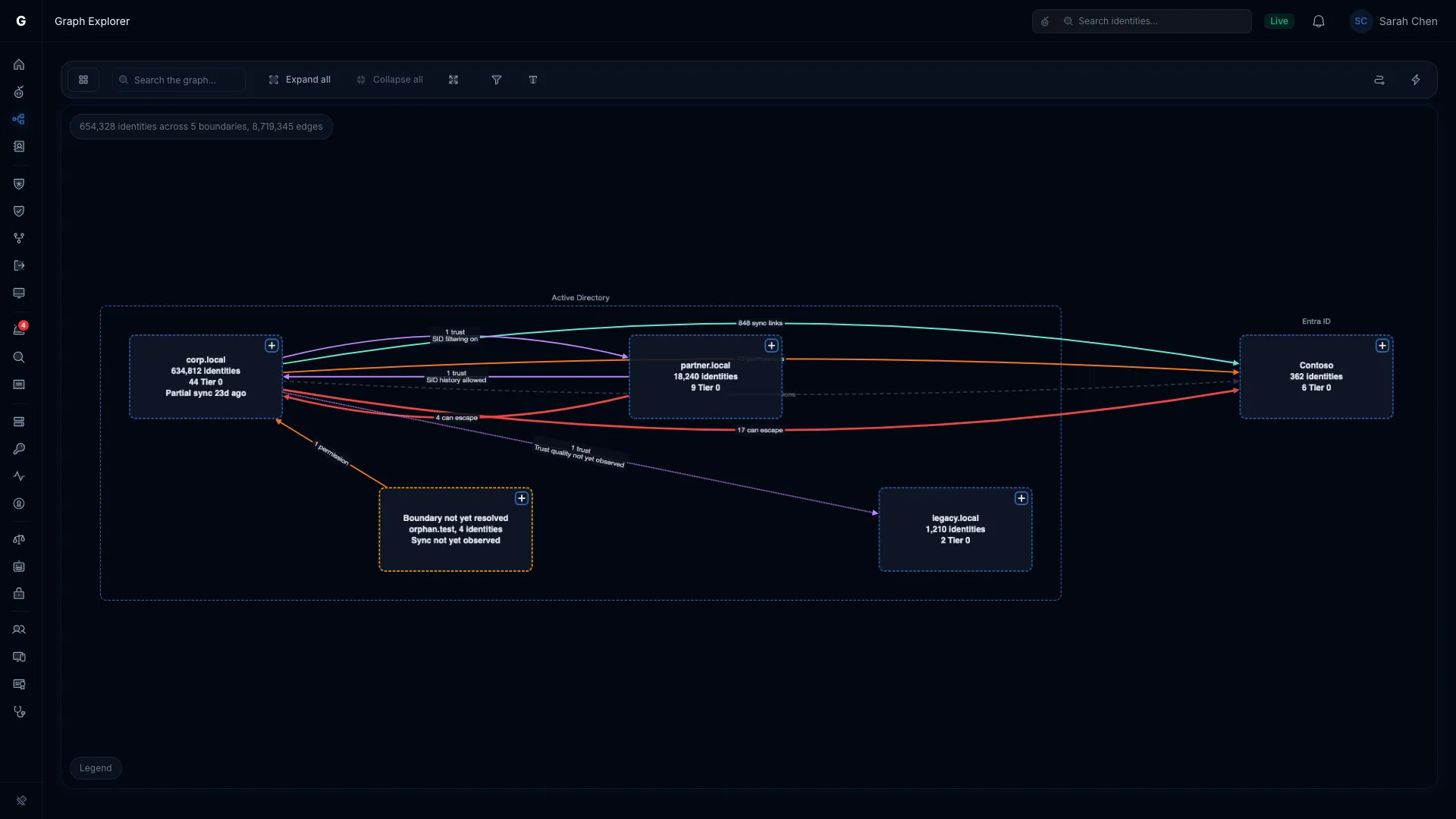
With no identity in focus, Graph Explorer shows the boundary map. Each Active Directory forest and each Entra ID tenant is a card. Edges between the cards show trusts, sync links, permissions that cross boundaries, and identities that can escape from one boundary into another. Start here to see how your environment is divided and where access crosses from one part to another.
When telemetry flows, Graph Explorer also draws sessions (logons observed on computers) and privileges (elevated Windows privileges observed at logon). They show what happens at runtime, beside what the directory allows.
Prerequisites
- At least one sync has finished.
- Right after an upgrade, the next sync builds the map. Until then the page reads "The boundary map appears after the next sync".
- You need the Viewer role to browse, search and read the boundary map.
- You need the Operator role to open Select Fire, run simulations, find paths, use Explain and follow View escapes.
- Sessions and privileges need telemetry. See Telemetry Pipeline.
Reading the Boundary Map
What a boundary is
A boundary is a security boundary: an Active Directory forest or an Entra ID tenant. Each domain in a forest is a connector inside its boundary. A tenant is a single connector.
A connector that hasn't reported its boundary yet gets its own card, titled "Boundary not yet resolved", with an amber border. It's never merged into a neighboring boundary. You can expand it and see its identities like any other boundary. Its panel reads "Escapes not assessed until the boundary is resolved".
When you connect more than one kind of directory, the map groups boundaries into lanes: Active Directory, Entra ID and Other sources.
Reading a boundary card
Each collapsed card shows:
| Line | Example | Meaning |
|---|---|---|
| Name | corp.local |
The forest's DNS name, or the tenant's display name |
| Identities | "501,459 identities" | How many identities the boundary holds |
| Tier 0 | "12 Tier 0" | How many Tier 0 identities it holds |
| Sync | "Partial sync 38m ago" | Appears only when a connector has a problem: "Partial sync…", "Sync failed…" or "Sync not yet observed". The least healthy connector sets it. |
An unresolved card's second line names the connector and its identity count.
The card's connectors and trusts are in its detail panel. Select anywhere on the card, including its + corner, to expand it.
Edges between boundaries
Edges between cards use the same colors and patterns as every other graph (see Reading Edges). They carry four kinds of information:
- Trusts, labeled with a count such as "3 trusts" and the trust's quality. A trust that allows SID history, turns SID filtering off, or whose two sides disagree carries the amber review marker at its middle. A trust whose quality isn't observed yet is dotted. When two boundaries trust each other the same way in both directions, one edge with an arrowhead at each end reads "{n} trusts each way".
- Sync links, labeled "{n} sync links": identities synchronized between an on-premises forest and its Entra ID tenant, for example by a directory sync tool.
- Permissions: "{n} permissions" for access that works today, and "{n} blocked permissions", dashed and dimmed, for access that a constraint elsewhere in the path blocks. Blocked permissions stay in the count and on the canvas. You see that the access exists, and that something stops it.
- Escapes, in red, labeled "{n} can escape": how many identities in one boundary can reach into the other. Until escape analysis covers the current graph, the edge is dotted and reads "Escape analysis pending" or "Escapes not yet analyzed". When the last analysis didn't finish cleanly, "From the previous analysis" or "May be incomplete" appears under the count.
Select an edge between two boundaries to open the source boundary's panel.
"Not yet observed" and "none"
The boundary map never shows a zero for something it hasn't measured. Until trust collection runs for a forest, its panel reads "Trusts not yet observed". Until escape analysis covers a boundary, its escape line reads "Escape analysis pending" or "Escapes not yet analyzed". "No trusts" and "No identities can escape this boundary" appear only after the analysis runs and finds nothing.
An Entra ID tenant has no Active Directory trusts, so its panel has no Trusts section.
Right after you connect a new forest or tenant, its trusts and escapes stay pending until the next analysis covers it. Wait for that before you treat a quiet boundary as a safe one.
Searching the map
Type in the Search the graph… box in the toolbar to find something on the canvas. Matches, their direct neighbors, and the boundaries and connectors that contain them stay visible. Everything else dims. The box shows how many matches it found. Search works on the collapsed map and inside expanded boundaries.
Expanding and Collapsing Boundaries
Each job has one control:
| Action | How |
|---|---|
| Expand a boundary | Select its card, or its + corner |
| Open a boundary's detail panel | Select the frame of an expanded boundary or of one of its connectors. You can also right-click a boundary card and choose Open details. |
| Collapse a boundary | Select the − in the expanded boundary's top-right corner, or the × on its chip above the canvas |
| Expand or collapse from the canvas | Right-click a boundary card and choose Expand boundary or Collapse boundary |
| Expand or collapse every boundary | Select Expand all or Collapse all in the toolbar. On the boundary map they take the place of the layout list. |
Each expanded boundary gets a chip above the canvas, so you can see what's open. Selecting a card twice in quick succession counts as one selection. It never expands a card and then collapses it again.
The page URL keeps the list of expanded boundaries. You can share a link to the view, reload it, and step through it with your browser's Back and Forward buttons.
When your environment has only one boundary, it's always expanded and has no − corner. The other collapse controls are disabled, with the tooltip "Only one boundary".
When a detail panel or an identity table opens, the map shrinks to fit the space that's left, so nothing hides under the panel. If you had zoomed in, the spot you were looking at stays in the middle.
Inside an Expanded Boundary
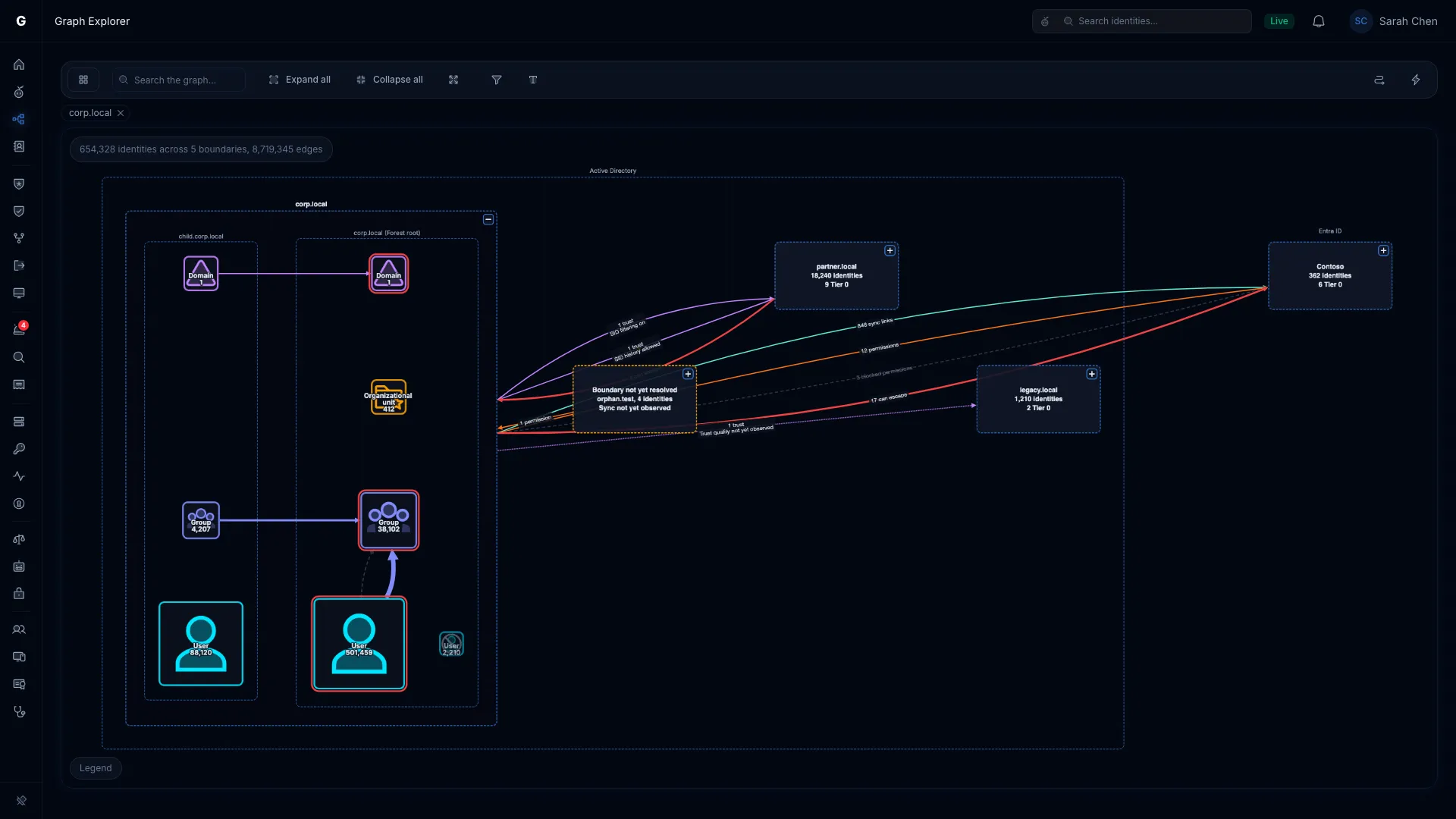
An expanded boundary lays its connectors out side by side. Inside each connector, identities are grouped into buckets by type, in rows from top to bottom:
- The domain or tenant itself
- Containers and organizational units
- Groups and roles
- Accounts: users, computers, service accounts and the rest
Each bucket shows its type and count. Select a bucket, or right-click it and choose Show identities, to open the identity table for that type in that connector only. It takes you from "how many disabled service accounts does the dev domain have" to the list itself.
When a type has both enabled and disabled members, it gets two buckets side by side. The disabled bucket carries the disabled symbol and is drawn smaller, so a large set of disabled accounts never outweighs the accounts that can sign in. A bucket that holds Tier 0 identities has a red ring.
Trusts between the domains of a forest run between their Domain buckets, labeled with their kind or quality, such as "Within forest". A trust that runs both ways with the same settings is one edge with an arrowhead at each end. A trust escalation that runs both ways is drawn the same way, with a label such as "Trust escalation (3 each way)". Select a trust edge to list the trusts it stands for, both directions together.
Edge labels start off on the boundary map, so the edges stay readable. Hover over a bucket to label its edges and fade everything not connected to it. To label every edge, select Show edge labels in the toolbar. Select a bucket to keep that view. The bucket stays selected, with its connections in focus, until you close its table or select something else (see Selecting).
The Boundary Detail Panel
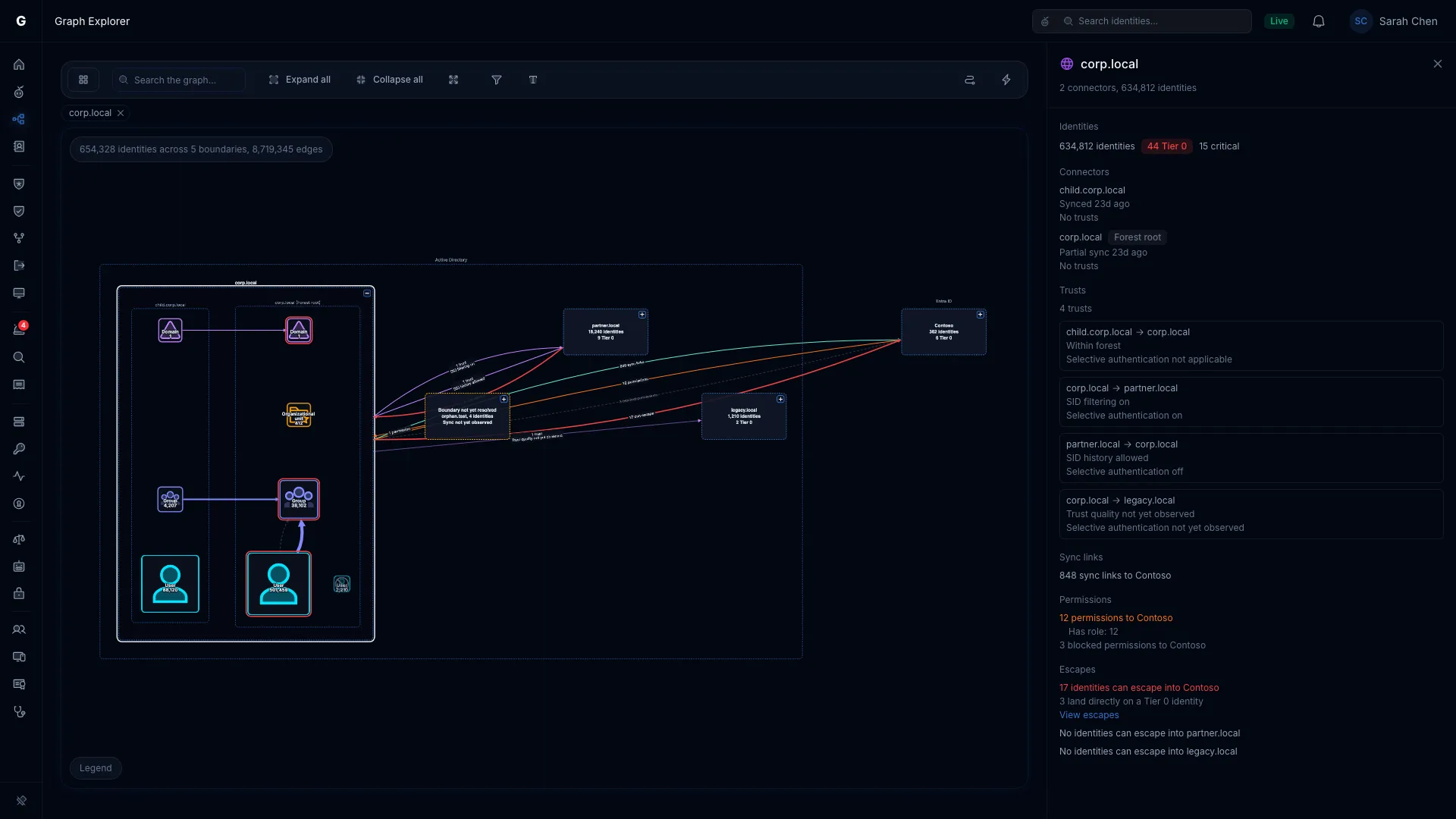
Select the frame of an expanded boundary to open its detail panel. The panel has these sections:
| Section | What it shows |
|---|---|
| Identities | The number of identities, with its Tier 0 and critical counts |
| Connectors | Each connector's name, a "Forest root" badge on the forest root, its sync status and, for Active Directory, its trusts |
| Trusts | Active Directory only. Every trust inside the boundary and to its peers, with its quality and selective authentication, and a warning when the two sides of a trust disagree |
| Sync links | Sync links to each peer boundary |
| Permissions | Permissions to each peer boundary, by permission type, plus blocked permissions |
| Escapes | For each peer boundary, how many identities can escape into it, and how many of those land directly on a Tier 0 identity |
The Sync links and Permissions sections appear only when there are some.
Escape counts are never added into one total for the boundary. An identity that can escape into two boundaries counts once for each. Each direction is its own exposure, with its own fix.
Where a peer's escape count is above zero, View escapes opens the Boundary Escape page filtered to that pair of boundaries. It lists the identities the panel counted. The link needs the Operator role. Viewers see the counts without the link.
Opening the Graph Explorer
Select Graph Explorer in the sidebar. With no identity in focus, it shows the boundary map.
To focus an identity:
- Select the Search identities box in the top bar.
- Type at least 2 characters of the identity's name.
- Select the identity in the results.
Graph Explorer opens focused on it, with its panel open. The first view is the river view. It groups everything the identity can reach, and everything that can reach it, into buckets by type and by hop. See Streaming River Rendering and Exact Counts.
To see the identity's direct edges one by one, select Switch to detail view in the toolbar. Select Switch to overview to go back to the river view.
Navigating the Graph
Pan and zoom: Scroll to zoom. Drag the canvas to pan. Select Fit to view in the toolbar to fit the whole graph on the canvas.
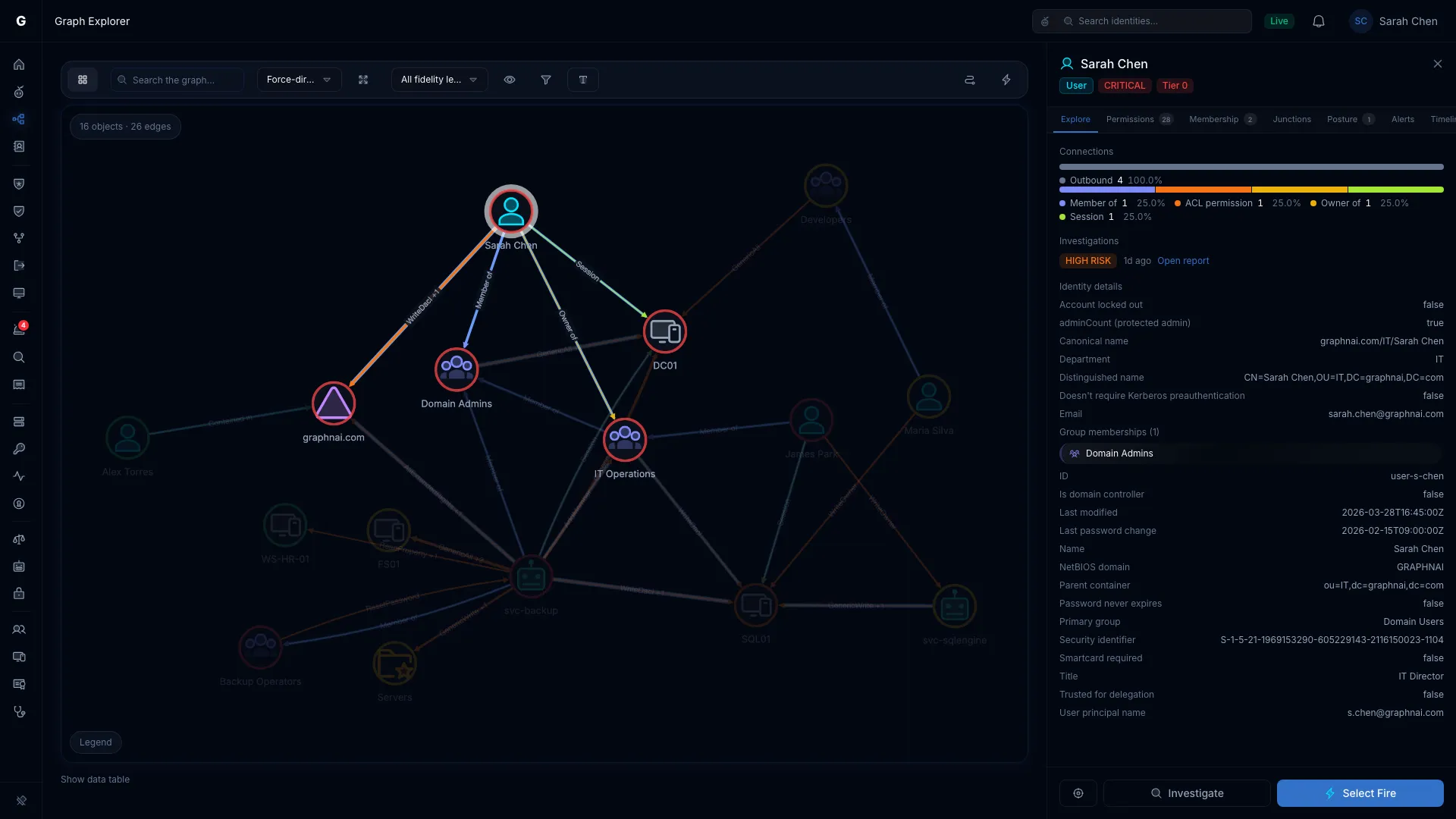
Select a node: Select a node to open its panel on the right. See Identity Panel.
Select an edge: Select an edge to open its panel. See Edge Panel.
Selecting
Every graph in the product marks a selection the same way:
- A white glow marks what the open panel or table is about: the node, bucket or edge you selected, or the row you picked in a table. The glow sits behind the item, so a selected user keeps its user color and a selected edge keeps its edge type color. A selected boundary or connector gets a white outline instead.
- Everything not connected to the selection fades. A selected node keeps its direct connections in view. A selected edge keeps its two ends.
- Hovering previews. Point at another node to see its connections. Move away and the view returns to your selection, which stays marked while you preview. Boundary cards and connectors don't preview.
- The selection lasts until you close its panel or table, or select something else. Selecting empty canvas closes a detail panel. A table stays open, and so does the selection it belongs to.
A row in a table opened from an edge belongs to that edge, for example one membership out of 409,500 in a Member of edge. The edge stays selected while the row's panel is open. Closing the table closes the row's panel too.
While a search is active, the search decides what fades. Your selection stays visible and marked.
Focusing and Paths
Refocus: Double-click a node to focus the graph on it. Double-click a river bucket to show up to 50 of its members in place. The breadcrumb trail above the canvas lists where you've been. Select an earlier item to go back to it, or Overview to return to the boundary map.
Context menu: Right-click a node to open its menu:
- Focus: focus the graph on this node
- View details: open its panel
- Find path from here: open the path bar with this node as the start (Operator)
- Find path to here: open the path bar with this node as the end (Operator)
- View timeline: open the Identity Investigation Timeline for this identity
- Select Fire: open Select Fire with this identity as the subject (Operator)
- Explain: ask Graphne to explain this identity's risk (Operator, when Graphne is set up)
The path bar has From and To boxes. Fill both, then select Find path to draw the shortest path between them. The path search needs the Operator role.
Right-click an edge to open its menu: View details, and Select Fire for Operators.
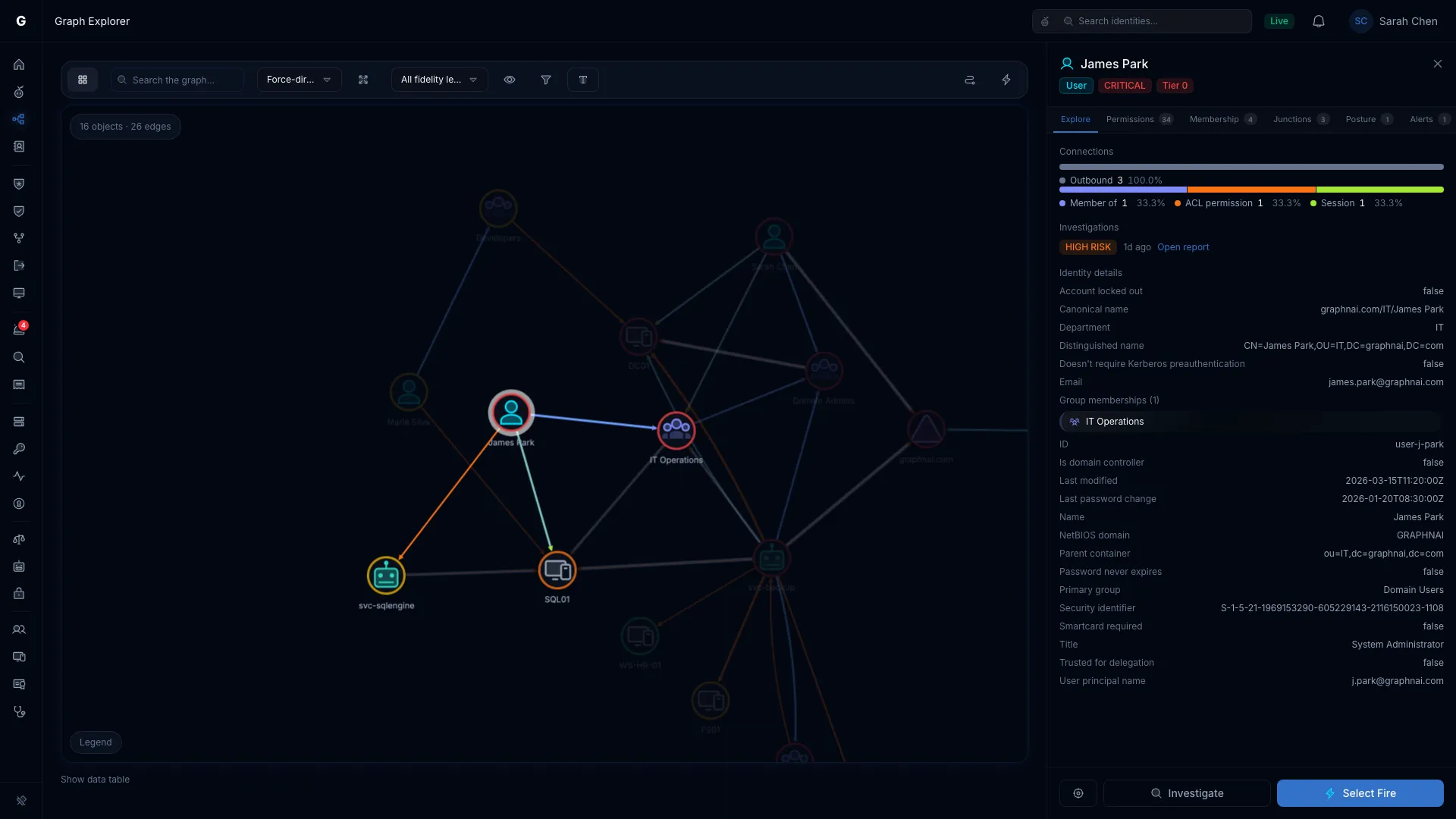
Identity Panel
Selecting an identity opens its panel on the right:
- Header: the identity's name, type and criticality. A Tier 0 identity gets a Tier 0 badge, and an identity with no recent activity gets a stale badge. Below them are its domain and its First seen, Last seen and Last activity times.
- Tabs: Explore, Permissions, Membership (users, computers and groups), Junctions, Posture, Alerts and Timeline. Each tab takes you to the page for that part of the identity, such as its permissions in Identity Inventory. Timeline opens in place.
- Connections: charts of its edges by direction and by type.
- Junction score: shown when the identity is a critical junction.
- Identity details: every attribute synced from the directory, such as account name, email and admin count.
- Footer: Focus on this object (the crosshair icon), Investigate, and Select Fire for Operators.
Focus a Domain node and switch to the detail view to see its "Contained in" edge to its Forest. The Forest node is the same boundary that appears as a card on the boundary map.
Edge Panel
Selecting an edge opens its panel. The title is the edge type, with "(blocked)" added when a constraint blocks it. Under it are the source and target names, and badges for the fidelity level, severity and state.
What follows depends on the edge:
| Edge | What the panel shows |
|---|---|
| Permissions | Weight, the permission count, Permissions in this grant, ACE origin (explicit or inherited), Inherited from and SDProp status |
| Constrained access | Constrained by, naming each constraint that was evaluated, whether it blocks the access or allows it |
| Blocked access | Blocked by, naming each constraint that blocks it, with the note "This access is granted but blocked right now…" |
| Privileges | The privilege count, an Admin equivalent badge when one applies, and Privileges held |
| Sessions | The event count and Session details |
| Alerts | Alert details |
| Group Policy control | Which Group Policy Objects grant the control, where they're linked, and what they reach, with a Select Fire button |
An edge with nothing more to show reads "No more details for this relationship."
A permissions edge carries every permission its source holds on its target as one line. Select Show each permission in the panel's footer to draw one edge per permission. Select Show as one relationship to merge them again.
See Identity Graph Data Model for every edge type and what it means, and Relationship Detail Drill-Down for the table behind a bundled edge.
Tiered Fidelity™
Every edge carries a fidelity level: Theoretical, Constrained or Validated. It says how well the access is evidenced:
| Level | Meaning |
|---|---|
| Theoretical | Read from the directory configuration. Nothing else has been checked. |
| Constrained | A constraint on the access has been evaluated, such as a disabled account or a Group Policy setting. The level is the same whether the constraint blocks the access or allows it. |
| Validated | Telemetry shows the access in use. |
On the canvas, the fidelity level is a blue border around the edge: none for Theoretical, faint for Constrained, solid for Validated. In the detail view, filter by level with the toolbar list: All fidelity levels, Constrained or higher or Validated only.
Reading Edges
Every graph in the product draws an edge the same way. The Legend button lists the object types, edge types, fidelity levels and line styles on the current canvas.
| What you see | What it means |
|---|---|
| Edge color | The edge type, such as Member of, ACL permission, Owner of, Domain trust or Session. A type has the same color in every view. |
| A blue border around the line | The fidelity level: faint for Constrained, solid for Validated, none for Theoretical |
| Solid line | The edge is in effect |
| Dashed, dimmed gray line | Dormant: blocked by a constraint. The access is granted but blocked right now, so it ranks below access that works today. Counts include it. |
| Dotted line | Not yet observed |
| Thicker line | More edges, or a heavier permission |
| Amber diamond at the middle of a line | Flagged for review. The panel says why, for example the two sides of a trust disagree, or an AdminSDHolder-protected object's permissions differ from its template. |
| Arrowhead at each end | A trust, or a trust escalation, that runs both ways with the same settings. Every other edge keeps one line per direction. A trust whose two directions differ keeps two lines, so the weaker side stays visible. |
| Pink line | A simulation: solid for access a simulated change grants, dashed for access it removes |
| Cyan line | The path you're following |
| White glow behind a line or node | Your selection: what the open panel or table describes (see Selecting) |
A faded edge is de-emphasized, and it's still there. Inherited permissions fade, and so does anything outside a search, a hover or a selection.
Change Simulation
Operators can simulate an access change to see its blast radius before they make it. Simulated changes appear in pink over the live graph: solid for access a change grants, dashed for access it removes. Edges in the blast radius keep their edge type colors, and everything outside it fades.
To run a simulation, use Select Fire. See Select Fire for the full workflow.
Session and Privilege Connection Details
When telemetry flows, Graph Explorer draws two more edge types, built from Windows logon events. They show what happens at runtime, which the directory doesn't record.
Session Connections
Each time an identity logs on to a computer (Windows event 4624, "An account was successfully logged on"), GraphnAI creates or updates a session edge from the identity to the computer. All logons between the same identity and computer add up on one edge.
Session edges are lime green. Select one to open its panel:
| Field | What it shows |
|---|---|
| Events | How many logons the edge adds up |
| Protocols | The authentication protocols seen, such as Kerberos and NTLM |
| Logon types | A chart of logons by logon type. See the table below. |
For each logon's time, source address and server, use the Identity Investigation Timeline.
Logon Type Reference
The logon type breakdown is one of the most useful signals in an investigation. Some combinations are normal. Others point to misuse or a misconfiguration.
| Logon type | Normal for | Investigate when you see it on |
|---|---|---|
| Interactive (2) | People at a physical console | Service accounts, and admin accounts on workstations |
| Network (3) | File shares, remote admin tools | Not applicable |
| Batch (4) | Scheduled tasks | Interactive user accounts |
| Service (5) | Windows services | User accounts |
| Unlock (7) | Unlocking a workstation | Service accounts |
| Network Cleartext (8) | IIS basic authentication | Any identity: the password crossed the network in plain text |
| New Credentials (9) | RunAs /netonly |
Service accounts |
| Remote Interactive (10) | Remote Desktop sessions | Service accounts, and Tier 0 identities on non-privileged computers |
| Cached Interactive (11) | Laptops logging on offline | Service accounts |
| Cached Remote Interactive (12) | Remote Desktop with cached credentials | Service accounts |
A logon type that Windows reports by number only shows as "Unknown type" and the number.
Patterns to investigate:
- A service account with Interactive or Remote Interactive logons means someone uses its credentials by hand. The account may be compromised or misused.
- Network Cleartext on any identity means a password is crossing the network in plain text. Find the application that uses basic authentication and fix it.
- Far more NTLM than Kerberos authentication can mean a forced protocol downgrade or an SPN misconfiguration.
Session Fidelity and Restricted Admin Mode
A session edge is always Validated, because the logon was observed. Restricted Admin Mode (RDP with /restrictedadmin) doesn't lower it. That mode keeps credentials off the target computer. The logon still happened.
Finding Anomalous Session Patterns
- Select Graph Explorer in the sidebar.
- Search for an identity, such as a service account, and select it.
- Select Switch to detail view in the toolbar.
- Find the lime session edges.
- Select a session edge to open its panel.
- Review the logon types and protocols.
For a full timeline of an identity's sessions, with filters, highlighted anomalies and behavioral context, use the Identity Investigation Timeline.
Privilege Connections
When an identity logs on with elevated privileges (Windows event 4672, "Special privileges assigned to new logon"), GraphnAI creates a privilege edge from the identity to the computer. It's separate from the session edge and records which Windows privileges were active at logon.
Privilege edges find identities with dangerous runtime rights that no group membership or ACL shows. A service account outside every privileged group can still hold SeDebugPrivilege on some computers, granted through local security policy.
Privilege Risk Classification
GraphnAI rates each Windows privilege at one of four risk levels:
| Risk level | Privileges | Why it matters |
|---|---|---|
| Critical | SeDebugPrivilege, SeImpersonatePrivilege, SeAssignPrimaryTokenPrivilege, SeTcbPrivilege, SeCreateTokenPrivilege | Lets the holder read credentials straight from memory (LSASS), steal tokens, or create any security token |
| High | SeBackupPrivilege, SeRestorePrivilege, SeTakeOwnershipPrivilege, SeLoadDriverPrivilege, SeEnableDelegationPrivilege, SeManageVolumePrivilege | Lets the holder escalate privileges, extract credentials indirectly (SAM or NTDS.dit), or load a kernel driver |
| Medium | SeSecurityPrivilege, SeAuditPrivilege, SeSystemEnvironmentPrivilege, SeTrustedCredManAccessPrivilege, SeSyncAgentPrivilege | Lets the holder erase evidence, persist in UEFI, or harvest stored credentials |
| Low | Every other privilege | Little attack surface on its own |
A privilege edge that includes a Critical or High privilege carries the Admin equivalent badge in its panel. It finds identities with admin-level access through local policy, which group memberships don't show.
Finding Admin-Equivalent Identities via Privilege Connections
- Select Graph Explorer in the sidebar.
- Search for a computer, such as a domain controller or a critical server, and select it.
- Select Switch to detail view in the toolbar.
- Find the privilege edges that arrive at the computer. Each one is an identity that held elevated privileges when it logged on there.
- Select an edge. The panel lists the privileges under Privileges held, and shows Admin equivalent when one applies.
You can start from the identity too. Focus an identity and follow its outgoing privilege edges to see which computers it has held elevated privileges on.
Session and Privilege Edges in the Timeline
For an identity's sessions and privilege events in time order, use the Identity Investigation Timeline. It lists each session as its own entry, with logon and logoff times, source IP and authentication detail. It goes deeper than the summed edges in Graph Explorer.