Identity Investigation Timeline: Logon Sessions, Alerts and Events
One page for everything recorded about one identity: its logon sessions, detection alerts and telemetry events in time order, with its behavior overview, investigation charts and Select Fire.
On this page
- Overview
- Prerequisites
- Accessing the Timeline
- Page Layout
- Behavior Overview Card
- Anomaly Score Signals
- When "Not Yet Observed" Appears
- Investigation Charts
- Density View
- Scatter View
- Sessions Gantt View
- Heatmap View
- Navigating Time
- Filtering the Timeline
- Time Range
- Type Filter
- Severity Filter
- Logon Type Filter
- Text Search
- Timeline Entries
- Entry Types
- Anomaly Highlighting
- Session Deduplication
- Selecting an Entry
- Session Detail
- Alert Detail
- Event Detail
- Flyout Footer Actions
- Access Intelligence
- Utilization
- Permitted Targets by Evidence
- Permitted and Recorded, by Type
- Target Lists
- Tiered Fidelity™ Chips
- Acting on Unused Access
- Export
- Troubleshooting
- "No activity recorded for this identity" appears
- "No events in this date range" appears
- "No events match these filters" appears
- Alerts are missing for an identity you know was targeted
- Sessions are missing computer names
- The behavior overview reads "not yet observed" after a full sync
Overview
The Identity Investigation Timeline shows everything recorded for one identity on one page. It lists every logon session the identity opened, every detection alert about it and every telemetry event it produced, newest first. Filters apply as you change them.
The Behavior overview card at the top summarizes the last 30 days, so you can see whether today's activity is usual for this identity. Below it, the investigation chart shows activity density, session timing and weekly patterns. Beside the list, the investigation graph shows who and what the identity connected to. When you find an entry worth acting on, select it and start Select Fire from its flyout.
Prerequisites
- Telemetry pipeline running: An OpenTelemetry collector sends your domain controllers' events. See Telemetry Pipeline.
- Identity in the graph: At least one full sync has brought the identity in. Events, sessions and alerts are matched to it.
- Operator role: The timeline and Select Fire both need it.
- Behavior overview: Needs at least 5 events for the identity in the last 30 days, and an analytics run since they arrived. Analytics runs after each full sync and after each delta sync that changed something.
Accessing the Timeline
From Graph Explorer
- Select Graph Explorer in the sidebar.
- Right-click an identity node.
- Select View timeline.
From Detection Alerts
- Select Detection & Response > Detection Alerts.
- In an alert row, select View timeline (clock icon).
An alert's flyout also lists its related timeline entries. Select one to open the full timeline.
From an identity's detail flyout
- Open an identity's flyout on a page that shows the investigation tabs.
- Select the Timeline tab. A short timeline opens inside the flyout.
- Select an entry to open the full timeline.
Page Layout
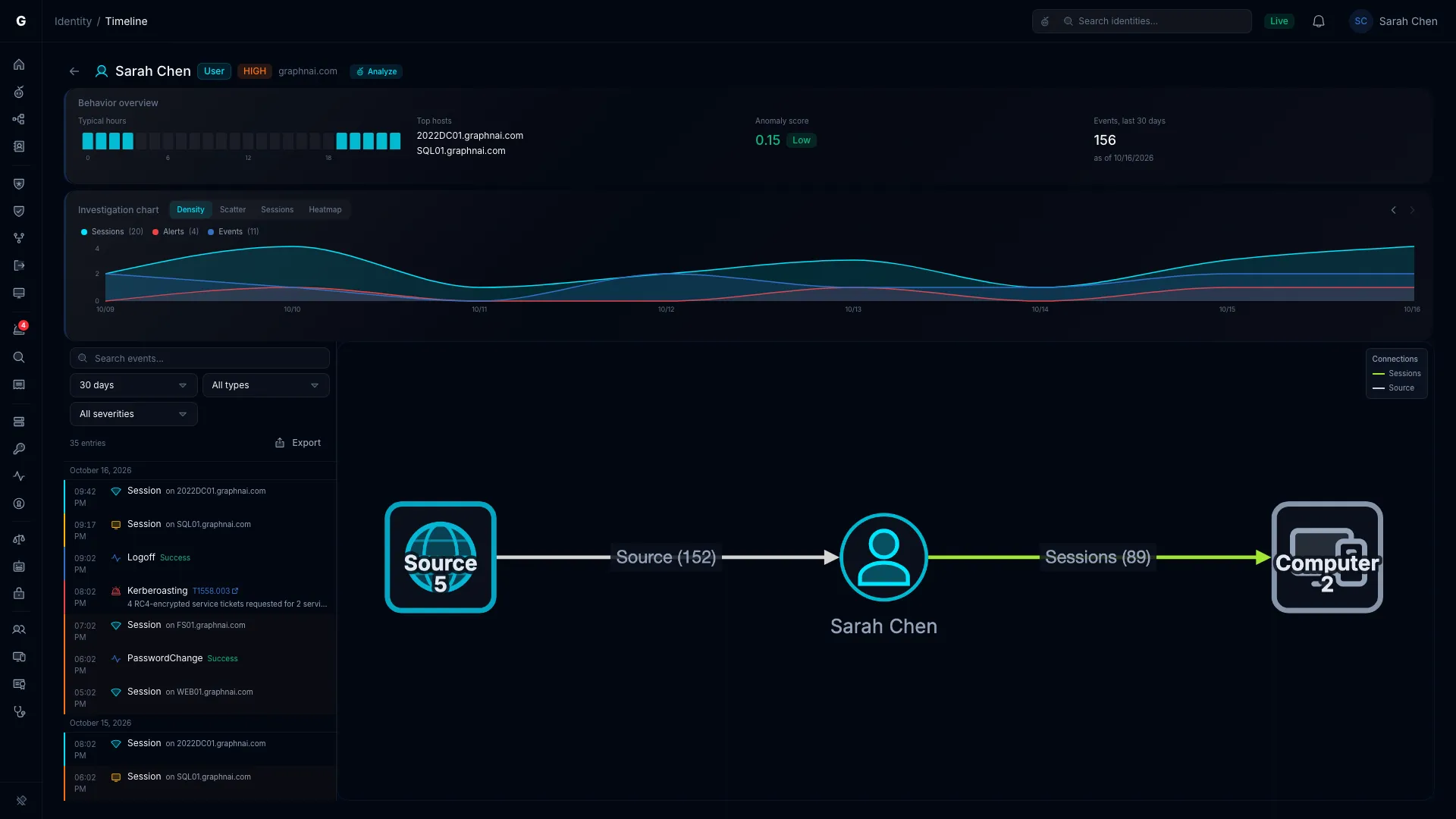
The page is organized top to bottom:
- Header: The Go back arrow, the identity's name, its type badge (colored by type), criticality badge, a Tier 0 badge when it applies, its risk badge and its domain. When an AI provider is set up and the list has entries, Analyze asks Graphne to read the filtered timeline.
- Behavior overview: Four facts about the last 30 days.
- Investigation chart: Four views of the same entries.
- Timeline list and investigation graph, side by side:
- The list, on the left, has search, filters, the entry count and Export above the entries. Entries are grouped by date, newest first.
- The graph, on the right, shows the identity's sessions, logon sources, directory access and alerts. Select a connection to filter the list to the entries that involve it. Clear graph filter removes the filter.
When you select an entry, the graph shows that entry's context and a detail flyout opens on the right. Select the entry again, or close the flyout, to go back.
Behavior Overview Card
The Behavior overview card appears at the top of every timeline page. It shows four sections:
| Section | What it shows |
|---|---|
| Typical hours | 24 bars, one per hour from 0 to 23, in your browser's time zone like the list below it. A bar is lit for each hour with at least one event in the last 30 days. Hover a bar to see "Typical" or "Not typical". |
| Top hosts | Up to five computers this identity's events were recorded on. |
| Anomaly score | A score from 0.00 to 1.00, with a badge: Low (0.30 or less), Medium (above 0.30, up to 0.60) or High (above 0.60). |
| Events, last 30 days | The identity's events in the last 30 days, with the date the profile was built ("as of"). |
Anomaly Score Signals
Today the score rises by 0.10 when the identity logged more than 5,000 events in 30 days. Other behavior signals aren't scored yet, so most identities score 0.00. See Telemetry Enrichment.
When "Not Yet Observed" Appears
The card reads "Behavior overview: not yet observed." when:
- The identity had fewer than 5 events in the last 30 days.
- Analytics hasn't run since its events arrived. It runs after each full sync and after each delta sync that changed something.
To build the profile sooner, run a full sync from the bridge's page with Full sync.
The card reads the identity's own profile. The detection rules keep separate logon baselines, so the card can read "not yet observed" while a baseline exists. See Behavioral Baselines.
Investigation Charts
The Investigation chart sits between the Behavior overview card and the list. Select Density, Scatter, Sessions or Heatmap to switch views. The URL keeps the view you pick, so a shared link opens the same one.
Density View
An area chart of entries per time slot across the selected range, with three series:
- Sessions (cyan): sessions the identity opened
- Alerts (red): detection alerts about it
- Events (blue): its telemetry events
Each series name above the chart shows its total. Select a name to hide or show that series. Hover a point for exact counts. Use this view to spot bursts and to line up alerts with sessions.
Scatter View
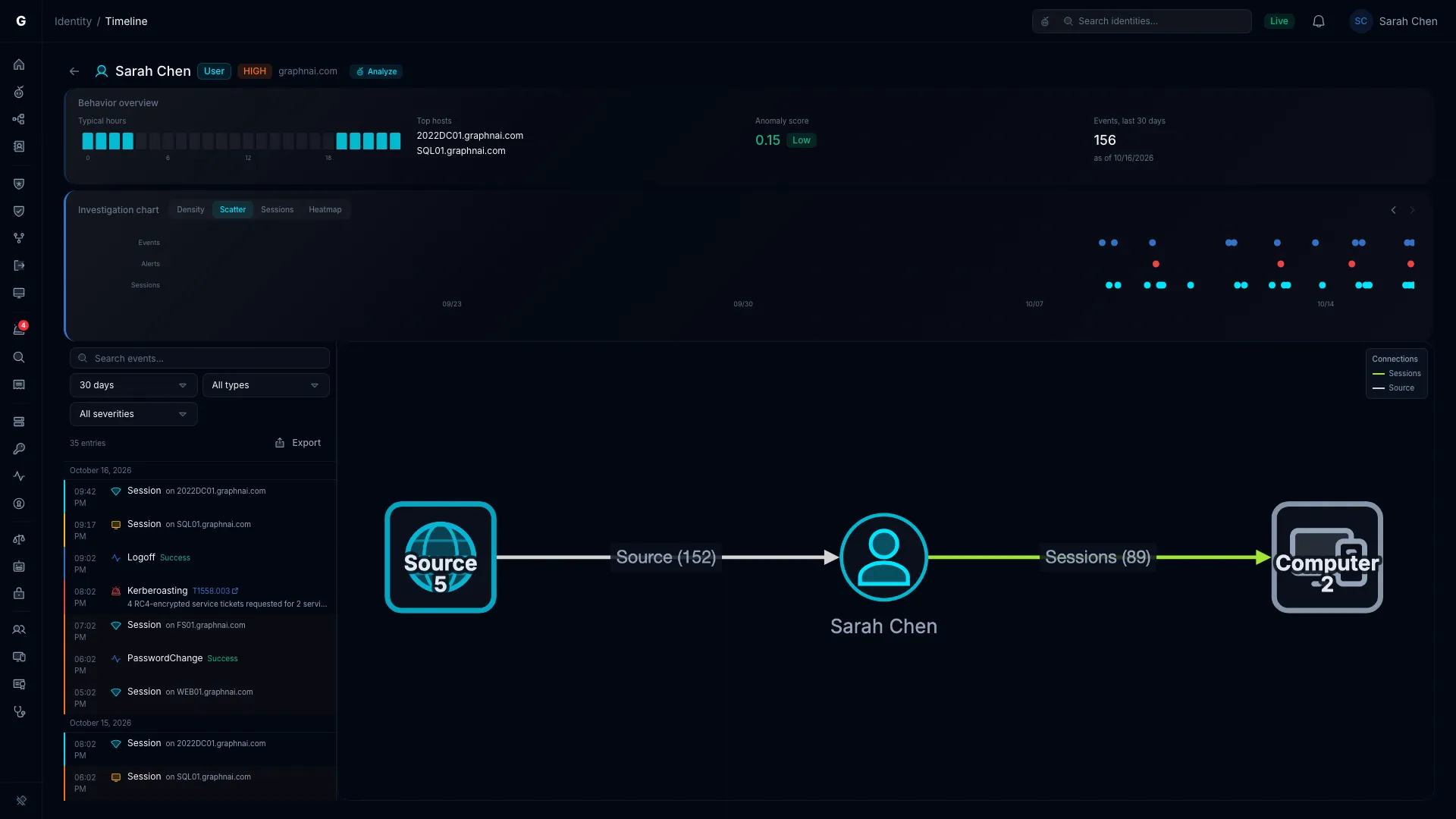
Each entry is a dot on a time axis, in a row for its type: cyan for sessions, red for alerts, blue for events. Select a dot to select that entry and open its flyout. Scroll to zoom in on a busy stretch, and select Reset zoom to zoom back out. A cluster of red alert dots just before a cyan session dot is the classic sign of a brute force that succeeded.
Sessions Gantt View
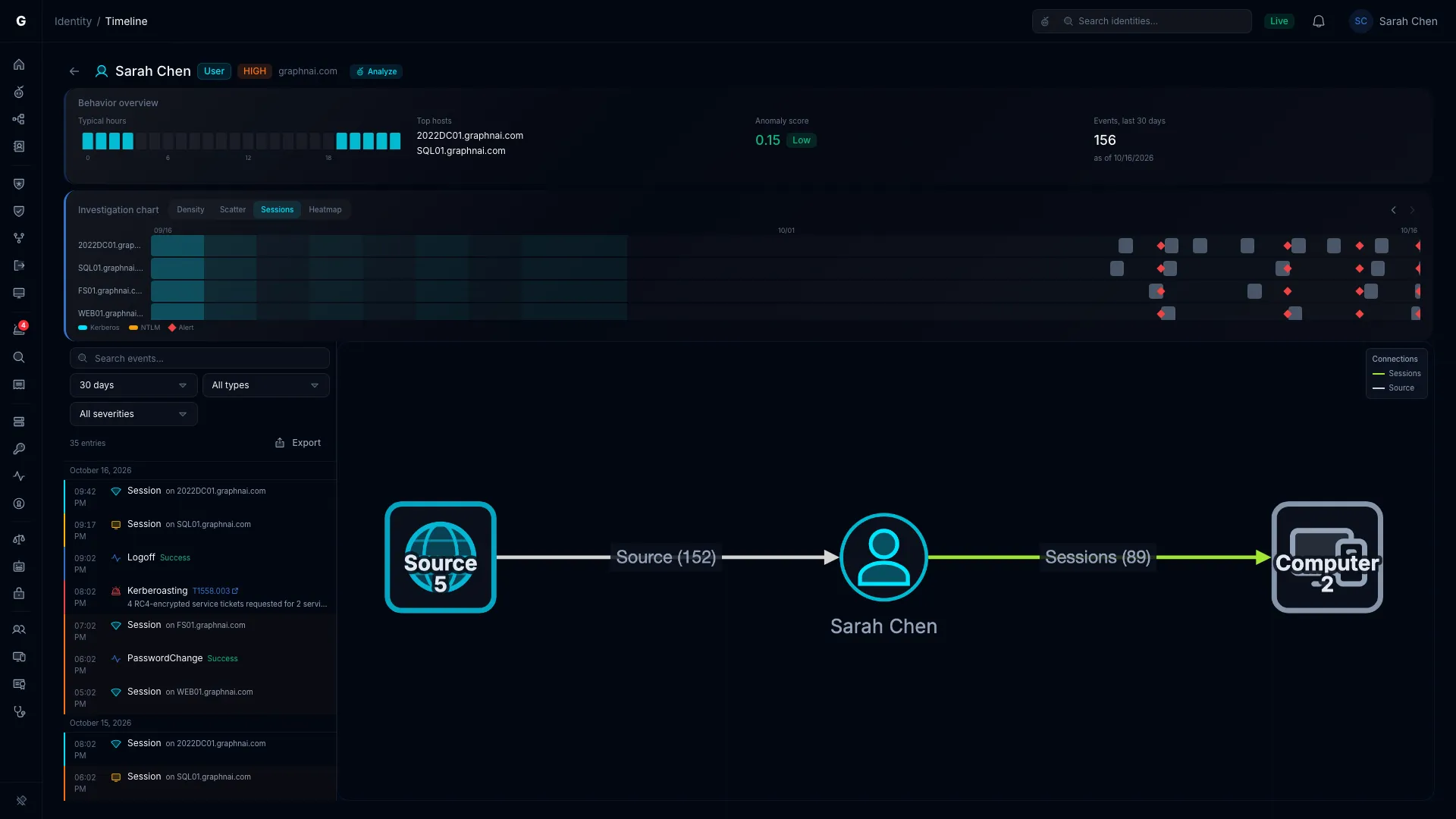
Each session is a bar across time, in a row for its computer, busiest computer first. A bar runs from logon to logoff. A session with no recorded logoff is drawn at most 8 hours long. Bar color shows the authentication protocol: cyan for Kerberos, amber for NTLM and gray for anything else. Red diamonds mark alerts at the time they fired. A shaded band shows the identity's typical hours, so off-hours sessions stand out.
Hover a bar to see the computer, logon type, protocol and source IP. Select a bar or a diamond to select that entry.
Heatmap View
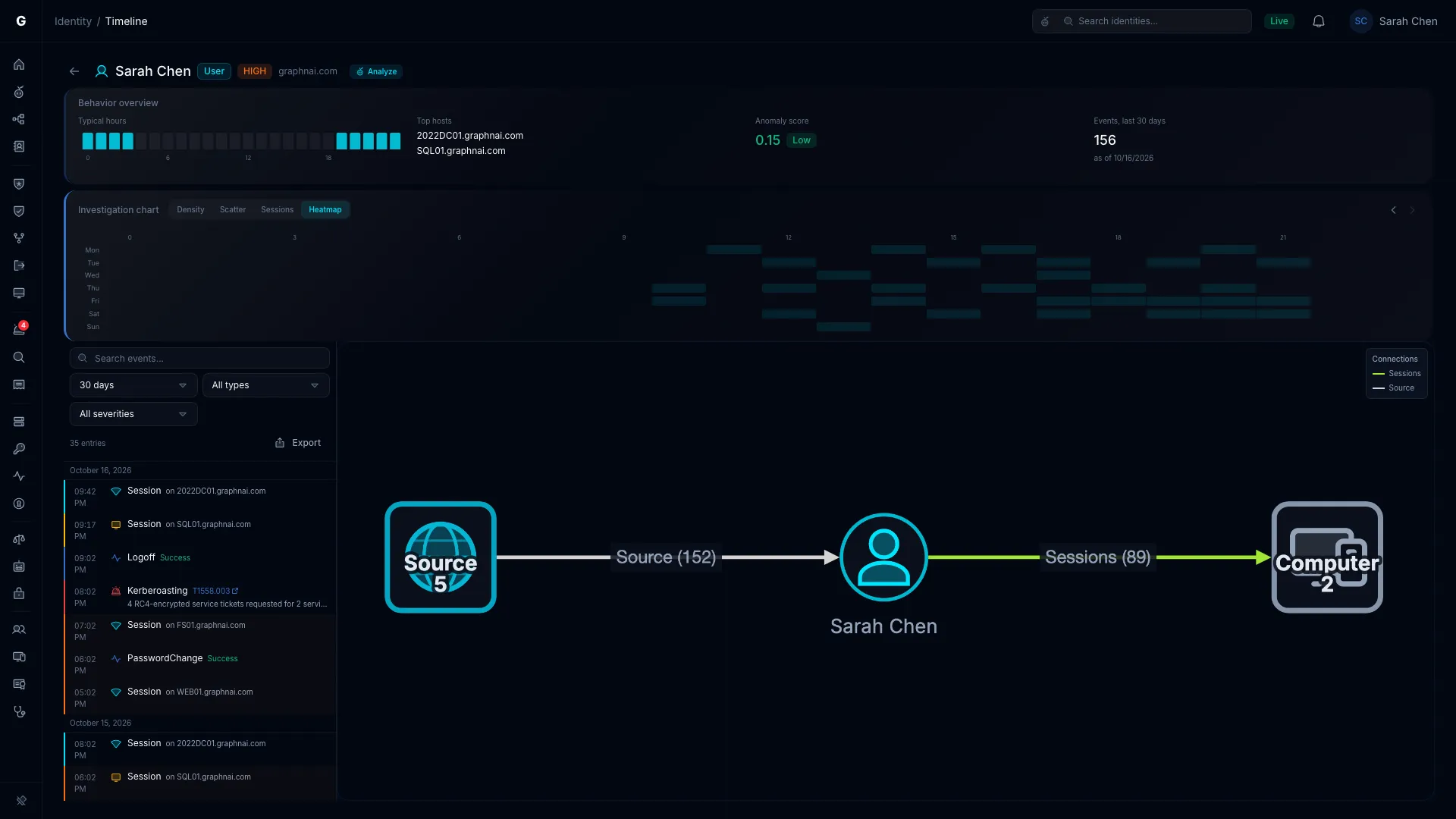
A grid of hour of day (0 to 23, in your browser's time zone) by day of week (Monday to Sunday). Each cell is shaded by how many entries fall in it, from dark (none) to bright cyan (many). Hover a cell for its count. An account that works Tuesday to Friday, 09:00 to 17:00, shows a clear block, so a session at 02:00 on a Saturday stands out.
Navigating Time
The Previous period and Next period arrows on the chart move the window by one range length. With a 7-day range, Previous period shows the 7 days before. Next period is unavailable while you view the current period.
Filtering the Timeline
The URL keeps the time range, type, severity, logon type and search filters, so a link you share opens with the same filters. The graph filter isn't kept.
Time Range
Pick a preset or a custom range:
| Option | Description |
|---|---|
| 1 hour | The last 60 minutes |
| 8 hours | The last 8 hours |
| 24 hours | The last 24 hours |
| 7 days | The last 7 days |
| 14 days | The last 14 days |
| 30 days | The last 30 days (default) |
| 90 days | The last 90 days |
| Custom… | A start and end date and time you pick |
The timeline reads at most 500 entries per range, newest first. When a range holds more, a banner says "Showing the first 500 events in this range. Pick a shorter range to see the rest." Telemetry events are kept for 90 days and alerts for a year.
Type Filter
Show All types (default), Events, Alerts or Sessions.
Severity Filter
Show All severities (default), Critical, High, Medium or Low. Picking a severity shows only alerts of that severity. Sessions and events drop out of the list.
Logon Type Filter
The Logon type button opens a list of the logon types in the loaded sessions, each with a checkbox. All and None set every box at once. With some types cleared, the button reads "N of M". The filter applies to sessions only. Use it to focus on Remote Interactive (RDP) or Interactive logons when you investigate lateral movement.
Text Search
The search box above the list matches the computer name, rule name, description, action, protocol, target host, source host, authentication package, logon type and outcome. Search ignores case and applies shortly after you stop typing. It matches stored values, so search for RemoteInteractive rather than "Remote Interactive".
The entry count above the list shows how many entries the filters leave, for example "47 of 312 events".
Timeline Entries
Entries are grouped by date, under a date header that stays in view as you scroll. Within a date, entries run newest first, each with its time.
Entry Types
Session entries (left border colored by logon type)
A session shows its logon type, the computer ("on DC01") and the authentication package. A Restricted Admin badge marks a Remote Desktop session in Restricted Admin mode, where credentials weren't sent to the host. Each logon type has its own icon and color:
| Logon type | Icon | Border color |
|---|---|---|
| Interactive (2) | Keyboard | Green |
| Network (3) | Wifi signal | Cyan |
| Batch (4) | Terminal | Slate |
| Service (5) | Gear | Purple |
| Network Cleartext (8) | Wifi signal | Red |
| New Credentials (9) | Key | Amber |
| Remote Interactive (10), used by RDP | Monitor | Amber |
| Cached Interactive (11) | Cloud with a slash | Slate |
Unlock logons (logon type 7) aren't recorded, because they re-open a session that's already tracked.
Alert entries (red left border, siren icon)
An alert shows its rule, a severity badge and its description. When it maps to a MITRE ATT&CK technique, the technique ID (for example T1558.003) links to the MITRE site. Hover the ID to see the technique's name.
Event entries (blue left border, pulse icon)
An event shows its action in words (for example "Kerberos TGT request"), its outcome (Success in green, Failure in red) and its target host.
Anomaly Highlighting
An entry gets an orange left border and a faint orange background when it falls outside the identity's behavior profile:
- Its hour isn't one of the identity's typical hours, the lit bars in the Typical hours chart.
- For a session, its computer isn't one of the identity's hosts.
Highlighting needs a behavior profile. While the card reads "not yet observed", nothing is highlighted.
Session Deduplication
When a logon, logoff or special-privilege event falls within the same 10 seconds as a session, the list hides the event. The session entry holds more detail, so the list shows the activity once.
Selecting an Entry
Select an entry in the list, or a dot or bar in the chart. Then:
- The entry is highlighted in the list.
- The investigation graph shows the entry's context. For a session, it shows the session's events, with a slider to step through them. For an event or an alert, it shows the accounts and hosts involved.
- A detail flyout opens on the right, with the identity's properties, the entry's details and Access Intelligence.
Session Detail
The flyout draws the logon and logoff times on a small timeline, labeled "Logged on" and "Logged off", with the session length between them. A logoff that wasn't recorded reads "Not yet observed". Below it are Computer, Logon type, Authentication package, Source IP, Logon server, Restricted Admin mode and Elevated token.
Alert Detail
The flyout shows the Rule, Severity, Description, MITRE technique (its name and ID, linked to the MITRE site), Blast radius (when the alert records one), Event count, Source host and Target host.
Event Detail
The flyout shows the Action, Outcome, Target host, Source host, Protocol, Category, Severity, Event ID, Source and Domain.
Flyout Footer Actions
Two buttons sit in the flyout footer:
- Open in Graph Explorer: Opens this identity in Graph Explorer.
- Select Fire (Operator role): Opens Select Fire to remove access, with this identity as the subject. For a session, the session's computer is the target. For an alert, its rule and severity come along as context. Select Fire walks you through the preview, simulation and decision steps. See Select Fire.
Select Fire isn't on the list rows. Select an entry first, then use the footer.
Access Intelligence
The Access intelligence section appears in the detail flyout when you select an entry. It also appears when you open an alert on Detection Alerts. It compares what the identity is permitted to reach with the logons recorded for it.
Utilization
Utilization is the share of logon-capable targets that the identity logged on to. Only computers and devices record logons, so the percentage covers only them.
When utilization can't be measured, one line says why:
| The line begins | What it means |
|---|---|
| "This identity holds no direct permissions" | There's nothing to compare. |
| "None of this identity's targets record logons" | Every target is a group, user, OU or service principal. |
| "No logons recorded for this identity yet" | No telemetry has named the identity so far. |
| "Some targets have no type yet" | Some targets aren't typed yet. The next full sync fixes this. |
Permitted Targets by Evidence
A bar, headed "N permitted targets by evidence", splits the permitted targets into parts:
| Part | Targets |
|---|---|
| Recorded logon | The identity logged on to them |
| No recorded use | They can record logons, and none came from this identity |
| Use not yet observed | Shown in place of the two parts above until the identity's use is observed |
| Can't record logons | Groups, users, OUs and service principals |
| Type not yet known | They have no type yet |
Permitted and Recorded, by Type
A horizontal bar chart groups the targets by type (Computer, Group, Application and so on). Gray bars count permitted targets, and cyan bars count recorded ones. A type with many permissions and little recorded use stands out.
Target Lists
- Recorded logons: Each target the identity logged on to, with its logon count and protocols.
- No recorded use: Targets that can record logons, where this identity has none. These are candidates for removal.
- Use not yet observed: Permitted targets whose use can't be observed either way.
Select a target to open it in Graph Explorer. The lists and the chart come from a bounded set of targets, and a banner says so when the set is capped. The counts above them are exact.
Tiered Fidelity™ Chips
Each listed target shows a chip for the fidelity of that connection. The chip reads the level's name:
| Chip | What made it true |
|---|---|
| Theoretical | Derived from directory configuration only, never confirmed by telemetry |
| Constrained | More evidence, such as a group membership or a policy, supports the path |
| Validated | Telemetry recorded the identity using this access |
A chip reading Not assessed means the fidelity level hasn't been assessed. Stronger fidelity shows in a deeper blue.
Acting on Unused Access
To remove a permission the identity hasn't used:
- Find the target under No recorded use.
- Select it to open it in Graph Explorer.
- Start Select Fire there to remove the permission.
A Theoretical permission to a computer the identity never logged on to is a strong candidate. Select Fire simulates the change before you apply it.
Export
Export, above the list, saves the entries the filters leave as CSV or JSON. That includes the time range, type, severity, logon type, search and graph filters.
The file has the columns Timestamp, Type, Description, Severity, Host and Protocol. Its name starts with timeline- and the identity key, then the date, for example timeline-03086243-cc4e-474c-9087-da2fb6f5ec6b-2026-09-29.csv.
Troubleshooting
"No activity recorded for this identity" appears
Cause: The identity has no events, alerts or sessions in the selected range, and no behavior profile.
Solution:
- Confirm that events arrive for the identity's domain. An Admin can check the Pipeline tab on Admin > Telemetry.
- Confirm that the identity logs on. Check its last activity in the identity's detail flyout. If it's blank or old, the account may be inactive.
- If the identity is active, check how its events name it. The timeline lists events whose subject or target is the account name, alone or as
DOMAIN\namewith the NetBIOS domain. Events that name the account with its DNS domain, as Kerberos events often do, don't appear. See Telemetry Pipeline.
"No events in this date range" appears
Cause: The identity has a behavior profile, but no entries fall in the selected range.
Solution: Pick a longer range, such as 90 days, or a custom range around the period you're investigating. Events are kept for 90 days. If no range shows entries, follow the steps under "No activity recorded" above.
"No events match these filters" appears
Cause: Entries exist in the range, but the type, severity, logon type or search filters hide them all.
Solution: Change or clear the filters. To reset them all, remove the query parameters from the URL. If the message reads "No events involve what you selected in the graph", select Clear graph filter.
Alerts are missing for an identity you know was targeted
Cause: The timeline lists an alert when its subject is the account name (alone or as DOMAIN\name), or when the alert was matched to this identity when it fired. Password spray and AS-REP Roasting alerts name the attacking host instead of an account, so they don't appear on any identity's timeline.
Solution:
- Open Detection & Response > Detection Alerts and filter by the rule you expect.
- If the alert is there but not on the timeline, check its Subject. An alert that names the host, or names the account in another form, isn't matched to the identity.
Sessions are missing computer names
Cause: The session's computer is no longer in the graph, for example because a later sync removed it.
Solution: The session detail still shows the source IP and logon server. Use them to find the originating host.
The behavior overview reads "not yet observed" after a full sync
Cause: Analytics hasn't finished yet, or the identity has fewer than 5 events in the last 30 days.
Solution:
- Wait a few minutes. The profile is built near the end of the analytics that follow a sync.
- Set the range to 30 days and check that the identity has at least 5 events.
- A delta sync with no changes doesn't rebuild the profile. Run a full sync, or wait for a delta sync that changes something.