Domain Auto-Discovery: Find Domain Controllers with DNS SRV Lookups
Find the Active Directory domains and domain controllers (DCs) a bridge can reach with a DNS SRV lookup, then add them without looking up hostnames and ports by hand.
On this page
- Overview
- Prerequisites
- How Discovery Works
- Run Discovery
- Read the Results
- Add Discovered Domains
- Entra Hybrid Detection
- The Hybrid Domain Prompt
- Troubleshooting
- Discovery Finds No Domains
- Errors Appear in the Results
- Some Domain Controllers Show as Unreachable
- The Hybrid Domain Prompt Didn't Appear
- Discovery Says "Discovery didn't finish"
- Discovery Keeps Timing Out
Overview
To sync a domain, a bridge needs the names and ports of its domain controllers. Your DNS already holds them, but collecting them by hand is slow and easy to get wrong, especially across several domains.
Discovery has the bridge look them up from where it runs. It finds the domain controllers in DNS, tests whether each one answers, and reports back. You pick the controllers to use, and the domain form opens filled in. Run it again whenever your domain controllers change.
If Entra ID syncs from your on-premises Active Directory, GraphnAI also lists the on-premises domains your Entra identities come from. That tells you which domains still need a bridge.
Prerequisites
- Role: Admin to run discovery and add domains.
- A connected bridge: The bridge's Status reads Online. See Identity Bridge.
- DNS access: The bridge host must resolve names on your corporate network. In a container, point the resolver at a corporate DNS server. Public resolvers such as
8.8.8.8don't hold your domain's records. - For hybrid detection: An Entra ID provider with at least one finished sync. See Entra ID Setup.
How Discovery Works
Discovery runs on the bridge host, with its DNS resolver and its view of the network. It has three stages.
1. Find DNS search domains. The bridge reads the host's DNS search list. On Linux and in containers, that's the search or domain lines in /etc/resolv.conf. On Windows, it's the DNS client settings. Each entry names a domain to look up, such as corp.local or dev.corp.local.
2. Look up domain controllers. For each entry, the bridge runs the standard Active Directory SRV lookup, _ldap._tcp.dc._msdcs.<suffix>. Windows clients use the same lookup, the DC Locator process, to find domain controllers. A controller listed under several entries counts once.
3. Test each controller. The bridge tries a TCP connection on port 636 (LDAPS) and port 389 (LDAP), with 5 seconds for each. The result says which of the two answered.
The bridge sends the result to GraphnAI, which keeps it in memory. It isn't saved to the database, so a server restart clears it.
Run Discovery
- Select Admin > Bridges in the sidebar and choose the bridge.
- Select Discover above the domain table.
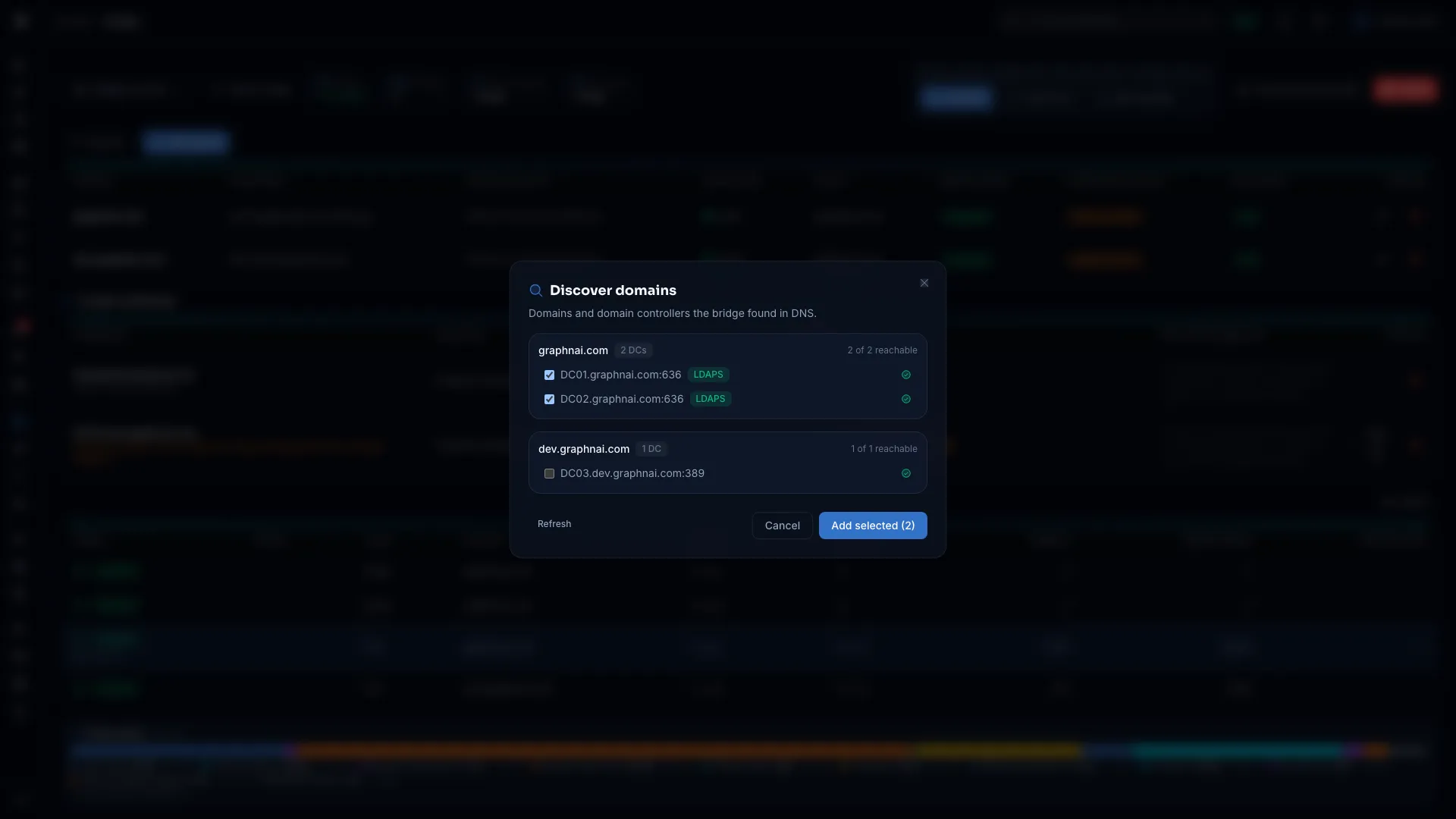
- Discover domains opens. If GraphnAI holds no earlier result, the scan starts at once and shows "Looking up domains in DNS".
- To scan again, select Refresh.
The dialog shows the last result GraphnAI holds until you select Refresh. Refresh after you add or retire domain controllers. A scan can take up to a minute.
[!NOTE] The bridge must be online. If it isn't, the scan fails with "Discovery didn't finish. Check that the bridge is running, then try again."
The bridge also runs discovery on its own when it receives settings with no domains, for example after you remove its last domain. That result waits in Discover domains.
Read the Results
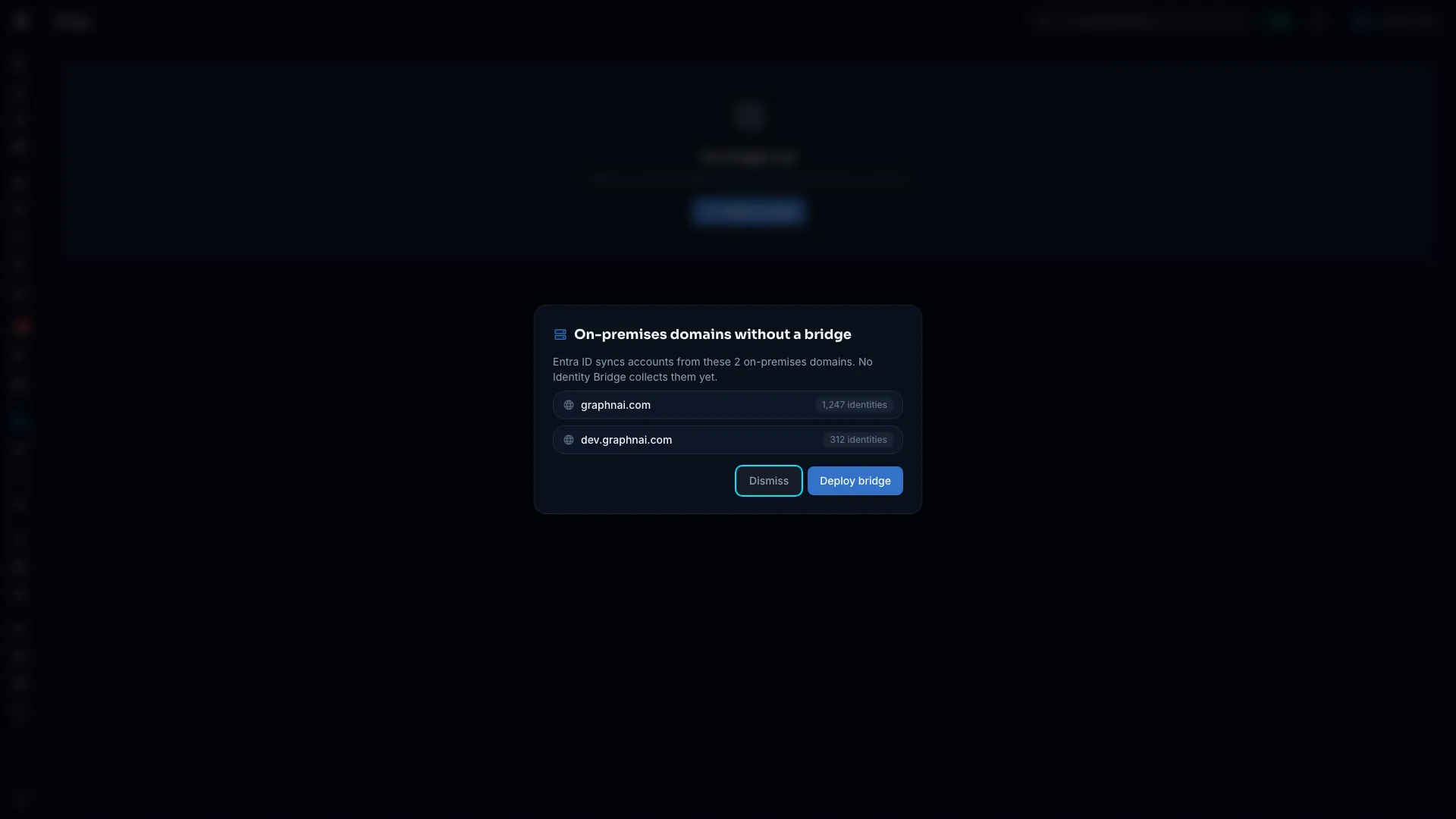
Discover domains shows one card for each domain found. The card shows:
- The domain name, such as
corp.local. - How many domain controllers DNS lists, as a badge (for example, "2 DCs").
- How many of them answered, such as "2 of 2 reachable".
Each controller has a row with:
| Item | What it shows |
|---|---|
| Checkbox | Whether the controller is selected. |
| Host and port | The controller's name, and the port DNS lists for it. |
| LDAPS badge | The controller answered on port 636. |
| Green check or red mark | Whether the controller answered on either port within 5 seconds. |
Controllers that answered on LDAPS are selected when the result appears. Clear any you don't want, or select others. Syncs try a listed controller that doesn't answer and move on, so leave unreachable ones out.
Errors, such as a DNS entry with no domain controllers, appear in orange below the cards. They don't hide the domains that were found.
Add Discovered Domains
- Select the controllers to use in each domain. Two or three per domain give you a fallback.
- Select Add selected (N).
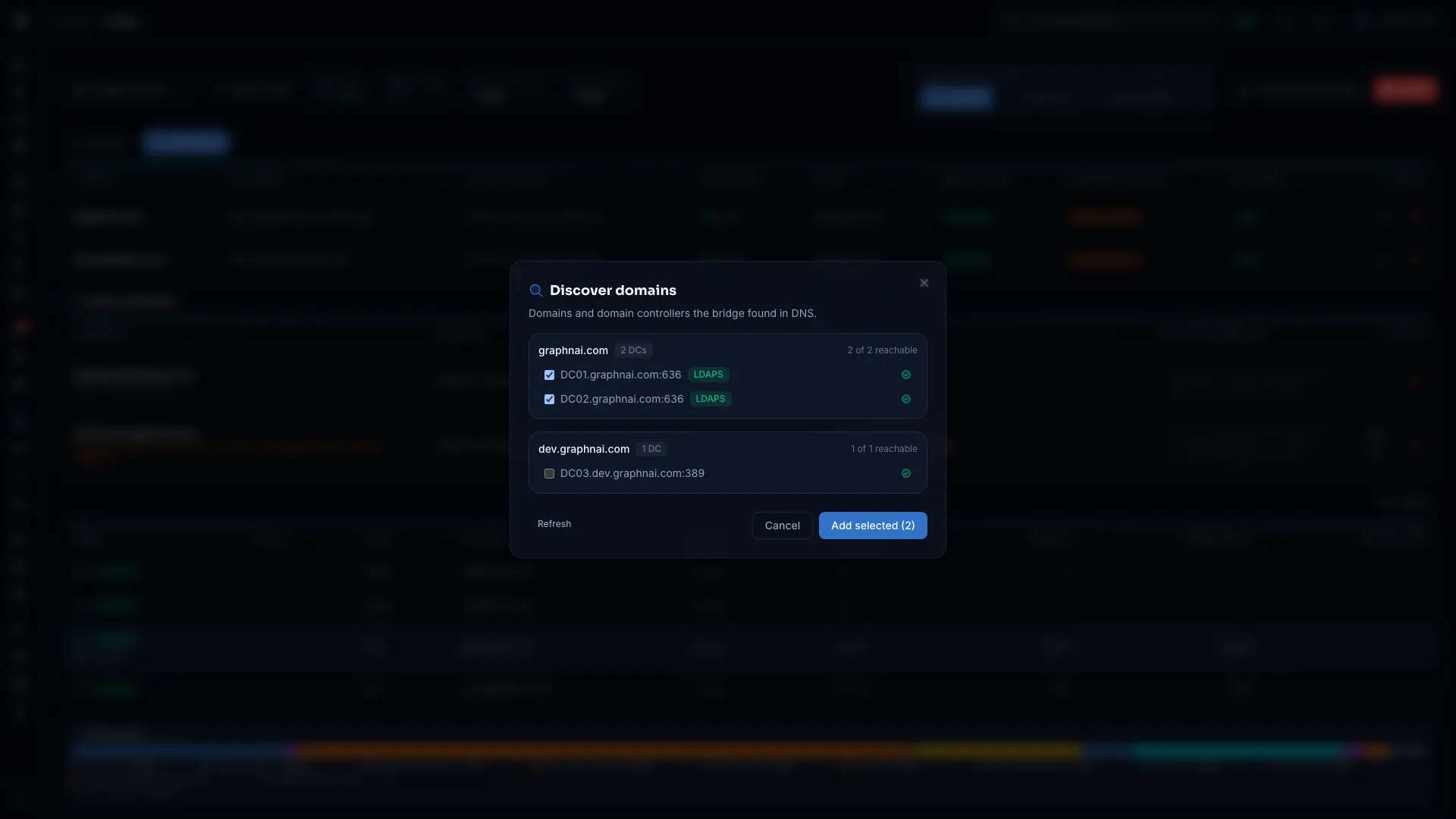
- The Add domain form opens for the first domain, filled in with:
- The domain name.
- The selected controllers, as
host:636when any of them answered on LDAPS, otherwise ashost:389. - Use TLS (LDAPS) on when any selected controller answered on LDAPS.
- Enter the service account and password.
- Select Test connection.
- Select Add domain.
The form then opens for the next selected domain. Closing a form without saving also moves on to the next one. For every field in the form, see Add a Domain.
Entra Hybrid Detection
If Entra Connect syncs your on-premises Active Directory to Entra ID, GraphnAI can tell which on-premises domains your Entra identities come from.
Each Entra ID sync records the onPremisesDomainName of every synced user and group. GraphnAI counts the identities that came from each on-premises domain.
The Hybrid Domain Prompt
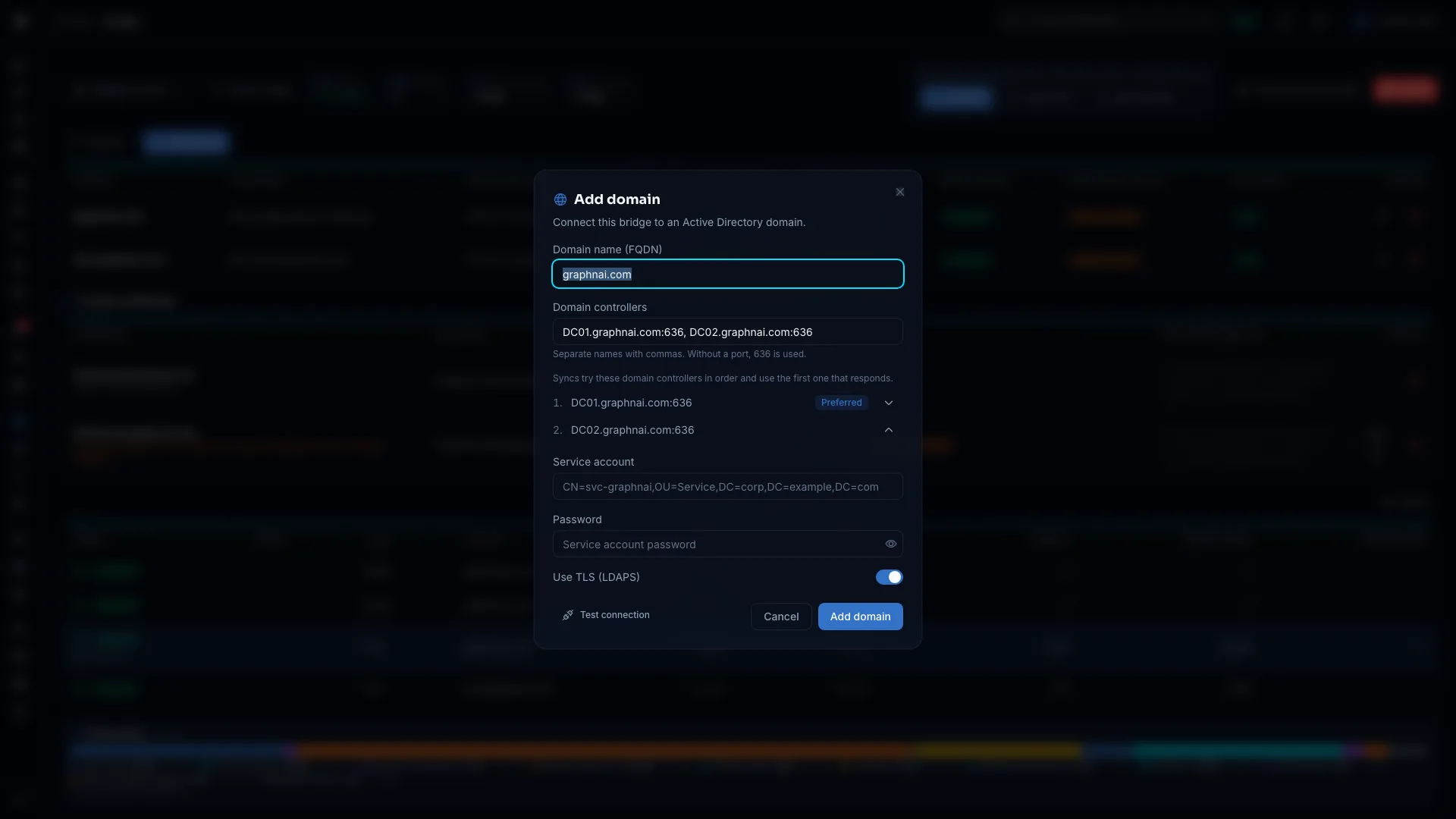
The On-premises domains without a bridge dialog opens on the Bridges page when no bridge exists yet and Entra ID reports on-premises domains. It lists each on-premises domain, with the number of identities from it. For example:
| Domain | Badge |
|---|---|
corp.local |
142 identities |
dev.corp.local |
23 identities |
The counts show which domains matter most in your Entra ID tenant, so you know which to set up first.
The dialog has two buttons:
- Deploy bridge: Opens Deploy bridge. Admins only. After the new bridge connects, run Discover. The domains it finds carry the same names.
- Dismiss: Closes the dialog. It stays closed until you close the browser tab.
[!NOTE] The prompt appears only while no bridge exists. Once one does, the Bridges page opens the first bridge instead.
If GraphnAI can't check Entra ID, the Bridges page shows "Couldn't check Entra ID for on-premises domains."
Troubleshooting
Discovery Finds No Domains
The dialog shows "The bridge found no domains in DNS. Add a domain manually." or a message naming what went wrong. The usual causes:
The bridge host has no DNS search list. This is most common in containers. Docker containers resolve DNS through the host, but they may not get the host's search list. The dialog then shows "The bridge host has no DNS search domains, so there was nothing to look up. Add a domain manually."
To fix it, pass the --dns-search option to Docker:
docker run ... --dns-search corp.local --dns-search dev.corp.local graphnai-bridgeOr add a dns_search entry to your docker-compose.yml:
services:
  bridge:
    image: ghcr.io/graphnai-security/bridge:<tag from your bridge bundle>
    dns_search:
      - corp.local
      - dev.corp.local
The bridge host uses public DNS. If the host points to a public DNS server such as 8.8.8.8, the lookup for _ldap._tcp.dc._msdcs.corp.local fails. Public DNS doesn't hold those records.
To fix it, point the host or container at your internal DNS server:
docker run ... --dns 10.1.1.10 graphnai-bridgeReplace 10.1.1.10 with your corporate DNS server's IP address.
Your DNS has no _ldap._tcp.dc._msdcs.* records. Active Directory registers these records itself, so this is rare. With split-brain DNS or an unusual setup, check that the records exist:
nslookup -type=SRV _ldap._tcp.dc._msdcs.corp.localRun the command on the bridge host. If it returns nothing, contact your DNS or Active Directory administrator.
Errors Appear in the Results
Errors for one DNS entry don't stop discovery for the others.
| Message | Cause | Fix |
|---|---|---|
| No domain controllers found in DNS for corp.local. | The SRV lookup for that entry failed. The name has no domain controller records, or the DNS server didn't answer. | Check that the name is right, that the bridge host reaches its DNS server, and that the SRV records exist. |
| The bridge host has no DNS search domains, so there was nothing to look up. Add a domain manually. | The host has no DNS search list. | Add dns_search entries to the container, or add the domain manually. |
Some Domain Controllers Show as Unreachable
The bridge couldn't open a TCP connection to port 636 or 389 within 5 seconds. Possible causes:
- A firewall blocks LDAP or LDAPS from the bridge host's network. Open ports 389 and 636 between the bridge host and the controllers.
- The controller is offline or in maintenance. Check it from another host on the same network.
- The bridge runs in an isolated segment, such as a perimeter network, with no route to the controller. Deploy another bridge closer to it.
The Hybrid Domain Prompt Didn't Appear
The prompt appears only on the Bridges page, and only while no bridge exists. It also stays closed in a browser tab where you dismissed it. To go ahead without it, select Admin > Bridges, deploy a bridge, and run Discover once it connects.
The list is empty for a cloud-only Entra ID tenant, where no user or group has an onPremisesDomainName.
Discovery Says "Discovery didn't finish"
Discovery needs the bridge online. Check that:
- The bridge is running on its host.
- The bridge host reaches GraphnAI on the bridge port (8443 by default).
- The bridge's Status reads Online.
If the status reads Offline, restart the bridge and wait for it to reconnect. Then select Refresh.
Discovery Keeps Timing Out
GraphnAI waits 60 seconds for the bridge's answer. If large environments keep hitting that limit:
- Shorten the bridge host's DNS search list to the domains you want to sync.
- Check whether a network problem on the bridge host makes every 5-second controller test time out.
If even small environments time out, read the bridge's log for the error.